
- Overview
- Scorecard
- Updates4
The Mass Create plugin for Obsidian allows users to create large quantities of notes at one time.
Features
- Mass File Creation: Create multiple files within a selected folder with ease.
- Folder Creation: Add extra folders as part of the mass creation process.
- Template Option: Use an existing file as a template for all new files, making it easy to replicate file structures and content.
Installation
Manual Installation:
- Create a folder titled
mass-createwithin the.obsidian/pluginsfolder of your Obsidian vault. - Download the plugin files(main.js and manifest.json).
- Place them in the
mass-createfolder. - Go to Settings > Community plugins in Obsidian and enable the "Mass Create" plugin.
- Create a folder titled
Community Plugin Directory (when available):
- Search for "Mass Create" in the Obsidian Community Plugins browser.
- Install and enable the plugin from there.
Usage
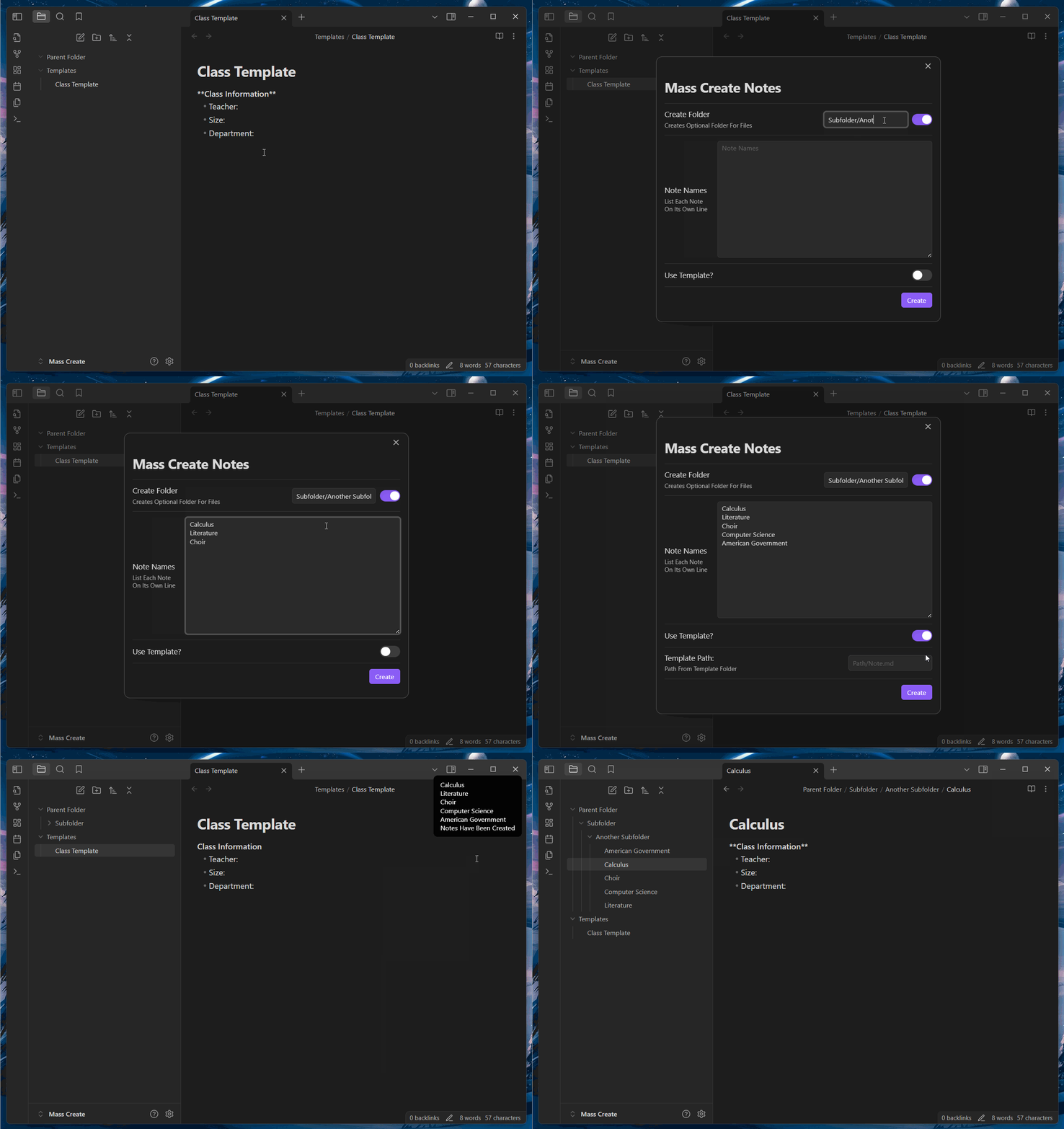
- Open a Folder's Right-Click Menu: In the file explorer, right-click on the folder where you want to create multiple files.
- Select "Mass Create": From the menu, click on "Mass Create."
- Configure File and Folder Names:
- Create any additional folders you would like the files to go within. (optional)
- Enter the names of the files you'd like to create.
- Template Selection (optional): If you’d like to use an existing file as a template, choose the template file, and its content will be duplicated in each new file.
- Finish: Confirm your selection, and the plugin will create the files and folders accordingly.
You can also run Mass Create from the command menu. It will create the files in your currently active folder. If you have no files open, the bulk files will be created in your main vault folder.
License
This plugin is open-source and licensed under the MIT License.
HealthGood
ReviewSatisfactory
About
Create multiple files and folders at once inside a chosen vault folder. Apply an existing file as a template to populate content across all new notes and trigger mass creation from a folder's right-click menu or the command palette.Details
Current version
1.0.3
Last updated
2 years ago
Created
2 years ago
Updates
4 releases
Downloads
2k
Compatible with
Obsidian 1.7.4+
Platforms
Desktop, Mobile
License
MIT