MarkXMind
 jinzcdev509 downloads
Render XMindMark syntax as XMind mind maps in `xmind/xmindmark` code blocks.
- Overview
- Scorecard
- Updates4
Render XMindMark syntax (from MarkXMind) as XMind mind maps inside xmind code blocks in Obsidian.
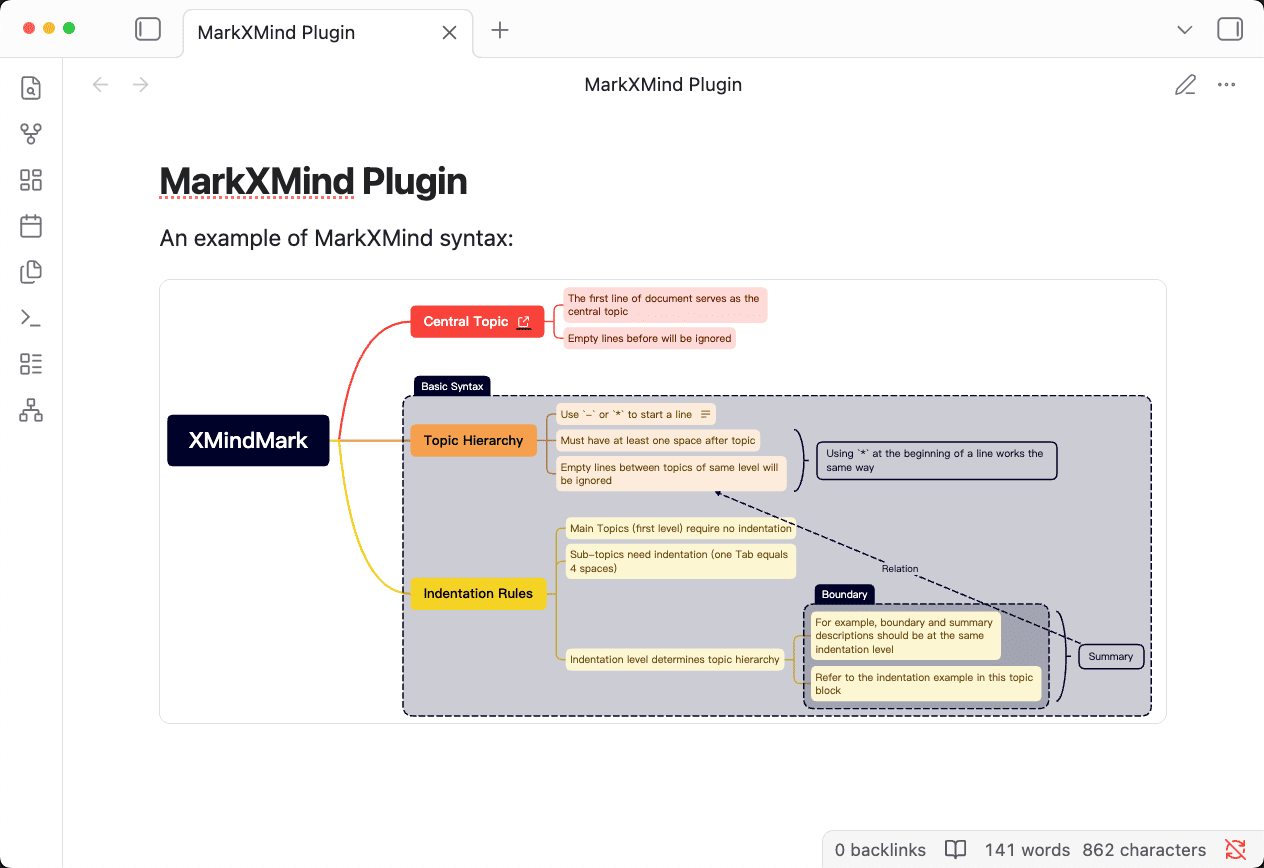
✨ Features
- 📝 Parse
xmind(orxmindmark) code blocks into XMind mind maps using XMindMark syntax - 🔗 Support various markers
- 🌗 Light/dark theme support
📦 Installation
Community Plugins
- Open Obsidian Settings → Community plugins → Browse
- Search for MarkXMind
- Install and enable the plugin
Manual Installation
- Create the plugin folder in your vault:
.obsidian/plugins/markxmind/ - Copy these files into it:
main.js,styles.css,manifest.json(Download the latest version from Releases). - In Obsidian Settings → Community plugins, enable the MarkXMind plugin
📝 Usage Example
💡 It is highly recommended to try MarkXMind Online to learn XMindMark syntax and preview the result.
To add a mind map, create an xmind (or xmindmark) code block and write XMindMark syntax inside it.
```xmind
XMindMark

- Central Topic[L:https://markxmind.js.org/]
    - The first line of document serves as the central topic
    - Empty lines before will be ignored
- Topic Hierarchy [B1]
    - Use `-` or `*` to start a line [N:This is a note]
    * Must have at least one space after topic[S]
    * Empty lines between topics of same level will be ignored[S][1]
    [S] Using `*` at the beginning of a line works the same way
- Indentation Rules [B1]
    - Main Topics (first level) require no indentation
    - Sub-topics need indentation (one Tab equals 4 spaces)
    - Indentation level determines topic hierarchy
        - For example, boundary and summary descriptions should be at the same indentation level [B1][S1]
        - Refer to the indentation example in this topic block [B1][S1]
        [B1] Boundary
        [S1] Summary[^1](Relation)
[B1] Basic Syntax
```
Syntax follows XMindMark:
- The first non-empty line is the central topic
- Lines starting with
-or*are topics; indentation defines hierarchy - Supports syntax: boundary
[B1], summary[S], relationship[1] with [^1](...), link[L:url], note[N:...], fold[F], etc.
For full syntax and examples, see the MarkXMind project.
[!TIP]
XMindMark is a lightweight markup language for creating XMind mind maps; MarkXMind is an online tool for generating XMind mind maps using XMindMark syntax.
📄 License
MIT
HealthExcellent
ReviewSatisfactory
About
Render XMindMark syntax inside xmind or xmindmark code blocks as XMind mind maps directly in Obsidian. Include markers like boundary, summary, relationship, links, notes and respect light/dark themes.Details
Current version
0.1.3
Last updated
5 months ago
Created
5 months ago
Updates
4 releases
Downloads
509
Compatible with
Obsidian 0.15.0+
Platforms
Desktop, Mobile
License
MIT