Markdown Blogger
 afazio14k downloads
Push Markdown notes to your local blog, portfolio, or static site. Works with Astro.js, Next.js, and any other framework configured to render Markdown pages.
- Overview
- Scorecard
- Updates3
This plugin for Obsidian allows developers to instantly push markdown notes to their local blog, portfolio, or static site project. Works with Astro.js, Next.js, and any other framework configured to render markdown pages.
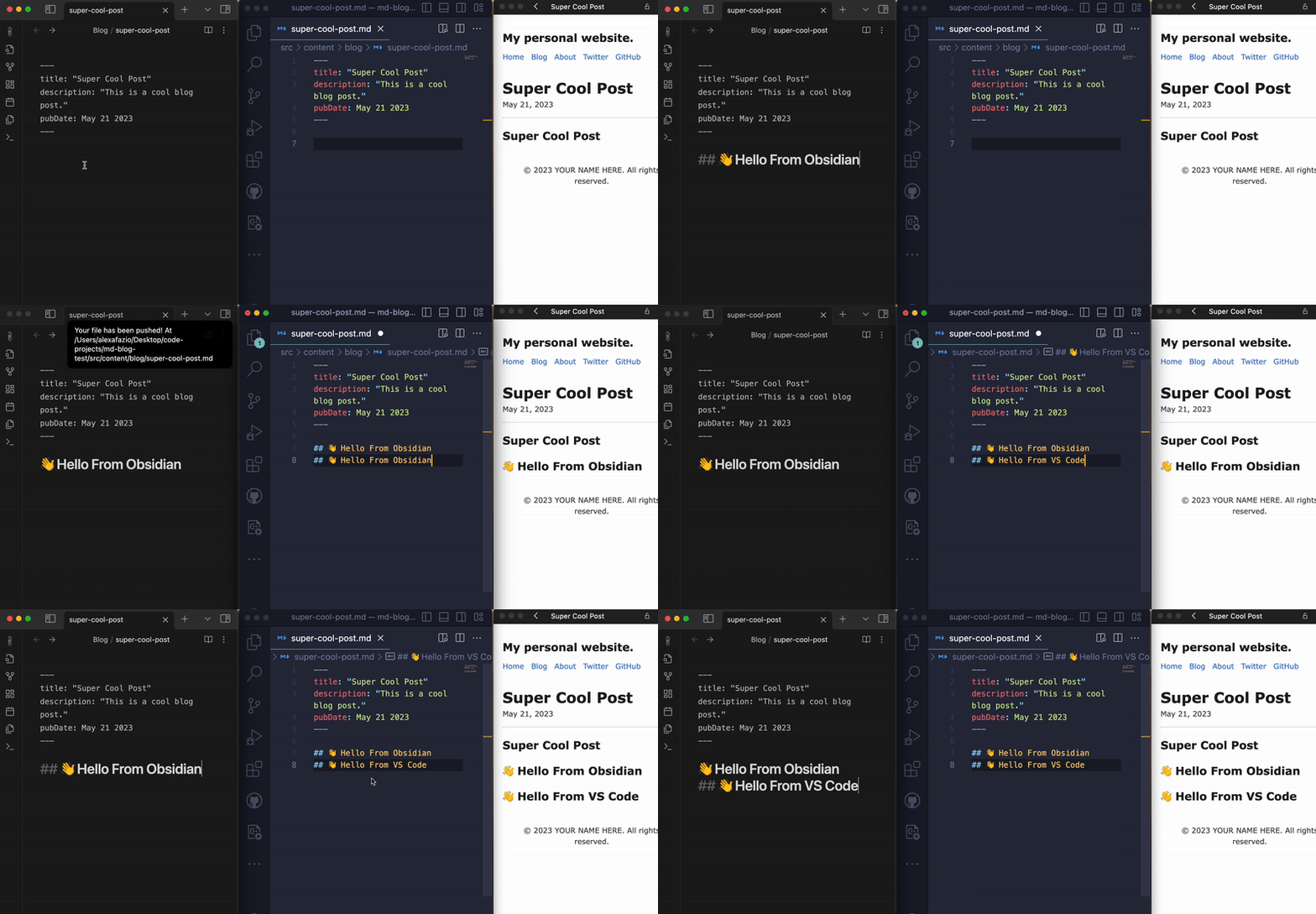
Get the benefits of composing markdown notes in Obsidian without having to manually create files and copy-paste content into your local project. Also makes it much easier to keep these two files in-sync.
Video Tutorial

Features
- Push a markdown note to a local project folder (Obsidian -> Project)
- Push to custom path
- Pull content from a local project file to a markdown note (Obsidian <- Project)
- Pull from custom path
Usage
After enabling the plugin, go to Markdown Blogger's settings.
- Set the Local project folder path. Must be an absolute path.
- For custom path commands, Show hidden folders can be toggled.
Commands
Push markdown command
Creates or overwrites a file at location /PROJECT_PATH/<note_name>.md with the current note's markdown content.
- Open a markdown note in editing mode
- Open the command palette and search "Push markdown"
- If the Local project folder path is invalid or does not exist, the note will not be pushed
Push to custom path command
Same as Push command but allows you to navigate through your system's folders much like a terminal.
- Open a markdown note in editing mode
- Open the command palette and search "Push to custom path"
- Search and choose folders to navigate to your desired location
..moves up a directory andSelectwill push the md file to the current directory- If the file already exists, choosing the file name will also push
Pull markdown command
Overwrites the current note's markdown content with the file content at location /PROJECT_PATH/<note_name>.md
- Open a markdown note in editing mode
- Open the command palette and search "Pull markdown"
- If the file at location
/PROJECT_PATH/<note_name>.mdis invalid or does not exist, the content will not be pulled
Pull from custom path command
Same as Pull command but allows you to navigate through your system's folders much like a terminal.
- Open a markdown note in editing mode
- Open the command palette and search "Pull from custom path"
- Search and choose folders to navigate to your desired location
..moves up a directory andSelectwill pull the md file from the current directory- Choosing the file name will also pull it into the editor
Validate path command
Validates the Local project folder path currently in settings.
- Open the command palette and search "Validate Path command"
- A message indicating the validity of the path will be displayed
Tips & Disclaimers
- This is not a Version Control System like Git. Push and pull commands will overwrite the contents of the file. No history is tracked. I recommend only making changes to one file at any given time and pushing or pulling before editing a file.
- Triple-check your Local project folder path. You can easily copy the absolute path from within VS Code by right-clicking the directory where you store your
.mdfiles.- Ex.
/Users/alexa/Desktop/code-projects/alexa-blog/src/content
- Ex.
- Files are paired with each other (in Obsidian vs. in Project) based on their filename. As of now, if you change the filename in one place you must change it in the other.
- Since the
.mdfile in your project will have the same filename as the Obsidian note it was generated from, I recommend using hyphens instead of spaces when naming files.- Ex.
Cool Blog Post.mdbecomesCool-Blog-Post.md
- Ex.
Support Development
Hi, I'm Alexa. A developer, college student, and YouTuber.
I build tools and create content because I love connecting with people. If you feel compelled to buy me a coffee that would be greatly appreciated! 🤗