LLM Summary
 larksq9k downloads
Quick note taking with the help of LLMs. LLMs help you to summarize / organize PDFs or existing notes.
- Overview
- Scorecard
- Updates4
Automate summary and concept defining in Obsidian.

Minimize your efforts for lazy note-takers. Before your readings, summarize all PDF files in a folder to your vault with the power of LLMs (like GPTs from OpenAI). During your readings, define concepts to new *.MD notes and create a link to each.
Currently suits academic paper readings the best.
Features
Summarize PDF Files: Automatically generate summaries for PDF files on batch using OpenAI’s GPT models. The summaries are structured in markdown with a recommended default structure.
Create New Concept Notes: Create new notes from selected text with a single command. The plugin will generate a markdown file with the selected text as the title.
Installation
Install Dependency
For MacOS users: Before installation, you can check your systemwide version of Python and Pip by using
whichcommand to determine pip or pip3 (Let's take pip3 for example).- Anaconda manager:
pip3 install openai, arxiv, pymupdf - Homebrew manager:
pip3 install openai, arxiv, pymupdf --break-system-packages
- Anaconda manager:
For Windows users: Install by running
pip install openai, arxiv, pymupdfin your terminal.
OpenAI API Key Requested: Before you start, you need an OpenAI API key to make LLM Summary function properly. Create one from their website if you don't have one.
Python Environment Requested: You also need a functioning Python environment. Mac users have a default Python environment. And it's easy to setup on a Windows machine too.
New Vault Recommended: We recommend you start a new vault to avoid any possible conflicts since LLM Summary works on a specific folder setup.
Follow these steps to install from the official Obsidian plug-in store:
- Search for "LLM Summary" in Obsidian's community plugins browser (click "settings...", then Community plugins)
- Enable the plugin in your Obsidian settings (click "Settings...", find "LLM Summary" under "Community plugins"-> "Installed plugins")
- Check the settings. Paste your OpenAI API Key into the first field. Change your expert field (default is ML) if you want.
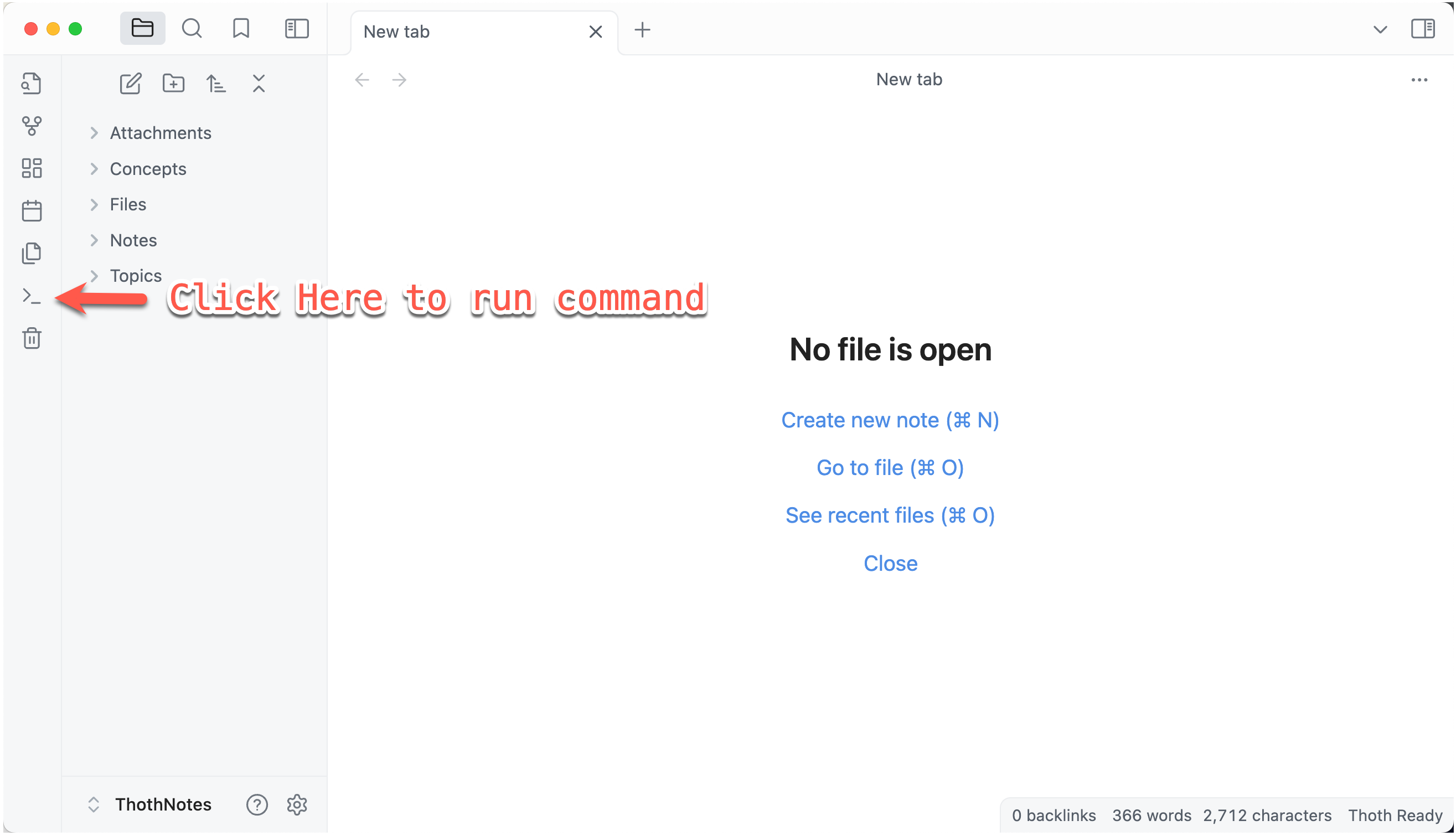
- Open command palette, and run "Initialize LLM Summary Folders" to build the working folders.
Follow these steps to install from github repo (npm requested):
- Clone the repository into your Obsidian plugins directory, usually located at
<VaultFolder>/.obsidian/plugins/. - If your npm is configured with a mirror source, it is recommended to change to the official one by
npm config set registry https://registry.npmjs.org/. Otherwise, you may encounter issues where certain versions of npm packages cannot be found. - Enter the plugin source code directory, build npm packages first by
npm installand then runnpm run devto start. - Enable the plugin in Obsidian by navigating to Settings > Community Plugins and toggling on LLM Summary.
- Check the settings. Paste your OpenAI API Key into the first field. Change your expert field (default is ML) if you want.
- Open command, and run "LLM Summary: Initialize Notes Folders" to build the working folders.
Now you should have the folder structure like this:
- Attachments
- Concepts  // new concepts saved here
- Files
- - PDFs  // your pdf files to summary
- Notes  // summary notes saved here
- - Read
- Topics
Now you are good to go. We recommend the plugin Image Converter for image compressions.
Usage
Summary PDFs
You need to run the summary_pdf_folder.py script (find it in your plug-in folder). To use the summarization feature, first setup your OpenAI API Key for Python script, full instructions from OpenAI:
Setup API Key
For Mac Users
Open Terminal: You can find it in the Applications folder or search for it using Spotlight (Command + Space).
Edit Bash Profile: Use the command nano
~/.bash_profileornano ~/.zshrc(for newer MacOS versions) to open the profile file in a text editor.Add Environment Variable: In the editor, add the line below, replacing
your-api-key-herewith your actual API key:
export OPENAI_API_KEY='your-api-key-here'
Save and Exit: Press Ctrl+O to write the changes, followed by Ctrl+X to close the editor.
Load Your Profile: Use the command source
~/.bash_profileor source~/.zshrcto load the updated profile.Verification: Verify the setup by typing
echo $OPENAI_API_KEYin the terminal. It should display your API key.
For Windows Users
Open Command Prompt: You can find it by searching "cmd" in the start menu.
Set environment variable in the current session: To set the environment variable in the current session, use the command below, replacing
your-api-key-herewith your actual API key:
setx OPENAI_API_KEY "your-api-key-here"
This command will set the OPENAI_API_KEY environment variable for the current session.
- Permanent setup: To make the setup permanent, add the variable through the system properties as follows:
- Right-click on 'This PC' or 'My Computer' and select 'Properties'.
- Click on 'Advanced system settings'.
- Click the 'Environment Variables' button.
- In the 'System variables' section, click 'New...' and enter OPENAI_API_KEY as the variable name and your API key as the variable value.
- Verification: To verify the setup, reopen the command prompt and type the command below. It should display your API key: echo %OPENAI_API_KEY%
Run Python Script to Summary
- Copy your PDF Files to the Files/PDFs, and keep the file name the same as the paper's title (recommended not required).
- Summarize PDF Files (you can set the API key by passing an argument). Run
python summary_pdf_folder.py
This script will search for all PDF files, summarize them, and save the result into the output folder in your vault. The summary will be formatted with the following sections:
- Problems to Solve
- Previous Methods and Their Limitations
- Our Theory and Methods and How We Solve Them
- Experiments to Back Our Theory
You can change the pdf_folder, output_folder, or openai_api_key by passing arguments into the Python script. You can also automatically delete these PDF files by setting delete_pdf to True.
Create New Concept Notes
- Select the concept text you want to define
- Open command palette, run "New concept from selected" and wait for the process (by checking status changes).
Hotkey Setting
We strongly recommend setting a hotkey for this command to avoid interruptions during your reading. Click 'Settings...' -> 'Hotkeys', and search 'LLM Summary' to setup a hotkey for the 'New concept from selected' command.
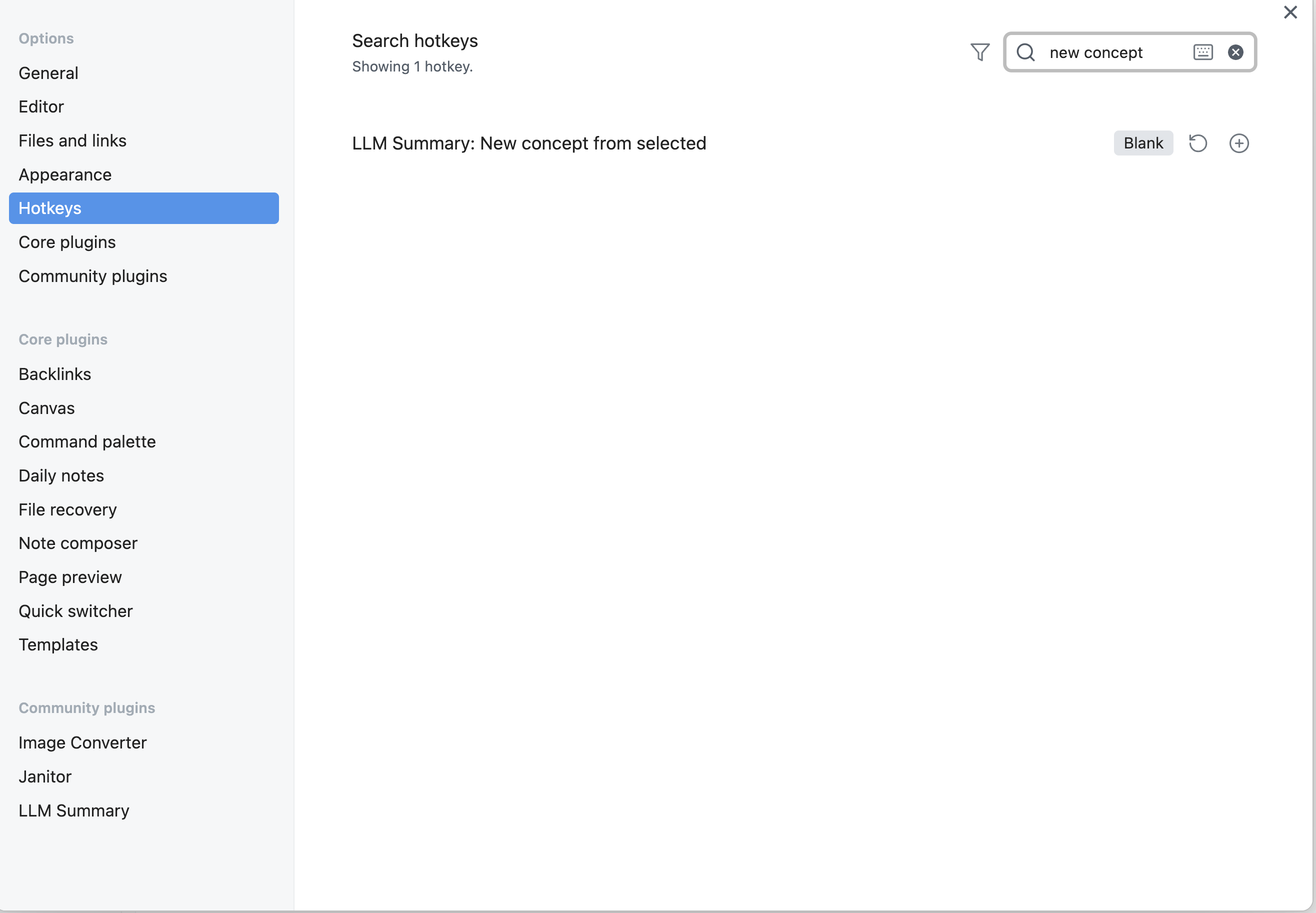
This command will create a new markdown file in the Concepts folder with the selected text as the file name.