
- Overview
- Scorecard
- Updates13
Lite Memo is a lightweight capture plugin for Obsidian. It helps you quickly write down ideas, tasks, expenses, and journal-style notes with timestamps, tags, keyword automation, task tracking, and Pomodoro support. All memos are saved as plain Markdown list items in daily journal files, so your data stays portable and easy to edit.
Features
- Fast memo capture from a ribbon button, command, or hotkey.
- Timestamped journal entries stored in Markdown files.
- Tag filtering, quick tag buttons, and automatic keyword-based tags.
- Task states for TODO, DOING, DONE, checkboxes, waiting items, and cancelled tasks.
- Built-in task time tracking and Pomodoro sessions.
- Automatic refresh when journal files are modified by external tools.
Installation
- Download
main.js,manifest.json, andstyles.cssfrom the latest GitHub Release. - Create
.obsidian/plugins/lite-memo/inside your vault. - Copy the downloaded files into that folder.
- Restart Obsidian or reload community plugins, then enable Lite Memo.
Usage
Open Lite Memo from the ribbon or command palette, type a memo, and submit it. Use tags such as #idea, task syntax such as - [ ], or configured keywords to organize entries automatically.
简记
像发微博一样记录灵感
Lite Memo is a lightweight Obsidian plugin for quickly capturing ideas, tasks, and journal-style memos. It provides a low-friction input workflow, tag filtering, automatic keyword tagging, task time tracking, and Pomodoro support while storing everything in plain Markdown journal files.
一个轻量级的 Obsidian 灵感捕获插件,受 Flomo 启发,与 Logseq 日记格式兼容。
用最短路径把脑中的想法写下来,再通过标签和任务管理让它们产生价值。
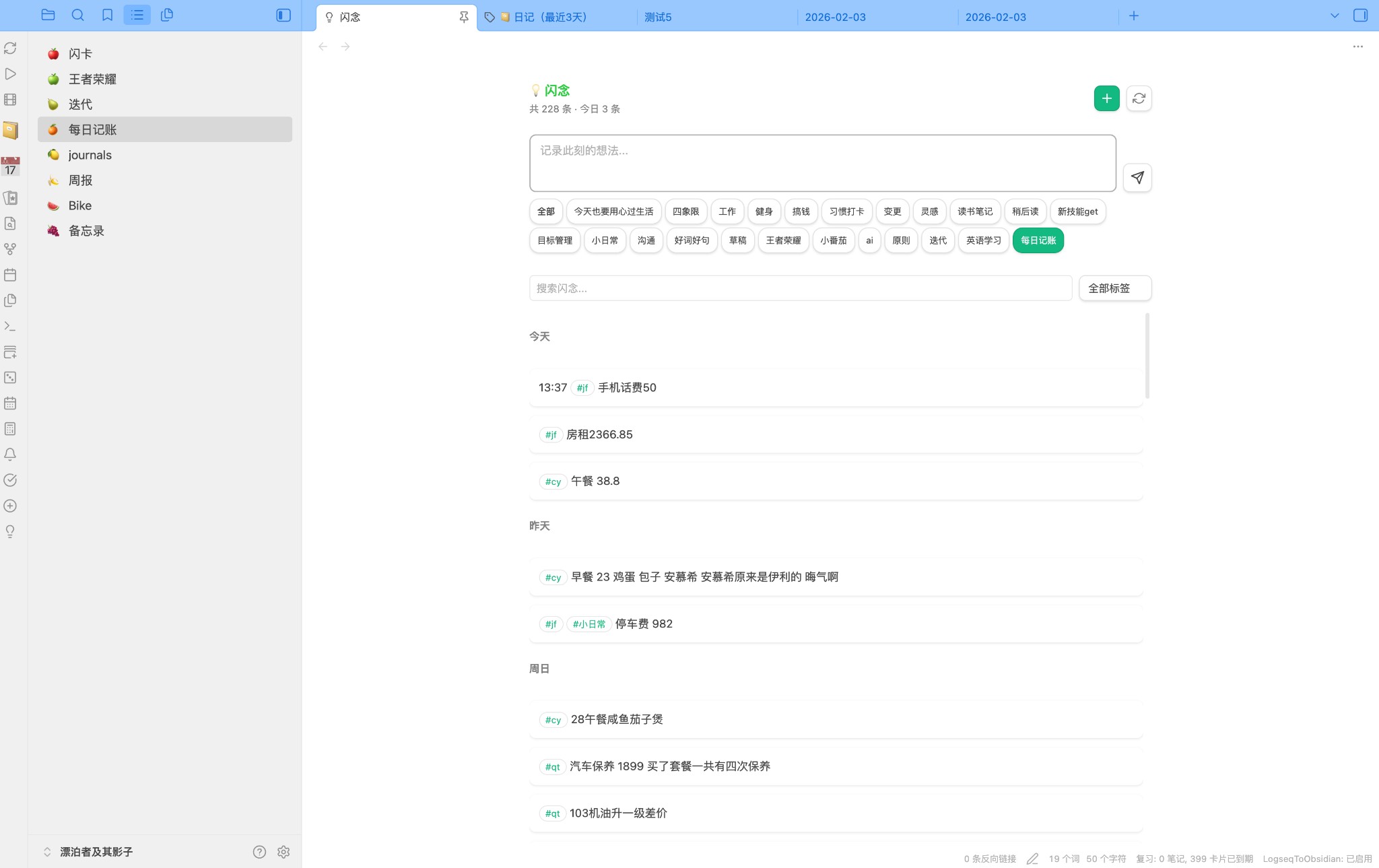
为什么选择简记?
灵感稍纵即逝。你需要的不是一个复杂的笔记系统,而是一个零摩擦的记录入口:
- 一个快捷键
Cmd/Ctrl + Shift + M→ 输入 → 回车,灵感已落纸面 - 自动时间戳,无需手动标注时间
- 标签分类 + 智能关键词,写「午餐13 韭黄炒蛋」自动带上
#cy - 任务管理一体化,灵感可以直接变成待办,追踪耗时,番茄钟专注
- Journal 格式存储,数据写在 markdown 文件里,永远是你的
核心功能
快速捕获
按下快捷键,弹出输入框,写完即走。
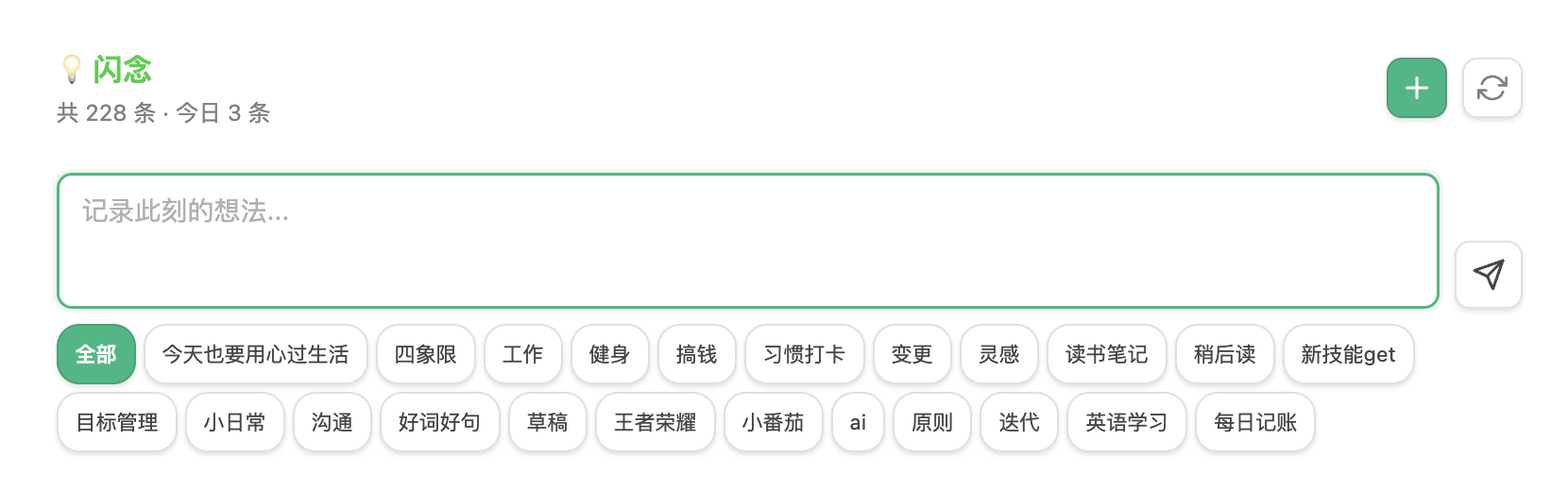
Cmd/Ctrl + Enter发送Cmd/Ctrl + Shift + Enter发送并继续输入(连续记录模式)- 支持
#tag标签、**加粗**等 Markdown 语法
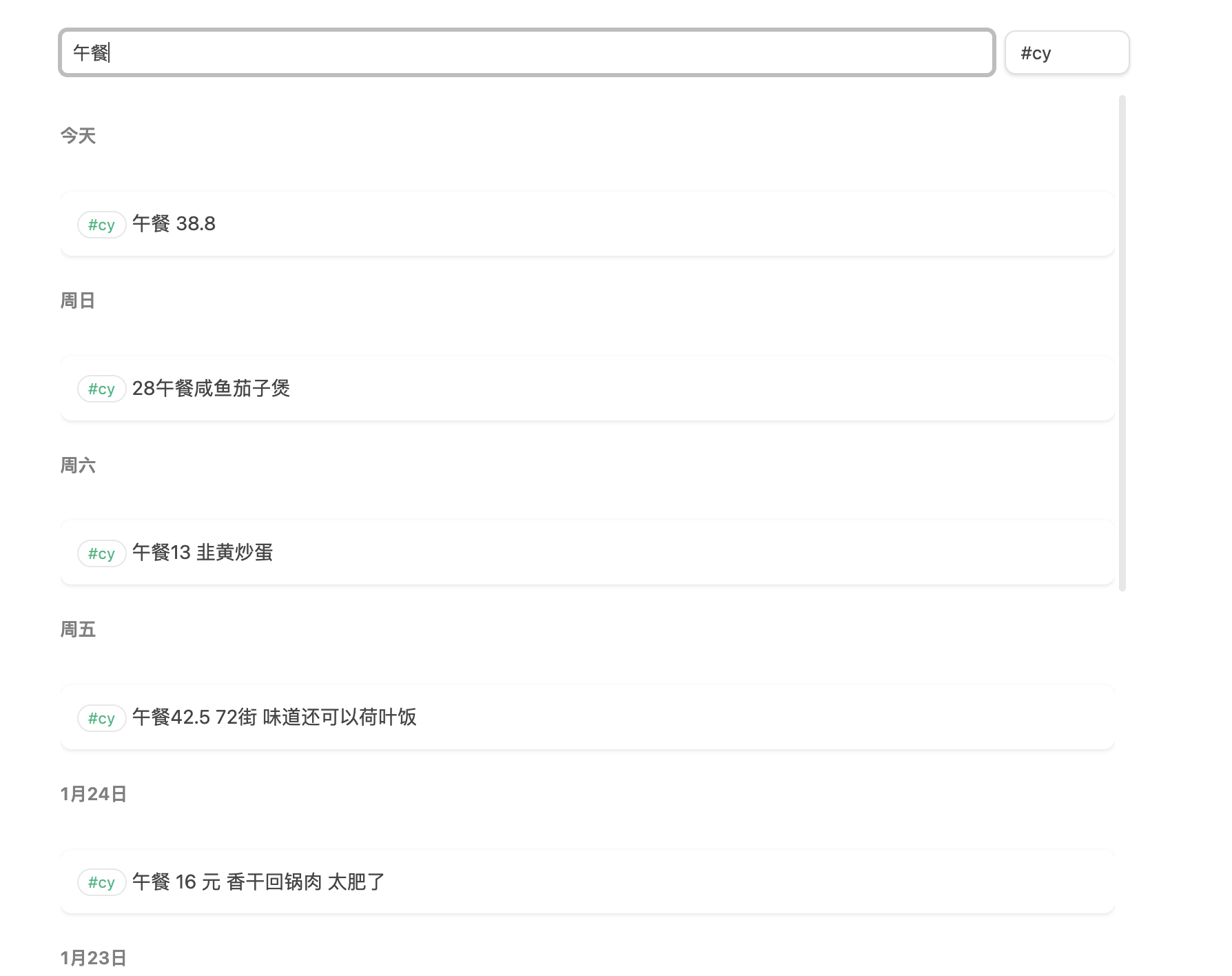
标签筛选与聚合
按标签浏览、搜索关键词、用快捷标签按钮一键切换视图。
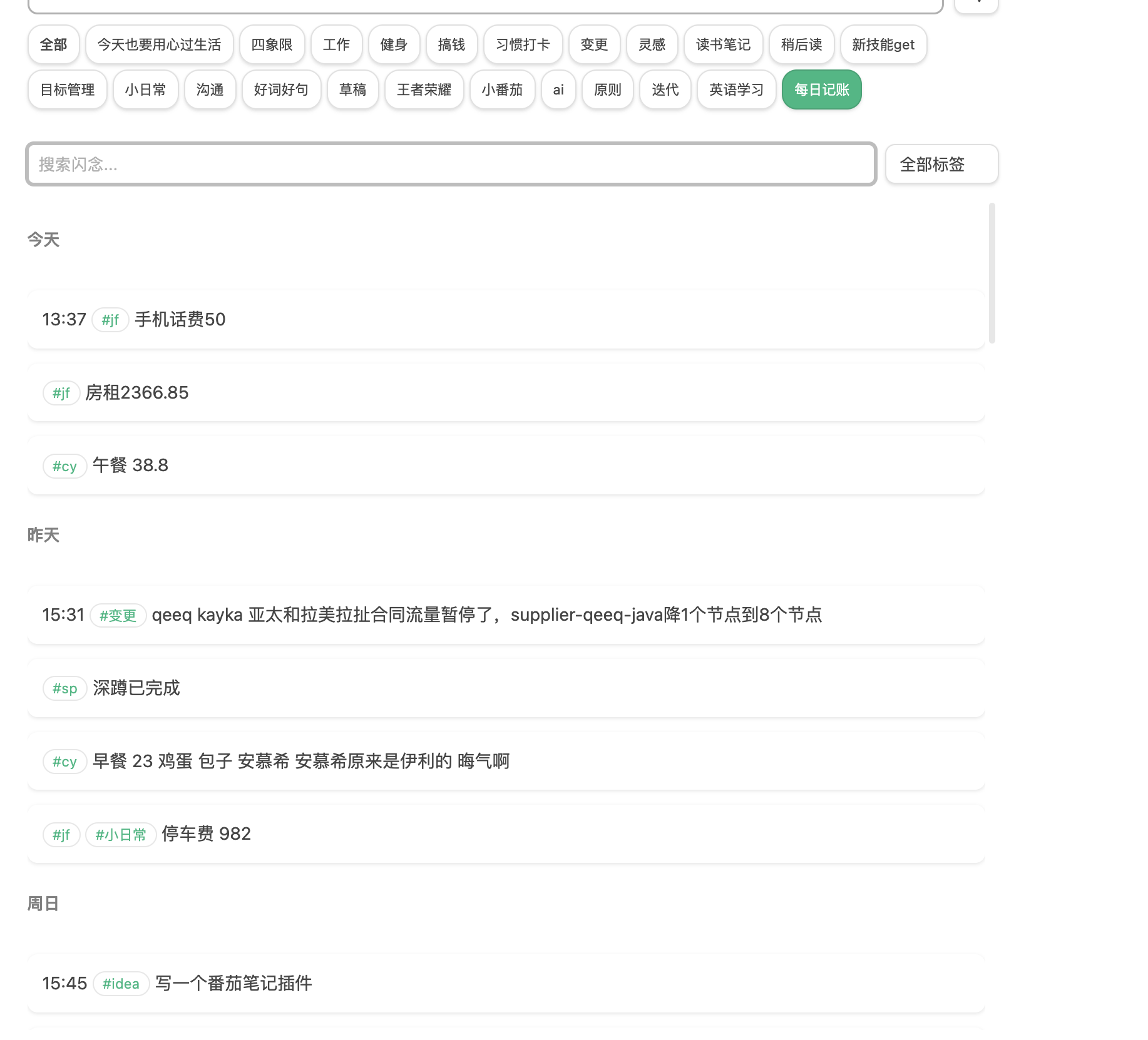
聚合标签:cy+jf+qt+gw|每日记账 表示点击「每日记账」按钮时,显示带 #cy、#jf、#qt、#gw 中任意一个标签的记录。一条记录既是灵感,也是记账流水。
智能关键词
配置 {"cy": ["午餐","早餐","咖啡"]} 后,输入「午餐13 韭黄炒蛋」会自动加上 #cy 标签。无需手动打标签。
任务管理
灵感可以直接变成任务。支持复选框和关键词两种格式:
- [ ] 13:33 完成项目报告
- TODO 15:00 撰写周报
- DOING 15:30 代码审查
- [x] 14:00 回复邮件
点击复选框即可切换状态,自动追踪耗时:
[ ] → DOING → [x](带时长)
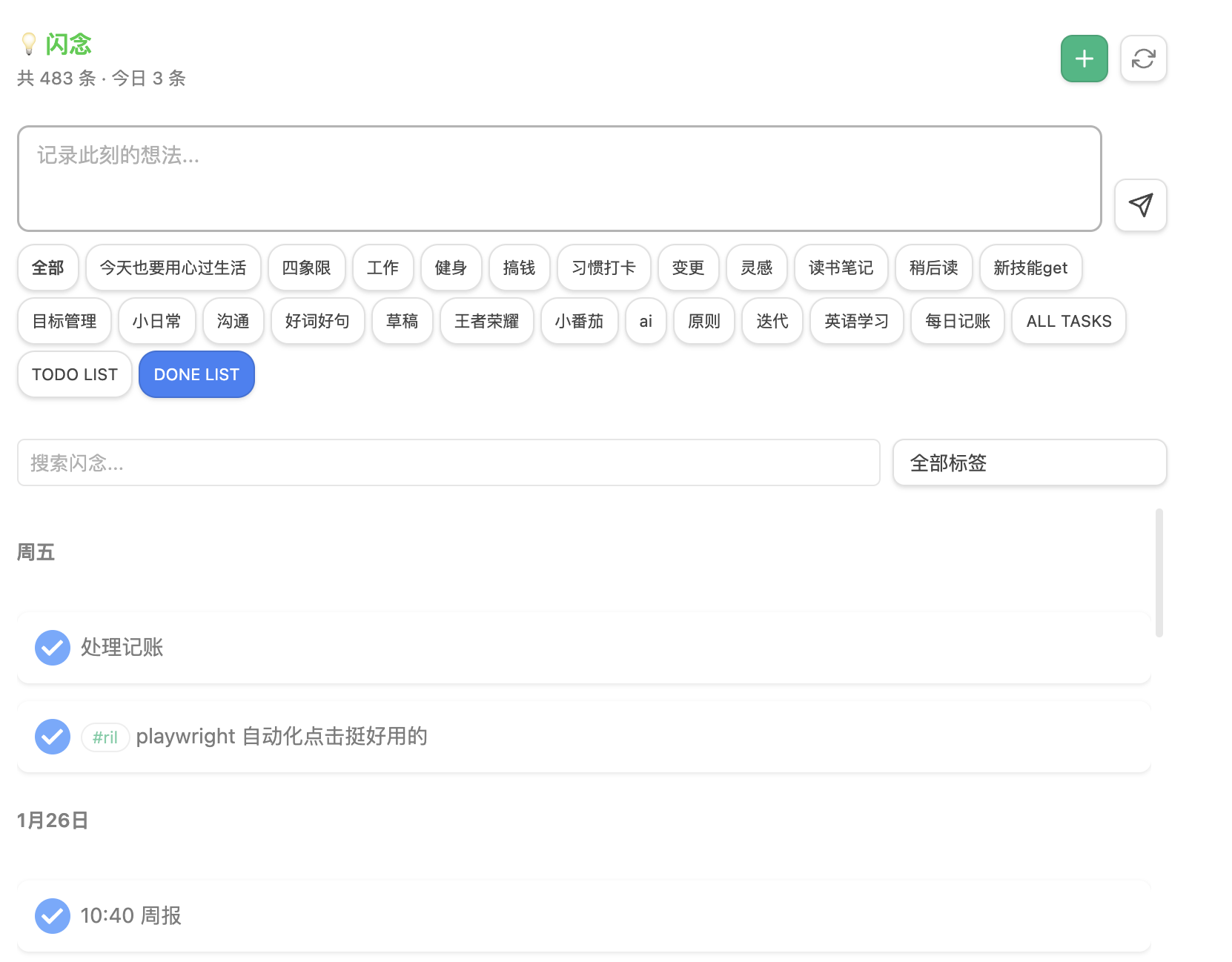
三个特殊标签快速筛选:
- ALL TASKS — 所有任务
- TODO LIST — 未完成任务
- DONE LIST — 已完成任务
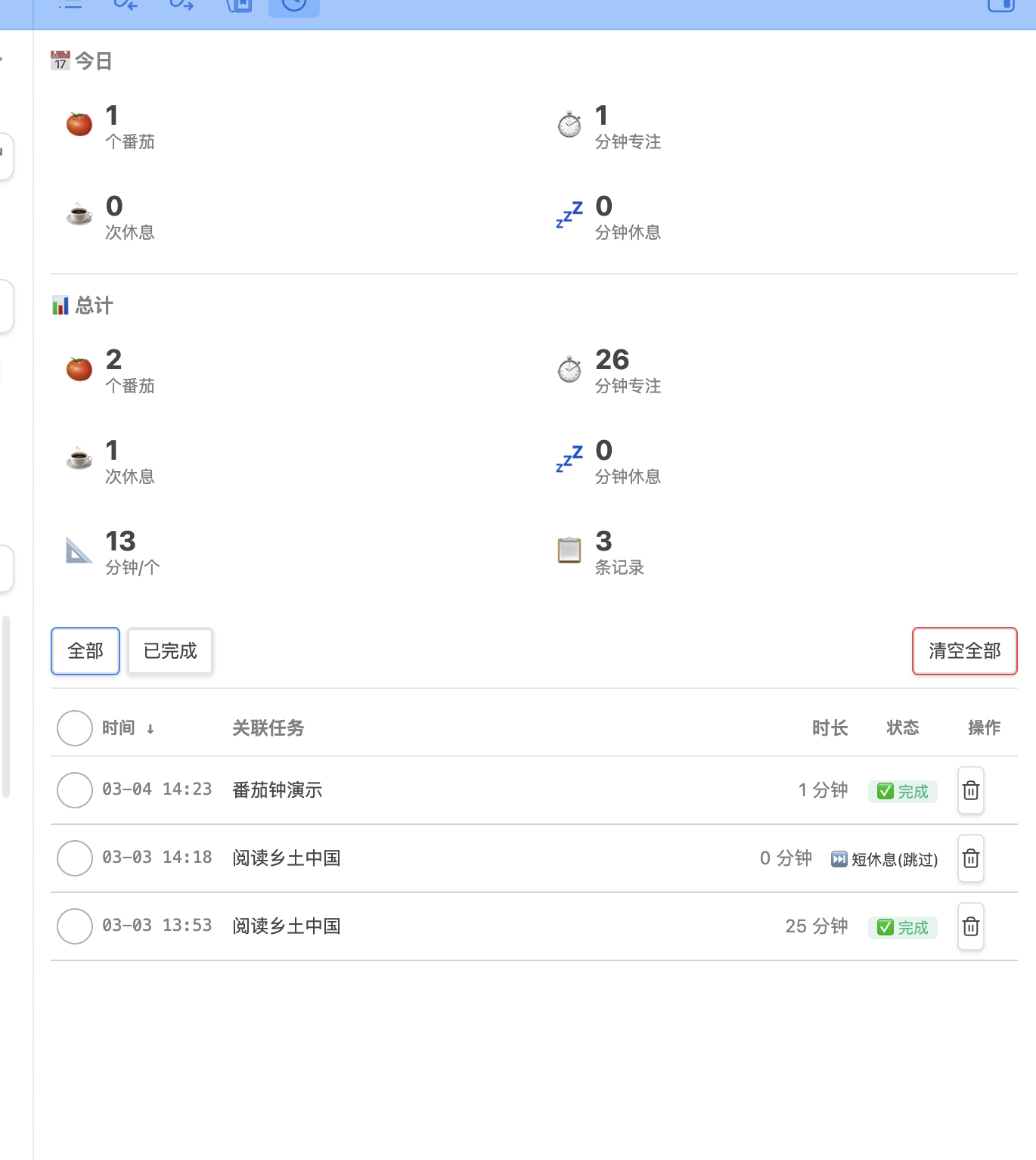
番茄钟
内置番茄工作法,与任务深度绑定。任务进入 DOING 状态时自动启动计时。

- 专注/短休息/长休息自动轮转
- 暂停、跳过、停止随时可控
- 统计面板查看今日/累计数据
外部写入自动刷新
Alfred、Python 脚本、Quick Add 等外部工具修改 Journal 文件后,视图自动刷新,无需手动操作。
记录格式
记录以列表项形式存储在 Journal 文件中(如 journals/2026-01-30.md):
- 14:30 这是一条记录
- 14:35 #想法 #灵感 记录一个点子
- 15:00 #jf 房租2366.85 简记 每日记账
- [ ] 16:00 需要完成的任务
- [x] 16:30 已经完成的任务 30分钟
安装
Obsidian 社区市场(推荐)
打开 Obsidian 设置 → 第三方插件 → 浏览,搜索 Lite Memo 或 fengshuzi 即可安装。
手动安装
- 前往 Releases 下载最新版本
- 下载
main.js、manifest.json、styles.css - 在 vault 中创建
.obsidian/plugins/lite-memo/目录 - 将文件放入该目录
- 重启 Obsidian,在设置 → 第三方插件中启用
快速开始
- 安装并启用插件
- 配置 Journal 文件夹路径(默认
journals) Cmd/Ctrl + Shift + M打开输入框,开始记录
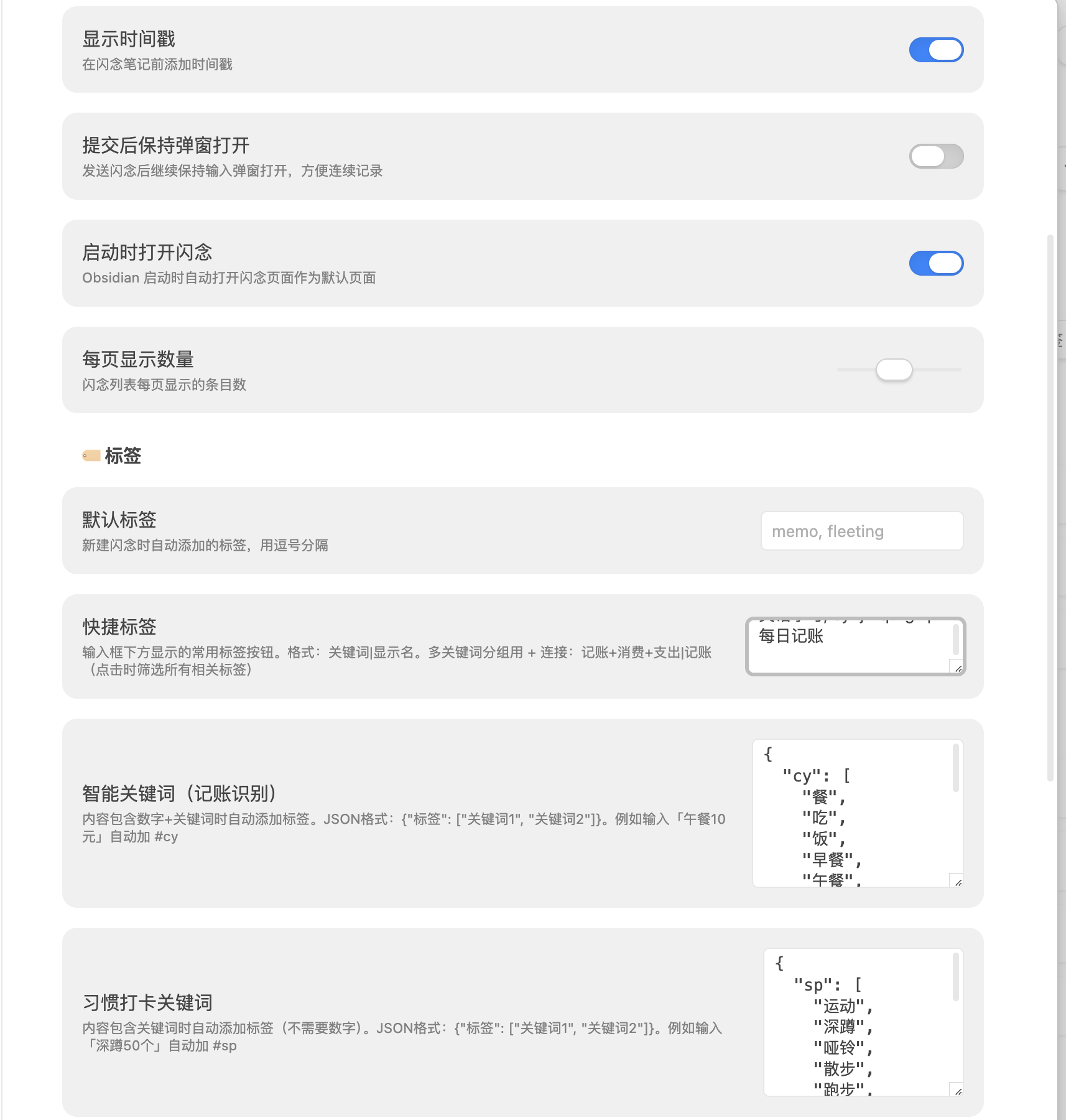
设置选项
| 设置项 | 说明 | 默认值 |
|---|---|---|
| Journal 文件夹 | 记录存储目录 | journals |
| 日期格式 | 文件名日期 | YYYY-MM-DD |
| 时间格式 | 时间戳格式 | HH:mm |
| 快捷标签 | 按钮与聚合标签 | — |
| 智能关键词 | 数字+关键词 → 自动标签 | — |
| 习惯打卡关键词 | 关键词 → 自动标签 | — |
| 每页显示数量 | 列表分页条数 | — |
| 提交后保持弹窗打开 | 连续记录模式 | 关闭 |
| 启动时打开简记 | 自动打开主视图 | 关闭 |
| 启用任务时间追踪 | 点击任务切换状态并追踪耗时 | 开启 |
| 自动追加时长 | 完成时显示耗时 | 开启 |
| 启用任务列表标签 | ALL/TODO/DONE 标签 | 开启 |
| 启用番茄钟 | 番茄工作法 | 开启 |
| 专注时长 | 每个番茄时长 | 25 分钟 |
| 短休息时长 | 番茄后休息 | 5 分钟 |
| 长休息时长 | 多番茄后休息 | 15 分钟 |
| 长休息间隔 | 每几个番茄长休息 | 4 个 |
| 完成提示音 | 番茄/休息完成提示 | 开启 |
常见问题
Q: 记录存在哪里?
A: 存在「Journal 文件夹」下按日期命名的 md 文件中,如 journals/2026-01-30.md。数据始终在你的 vault 里。
Q: 支持哪些任务格式?
A: Markdown 复选框(- [ ]、- [x])和关键词(TODO、DOING、DONE、NOW、LATER、WAITING、CANCELLED)。
Q: 复选框点击没反应? A: 检查「启用任务时间追踪」是否开启。关闭后复选框为只读。
Q: 如何查看所有待办? A: 点击快捷标签区域的「TODO LIST」。
Q: 番茄钟数据存在哪?
A: 存在 Obsidian 的 data.json 中,不在 markdown 文件里,不影响笔记内容。
Q: 重启 Obsidian 后番茄钟还在吗? A: 运行中的番茄钟会变为暂停状态,手动继续即可。
设计灵感
- Flomo — 卡片式 UI 和轻量记录理念
- Logseq — Journal 格式
- Obsidian Thino — 交互参考
开发
npm install
npm run dev      # 开发模式
npm run build    # 构建
npm run release  # 发布到 GitHub