Link Maintainer
 wenlzhang2k downloads
Maintain note links when splitting or reorganizing notes.
- Overview
- Scorecard
- Updates4
An Obsidian plugin that helps you maintain block references when splitting or reorganizing notes, with a focus on safety and reliability.
Videos and Articles
Videos
Why You Need Link Maintainer
Have you ever found yourself in this situation? You're working with a long note in Obsidian, and you realize that a particular section would be more valuable as its own note. This is a common scenario when:
- You want to make certain information more discoverable
- You need to link the same content in multiple contexts
- You're reorganizing your knowledge base for better structure
Obsidian provides ways to extract text into a new note, either through its native features or various community plugins. However, there's a catch: what happens to all the block references pointing to that text?
The Block Reference Challenge
Let's say you have:
// original-long-note.md
A long note with many sections...
Some important text here ^important-block
More content...

// other-notes.md
References to the important text [[original-long-note#^important-block]]
When you extract the section with ^important-block into a new note:
- The block ID moves to the new note
- All existing references in other notes still point to the original note
- These references are now broken because the block ID no longer exists there
The Manual Fix
Without this plugin, you would need to:
- Find every note that references the block ID
- Manually update each reference to point to the new note
- Repeat this process for canvas files
- Hope you didn't miss any references
This is tedious, error-prone, and time-consuming - especially if the block is referenced in multiple places or canvas files.
The Solution
This is exactly why Link Maintainer exists. With this plugin, you can:
- Select the line containing the block ID
- Run a single command
- Let the plugin automatically update all references - both in markdown notes and canvas files
No more manual searching and replacing. No more broken references. Just smooth, reliable link maintenance that lets you focus on organizing your knowledge the way you want.
Key Features
Update Block References from Selection
Select a line containing a block ID and run the command to update all references to that block across your vault.
How to use:
- Select the text containing a block ID (e.g.,
^important-blockornew-note#^important-block) - Run the command: "Update block references from selection"
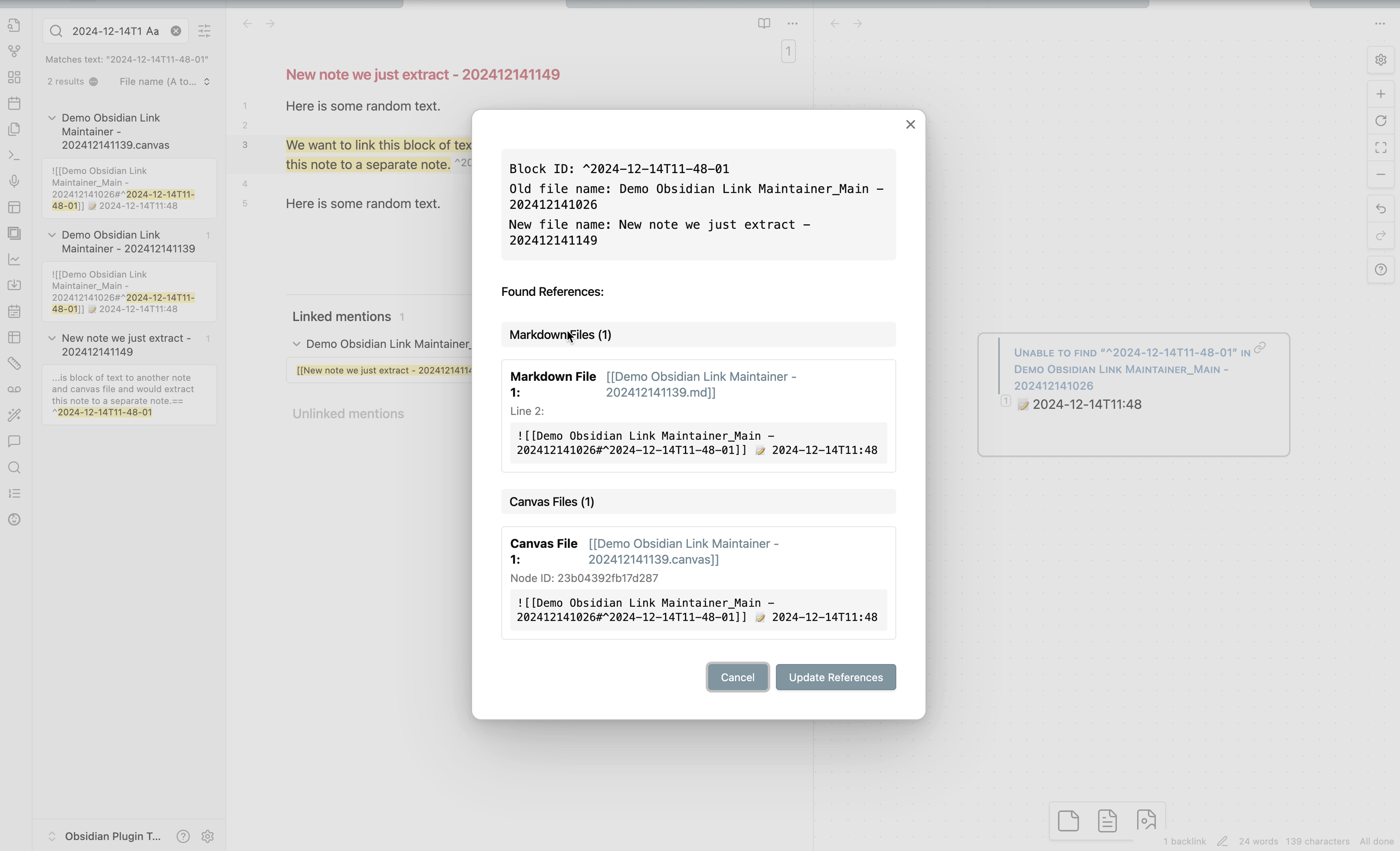
- Review all found references in the preview modal
- Confirm to update all references at once
The plugin will:
- Find all references to the block ID in markdown notes and canvas files
- Show you a detailed preview of what will be changed
- Update all references to point to the correct note
- Log all changes (if logging is enabled)
Bulk Update All Invalid Block References
Automatically find and fix all invalid block references in the current note - both outgoing and incoming references.
How to use:
- Open the note you want to check
- Run the command: "Update all invalid block references in current note"
- Review the consolidated list of all invalid references grouped by block ID
- Confirm to update all invalid references at once
The plugin will intelligently detect two types of invalid references:
Outgoing references (references FROM the current note):
- Block references in the current note that point to the wrong file
- Example:
[[old-note#^block1]]when the block is actually innew-note
Incoming references (references TO the current note):
- Block IDs defined in the current note that are referenced incorrectly from other files
- Example: Other notes still referencing
[[old-name#^block1]]when the note has been renamed tonew-name
This is especially useful when:
- You've renamed a note that contains block IDs
- You've moved content with block IDs between notes
- You want to clean up all broken block references in one go
Safety Features
- Detailed preview: See exactly what will change before confirming
- Change logging: Keep track of all link updates (optional)
- Validation: Automatically verifies block references exist before updating
- Canvas support: Works seamlessly with both markdown notes and canvas files
The Story Behind Link Maintainer
I often take long notes in my PTKM system for a simple reason: longer notes help reduce the overall number of notes in the system, making it much easier to maintain the entire knowledge base. Imagine managing 100,000 notes versus 10,000 notes—roughly the number I have now. For me, the former feels overwhelming. (To learn more, feel free to read my take on [[Long notes or atomic notes]].)
Later, I might want to convert a section of text into a separate note to highlight its importance. This makes it easier to refer to that note, as the title will clearly convey the topic. However, when I split a piece of text into a separate note, the block IDs and block links that refer to that text may become invalid.
This is why I need an efficient way to update these outdated block links. I am developing this tool to help me achieve this goal.
This is how this tool was born, and I hope you enjoy using it!
⚠️ Important Warning
Please read before using: While Link Maintainer implements several safety measures to ensure robust handling of block references and note links, the operations are not reversible. Before performing any link updates:
- Always Review the Confirmation Window: Carefully check all proposed changes in the confirmation dialog before proceeding.
- Exercise Caution: Take extra care when performing bulk operations that affect multiple files.
- Back Up Your Vault: Since link updates cannot be undone, make sure you have a backup of your vault.
The plugin follows these principles to maximize safety:
- Shows a detailed preview of all changes before applying them
- Tracks and logs all updated links for reference
- Provides clear warnings for potentially risky operations
- Implements thorough validation before any changes
However, just like renaming tags in Obsidian (e.g., with Tag Wrangler), once links are updated, there is no automatic way to revert the changes. Always proceed with caution and ensure you understand the scope of the changes before confirming them.
Documentation
Visit the documentation site to learn how to make the most of Link Maintainer in your Obsidian workflow.
Support & Community
This plugin is a labor of love, developed and maintained during my free time after work and on weekends. A lot of thought, energy, and care goes into making it reliable, user-friendly, and aligned with PTKM principles.
If you find this plugin valuable in your daily workflow, please consider supporting my work. Your support would mean the world to me and would help me dedicate more time and energy to:
- Developing new features
- Maintaining code quality
- Providing support and documentation
- Making the plugin even better for everyone
Ways to Support
You can support this project in several ways:
- ⭐ Star the project on GitHub
- 💝
- Sponsor my work on GitHub
- 💌 Share your success stories and feedback
- 📢 Spread the word about the plugin
- 🐛 Report issues to help improve the plugin
Thank you for being part of this journey! 🙏