Line Cut Guard
 theluckystrike3 downloads
Stops Ctrl-X and Cmd-X from cutting the whole line when no text is selected, and can do the same for copy.
- Overview
- Scorecard
- Updates1
Line Cut Guard stops Ctrl+X (Cmd+X on macOS) from cutting the whole line when no text is selected. In Obsidian, Ctrl+X with only a cursor cuts the full line or paragraph under the cursor. A key pressed by mistake, a slip from Ctrl+Z, or a key that is held a little too long can remove a paragraph, and you may not see it at once. With this plugin, Ctrl+X with nothing selected does nothing. Selected text is cut as usual.
The same choice is there for Ctrl+C. With no text selected, Obsidian copies the whole line, so a Ctrl+C that was meant to be Ctrl+V replaces your clipboard. You can turn that off too.
This answers the forum request Disable Ctrl-X / Cmd-X cut unselected paragraph.
Features
Ctrl+X with only a cursor does nothing
Put the cursor in a paragraph and press Ctrl+X. The note does not change and the clipboard keeps what it had. A short notice says that nothing is selected. Select some words and Ctrl+X cuts them, as before.
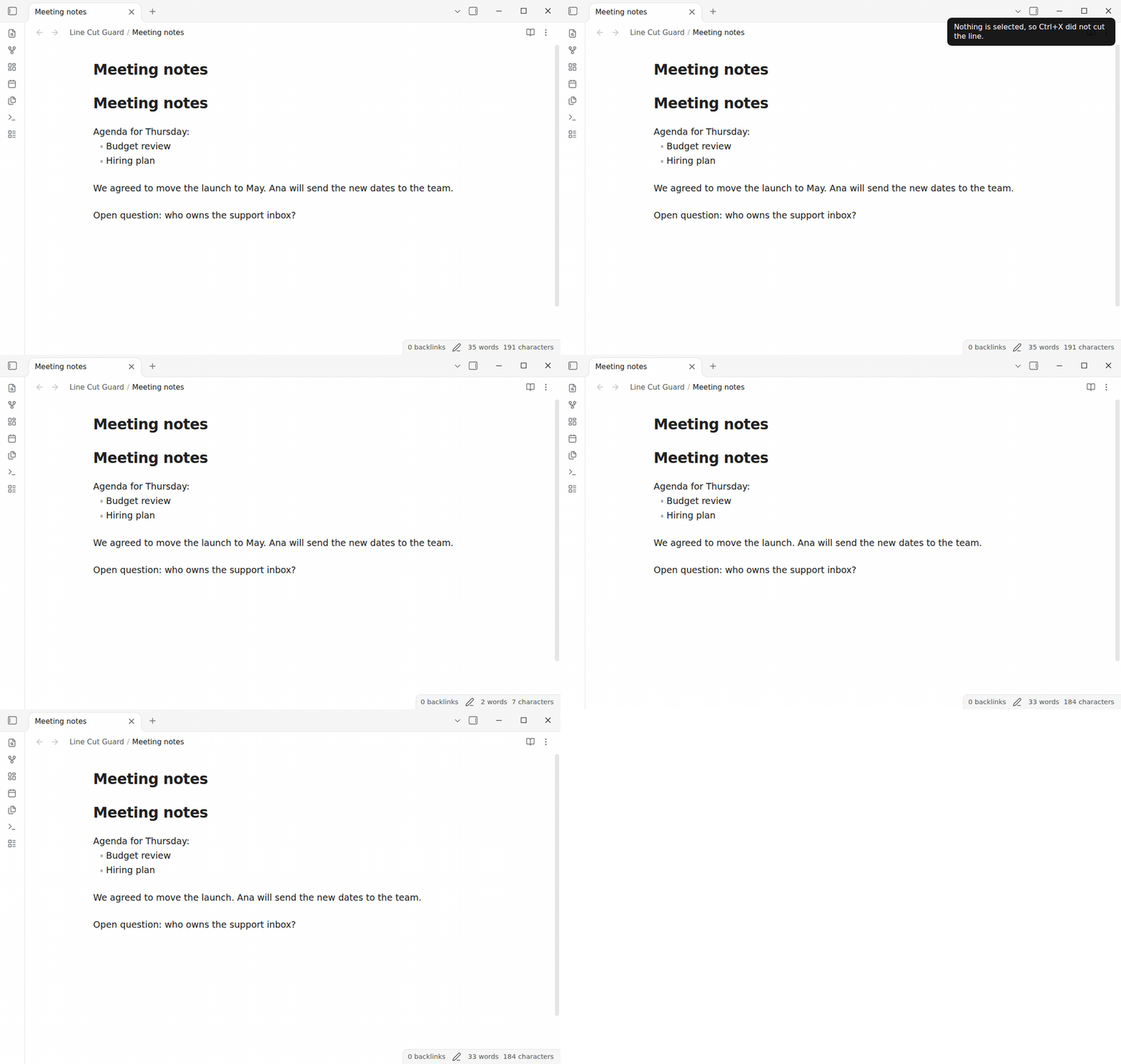
This works in Live Preview and Source mode, in a table cell, and with more than one cursor. When at least one cursor has selected text, Obsidian cuts the selected text as usual. Selected table cells and a selected image also count as a selection, so Ctrl+X cuts them.
Free: the Ctrl+X and Ctrl+C settings, the notice and the two commands. Pro: the second press mode. $15 one time or $5 a month: Sponsor.
Commands for a line cut on purpose
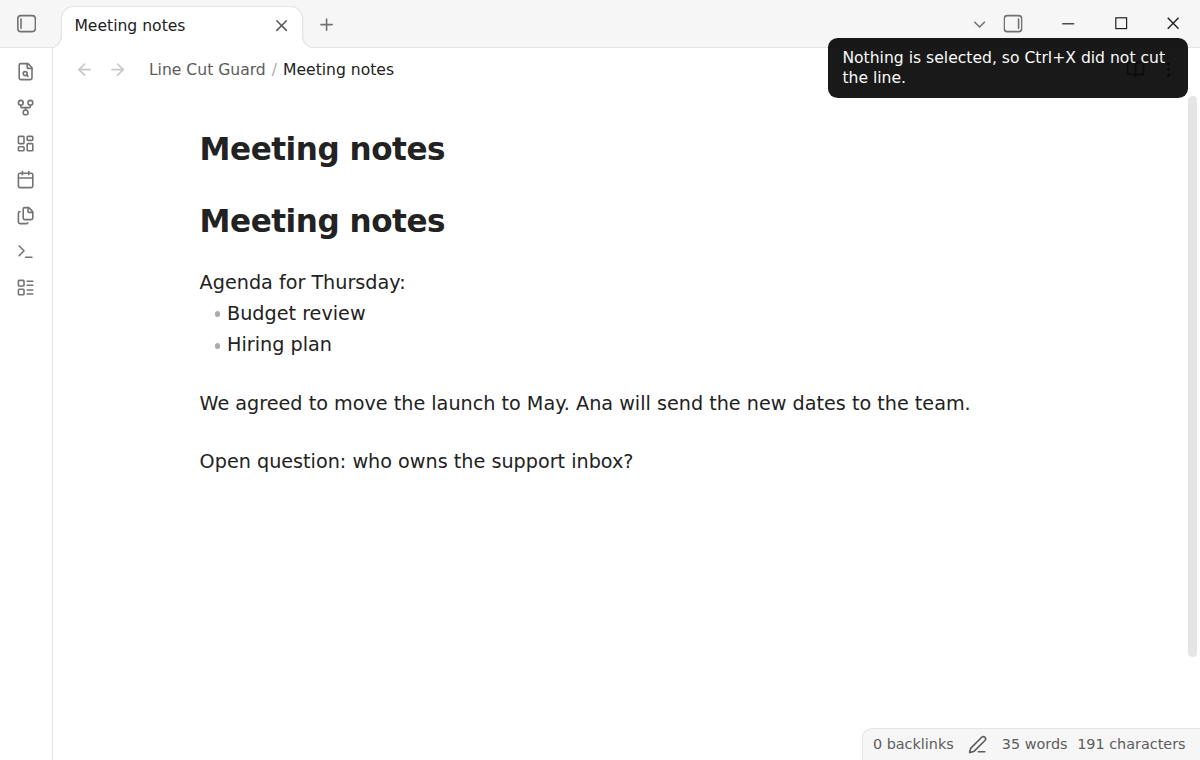
The line cut is useful when you want it. The command "Cut selection or line" does what Ctrl+X does in Obsidian without the plugin: it cuts the selected text, or the line of each cursor when nothing is selected. "Copy selection or line" does the same for copy. Give them a hotkey in Settings, Hotkeys, for example Ctrl+Shift+X. A line that you cut with the command pastes back as a whole line above the cursor, as after a normal Obsidian line cut.
Second press mode (Pro)
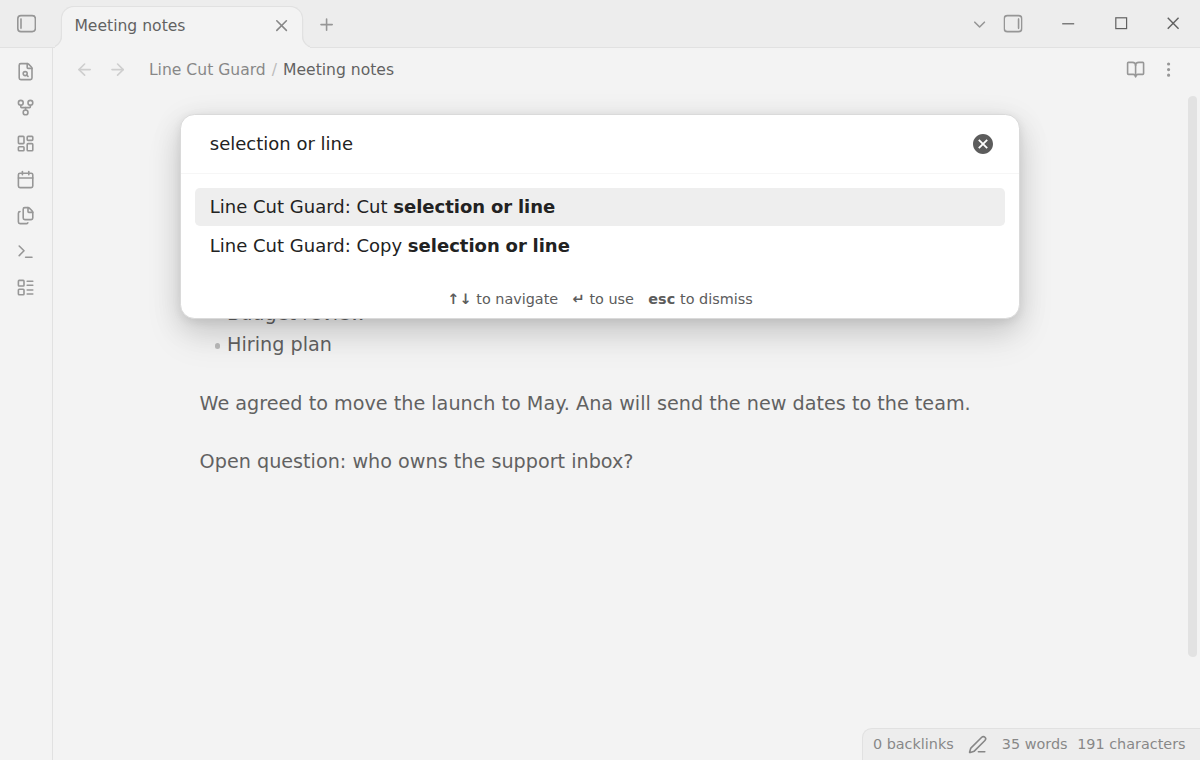
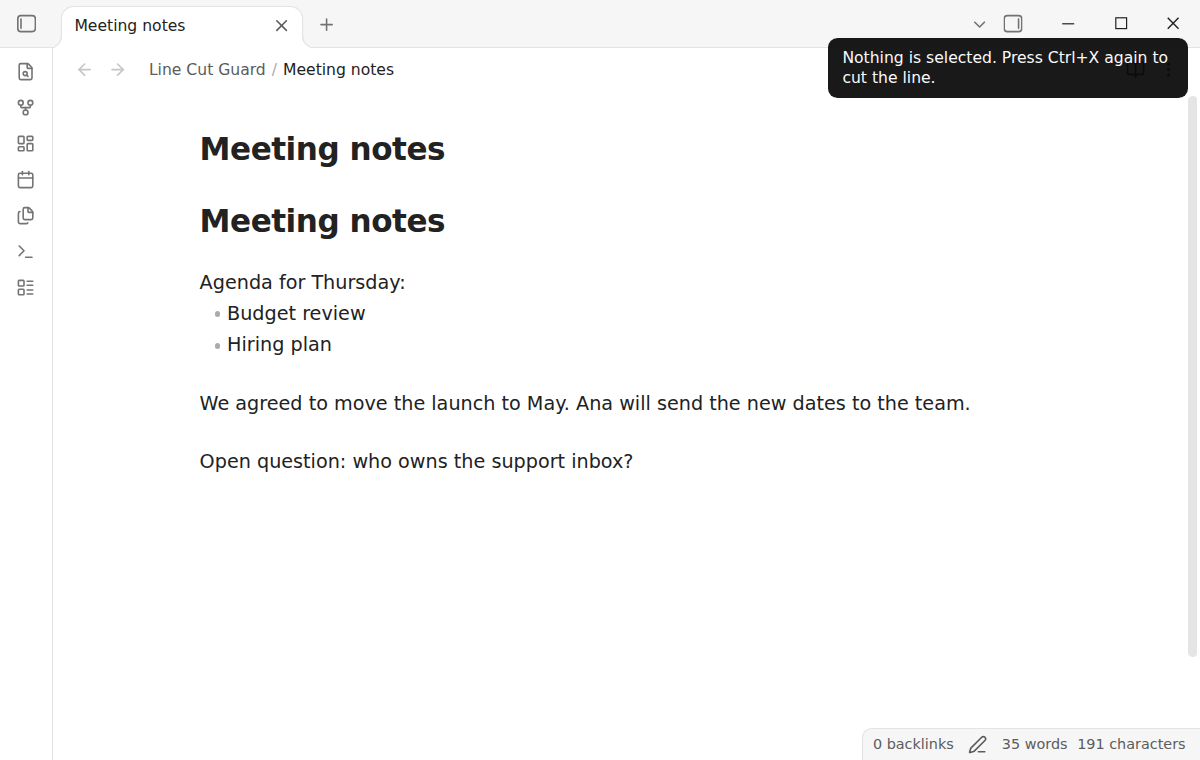
With the Pro option "Cuts the line on a second press", the first Ctrl+X with nothing selected only shows a hint. Press Ctrl+X again within 2 seconds, without a move of the cursor, and the line is cut. A key that you hold down does not count as a second press, and two presses less than a quarter second apart do not count either. The copy setting has the same option.
Install
When Line Cut Guard is listed in the community directory, open Settings, then Community plugins, then Browse, and search for "Line Cut Guard". Select Install, then Enable.
To install by hand, download main.js, manifest.json and styles.css from the latest release. Put the three files in <vault>/.obsidian/plugins/line-cut-guard/. Restart Obsidian or reload the list of community plugins, then turn on Line Cut Guard. You need Obsidian 1.13.4 or later.
Usage
There is nothing to set up. After you turn on the plugin:
- Ctrl+X with only a cursor does nothing. The notice tells you so.
- To cut a line on purpose, select it first (for example with a triple click), or run "Cut selection or line".
- To stop Ctrl+C as well, set "Ctrl+C with nothing selected" to "Does nothing".
To get the Obsidian line cut back, set "Ctrl+X with nothing selected" to "Cuts the line (Obsidian default)", or turn the plugin off.
Settings
After a minor or major update, this plugin opens one What's new tab in the background. The tab and settings card suggest other NoteMods plugins and Zovo Chat and link to notemods.com for feedback (privacy). The tab sends no data. Turn the tab off in Settings.
| Setting | What it does |
|---|---|
| Ctrl+X with nothing selected | "Does nothing" (default), "Cuts the line (Obsidian default)" or "Cuts the line on a second press (Pro)". |
| Ctrl+C with nothing selected | "Copies the line (Obsidian default)" (default), "Does nothing" or "Copies the line on a second press (Pro)". Applies in the editor, not in Reading view. |
| Show a notice when a cut or copy is stopped | On by default. At most one notice in 2 seconds. The hint of the second press mode always shows. |
On macOS the settings say Cmd instead of Ctrl.
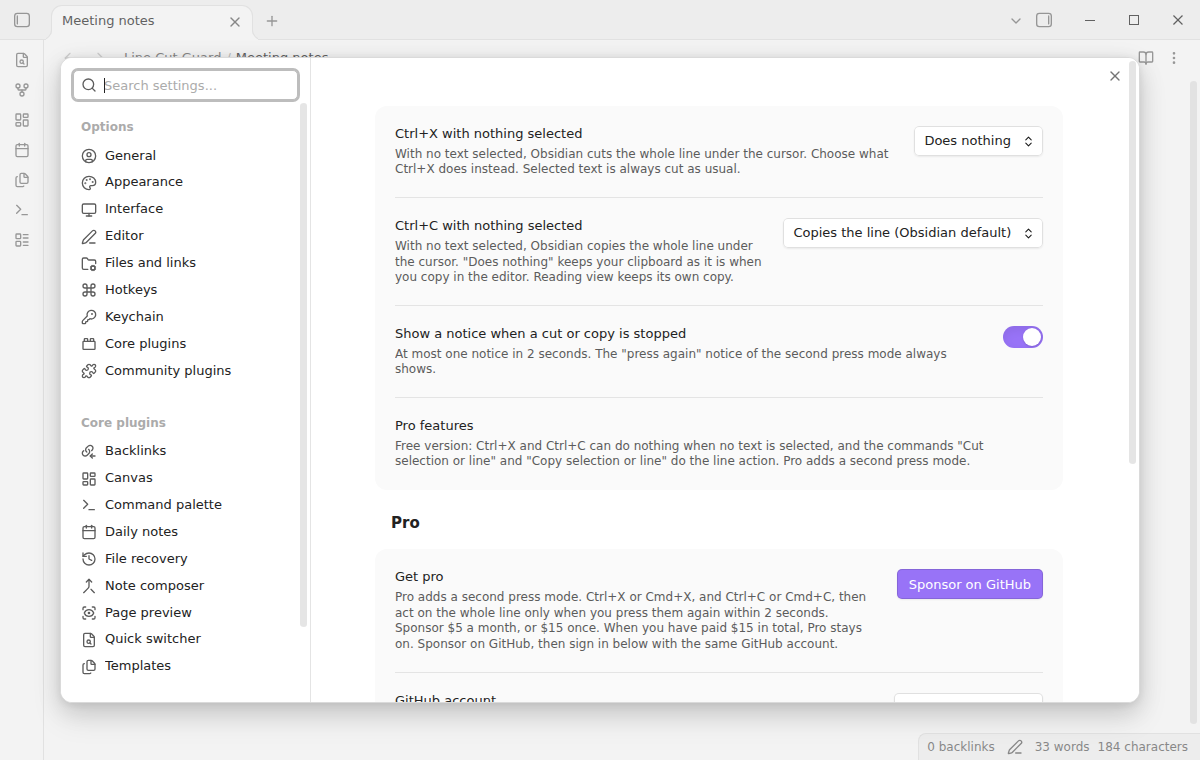
Pro
To sign in and enable Pro:
- Sponsor via GitHub Sponsors. A total payment of $15 meets the payment requirement for Pro without further payment. Sign-in and the checks below still apply.
- In Obsidian, open the settings of Line Cut Guard and select "Sign in with GitHub".
- The plugin copies a code and opens github.com/login/device. Paste the code there and approve.
If you sponsor after you sign in, select Refresh. A negative sponsorship answer turns Pro off. If Pro goes off while the second press mode is set, Ctrl+X with nothing selected does nothing until Pro is back.
FAQ
Does it change my notes?
No. The plugin only stops a cut or a copy. The two commands change the note in the same way as Ctrl+X in Obsidian. A command cut writes the clipboard first and removes the text only when that worked.
Where does it work?
In the text of every Markdown editor: Live Preview, Source mode, a table cell and a Canvas text card in edit mode. Reading view, text boxes such as the search field, the file list and Canvas cards that are not in edit mode keep their usual cut and copy. In Reading view, Ctrl+C with nothing selected works as in Obsidian.
How does it work?
Without the plugin, the editor of Obsidian (CodeMirror) cuts or copies whole lines when the selection is empty. The plugin listens to the cut and copy events of each window before the editor does. When nothing is selected, it stops the event, so the editor never sees it. Selected text, table cells and images pass through. When the plugin is not sure, it lets the cut through: in a read-only editor, when a rendered image or embed has the focus, or in an editor of an unknown kind. A line that only starts with an embed is a normal line: with only a cursor, it is not cut.
Does it work on mobile?
It acts on the cut and copy events, for example from a keyboard on a tablet. The tests run in the mobile emulation of Obsidian, which is not a real phone.
Payment, account and network
The core features are free. Pro features need a GitHub Sponsors sponsorship of theluckystrike: $5 a month or more, or $15 once. A total payment of $15 meets the payment requirement for Pro without further payment. Sign-in and the checks below still apply. Your notes stay readable and editable with or without Pro.
GitHub handles the payment. Sponsor at https://github.com/sponsors/theluckystrike. You need no account for the free features. Pro needs the GitHub account that sponsors.
Until you select "Sign in with GitHub" in the settings, Line Cut Guard makes no network requests. Sign in uses the GitHub device flow. Line Cut Guard sends its public client ID and the scope read:user to https://github.com/login/device/code and shows you a code. While you enter the code at https://github.com/login/device, it asks https://github.com/login/oauth/access_token every few seconds to check the sign-in status. The scope permits profile reads only. GitHub needs this access to show the sponsorship tier. It grants no repository scope and no write access.
After sign in, Line Cut Guard sends one query to https://api.github.com/graphql. It checks if the signed-in account sponsors theluckystrike. It asks for the tier and the total payment to theluckystrike. The plugin reuses a successful check for 7 days. Failed checks can retry after 6 hours. Select Refresh to request an earlier check. It sends no note content, file names or other vault data, and it has no telemetry.
After a successful check, Pro can work offline for up to 14 days. Sign out or a negative sponsorship answer turns Pro off. The plugin stores the GitHub token through the secret storage API of Obsidian. It does not put the token in its saved settings or its local sponsorship data. The local storage of this device keeps your GitHub login, the tier and the time of the last check. Sign out clears the token. You can also revoke the access in your GitHub settings, under Applications.
Support
Plugin page: line-cut-guard.
Report bugs and ask for features in the GitHub issues of this repository. Add your Obsidian version, your system and the steps.
Community
Questions, bugs or plugin ideas? Talk to me and other Obsidian users in Zovo Chat on Telegram. It has a topic for these plugins. You can also open an issue here.