LevelMate
 droidstream31 downloads
Tab and Shift+Tab that indent list items and shift heading levels, with Outliner-style list editing.
- Overview
- Scorecard
- Updates4
Everything you love about Outliner, plus headings. One plugin.
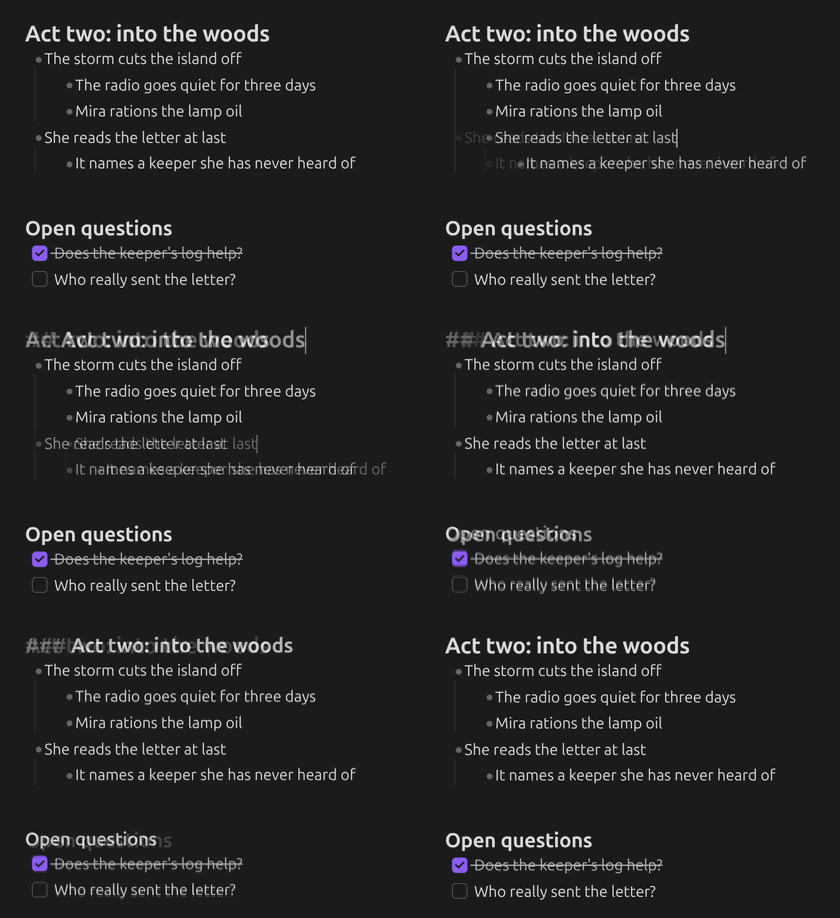
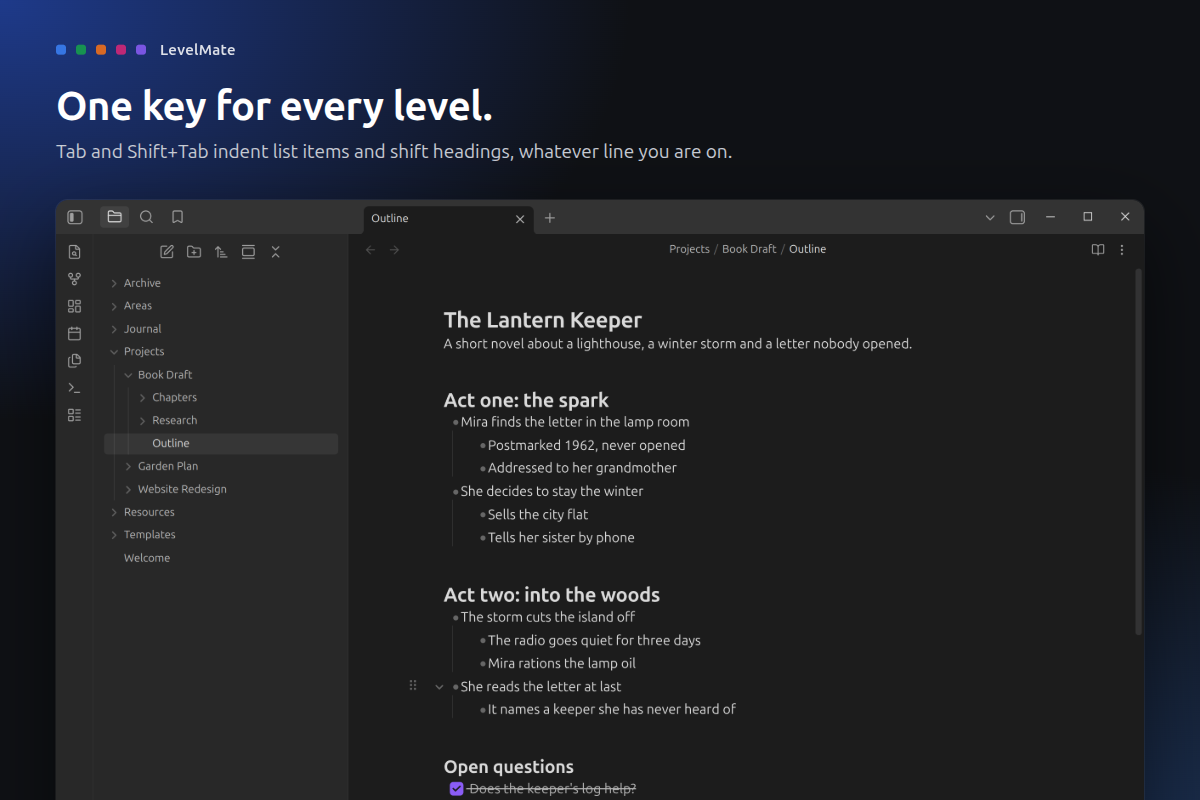
Love how Outliner handles lists, but wish Tab worked on headings too? Until now that meant a second plugin, and the two fight over the same key. LevelMate does both. All the list editing Outliner users rely on is here, plus Tab for heading levels, whole sections that move and drag, and moving an item straight to the top or bottom of its list. Tab and Shift+Tab do one thing: move the line you are on up or down a level, whether it is a list item or a heading.
Coming from Outliner?
You keep everything you are used to:
- Tab and Shift+Tab indent and outdent items with their sub-items
- Enter that knows lists, and a cursor that skips the bullet
- Step-by-step Ctrl+A: the item, then the list, then the note
- Move items up and down, fold and unfold, on the keys you choose
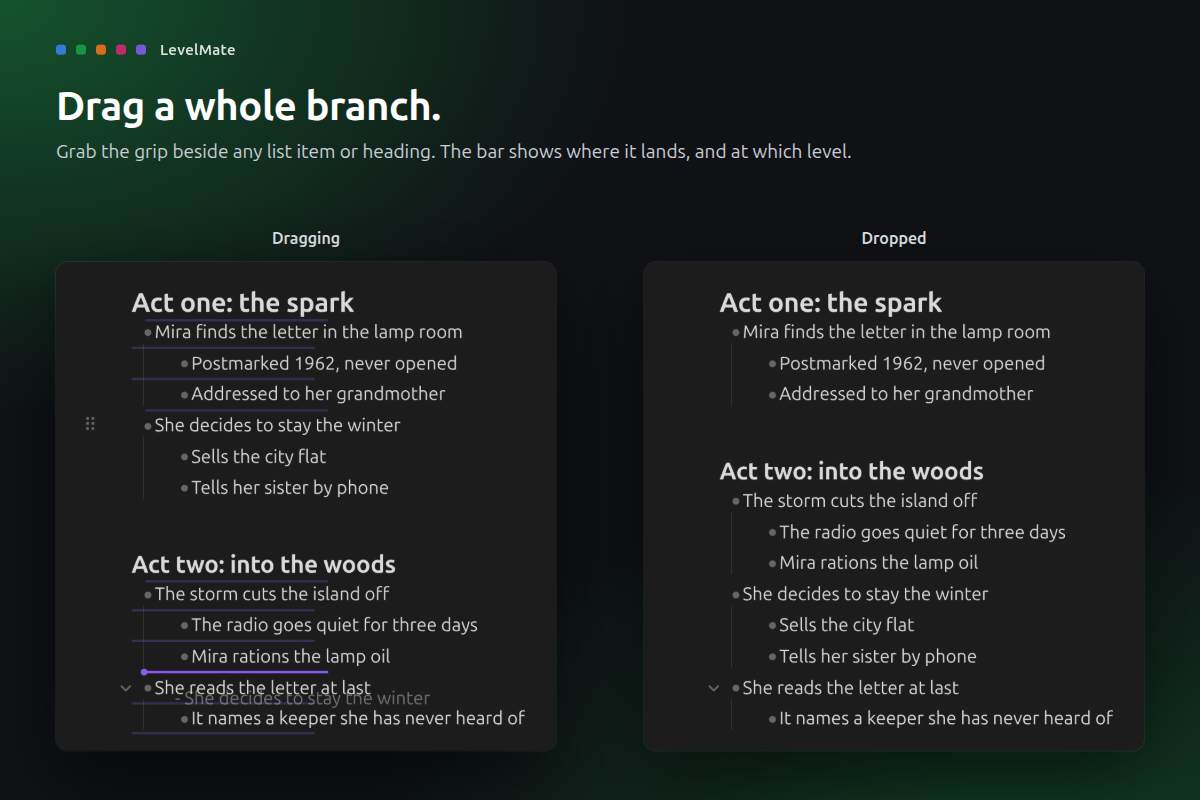
- Drag and drop with a drop bar that shows the level
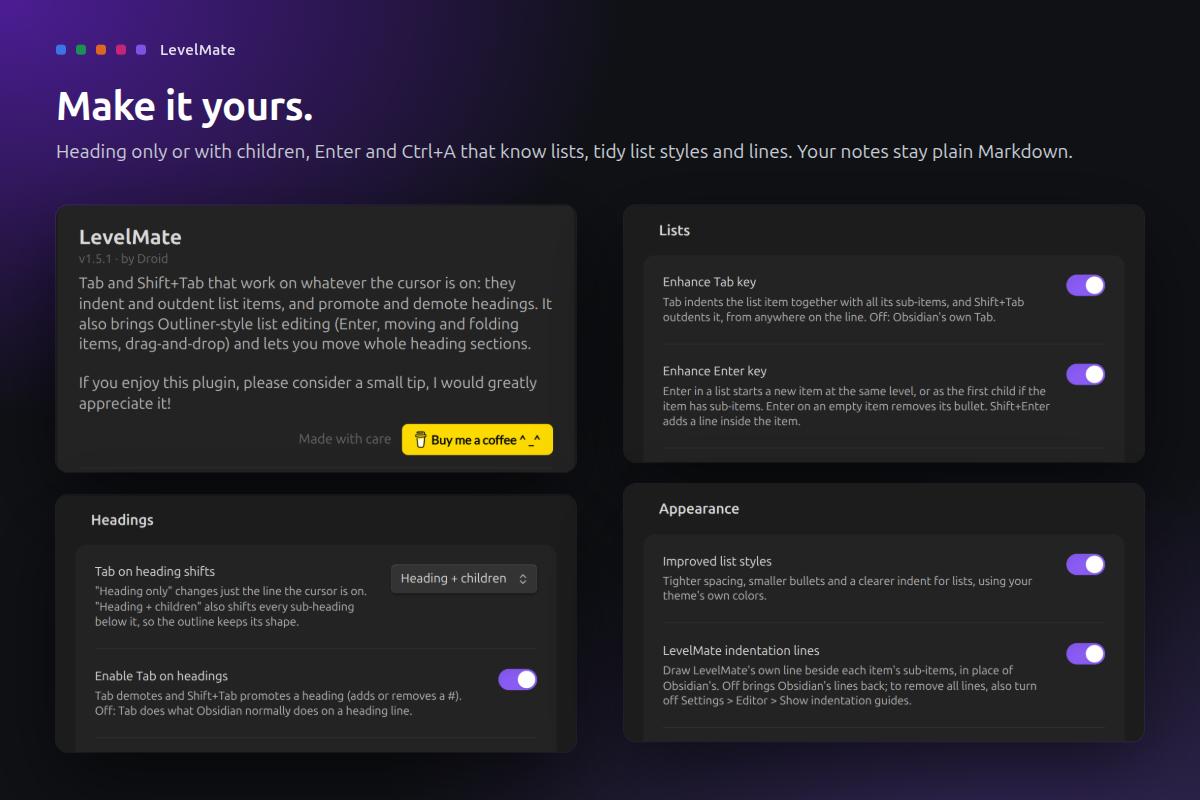
- Improved list styles and indentation lines you can click to fold
And you get more, in the same plugin:
- Tab on headings.
##becomes###and back, alone or with its sub-headings. No Heading Shifter needed, no key conflicts. - Sections that move. Move up or down on a heading, or drag it, and its whole section goes along.
- Move to top or bottom. Send an item straight to the start or end of its list in one step.
- Headings are walls. Moving an item never crosses a heading, so your lists stay apart and numbered lists keep counting from 1.
Turn Outliner off when you switch, since both claim the same keys. Your notes are plain Markdown either way, so there is nothing to convert. LevelMate is an independent plugin, not made by or affiliated with Outliner's author.
What it does
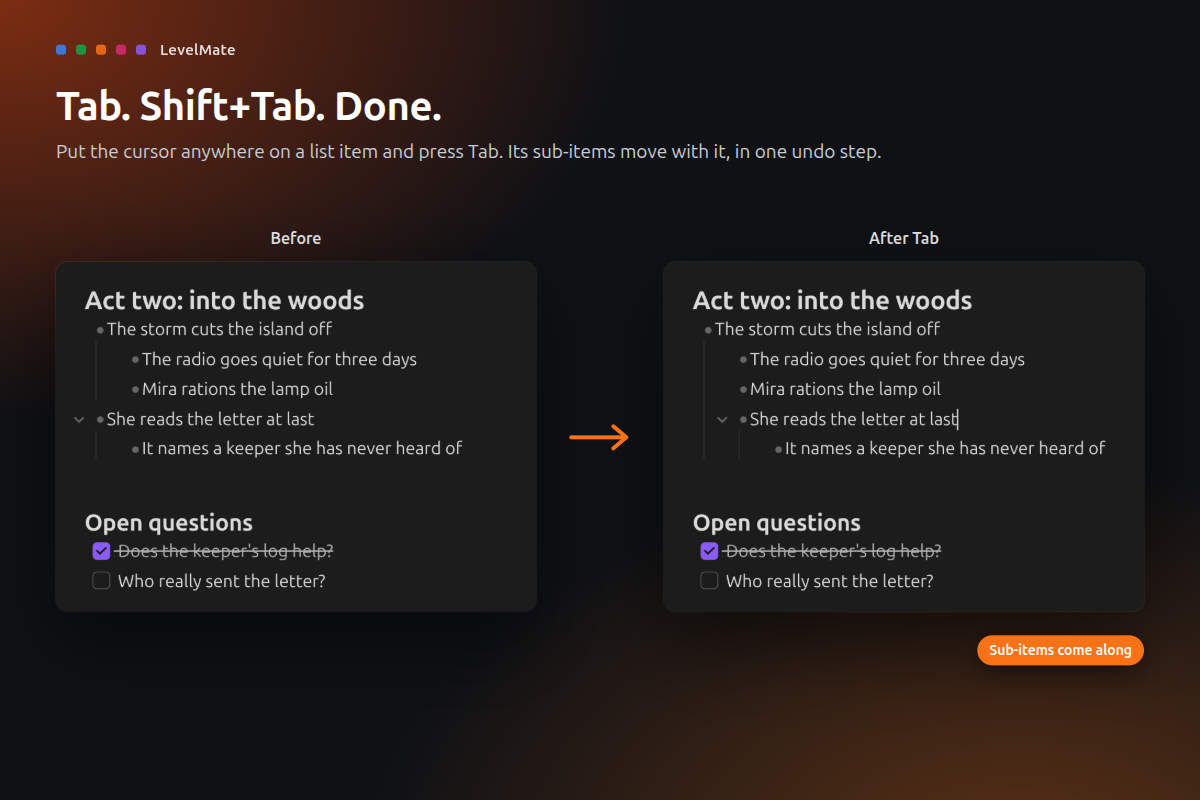
- Tab for lists. Tab indents a list item and Shift+Tab outdents it, from anywhere on the line. Its sub-items come along.
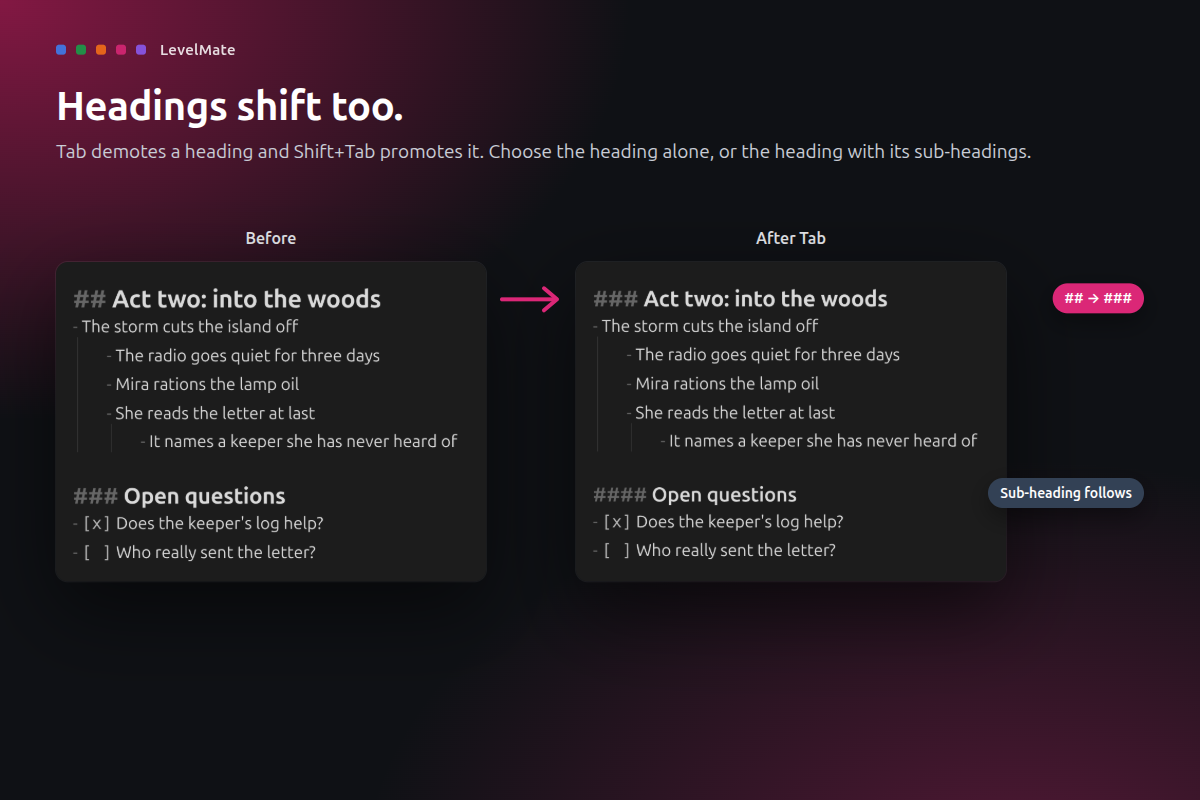
- Tab for headings. Tab turns
##into###and Shift+Tab goes back. Shift the heading alone, or the heading with its sub-headings. - Outliner-style editing. Enter that knows lists, a cursor that skips the bullet, step-by-step Ctrl+A, and commands to move items (one step, or straight to the top or bottom of the list) and fold them, on the keys you choose.
- Whole sections move. Move up or down on a heading swaps its whole section with the one next to it.
- Drag and drop. Grab the grip beside a list item or heading and drop the whole branch or section somewhere else. The bar shows the level it lands on.
- Tidy lists. Optional list styles and indentation lines that fold an item when you click them.
- One undo step. Every action, however many lines it touches, comes back with a single Ctrl+Z.
How to use
- Install LevelMate from Settings > Community plugins and enable it.
- Put the cursor on a list item or a heading and press Tab or Shift+Tab.
- To shift sub-headings too, open Settings > LevelMate and set Tab on heading shifts to Heading + children.
- To move and fold items from the keyboard, open Settings > Hotkeys, search for "LevelMate" and give Move up, Move down, Move to top of list, Move to bottom of list, Fold and Unfold the keys you like (Outliner users: Ctrl+Shift+Up/Down and Ctrl+Up/Down).
If you use Outliner or Heading Shifter, turn them off. They claim the same keys.
Privacy and safety
- Your notes stay plain Markdown. LevelMate only changes the lines you act on, in the note you are editing.
- No network, no telemetry. It also has no runtime dependencies.
- Safe zones. Code blocks, frontmatter, math blocks and tables are never treated as lists or headings.
- Desktop only. Needs Obsidian 1.13 or later.
- Signed releases. Every release is built by GitHub Actions from this repository and carries a build provenance attestation.
Support
If LevelMate makes your outlines a little easier, you can buy me a coffee. Thank you!
Develop
npm ci, npm test, npm run lint, npm run build (installs into ../test-vault), npm run obsidian:check (live checks in a real Obsidian), npm run showcase (store screenshots), npm run ship.
MIT licensed. Made by Droid.