Search...Search plugins and themes...
⌘K
Sign in
  • Get started
  • Download
  • Pricing
  • Enterprise
  • Account
  • Obsidian
  • Overview
  • Sync
  • Publish
  • Canvas
  • Mobile
  • Web Clipper
  • CLI
  • Learn
  • Help
  • Developers
  • Changelog
  • About
  • Roadmap
  • Blog
  • Resources
  • System status
  • License overview
  • Terms of service
  • Privacy policy
  • Security
  • Community
  • Plugins
  • Themes
  • Discord
  • Forum / 中文论坛
  • Merch store
  • Brand guidelines
Follow us
DiscordTwitterBlueskyThreadsMastodonYouTubeGitHub
© 2026 Obsidian

Lazybird

Lazybird5 downloads

Read your notes aloud and save them as MP3 files with natural AI voices.

Add to Obsidian
Lazybird screenshot
Lazybird screenshot
Lazybird screenshot
Lazybird screenshot
Lazybird screenshot
Lazybird screenshot
Lazybird screenshot
Lazybird screenshot
Lazybird screenshot
Lazybird screenshot
  • Overview
  • Scorecard
  • Updates2

Read your notes aloud and save them as MP3 files with natural AI voices. Works on desktop and mobile.

Features

  • Read note aloud. Select Read note aloud in the ribbon, choose Read aloud in the note's menu, or run the command. Playback starts within a few seconds, even for long notes, and keeps going while the rest is generated.
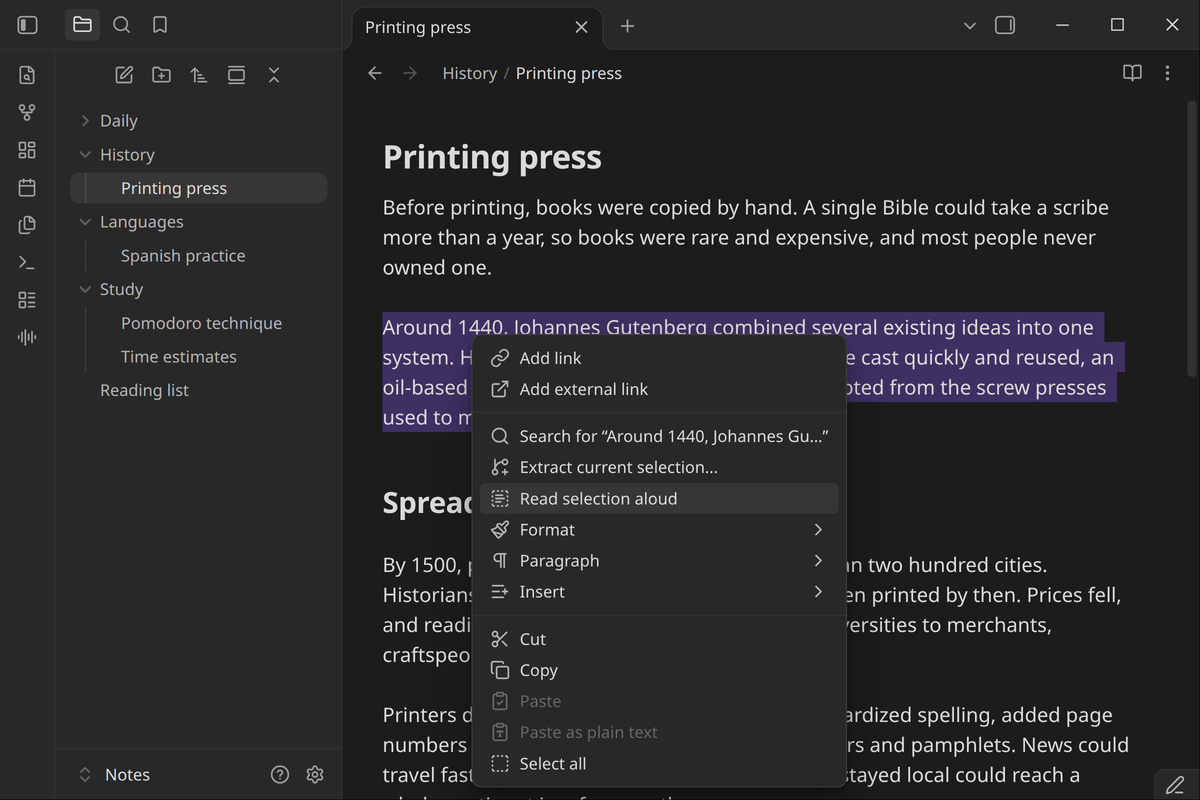
  • Read selection aloud. Select text, right-click it and choose Read selection aloud.
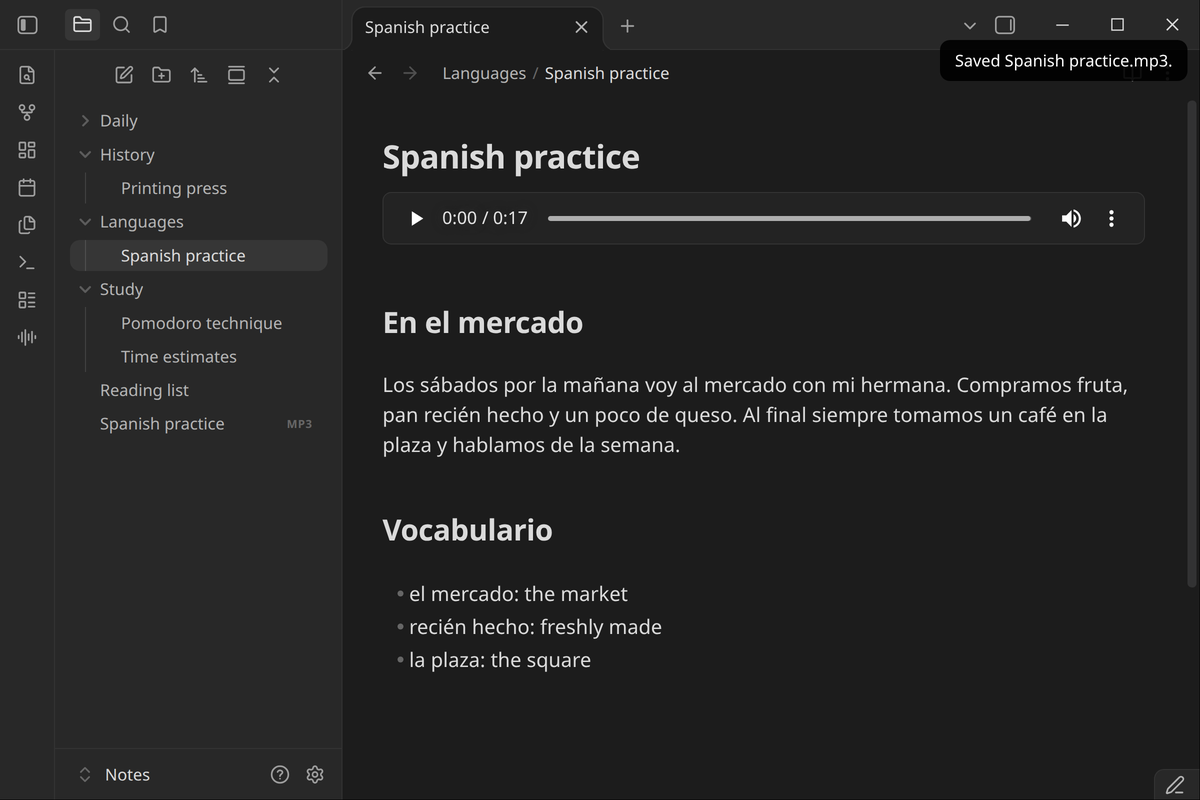
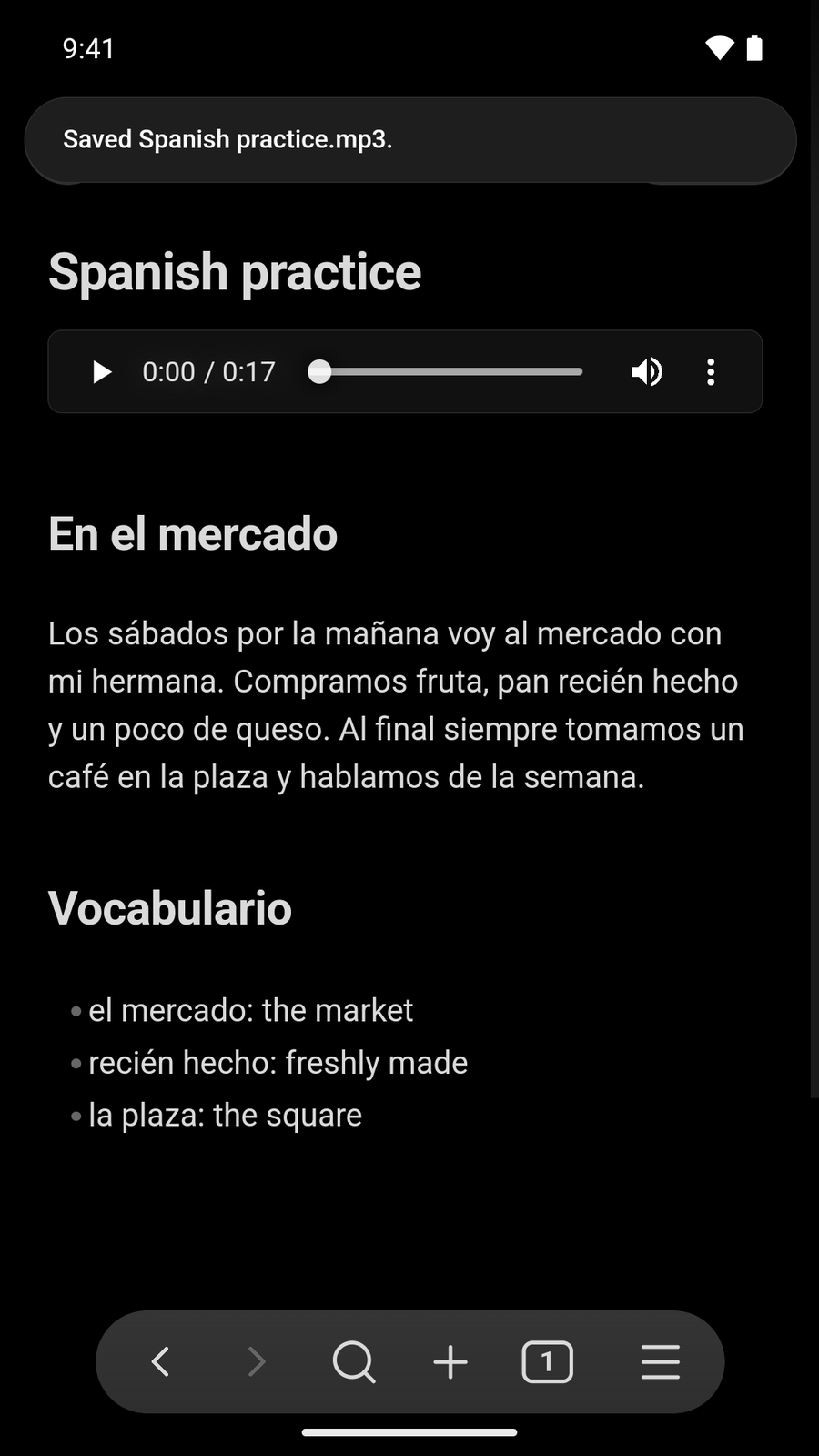
  • Save note as MP3. Choose Save as MP3 in the note's menu. The audio is saved to your attachment folder, and an embed such as ![[My note.mp3]] is added at the top of the note, below its properties.
  • Player controls. Pause, resume or stop from the status bar on desktop, or from the floating player on mobile.
  • 500+ voices in 80+ languages, plus the voices you've made in your Lazybird account. Search voices by name or language. Speed from 0.5× to 2×.
  • Reads what matters. Properties, code blocks, math, comments, HTML, URLs and embeds are skipped. Links are read as their text, and headings get a short pause.
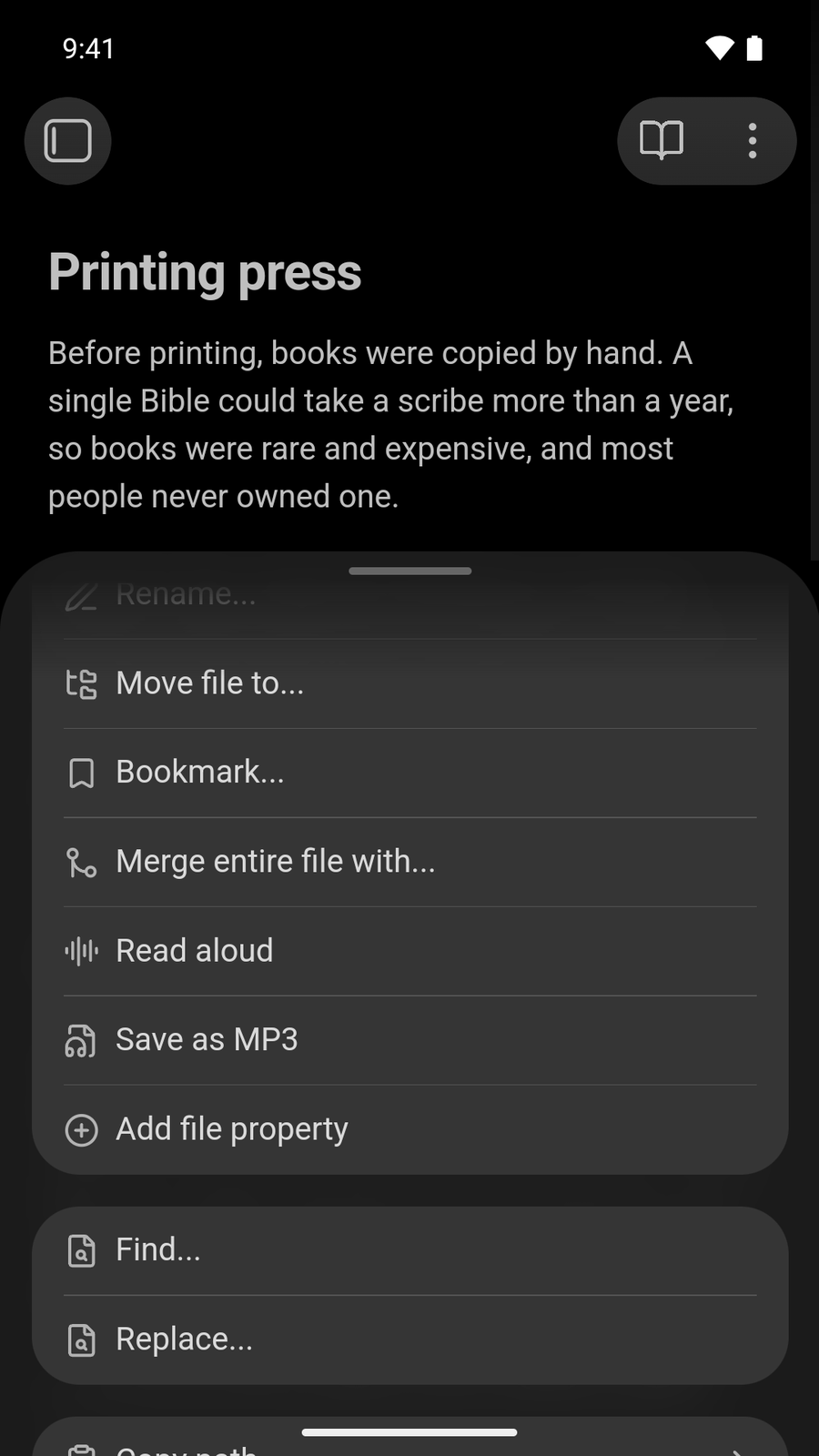
  • Desktop and mobile. On mobile, find Read aloud and Save as MP3 in the note's ⋮ menu.
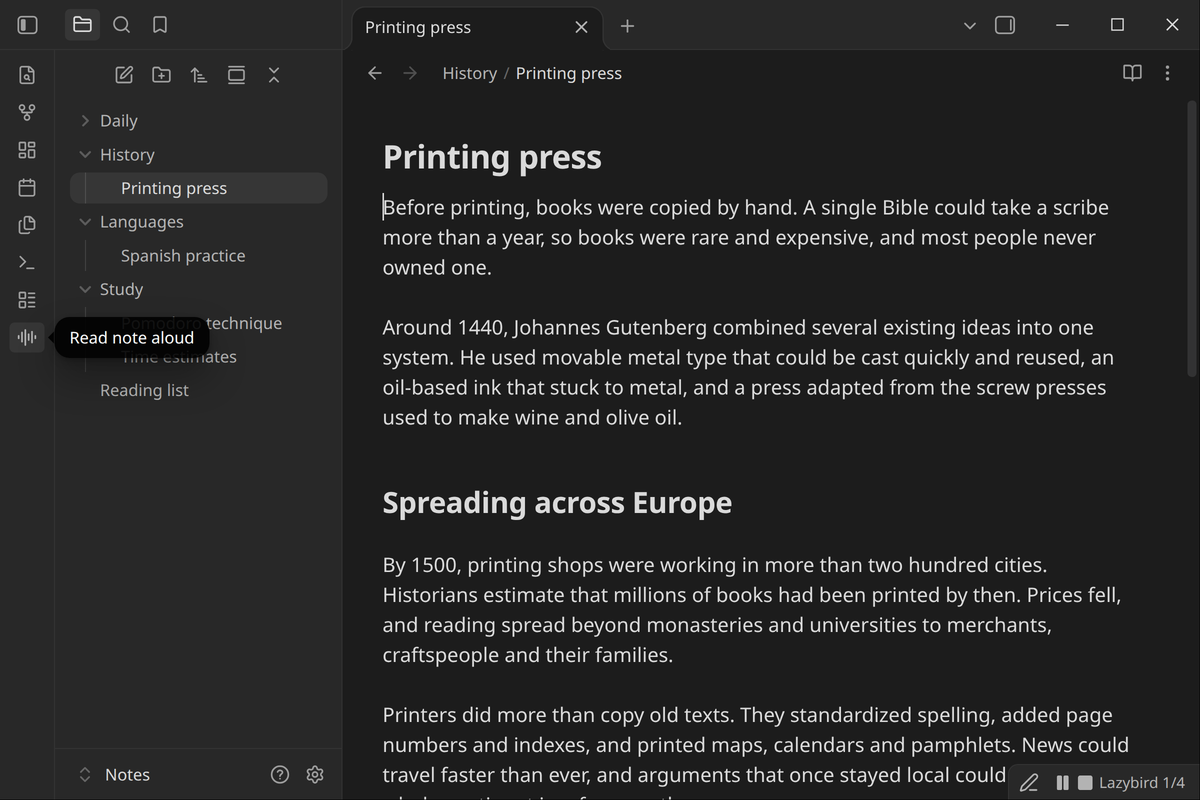
Reading a note aloud from the ribbon, with the player in the status bar

Reading a selection from the editor menu

A note with its saved MP3 embedded at the top

On mobile

Reading a note with the floating player Read aloud and Save as MP3 in the note menu A saved MP3 embedded in a note

Commands

  • Read note aloud
  • Read selection aloud
  • Save note as MP3
  • Stop playback

The commands have no default hotkeys. You can set them in Settings → Hotkeys.

Setup

  1. Install and enable the plugin, then open Settings → Lazybird.

  2. Enter your email and select Send code. Type the 6-digit code from the email and select Sign in. If you don't have a Lazybird account yet, this creates a free one.

    Or, if you already have an API key, add it under API key. You can create one in your Lazybird account settings.

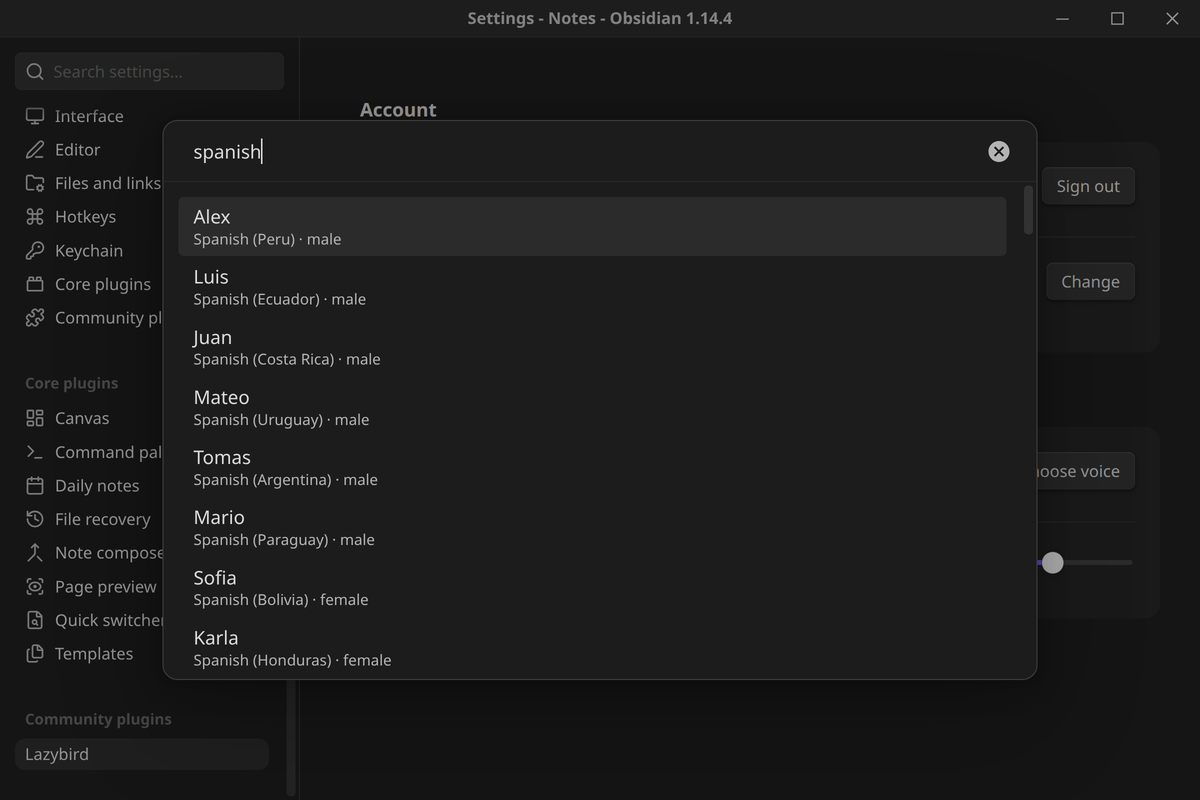
  3. Select Choose voice to pick a voice, and set the speed.
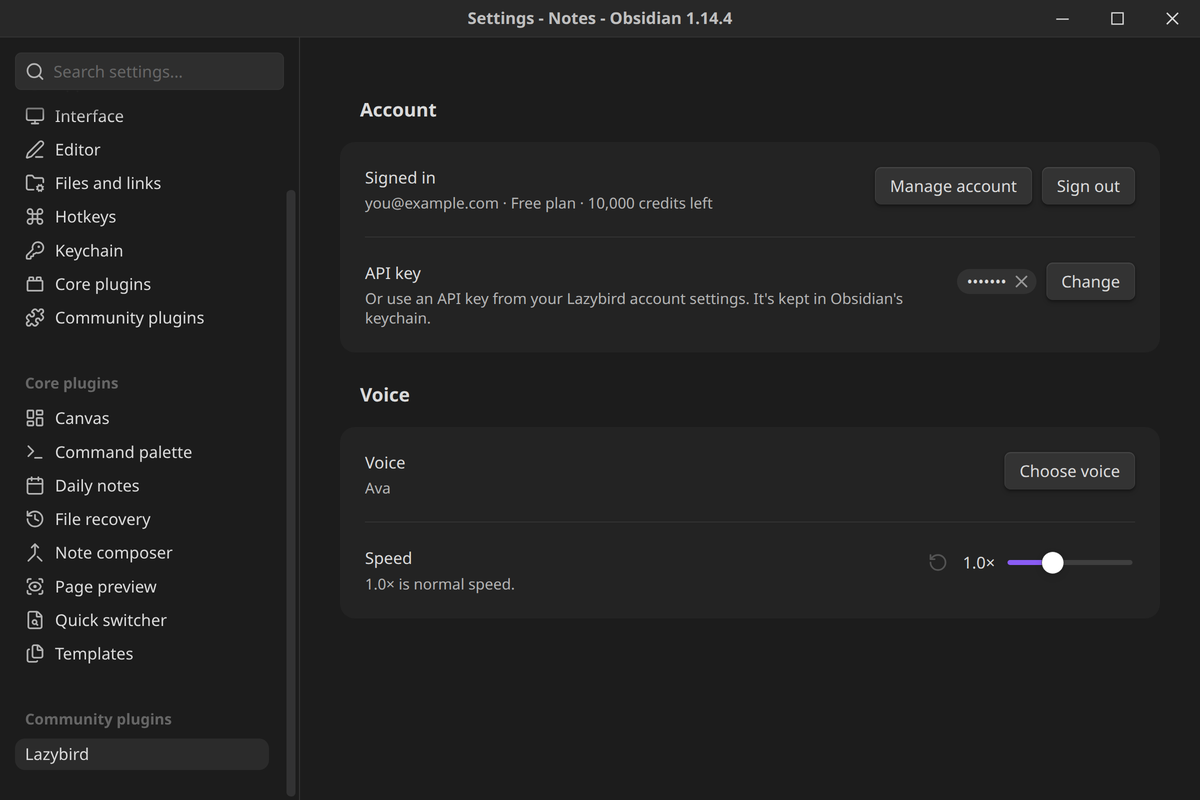
Lazybird options

Choosing a voice

Account and payments

  • A Lazybird account is required. The plugin turns text into speech on Lazybird's servers.
  • A free plan is available. It includes a monthly allowance of characters. Each character you listen to or save uses one credit. The plugin's options show your plan and how many credits are left.
  • Paid plans are optional. Reading and saving notes with the library voices works on the free plan. If you need more credits, see lazybird.app/pricing for plans and extra credits.

Network use and privacy

The plugin connects only to api.lazybird.app:

  • To read or save a note, it sends the note's text (after removing the parts listed above), with the voice and speed you chose.
  • To sign in, it sends your email and the code you enter.
  • It loads the list of voices and your plan's remaining credits.

The plugin doesn't collect analytics. Audio for reading aloud stays in memory and is discarded when playback stops. Audio is saved to your vault only when you use Save note as MP3.

Your API key is stored in Obsidian's keychain, not in the plugin's data file. Obsidian encrypts it when your system provides a secret store. On systems without one, such as some Linux setups, Obsidian stores it unencrypted and shows a warning next to the key.

See Lazybird's privacy policy and terms.

Requirements

  • Obsidian 1.13.4 or later, on desktop or mobile.

Development

npm install
npm run dev     # rebuild main.js on change
npm run build   # type-check and build
npm test        # unit tests for text cleanup, chunking and MP3 joining
npm run lint

To try it, copy main.js, manifest.json and styles.css into <vault>/.obsidian/plugins/lazybird/.

License

MIT

HealthExcellent
ReviewPassed
About
Read notes aloud with natural AI voices and save them as MP3 files, on desktop and mobile. Start reading from the ribbon, the note menu or a command, or right-click a selection to hear just that part. Playback starts within seconds, even for long notes, and keeps going while the rest is generated. Pause, resume or stop from the status bar on desktop or the floating player on mobile. Save as MP3 puts the audio in your attachment folder and embeds it at the top of the note, ready to play later. Properties, code blocks, math, comments and embeds are skipped, links are read as their text, and headings get a short pause. Choose from 500+ voices in 80+ languages, search them by name or language, or use the voices you've made in your Lazybird account, at 0.5x to 2x speed. Useful for proofreading drafts, language practice, studying, and listening to notes away from the screen. Requires a Lazybird account: sign in with your email. A free plan with a monthly character allowance is available.
AudioAttachmentsAI
Details
Payments
Optional
Current version
1.1.0
Last updated
5 hours ago
Created
7 hours ago
Updates
2 releases
Downloads
5
Compatible with
Obsidian 1.13.4+
Platforms
Desktop, Mobile
License
MIT
Report bugRequest featureReport plugin
Payments
All features work on the free Lazybird plan, which includes a monthly allowance of characters. Paid Lazybird plans add more characters each month.
Author
Lazybirdlazybirdai
lazybird.app
GitHublazybirdai
  1. Community
  2. Plugins
  3. Audio
  4. Lazybird

Related plugins

Nexus AI Chat Importer

Import AI chats from ChatGPT, Claude, Mistral Vibe, Perplexity, and Grok into Obsidian as clean Markdown notes.

Whisper

Speech-to-text using OpenAI Whisper.

Note Companion

AI-powered note organization and chat. Requires subscription or self-hosting with your own API keys.

Claudian

Embeds Claude Code/Codex and other local Agents as AI collaborators in your vault.

Copilot

Run AI agents such as Claude Code, Codex, and OpenCode inside your vault. Turn your second brain into a smart assistant that gets knowledge work done.

Smart Connections

Find related notes and excerpts while writing. Your AI link building copilot displays relevant content in graph + list view. A local embedding model powers semantic search. Zero setup. No API key.

Fast Note Sync

Real-time sync of your vaults across server, mobile, and web; shareable with anyone; supports REST and MCP integrations to build your personal AI knowledge base.

ChatGPT MD

A seamless integration of ChatGPT, OpenRouter.ai and local LLMs via Ollama into your notes.

Share Note

Instantly share/publish a note, with the full theme and content exactly like you see in Obsidian. Data is shared encrypted by default, and only you and the person you send it to have the key.

Karpathy LLM Wiki

Karpathy's LLM Wiki implementation plugin for Obsidian - turns notes and PDFs into a linked, LLM-powered knowledge base with entity pages, concept pages, graph-powered Q&A, and local-first privacy.