
- Overview
- Scorecard
- Updates5
Send selected Markdown notes and attachments from Obsidian to Langdock knowledge bases. Assign a knowledge base to each folder, preview what will change, and sync manually or automatically.
Requires Obsidian 1.12.4 or later on desktop or mobile.
Obsidian plugin directory · Get started · Network use · Filters and exclusions · Troubleshooting
Network use
Langdock Sync requires a Langdock workspace and sends HTTPS requests to the Langdock Knowledge Folder API at api.langdock.com. It uses your workspace API key to list accessible knowledge bases, compare local files with copies in their assigned knowledge bases, and check indexing status. Sync uploads eligible files in full, including the YAML properties of Markdown notes, and removes managed copies when needed.
Opening an eligible file checks its sync status with Langdock when Show sync button in files is enabled. This option is on by default.
Get started
Install in Obsidian
- In Obsidian, open Settings → Community plugins. Select Turn on community plugins if prompted.
- Select Browse, search for Langdock Sync, then select Install and Enable.
Connect to Langdock
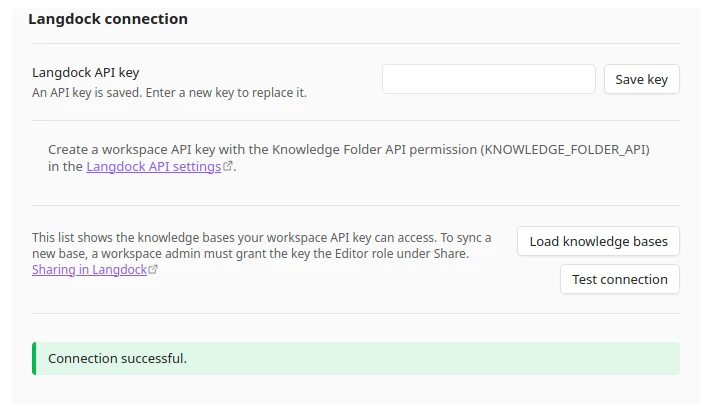
- Ask your Langdock workspace admin to create a workspace API key with the Knowledge Folder API permission (
KNOWLEDGE_FOLDER_API). - In Obsidian, open Settings → Langdock Sync, paste the key, and select Save key.
- Share each knowledge base with that key. Test connection checks access to the bases assigned under Manage folders.
Share a new knowledge base
Langdock lists the knowledge bases available to the workspace API key saved in Obsidian. Give that key Editor access to each new knowledge base you want to use for sync.
- Open the new knowledge base in Langdock → Library and select Share.
- Ask a workspace admin to find the existing key by name under Add people, groups and API keys, select Editor, and confirm with Share. Langdock sharing guide
- In Obsidian → Settings → Langdock Sync, select Load knowledge bases again. You can then select the new base under Manage folders.
Choose notes to sync
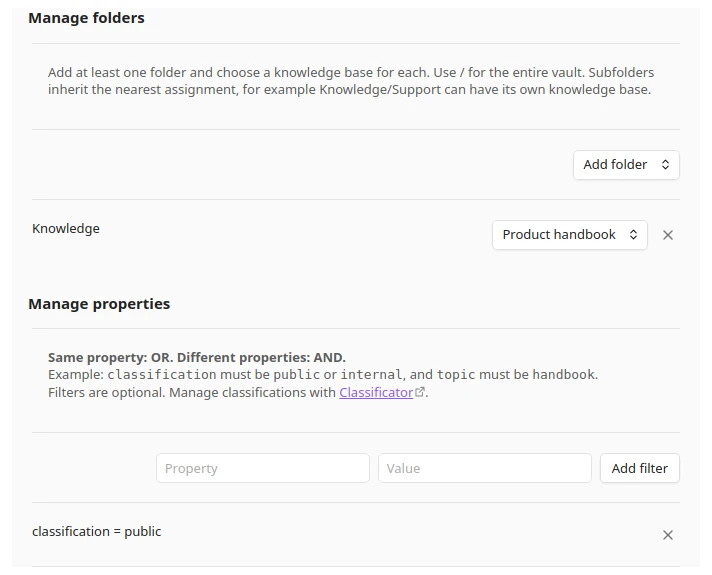
Under Manage folders, select Add folder, choose a vault folder, and select its knowledge base. Entire vault (/) provides a default for all other folders. The nearest configured ancestor determines the target for each file. For example, with / assigned to Product handbook and Knowledge/Support assigned to Support archive, Knowledge/Support/FAQ.md syncs to Support archive. Knowledge/Release notes.md syncs to Product handbook. Without a root assignment, only the configured folder trees are in scope.
Existing folder selections keep their previous knowledge base when you upgrade. Editing the assignments turns off Sync automatically until you enable it again. Assign a knowledge base to every added folder to run a full sync, including periodic sync.
The settings remember the names of assigned knowledge bases so you can see them offline. Select Load knowledge bases to refresh names after a rename.
The default filter includes notes with the property classification: public. To try it, create Knowledge/Launch notes.md and paste this example in Obsidian’s Source mode. If the note already has Properties, add the fields to that section.
---
classification: public
audience: team
---

# Launch notes

The new help center is available to all customers.
The two valid classifications are public and internal. Each synced note needs a single classification, even if you remove all property filters.
Include attachments
Under Attachment extensions, check the formats to include and select Save extensions. By default, every format is unchecked. Supported document formats include PDF, Word, PowerPoint, text, HTML, and JSON.
Image files. Langdock Sync skips images such as JPG, PNG, and SVG because the Knowledge Folder API rejects image uploads. To store images in Langdock, upload them manually under Library → Folders. Langdock's public API reference provides no upload endpoint for Library folders. Knowledge Folder upload API · Library folder uploads · Public API reference
Classify each attachment with Classificator. It records the exact filename and its classification under attachment-classifications in the _meta.md file of the attachment’s own folder.
---
attachment-classifications:
  Product guide.pdf: public
---
The attachment must be in a selected folder and match the configured filters. Other property filters use the top-level properties in that same _meta.md. Set langdock_sync: false there to exclude that folder’s attachments.
Preview and run your first sync
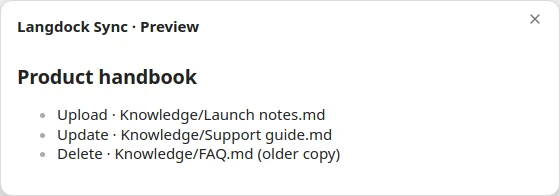
- In Settings → Langdock Sync, select Preview to review planned uploads, updates, and deletions by knowledge base.
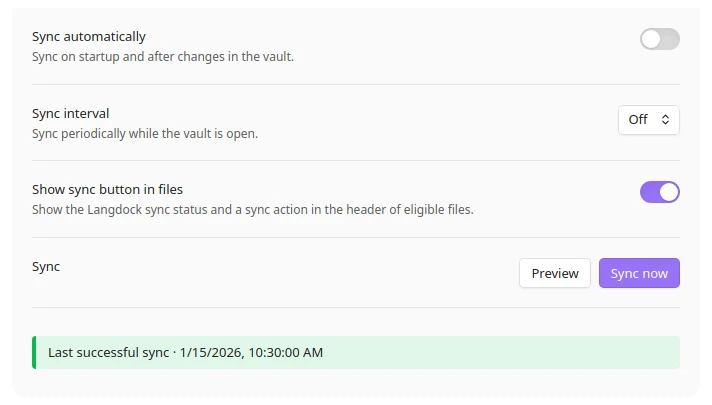
- Close the preview, select Sync now, and check Last successful sync in the settings. The example note will appear in the knowledge base assigned to its folder.
- To keep it up to date, turn on Sync automatically. This starts off disabled. Once enabled, it runs when you open the vault and after changes in it.
- To sync periodically while the vault is open, choose a Sync interval of 15 minutes, 30 minutes, 1 hour, or 2 hours. It starts off disabled and works independently of Sync automatically.
Sync an individual file
Eligible files show a sync button in their header when opened in an Obsidian file view. When Classificator displays a classification badge in the header, the sync button appears next to it. Purple means Not synced, yellow means Outdated, and blue means Synced. Select the button to view the status and the upload time of the indexed copy, when available. Select Sync now to sync that file. To hide the button, turn off Show sync button in files in Settings → Langdock Sync.
Adjust what you share
- Filter by more properties. Under Manage properties, add
classification = internalandaudience = teamalongside the defaultclassification = publicto include both public and internal notes for the team. Values for the same property are alternatives. Each different property must match. A list property matches when any item has an allowed value. - Exclude a file. For a note, set
langdock_sync: falsein its Properties. For an attachment, remove its entry fromattachment-classificationsor give it a classification outside the sync selection. The next sync removes the managed copy from Langdock. Deleting a local file or changing the folder, extensions, or filters so it no longer qualifies also removes its managed copy. Files you uploaded separately remain in Langdock. - Use one source vault per knowledge base. A full sync reconciles all currently assigned knowledge bases. If you reassign a folder and both bases are still assigned, the full sync removes old copies once their replacements are indexed. A base with no folder assignment is outside the sync scope.
Troubleshooting
- The knowledge base is missing or read-only. Check the Editor grant for the exact workspace API key saved in Obsidian, then reload the list. Share a new knowledge base
- A note is missing from the preview. Check its folder, classification, and any extra filters. The preview lists changes, so an unchanged note that's already in Langdock may be absent.
- Langdock reports an indexing error. Check the message in Settings → Langdock Sync and select Sync now to retry.
Build locally
Use the Node.js version in .nvmrc, then run npm ci and npm run build to generate main.js.