
- Overview
- Scorecard
- Updates6
English · Français
I make sausage at home. I also cook non-sausage recipes. Those are two different jobs, and they need two different modes.
- Sausage and charcuterie are built from ratios. Salt, nitrite, pepper and spices are dosed against the weight of the meat. When the meat changes, every additive has to follow.
- Dough, batter, soup and most everyday recipes are fixed lists. To make half, you multiply every amount by
0.5.
kitchenForge puts both workflows into Obsidian as a fenced kitchenforge block. The two interactive modes are mutually exclusive: a block uses calculation mode, scaling mode, or neither — never both.
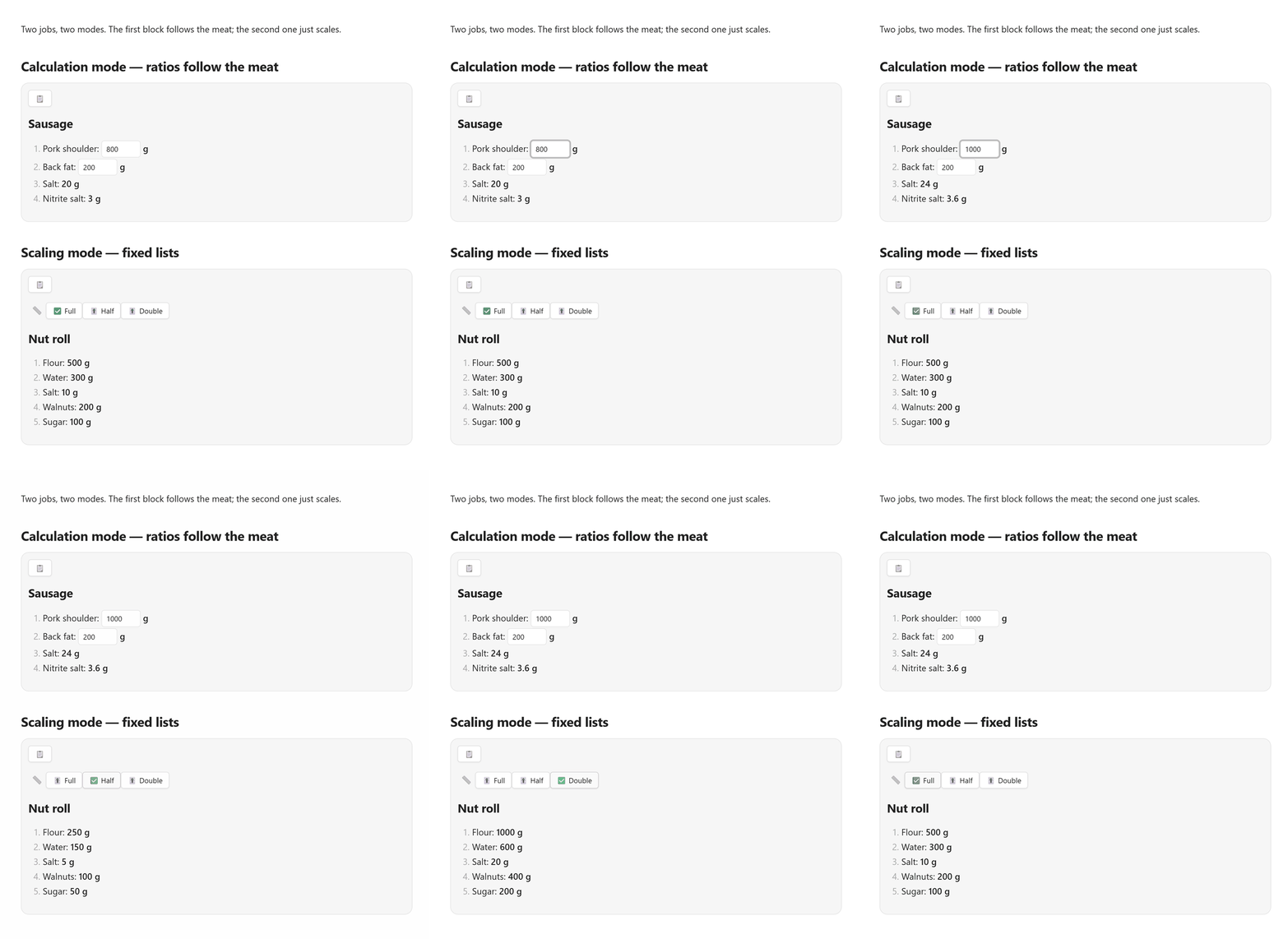
Live Obsidian animation: both modes, light theme.
Two modes at a glance
| Your recipe is… | Use | What you edit |
|---|---|---|
| Sausage, charcuterie, brine, anything built from ratios | Calculation mode (id + calc) |
Base weights; dependent amounts recompute live |
| Dough, cake, sauce, soup, a fixed ingredient list | Scaling mode (scales) |
Nothing; click a scale button |
A block cannot mix
scaleswithid/calc. kitchenForge reports an error instead of guessing.
Sections can also be grouped into choice groups — selectable variants of one component. Choice groups work in both modes.
Calculation mode: ratios that follow the meat
Mark the ingredients you want to edit with an id. Any ingredient with a calc expression can reference those ids. The expression is evaluated when the block renders and again on every input change. IDs must be unique across the whole recipe — they are shared variable names.
```kitchenforge
unit: g
sections:
  - name: 🥩 Meat
    items:
      - name: Pork
        id: pork
        value: 800

      - name: Back fat
        id: lard
        value: 200

  - name: 🧂 Seasoning
    items:
      - name: Salt
        calc: (pork + lard) @ 20

      - name: Black pepper
        calc: (pork + lard) @ 1.5
```
This renders 20 g salt and 1.5 g pepper for 1000 g of meat. Change pork to 1000 and the salt becomes 24 g, the pepper 1.8 g — no need to touch the seasoning lines.
The @ operator is per mille
a @ b = a × b / 1000
So 1000 @ 20 means 20 per 1000, not 20%. @ 20 is 2%, and @ 1.5 is 0.15%. The result stays in the same unit as the left operand: grams in, grams out.
@ has the same precedence as * and /. Use parentheses when the expression is not obvious.
Full sausage recipe
```kitchenforge
unit: g
sections:
  - name: 🥩 Raw materials
    items:
      - name: Pork (semi-fatty)
        id: pork
        value: 800

      - name: Back fat
        id: lard
        value: 200

  - name: 🧂 Spices and seasonings
    items:
      - name: Nitrite salt (0.6% NaNO₂)
        calc: (pork + lard) @ 20

      - name: Ground black pepper
        calc: (pork + lard) @ 1.5

      - name: Nutmeg
        calc: (pork + lard) @ .5

      - name: Sugar
        calc: (pork + lard) @ 1.5

      - name: Dried garlic
        calc: (pork + lard) @ 5

      - name: Milk powder
        calc: (pork + lard) @ 5

      - name: Iced water
        calc: pork @ 15
```
Food safety: these numbers are an example, not a curing standard. Use a tested recipe and the nitrite percentage required by your local food-safety guidance.
Scaling mode: fixed lists, one click
Provide a scales list and plain ingredients with fixed values. Each scale has a multiplier mult and an optional name. Clicking a button multiplies every amount by that multiplier.
Every click is applied to the original amounts, not to the values currently on screen, so switching scales never compounds rounding. When scales is configured, the first scale is applied on render. A 1:1 scale (explicit or implicit) restores the authored values exactly, including precision beyond decimals; any other multiplier rounds to decimals (or the item's round): for example, 12.345 with decimals: 2 stays 12.345 on 1:1, but becomes 6.17 on a ×0.5 scale. Without scales, authored values are shown exactly as written. Choose a high enough decimals value to keep the precision you need.
```kitchenforge
unit: g
decimals: 1
scales:
  - name: Full
    mult: 1
  - name: Half
    mult: .5
  - name: Third
    mult: .33
sections:
  - name: 🥣 Dough
    items:
      - name: Flour
        value: 400

      - name: Butter
        value: 140

      - name: Egg yolks
        value: 2
        unit: pcs

      - name: Sour cream
        value: 160

      - name: Salt
        value: 5

  - name: 🌰 Filling
    items:
      - name: Ground nuts
        value: 80

      - name: Powdered sugar
        value: 40
```
Names are optional. If you omit a scale name, kitchenForge generates one from mult: 💯 1:1 for mult: 1, and ×2, ×0.5, ×1.5 for other multipliers.
scales:
  - name: Half
    mult: .5
  - mult: 2
This renders as ✅ 💯 1:1, 🎚 Half, and 🎚 ×2.
Which scale is selected first?
- The first scale in the list is selected when the block renders, regardless of its
mult. Order is the only default rule. - If no scale has
mult: 1, kitchenForge prepends an implicit💯 1:1button. It becomes the first button, so the recipe opens at the original amounts. - If a scale already has
mult: 1, no implicit button is added and your order is kept.
To make another scale the default while keeping 1:1 available, list that scale first and add an explicit mult: 1 entry after it:
scales:
  - name: Double
    mult: 2
  - mult: 1
This renders as ✅ Double and 🎚 💯 1:1.
The 📏 label prefixes the button row. The selected button starts with ✅; the others start with 🎚.
Choice groups: one component, several variants
Some parts of a recipe exist in interchangeable versions: apple or cherry filling, lean or fatty mince, glaze or crumble. Give interchangeable sections the same choice value to turn them into a variant switcher.
```kitchenforge
unit: g
sections:
  - name: 🥣 Dough
    items:
      - name: Flour
        value: 400

  - choice: Filling
    name: 🍎 Apple
    items:
      - name: Apples
        value: 500

  - choice: Filling
    name: 🍒 Cherry
    items:
      - name: Cherries
        value: 400
```
choiceis the group label; use the same text on every variant.- A blank variant
namefalls back toVariant Neverywhere: buttons, show-all headings and copied Markdown. Non-stringnameorchoicevalues (other thannull) are reported as errors instead of being silently ignored. - All sections with the same
choicevalue form one group, even if other sections are between them. The group is rendered where its first variant appears; variants keep their source order. - A group with only one variant is not a choice group: it renders as a normal section titled
Group → Variant. - The first variant is selected when the block renders.
●marks the selected variant,○the others. Clicking a button shows that variant.- The eye button next to 📋 is a recipe-wide toggle: the plain eye shows every variant of every group, the crossed-out eye returns to one variant per group. It appears only when at least one group has two or more variants.
- In show-all mode the variant buttons and group headings disappear. Each variant gets an
h4heading built asGroup → Variant, e.g.Filling → 🍎 Apple. - The selected scale survives switching: click Half, switch from Apple to Cherry, and Cherry is already halved.
- Formulas keep working across variants: a
calcin a hidden variant is still evaluated, so switching never shows stale numbers. - Copying (📋) follows what is on screen and keeps the group name:
__Filling → 🍎 Apple__or every variant while show-all is active.
Every distinct choice label produces one button row, no matter where its sections appear in the source.
Rounding
decimals controls decimal places for computed and scaled values. It defaults to 2.
Set a per-item round: N to snap an amount to the nearest multiple of N instead. This is useful for ingredients where decimal precision is just noise (potatoes to the nearest 25 g) or for whole-unit items (eggs with round: 1).
- name: Potato
  value: 150
  round: 25      # 25 g steps; e.g. 49.5 → 50

- name: Egg
  value: 1
  unit: pcs
  round: 1       # half a recipe still shows 1, not 0
A non-zero amount never becomes 0: it stays at least one step in the same direction, so scaling down cannot make an ingredient disappear. A zero or negative round falls back to normal decimals rounding.
round: 1 on a low count of an impactful ingredient (eggs, sachets) introduces real error when scaling. For those, weigh the ingredient (1 egg ≈ 50 g) and use a smaller step, e.g. round: 5, so the scale stays honest.
Fields
| Field | Level | Required | Notes |
|---|---|---|---|
unit |
top level | No | Default unit for items that don't override it. Defaults to g. Display-only: kitchenForge does not convert units. |
decimals |
top level | No | Decimal places for computed and scaled amounts. Defaults to 2. |
scales[] |
top level | No | List of {name?, mult}. A missing name is generated from mult. Mutually exclusive with id/calc items. |
sections[] |
top level | Yes | List of {name?, choice?, items[]}. A section without a name renders as a visual gap (except at the top). |
choice |
section | No | Group label for variant sections. All sections with the same choice form one variant switcher, placed at the first variant's position; the first variant is shown initially. Copied and show-all headings read Group → Variant. |
name |
item | Yes | Ingredient name. |
value |
item | Yes for plain and id items |
Number. Ignored when calc is present. |
unit |
item | No | Overrides the recipe-level unit for this item. Display-only. |
id |
item | No | A string that exposes the item as an editable input. Other items can reference the id in calc. Needs a numeric value. Whitespace is trimmed; must be unique across the whole recipe. |
calc |
item | No | Expression. Supports + - * / @ and parentheses. Use instead of value. |
round |
item | No | Snap computed/scaled amount to the nearest multiple of this step (e.g. 25, 1). Overrides decimals; a non-zero amount never becomes 0. |
Copy the current recipe
Every rendered block has a 📋 button at the top. It copies the currently displayed recipe — with calculated or scaled values filled in — as a clean Markdown list. The button turns into ✅ for a second.
When a choice group is visible, the copy follows the current view and keeps the group name: __Filling → 🍎 Apple__ for the selected variant, or every variant when show-all is active.
This is handy for pasting into a note, a shopping list, or a message while cooking. Copying never rewrites your YAML source. The button only writes to the clipboard when clicked; kitchenForge never reads clipboard contents.
Troubleshooting
| Message or symptom | Likely cause | Fix |
|---|---|---|
Recipe must have a 'sections' array |
Missing sections |
Add sections: with at least one section. |
Section … must be a mapping |
A list entry under sections is not a mapping |
Make every section a - name: … block with items:. |
Section '…' must have an 'items' array |
A section has no items |
Add an items: list to that section. |
Item … must be a mapping |
A list entry under items is not a mapping |
Make every item a - name: … block. |
Item … must have a string 'id' |
id is a number or boolean |
Use a text id, for example id: salt. |
Unknown variable: … |
calc references an id that does not exist or has no value |
Add the id with a numeric value, or fix the spelling. |
Duplicate id '…' |
The same id is used by more than one item | Give each item a unique id. |
Cannot have scales with ids/formulas specified |
Mixed modes | Remove scales, or remove every id/calc. |
Recipe 'scales' entry #… 'name' must be a string |
name is a number or boolean |
Quote it, or omit it to generate a label from mult. |
Unsupported operator |
Used %, ^, etc. |
Use + - * / @. |
Error parsing recipe: |
Invalid YAML | Check indentation, colons and quotes. |
A value shows Infinity or NaN |
Division by zero or a non-numeric input | Check the input values and the expression. |
Installation
Community plugins (recommended)
kitchenForge is in the Obsidian Community Plugins directory.
- Open Settings → Community plugins.
- If restricted mode is on, turn it off.
- Click Browse, search for kitchenForge, then Install and Enable.
Requires Obsidian 1.2.3+. Works on desktop and mobile.
Manual installation
Download main.js, manifest.json and styles.css from the latest release, put them into <vault>/.obsidian/plugins/kitchen-forge/, then enable the plugin in Settings → Community plugins.
Development
npm install
npm run dev      # esbuild in watch mode
npm test         # vitest
npm run lint
npm run build    # type-check + production bundle
Tests cover the pure helpers (src/recipe.ts, src/calc.ts) and the DOM-facing renderer (src/kitchenforge.ts) via happy-dom.
Feedback
Found a bug or have an idea? Open an issue.
License
MIT. See LICENSE.