Heading Jump Fix
Auto-correct scroll after outline, wikilink, heading, and block-reference clicks, including Reading view, so one click is enough.
- Overview
- Scorecard
- Updates10
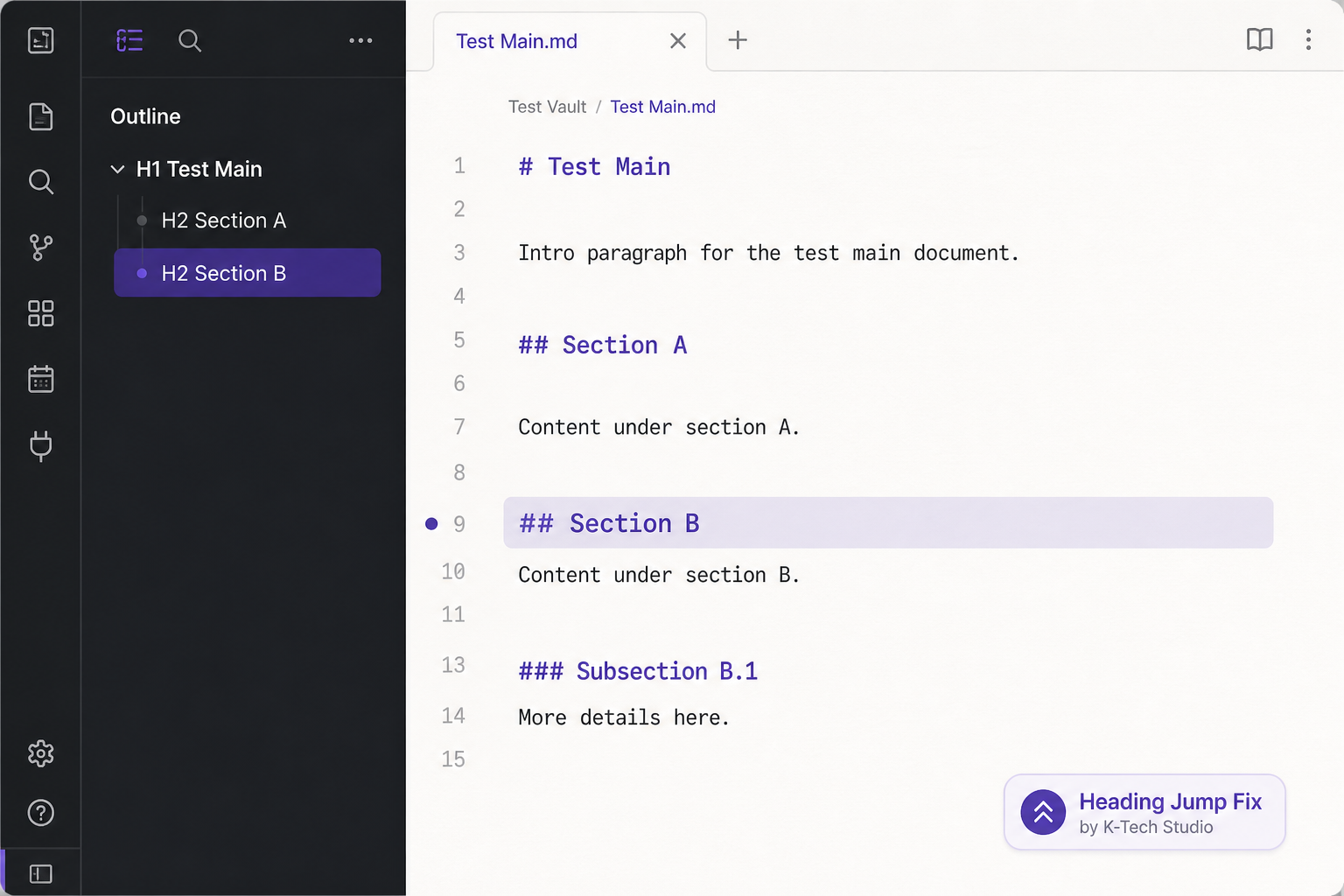
K-Tech Studio plugin that auto-corrects scroll position after heading jumps from the Outline, wikilinks, block references, or link panes — in Live Preview and in Reading view.
English
Problem
In Live Preview or Reading view, clicking a heading in the Outline (or a [[note#heading]] link) sometimes moves the cursor but does not scroll to that heading — especially on long notes, after opening the app, or with a split editor + Reading layout. This plugin performs that second correction automatically.
What it fixes
- Outline sidebar: one click should scroll to the heading (Live Preview and Reading view)
- In-note
[[wikilink#heading]]clicks - In-note
[[note#^block]]clicks - Heading or block clicks in Outgoing links / Backlinks
- Split layout: editor on one side, Reading view on the other
- Duplicate headings: disambiguated by order in the outline
- Theme
scroll-behavior: smoothmissing the target - Configurable retry delay, retry count (with backoff), and scroll-to-center
What it does not fix
- General UI sluggishness (Electron/GPU, too many plugins)
- Dropbox or sync I/O delay
- Reading view heading clicks that are not links (headings themselves are not turned into a table of contents)
How to use
- Install Heading Jump Fix from Community plugins and enable it
- Open a long note
- Click a heading in Outline, a
[[note#heading]]or[[note#^block]]link, or a heading in the link panes
Settings (plugin options):
| Setting | Default | Description |
|---|---|---|
| Enable plugin | ON | Master switch |
| Outline click fix | ON | Retry scroll after outline clicks |
| Wikilink click fix | ON | Retry scroll after [[wikilink#heading]] and [[note#^block]] clicks |
| Link pane click fix | ON | Retry scroll after Outgoing links / Backlinks (headings and blocks) |
| Reading view jump fix | ON | Retry scroll in Reading view after Outline or heading-link jumps |
| Retry delay (ms) | 250 | Wait before correction |
| Retry count | 1 | Extra scroll passes (later passes wait longer) |
| Scroll heading to center | ON | Center the heading in the editor |
| Override theme scroll-behavior | ON | Instant editor scroll (ignore theme smooth-scroll) |
Command palette: Jump to heading at cursor line reliably — scrolls to the heading that contains the current cursor line.
Author
K-Tech Studio
Support
Disclaimer (no warranty)
This software is provided as is, without warranty of any kind. The developer does not guarantee that it will work in every environment. Use at your own risk. See the MIT License.
License
MIT
日本語
Live Preview やリーディングビューで、アウトラインや [[ノート#見出し]] をクリックしても、カーソルだけ動いて スクロールが追従しない ことがあります。分割表示でも起きやすいです。2 回目のクリック相当をプラグインが自動で行います。
直すもの
- アウトライン 1 クリックでの見出しジャンプ(ライブプレビューとリーディングビュー)
- 本文の
[[wikilink#見出し]]クリック - 本文の
[[ノート#^ブロック]]クリック - アウトゴーイングリンク / バックリンクの見出し・ブロッククリック
- 編集とリーディングの左右分割
- 同名見出し(アウトライン上の順序で区別)
- テーマのスムーズスクロールで見出しを外す問題
- リトライ遅延・回数(backoff)・中央揃えの設定
直さないもの
- 全体の UI ラグ
- Dropbox 同期遅延
- リンクではないリーディングビューの見出しクリック(見出し自体を目次にはしない)
使い方
- コミュニティプラグインから Heading Jump Fix を入れて有効にする
- 長いノートを開く
- アウトライン、
[[ノート#見出し]]/[[ノート#^ブロック]]、またはリンクペインからジャンプする
設定(プラグイン設定):
| 設定 | 初期値 | 説明 |
|---|---|---|
| プラグインを有効化 | ON | 全体のスイッチ |
| アウトラインクリック補正 | ON | アウトラインクリック後にスクロールを再試行 |
| Wikilink クリック補正 | ON | [[wikilink#見出し]] と [[ノート#^ブロック]] のあとスクロールを再試行 |
| リンクペイン補正 | ON | アウトゴーイング / バックリンクの見出し・ブロッククリック |
| リーディングビューのジャンプ補正 | ON | アウトラインや見出しリンクのあと、リーディング側もスクロール |
| リトライ遅延 (ms) | 250 | 補正までの待ち時間 |
| リトライ回数 | 1 | 追加のスクロール回数(後の回は待ち時間が増える) |
| 見出しを中央へ | ON | エディタの中央付近に見出しを置く |
| テーマの scroll-behavior を上書き | ON | エディタを即時スクロール |
コマンドパレット: Jump to heading at cursor line reliably — カーソル行を含む見出しまでスクロールします。
作者
K-Tech Studio
サポート
免責(無保証)
本ソフトウェアは 現状有姿(無保証) で提供します。あらゆる環境での動作を保証しません。利用は自己責任です。詳細は MIT ライセンス を参照してください。
ライセンス
MIT