Journey Diary Import
 theluckystrike1 downloads
Convert Journey diary ZIP backups into dated Markdown notes with photos.
- Overview
- Scorecard
- Updates1
Journey Diary Import converts a Journey diary ZIP backup into dated Markdown notes with photos. Select the backup, check the preview, then import it into your vault. The basic conversion is free and runs on your device.
Features
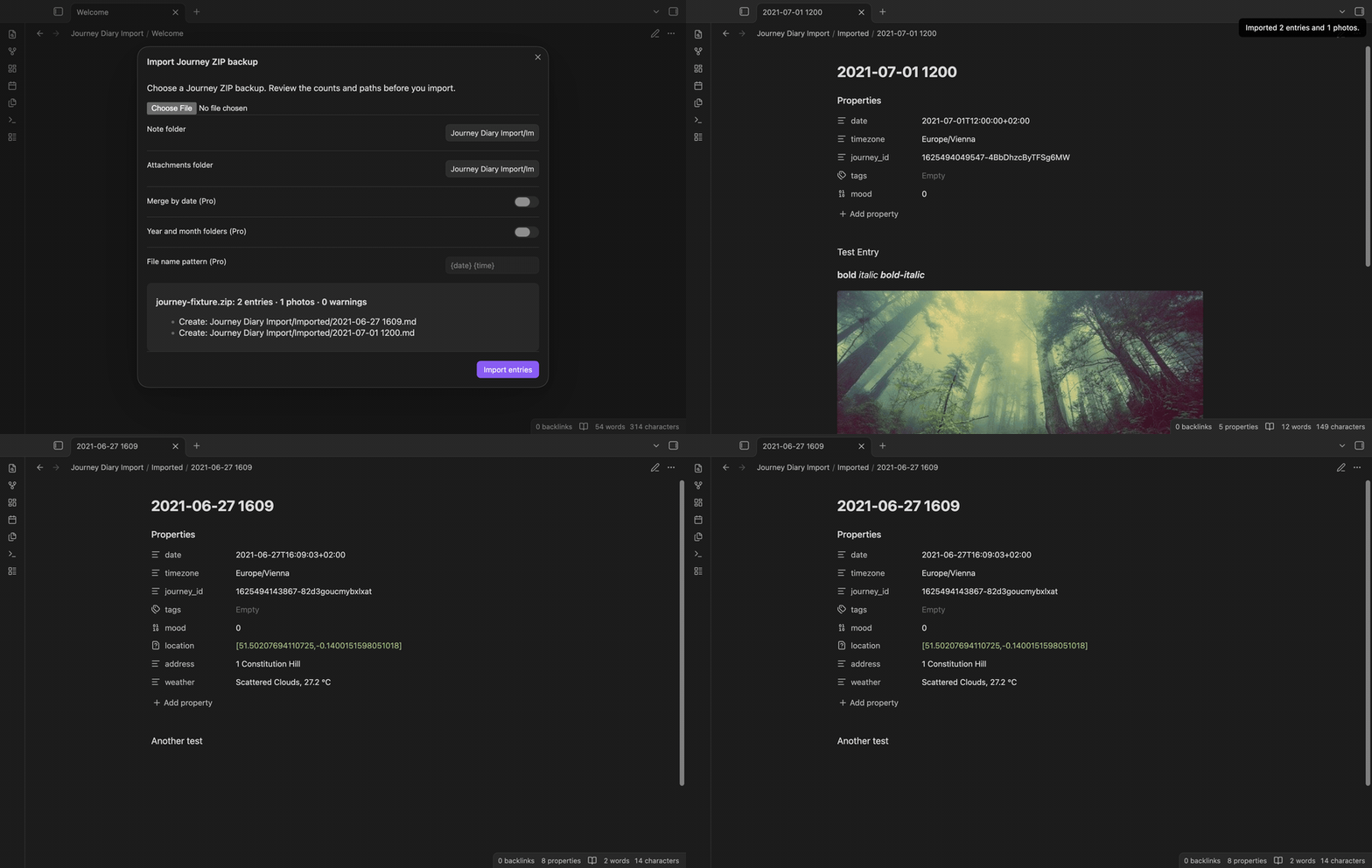
Preview a backup
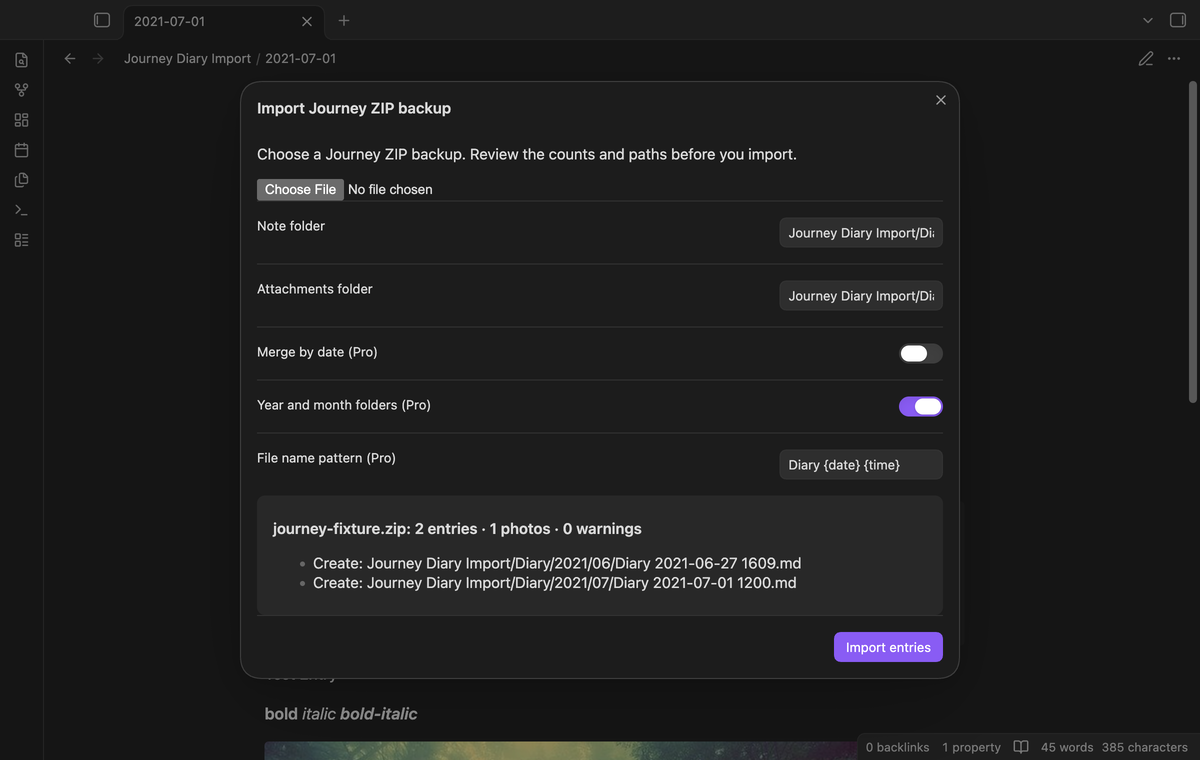
The import window shows the number of entries, photos and warnings, plus the first eight output paths. It reads JSON entries that have date_journal and text fields. A ZIP without those entries shows “No Journey entries found” and creates no notes. The preview does not write files.
Dated Markdown notes
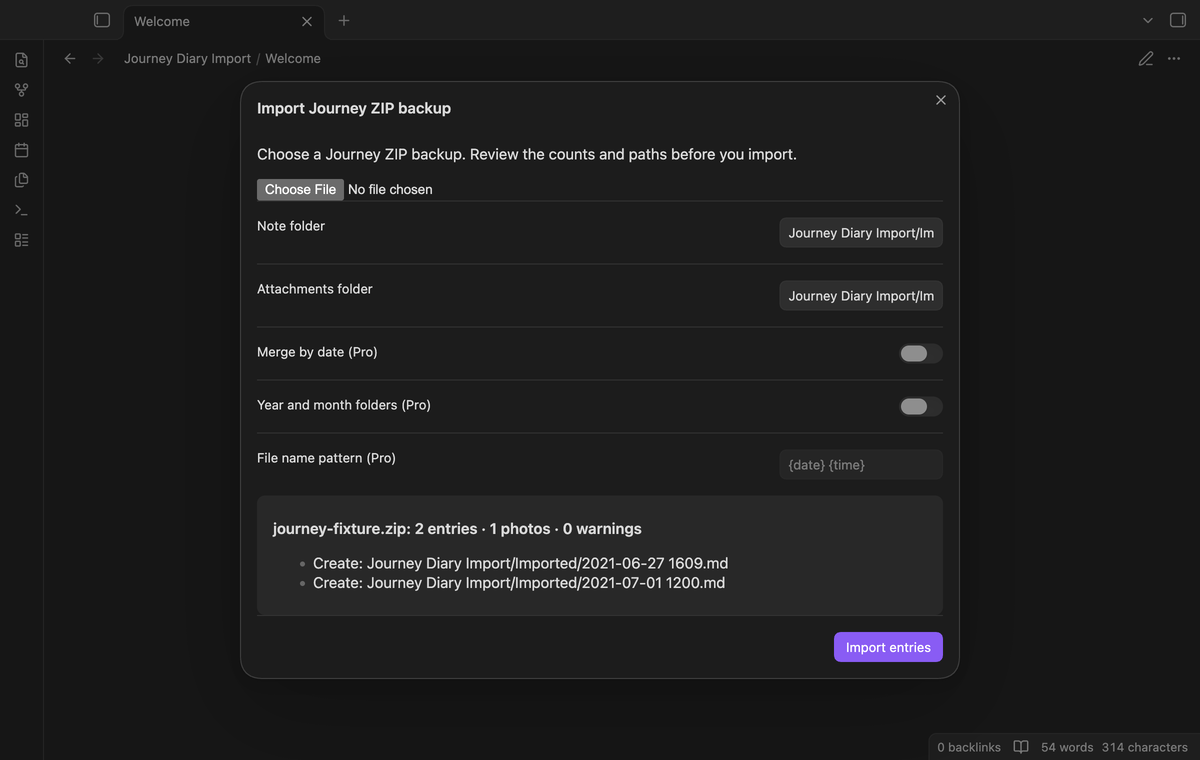
The free import makes one note per entry. Names use the entry's date and minute, such as 2021-07-01 1200.md. The timezone stored in the entry sets the local date. HTML bold and italic text become Markdown. Entries with type markdown keep their Markdown text, with image syntax and HTML tags removed.
If a path exists, the new name gets a suffix such as (2). This also separates two entries in the same minute. Existing notes stay in place during a free import.
Local photos
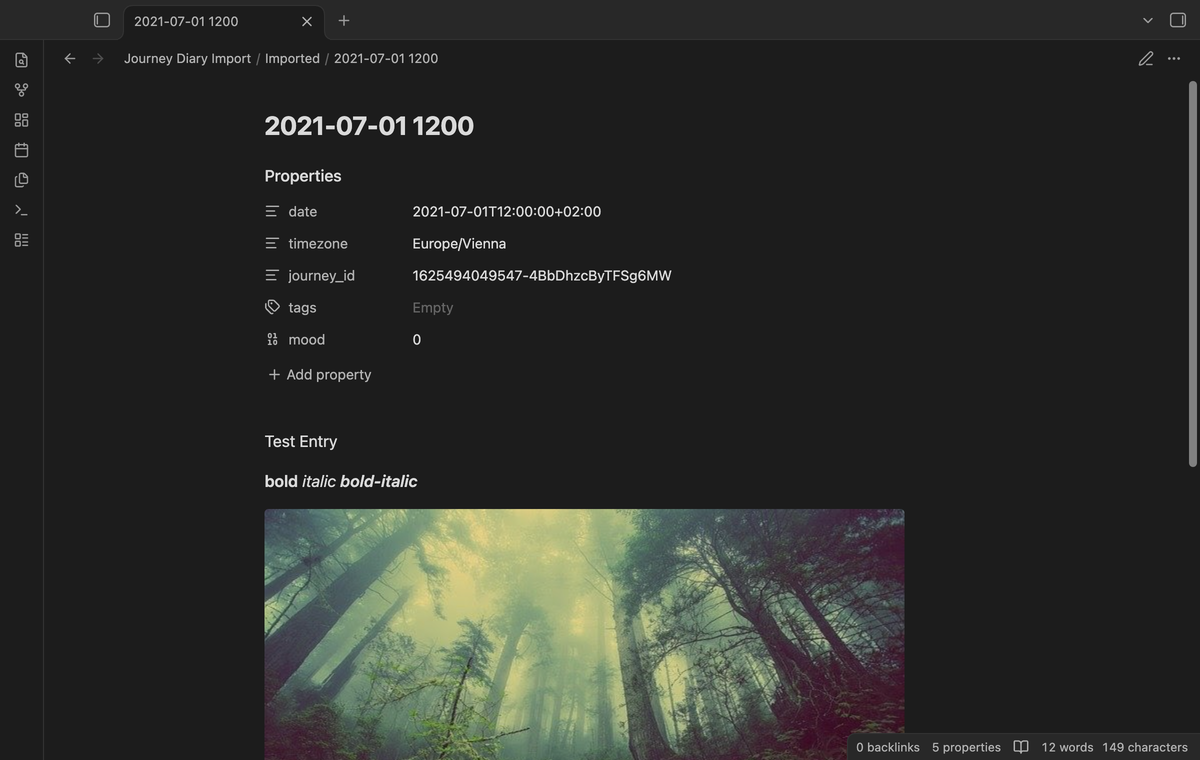
Photos listed by an entry are copied from the ZIP into the attachments folder and embedded with vault links. A shared source photo is copied once within that import. A missing photo or an ambiguous name gives a warning; the entry text can still be imported.
The importer accepts JPEG, PNG, GIF, WebP and HEIC file extensions. HEIC display depends on your device. Images in the text are removed; the plugin uses the archive's photo list instead of fetching remote images.
Entry properties
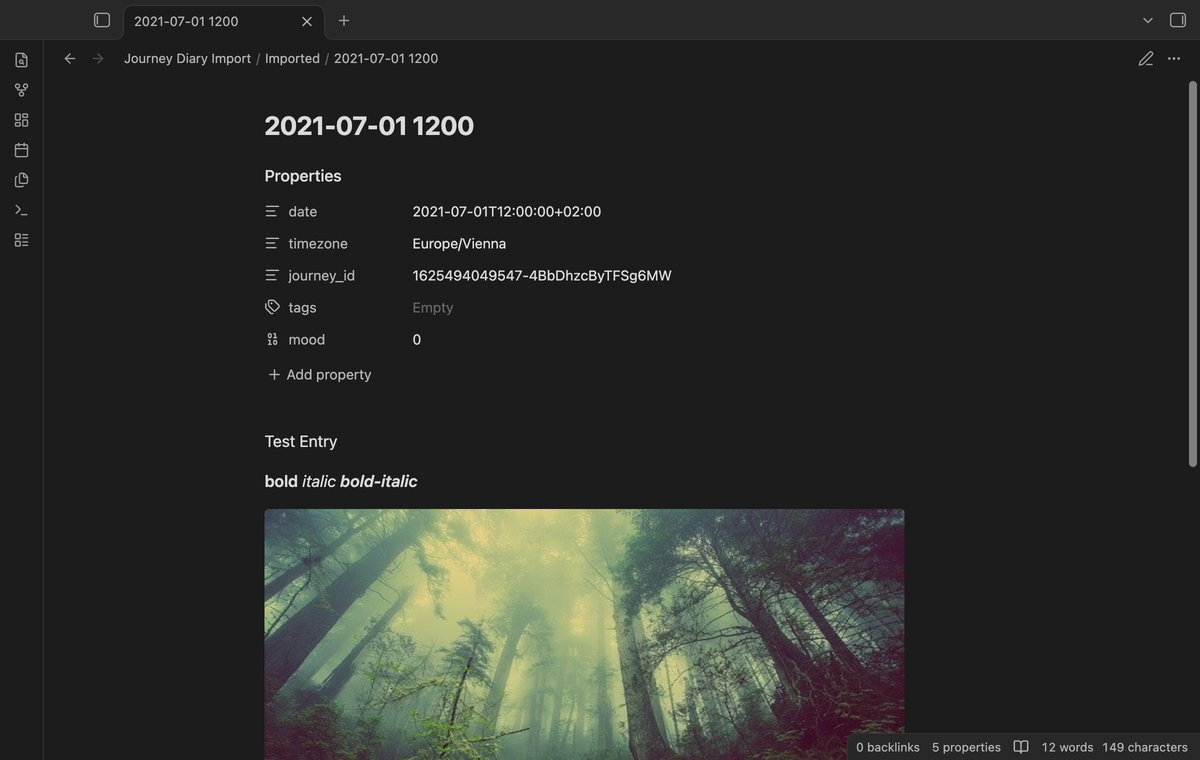
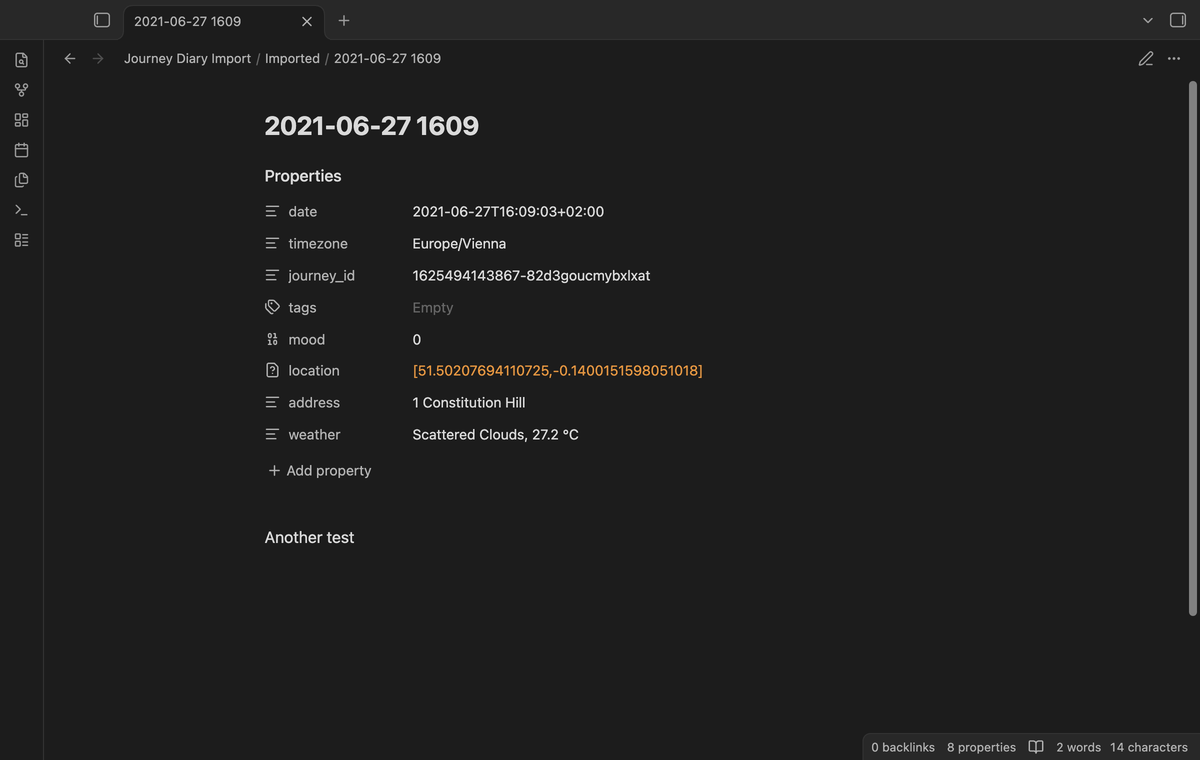
Each separate note has frontmatter for the date, timezone and Journey ID. Tags and numeric mood are kept when present. Valid latitude and longitude form a location list, with the address when present. Journey's large sentinel coordinates are omitted. Weather combines the description and a valid Celsius temperature. A missing timezone uses UTC; an unknown timezone adds a warning and uses UTC.
Daily note merge (Pro)
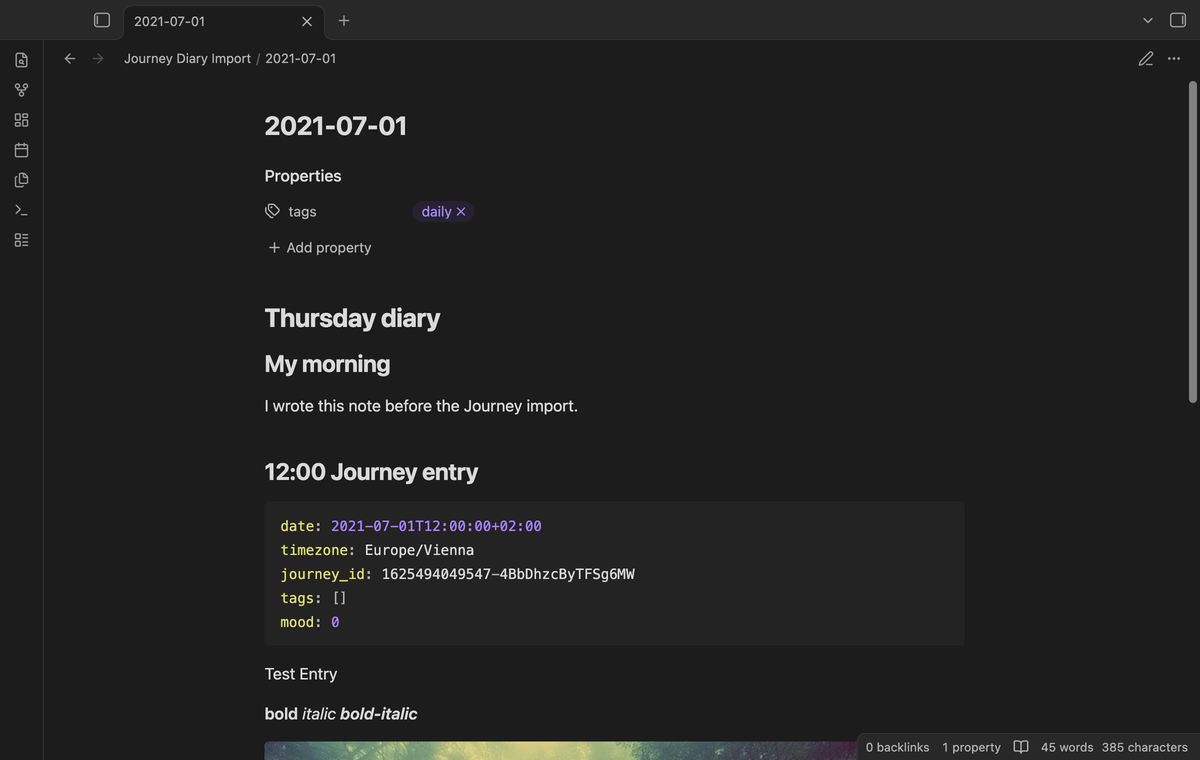
Set the note folder to your daily note folder and turn on “Merge by date”. Entries append to YYYY-MM-DD.md. A missing daily file is created. Existing daily frontmatter stays in place. Each entry gets a time heading and a YAML code block with its own properties. This keeps separate locations and moods visible when two entries share a date.
Folders and file names (Pro)
“Year and month folders” puts notes under YYYY/MM within the chosen note folder. A file name pattern can use {date}, {time} and {id}. For example, Diary {date} {time} makes Diary 2021-07-01 1200.md. Reserved file name characters become spaces. Merge by date uses the date name instead of the custom pattern.
Install
This source tree is prepared for release. For manual installation, copy main.js, manifest.json and styles.css into <vault>/.obsidian/plugins/journey-import/. Enable Journey Diary Import in Community plugins. It needs Obsidian 1.13.4 or later. A community directory listing is not part of this build.
Usage
- Make a ZIP backup in Journey and keep the original file.
- Open the command palette and run “Journey Diary Import: Import Journey ZIP backup”.
- Select the ZIP with the file picker. The backup can be outside the vault; this reads only the file you select.
- Check the counts, warnings and destination paths. Set the note and attachments folders.
- Select “Import entries”. Open the note folder to review the output.
Use a separate folder for a first import. A second free import creates more notes and photos with numbered names. A second daily merge appends entries again. The plugin does not deduplicate earlier imports or track a completed backup. Compare the output with Journey before you remove the source data.
Settings
The settings tab stores default note folder, attachments folder and Pro layout options. The import window starts with those defaults. Changes in that window apply to the current import. The default folders are Journey and Journey/attachments.
When Pro is off, the importer uses separate notes and the standard date and time pattern. Saved Pro options remain in the settings. Folder paths must stay inside the vault and cannot contain dot segments or reserved characters. An empty folder selects the vault root. The GitHub account controls are in the Pro section of the settings tab.
FAQ
Which backup formats were checked?
Tests use the public 2021 two-entry fixture from journey-markdown-converter and generated entries with the same keys. The fixture is GPL 3 test data, with its license in docs/fixture-LICENSE.txt; this plugin uses new converter code. Tests include HTML and Markdown text, timezone offsets, photo paths, collisions and Pro gating.
What was not tested?
Newer Journey export schemas, encrypted ZIPs, large real diary archives, Android, iOS and HEIC rendering were not tested. Live GitHub payment and sign in were not tested. Pro tests use a simulated sponsorship response. The runtime uses browser and public Obsidian APIs, with no Node or Electron import.
What happens if a backup or write fails?
ZIP input is limited to 128 MiB, 10000 files and 256 MiB of selected expanded data. One JSON entry is limited to 4 MiB. Invalid JSON entries are skipped with warnings. Invalid dates are skipped. The backup is read in memory. A write error reports the completed entry and photo counts. Files already written remain in the vault; inspect them before a retry.
Payment, account and network
The core features are free. Pro features need a GitHub Sponsors sponsorship of theluckystrike: $5 a month or more, or $15 once. A total payment of $15 meets the payment requirement for Pro without further payment. Sign-in and the checks below still apply. Your notes stay readable and editable with or without Pro.
GitHub handles the payment. Sponsor at https://github.com/sponsors/theluckystrike. You need no account for the free features. Pro needs the GitHub account that sponsors.
Until you select "Sign in with GitHub" in the settings, Journey Diary Import makes no network requests. Sign in uses the GitHub device flow. Journey Diary Import sends its public client ID and the scope read:user to https://github.com/login/device/code and shows you a code. While you enter the code at https://github.com/login/device, it asks https://github.com/login/oauth/access_token every few seconds to check the sign-in status. The scope permits profile reads only. GitHub needs this access to show the sponsorship tier. It grants no repository scope and no write access.
After sign in, Journey Diary Import sends one query to https://api.github.com/graphql. It checks if the signed-in account sponsors theluckystrike. It asks for the tier and the total payment to theluckystrike. The plugin reuses a successful check for 7 days. Failed checks can retry after 6 hours. Select Refresh to request an earlier check. It sends no note content, file names or other vault data, and it has no telemetry.
After a successful check, Pro can work offline for up to 14 days. Sign out or a negative sponsorship answer turns Pro off. The plugin stores the GitHub token through the secret storage API of Obsidian. It does not put the token in its saved settings or its local sponsorship data. The local storage of this device keeps your GitHub login, the tier and the time of the last check. Sign out clears the token. You can also revoke the access in your GitHub settings, under Applications.
Support
Report problems in the repository's issues after release. Include the Obsidian version, Journey export date and warning text. Use a small backup with invented diary text and photos if you share a sample. Diary backups can contain private locations and personal text. The importer does not upload a diagnostic backup.