ISBN Bulk Import Bookshelf Builder
 flex-moto213 downloads
Manage your bookshelf from ISBN. Fetches book metadata from NDL, Google Books, and Open Library, then creates and organizes book notes.
- Overview
- Scorecard
- Updates2
An Obsidian plugin that fetches book metadata from ISBN and helps you manage your personal bookshelf as notes.
Features
- Fetch book metadata by ISBN from NDL (National Diet Library of Japan), Google Books, and Open Library
- Automatic cover image download with WebP conversion and local caching
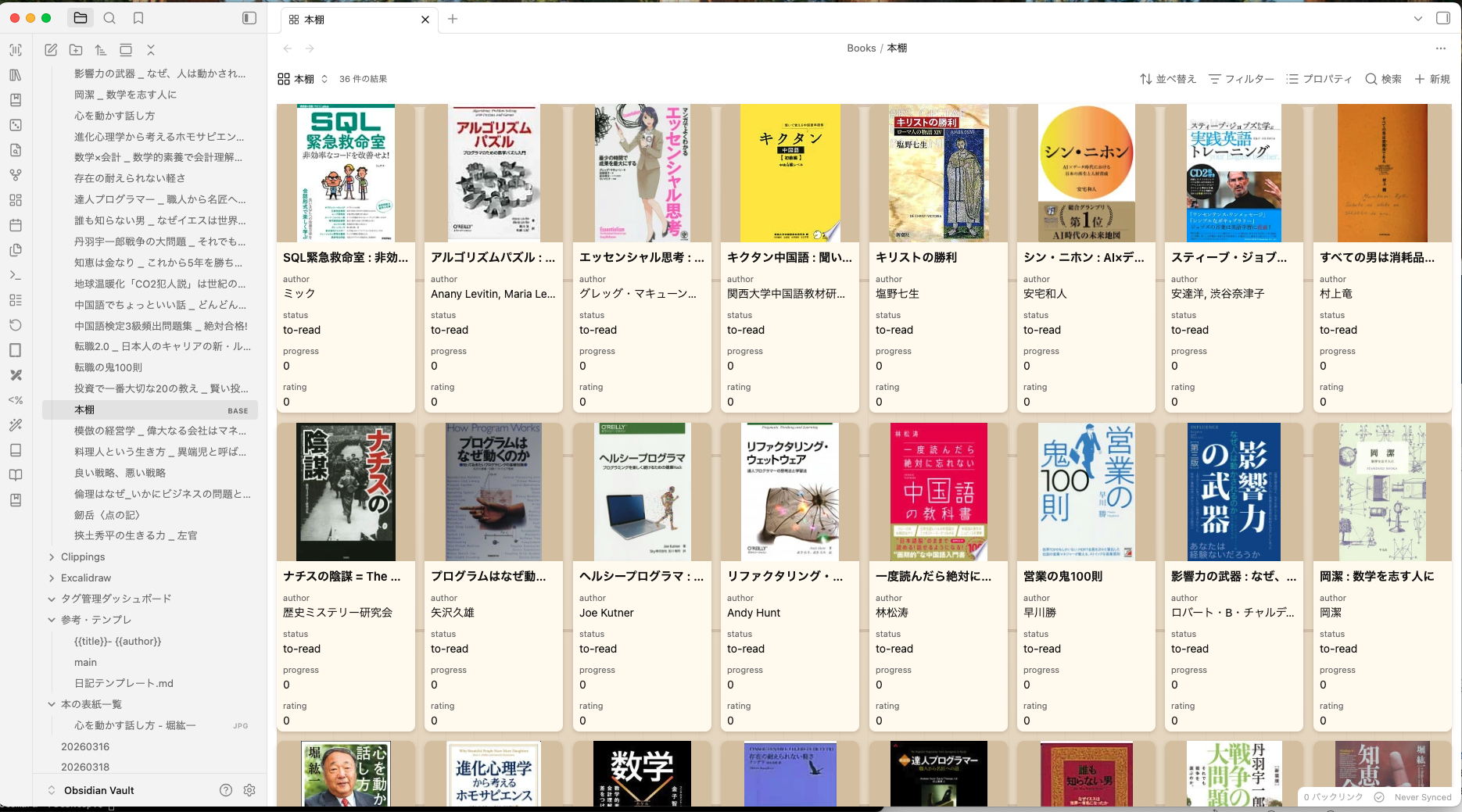
- Bookshelf views via Bases (Want to read / Reading / Finished)
- Manual entry and editing of book notes
- Manual cover image (drag & drop, clipboard paste, or file picker)
- Bulk ISBN extraction from back-cover images to CSV
- OCR fallback for printed ISBN-10 and ISBN-13 text when a barcode cannot be read (macOS)
- Bulk bookshelf creation from an ISBN CSV file
- High-resolution cover refresh with low-resolution rejection and provider fallback
From back-cover photos to an Obsidian bookshelf
- Take photos of the back covers of your books with an iPhone or camera.
- Select the photo directory from the barcode-scan icon in the Obsidian sidebar.
- The plugin detects ISBN barcodes, with OCR fallback for printed ISBN text, and exports a CSV file.
- Select that CSV from the library icon to fetch metadata and build the bookshelf.
Installation
From the Obsidian Community Plugins (planned)
Search for ISBN Bulk Import Bookshelf Builder in Settings → Community plugins and install.
Manual installation
Download the latest main.js, manifest.json, and styles.css from the Releases page and place them in:
<Vault>/.obsidian/plugins/isbn-bulk-import-bookshelf-builder/
├── main.js
├── manifest.json
└── styles.css
Then enable ISBN Bulk Import Bookshelf Builder in Settings → Community plugins.
Via BRAT
Add this repository through the BRAT plugin.
Usage
- Click the barcode-scan ribbon icon to scan ISBN barcodes from a directory of JPG, PNG, WebP, GIF, BMP, HEIC, or HEIF images.
- Click the library ribbon icon to fetch metadata and create book
notes in bulk. The importer accepts an
isbncolumn, or ISBNs in the first column of a headerless CSV. - Use the book-marked ribbon icon to edit an existing book note.
- Replace a cover via "Set cover image manually" in the command palette.
- Run "Refresh metadata and descriptions for all books" to update existing notes in bulk while preserving reading status, progress, ratings, and notes.
- "Add descriptions to Kindle Highlights notes" requires the Kindle Highlights community plugin to be installed. Select its synced notes folder in this plugin's settings before running the command. It processes up to 150 unprocessed notes per run and skips notes already checked.
- Use "Refresh descriptions for all Kindle Highlights notes" only when every Kindle description needs to be queried again, since it can issue many API requests.
Requirements
- Desktop only (uses Electron file dialog and local filesystem for cover caching).
- Plugin loading has been verified on macOS 14.4.1 (Build 23E224).
- The Kindle description command requires the Kindle Highlights community plugin
and notes containing its
Kindletag,kindle-title, andkindle-authorproperties. - Primarily intended for books published in Japan, especially ISBNs beginning with
978-4. Overseas books may work when metadata is available from Google Books or Open Library, but they are not currently guaranteed or fully tested.
Network use
This plugin makes HTTPS requests to the following public services to fetch book metadata and cover images. ISBN lookups send the ISBN you enter. The Kindle description command sends the synced book title and author to Google Books.
- NDL (National Diet Library of Japan) —
https://ndlsearch.ndl.go.jp— primary metadata source for Japanese books. - Google Books API —
https://www.googleapis.com/books/v1— fallback metadata source. - Open Library —
https://openlibrary.organdhttps://covers.openlibrary.org— final fallback for metadata and cover images. - openBD —
https://api.openbd.jp— supplemental Japanese book metadata and descriptions. - Books.or.jp —
https://thumbnail-s.images.books.or.jpandhttps://www.books.or.jp— fallback cover images for Japanese books.
All requests are issued through Obsidian's requestUrl API and are only triggered
by explicit user actions, including ISBN lookup, bulk import, metadata refresh,
and Kindle description commands. No background or telemetry traffic is generated.
File system access
On desktop, the "Set cover image manually" command opens an Electron file picker so you can choose an image from anywhere on your local disk. The selected file is read once via Node fs, converted to WebP, and saved into your vault's configured covers folder. The plugin does not retain any path outside your vault.
Vault access
The plugin enumerates Markdown files in the vault (vault.getMarkdownFiles()) for two reasons:
- Duplicate detection — when you add a book by ISBN, the plugin scans existing notes for the same
isbnvalue in frontmatter to avoid creating duplicates. - Book picker — the "Select and edit book note" command lists existing book notes filtered by the
kind: bookfrontmatter.
The plugin does not read note bodies; only frontmatter is inspected. No file content is sent over the network.
Development
Prerequisites
- Node.js 24 (LTS) or later
- pnpm 9 or later
Setup
pnpm install
Commands
| Command | Description |
|---|---|
pnpm dev |
Build in watch mode |
pnpm build |
Type check + production build (emits main.js) |
pnpm typecheck |
TypeScript type check only |
pnpm lint |
Run Biome lint |
pnpm format |
Run Biome format (--write) |
pnpm check |
Run Biome lint + format (--write) |
pnpm check:ci |
Run Biome checks without writing |
Releasing
Push a Git tag (matching the manifest.json version, no v prefix) and the GitHub Actions release workflow will build and attach main.js, manifest.json, and styles.css to the release.
# After bumping manifest.json and package.json
git tag 0.0.4
git push origin 0.0.4
Plugin identity
This fork uses the plugin ID isbn-bulk-import-bookshelf-builder, so it can be
installed alongside the original easy-obookshelf plugin.
Acknowledgments
This project is a derivative fork of easy-obookshelf, originally created by CocoaAI-IT. The original author and contributors are credited for their work, and the original MIT copyright notice is retained in this repository.
The original author has explicitly approved submitting this fork to the Obsidian Community Plugins directory.
License
日本語
ISBN から書籍メタデータを取得してノートを作成し、本棚として管理する Obsidian プラグインです。
主な機能
- ISBN からの自動メタデータ取得(NDL / Google Books / Open Library)
- 表紙画像のダウンロード・WebP 変換・キャッシュ
- Bases ファイルによる本棚ビュー(読みたい / 読書中 / 読了)
- 書籍ノートの手動入力・編集
- 表紙画像の手動設定(ドラッグ&ドロップ / クリップボード貼り付け対応)
- 裏表紙画像から ISBN を一括検出して CSV 出力
- ISBN 一覧 CSV から書籍ノートを一括作成
- 低解像度画像を除外し、高解像度の表紙を優先して保存
- 既存書籍の書誌情報・概要を一括再取得
裏表紙の写真から Obsidian の本棚へ
- iPhoneやカメラで、本の裏表紙をまとめて撮影します。
- Obsidianサイドバーのバーコードスキャンアイコンから、写真が入ったフォルダを選択します。
- バーコードを検出し、読み取れない場合は印刷されたISBN文字列をOCRで補完して、ISBN一覧CSVを作成します。
- ライブラリアイコンから作成したCSVを選択すると、書誌情報と表紙を取得して本棚を一括作成します。
一括登録
- サイドバーのバーコードスキャンアイコンから、 JPG / PNG / WebP / GIF / BMP / HEIC / HEIF 画像が入ったフォルダを選択します。
filename,isbn,status,error形式の CSV が作成されます。読み取れなかった画像もnot_foundとして残るため、必要に応じて ISBN を手入力できます。 バーコードを検出できない場合は、印刷されたISBN文字列をmacOSのVision OCRで 読み取ります。画像は外部へ送信されません。- サイドバーのライブラリアイコンから CSV を選択します。
isbn列の有効な ISBNを重複除去し、既存の重複ISBN設定に従って書籍ノートを作成します。
コマンドパレット
- 「表紙画像を手動で設定」: 開いている書籍ノートの表紙を差し替えます。
- 「全書籍の書籍情報・概要を再取得」: ISBN付きノートを一括更新します。読書状態、 進捗、評価、日付、メモ、既存表紙は維持されます。
- 「Kindle Highlightsノートへ概要を一括追加」: 設定画面で選択したフォルダ内のKindleノートを タイトル・著者でGoogle Booksと照合し、表紙と既存の見出しの間に概要を追加します。 Kindleのハイライト、読書目的、アクションプランは維持されます。 1回につき未処理のノートを最大150冊処理します。概要を追加済み、または概要なしを 確認済みのノートはスキップされ、再実行すると残りの未処理ノートへ進みます。 この機能を利用するには、コミュニティプラグイン Kindle Highlightsを インストールし、設定画面でKindleノートの同期先フォルダを選択する必要があります。 照合時には、ノート内の書名と著者名がGoogle Booksへ送信されます。
- 「Kindle Highlightsノートの概要を全件再取得」: 処理済み状態を無視して、選択した フォルダ内の全Kindleノートを再照合します。APIリクエスト数が増えるため、概要の 再確認が必要な場合にのみ使用してください。
対象書籍
主な対象は、日本国内で発売された書籍(特に 978-4 で始まるISBN)です。
海外書籍もGoogle BooksやOpen Libraryに書誌情報があれば登録できる場合がありますが、
現時点では十分な動作検証を行っておらず、動作保証の対象外です。
手動インストール
Releases から main.js / manifest.json / styles.css をダウンロードし、<Vault>/.obsidian/plugins/isbn-bulk-import-bookshelf-builder/ に配置してください。
動作確認環境
macOS 14.4.1(Build 23E224)でプラグインを読み込めることを確認しています。
v1.0.x からの移行
このフォークのプラグイン ID は isbn-bulk-import-bookshelf-builder です。
元の easy-obookshelf と同時にインストールできます。