
- Overview
- Scorecard
- Updates16
The Infostacker Note Publish plugin enables users to send notes to a server, edit them, and delete them directly within the Obsidian program. Additionally, it allows users to share notes with others via a generated link. The plugin supports attachments, and users with the link can view the note along with its attachments in HTML format. The data is stored on our server for free, including storing files like pdfs, images etc. There is a daily limit of 100 published notes.
Installation
Prerequisites
- Obsidian installed on your system.
- Access to your Obsidian vault.
Manual Installation
Download the Latest Release:
- Go to the Releases page and download the latest version of the plugin.
Unpack the Plugin:
- Navigate to your Obsidian vault directory.
- Open the
.obsidian/pluginsfolder. - Create a new folder named
infostacker. - Unpack the release files into the
infostackerfolder.
Enable the Plugin:
- Open Obsidian and go to
Settings>Community plugins. - Click
Reload pluginsto refresh the plugin list. - Find
Infostacker Note Publishin the list and toggle it on.
- Open Obsidian and go to
Publishing to the Obsidian Community Plugin Directory
The following process publishes Infostacker Note Publish to the Obsidian Community plugin directory. It is required only for the initial submission; after the plugin is accepted, Obsidian installs later updates directly from matching GitHub releases.
Before submitting
- Host the source code in the public taskscape/InfostackerPlugin GitHub repository. The repository root must include this
README.md,LICENSE, andmanifest.json. - Review
manifest.json. Itsidmust be unique, use only lowercase letters and hyphens, and must not containobsidian; theversionmust use thex.y.zsemantic-version format. KeepminAppVersionaccurate and leaveisDesktopOnlyasfalseonly while the plugin remains mobile-compatible. - Build and test the release with
pnpm run build. This generates the distributablemain.jsfile. - Ensure the release version is consistent. After updating the version in
package.json, runpnpm run versionto copy it tomanifest.jsonand add the corresponding minimum-app-version entry toversions.json. Commit these files before submission.
Create a GitHub release
- Create and push a Git tag that exactly matches the
versioninmanifest.json, for example1.1.3. - Create a GitHub release from that tag and add release notes.
- Attach these generated release assets as binary files:
main.jsmanifest.jsonstyles.css(included by this plugin)
Obsidian reads the committed manifest.json from the default branch to determine the current version, then downloads the assets from the GitHub release with the matching tag. A release is therefore required even when the repository already contains the built files.
Submit the initial release
- Sign in at community.obsidian.md with an Obsidian account and link the GitHub account that owns the repository.
- Select Plugins in the sidebar, then New plugin.
- Enter
https://github.com/taskscape/InfostackerPluginas the repository URL. - Review and accept the Obsidian Developer policies, confirm ongoing maintenance, and select Submit.
- Address any automated review feedback by committing the required changes and publishing a new, incremented GitHub release. The plugin becomes installable from Obsidian only after the review passes.
For future releases, increment the version, update versions.json when minAppVersion changes, build, and publish a GitHub release with the matching tag and assets. A new directory submission is not needed. See Obsidian’s official submission guide and manifest reference for the current requirements.
Usage
Publishing a Note
- Write or open the note you want to publish.
- Use the plugin interface to send the note to the server.
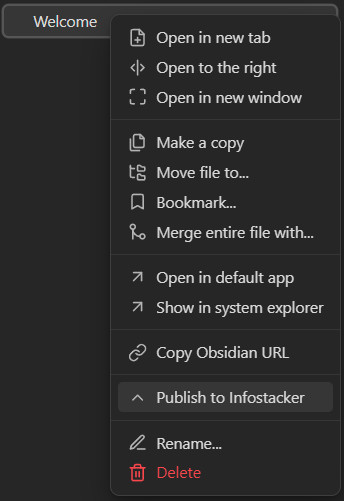
- Once published, a link will be generated for sharing.
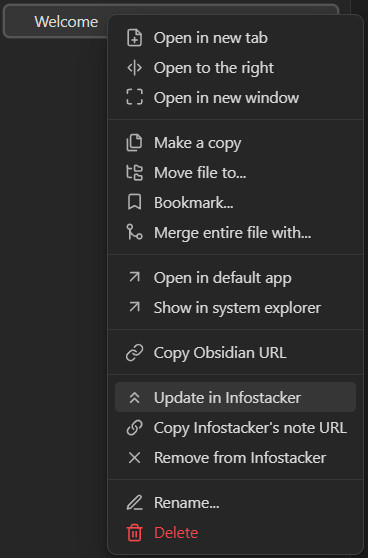
Editing a Note
- Open the published note in Obsidian.
- Make the necessary edits.
- Use the plugin interface to update the note on the server.
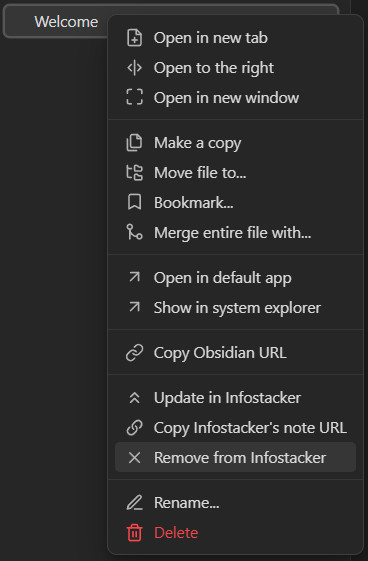
Deleting a Note
- Open the published note in Obsidian.
- Use the plugin interface to delete the note from the server.
Sharing a Note
- Copy the generated link from the plugin interface.
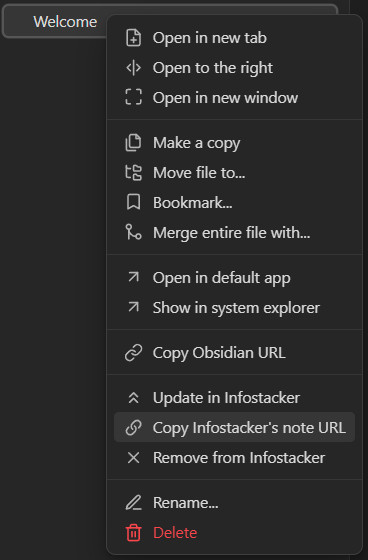
- Share the link with others.
- Recipients can view the note and its attachments in HTML format using the provided link.
Configuration
baseUrl: Specify the URL of the server where requests will be sent. Ensure this is correctly configured for the plugin to function properly.
Troubleshooting
If you encounter any issues during installation or usage, refer to the plugin's documentation or reach out to the plugin developer for assistance.
Data Privacy Policy
Introduction
This Data Privacy Policy outlines how we collect, use, disclose, and protect your personal information when you use Infostacker plugin to upload and host textual notes and optional attachments. By using our services, you agree to the terms outlined in this policy.
Information We Collect
We collect the following types of information when you use our website:
Personal Information:
We collect no personal information like your name or your e-mail address,
Uploaded Content:
Textual notes and any attachments that you upload to our platform.
Usage Data:
Information about how you interact with our website, including your IP address, browser type, and access times.
How We Use Your Information
We use the information we collect for the following purposes: statistical information, abuse tracking
To Provide Our Services:
To host your textual notes and attachments and generate a secret private URL for you to share.
To Improve Our Services:
To analyze usage trends and improve the functionality and user experience of our website.
To Communicate With You:
To respond to your inquiries and provide customer support.
Disclosure of Your Information
We do not sell, trade, or otherwise transfer your personal information to outside parties, except under the following circumstances:
Legal Requirements:
If required by law or in response to valid requests by public authorities (e.g., a court or government agency).
Business Transfers:
In connection with a merger, sale of assets, or other business transfer, provided that the receiving party agrees to honor this Privacy Policy.
Data Security
We implement a variety of security measures to ensure the safety of your personal information and uploaded content, including:
Encryption:
Encrypting data during transfer and storage to protect it from unauthorized access.
Access Controls:
Limiting access to your personal information and uploaded content to authorized personnel only.
Retention of Information
We retain your uploaded content for as long as necessary to provide our services or as required by law. If you delete your notes or attachments, we will remove them from our servers.
Your Rights
You have the following rights regarding your personal information:
Access and Update:
You can access and update your personal information by contacting us.
Deletion:
You can request the deletion of your personal information and uploaded content by contacting us.
Cookies and Tracking Technologies
We use cookies and similar tracking technologies to enhance your experience on our website. You can manage your cookie preferences through your browser settings.
Changes to This Privacy Policy
We may update this Privacy Policy from time to time. We will notify you of any changes by posting the new Privacy Policy on our website. Your continued use of our services after any changes take effect will constitute your acceptance of the revised policy.
Contact Us
If you have any questions about this Privacy Policy, please contact us at:
Email: [email protected] Address: 71-75 Shelton Street, Covent Garden, London WC2H 9JQ
By using our website and services, you acknowledge that you have read and understand this Privacy Policy and agree to its terms.
This documentation provides a comprehensive guide to installing, configuring, and using the Infostacker Note Publish plugin. If you have any further questions or require additional support, feel free to consult the plugin documentation or contact the plugin developer.