Search...Search plugins and themes...
⌘K
Sign in
  • Get started
  • Download
  • Pricing
  • Enterprise
  • Account
  • Obsidian
  • Overview
  • Sync
  • Publish
  • Canvas
  • Mobile
  • Web Clipper
  • CLI
  • Learn
  • Help
  • Developers
  • Changelog
  • About
  • Roadmap
  • Blog
  • Resources
  • System status
  • License overview
  • Terms of service
  • Privacy policy
  • Security
  • Community
  • Plugins
  • Themes
  • Discord
  • Forum / 中文论坛
  • Merch store
  • Brand guidelines
Follow us
DiscordTwitterBlueskyThreadsMastodonYouTubeGitHub
© 2026 Obsidian

Hugo codeblock highlight

aarolaarol2k downloads

Highlights lines in code blocks using Hugo's hl_lines syntax.

Add to Obsidian
  • Overview
  • Scorecard
  • Updates3

This is a plugin for Obsidian, which highlights lines in code blocks using the same syntax as Hugo.
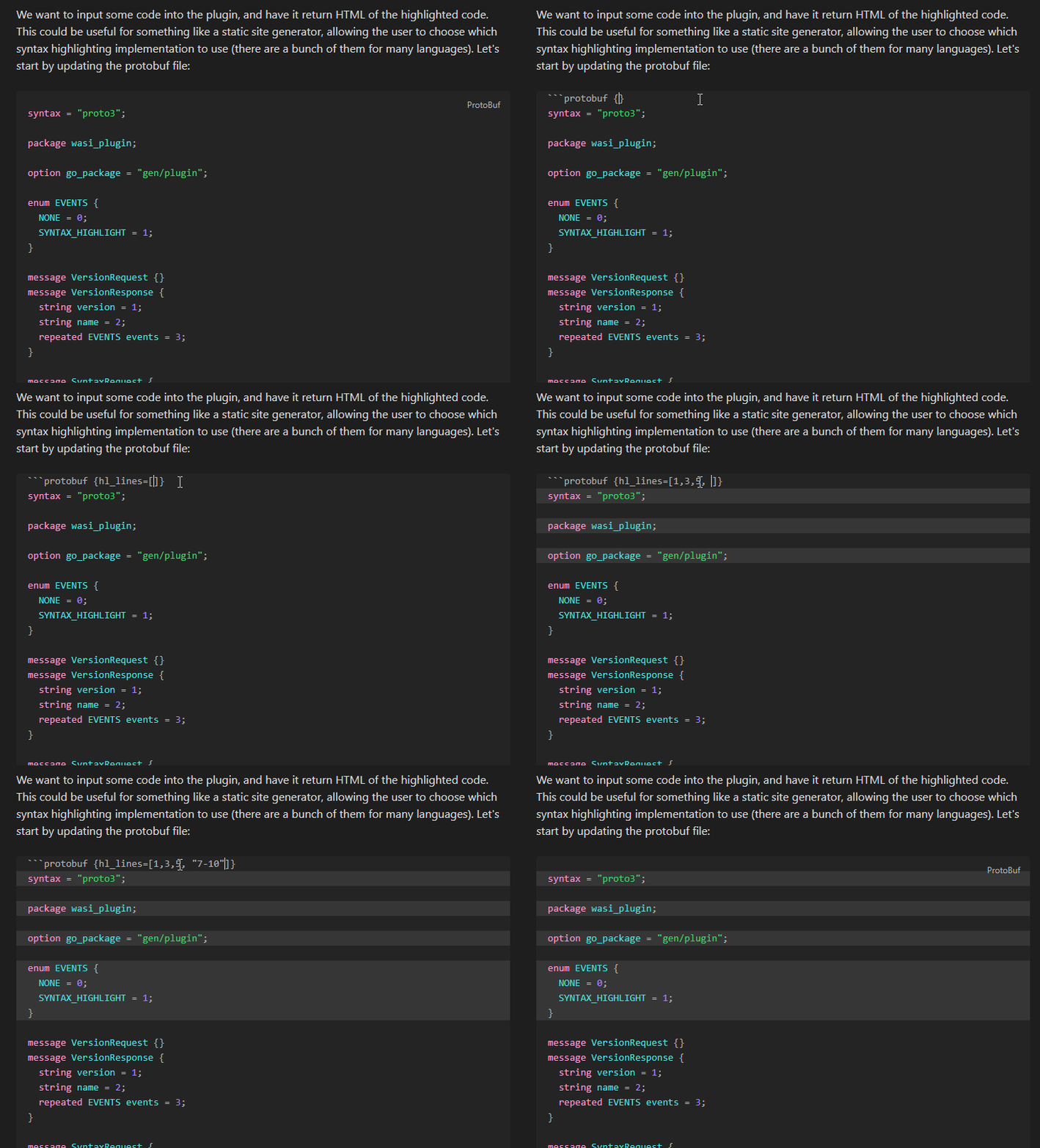
Screen recording of plugin in action

Usage

Add the hl_lines option after the language like this:

```js {hl_lines=[1]}
let a = 1;
let b = 2;
```

hl_lines can be a single number, or an array of numbers/ranges (hl_lines=[1, "2", "3-5"])

You can also select lines you want to highlight inside codeblocks and click Highlight selected lines in the right-click menu:
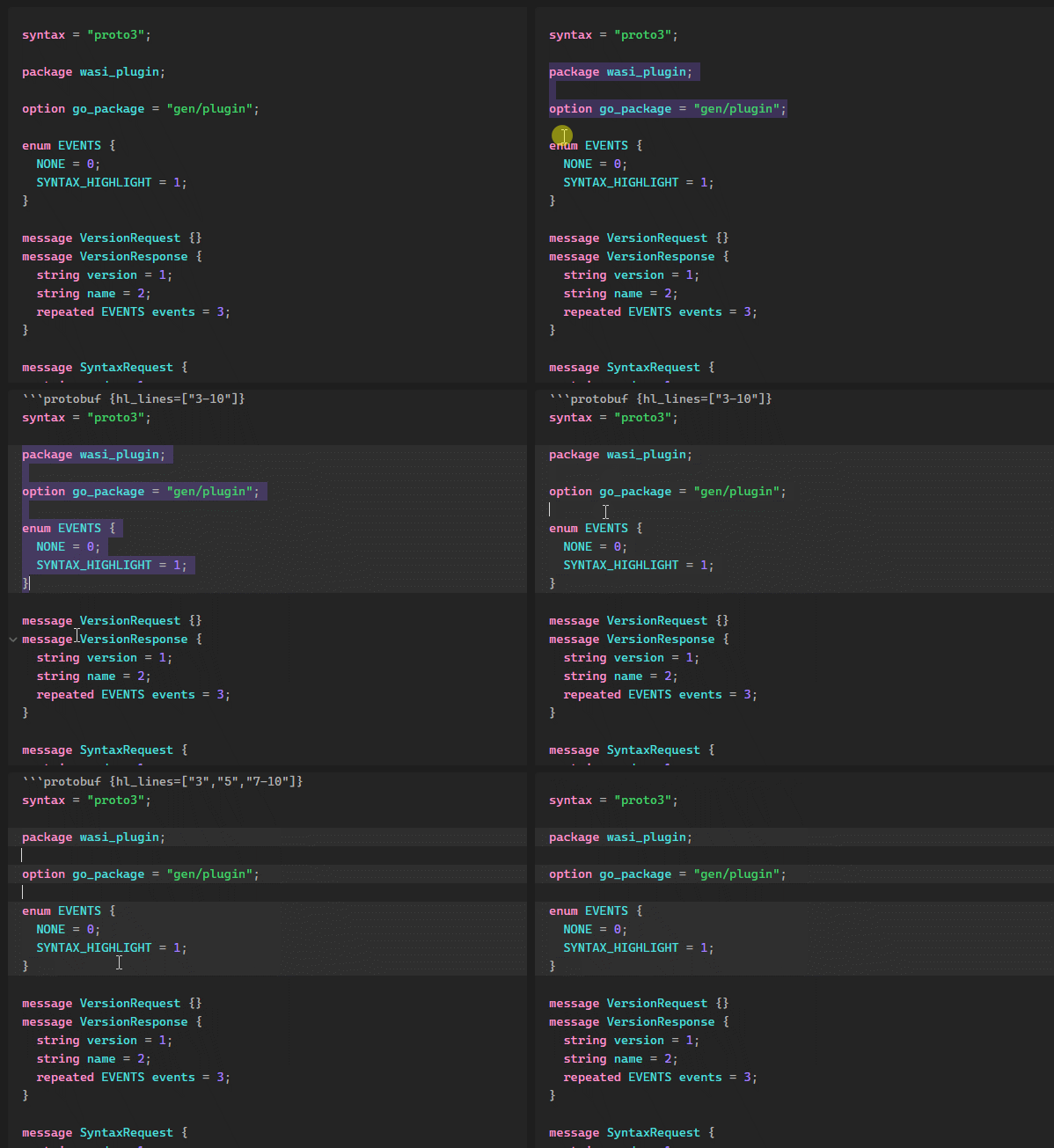
Screen recording of plugin in action, showing off the right-click menu action

Only the hl_lines property is supported.

[!NOTE]
Currently, the plugin only works in 'Live Preview' or 'Source mode'. Reader mode uses a different html presentation & syntax highlighter, which are harder to support.

Developing this plugin

  • Install dependencies: pnpm install
  • Compile & watch changes: pnpm dev
  • Build production release: pnpm build
  • Run tests: pnpm test

Check the Obsidian documentation for more information.

If a feature you need is broken/missing, please create a new pull request instead of creating a new plugin, so that everyone can benefit :)

Releasing new releases

  • Update your manifest.json with your new version number, such as 1.0.1, and the minimum Obsidian version required for your latest release.
  • Update your versions.json file with "new-plugin-version": "minimum-obsidian-version" so older versions of Obsidian can download an older version of your plugin that's compatible.
  • Create new GitHub release using your new version number as the "Tag version". Use the exact version number, don't include a prefix v. See here for an example: https://github.com/obsidianmd/obsidian-sample-plugin/releases
  • Upload the files manifest.json, main.js, styles.css as binary attachments. Note: The manifest.json file must be in two places, first the root path of your repository and also in the release.
  • Publish the release.

You can simplify the version bump process by running npm version patch, npm version minor or npm version major after updating minAppVersion manually in manifest.json. The command will bump version in manifest.json and package.json, and add the entry for the new version to versions.json

API Documentation

See https://github.com/obsidianmd/obsidian-api

69%
HealthFair
ReviewCaution
About
Highlight specific lines in code blocks using Hugo's hl_lines syntax. Support single numbers, arrays and ranges (e.g., hl_lines=[1,"2","3-5"]). Select lines and use the right-click option to add highlights; works in Live Preview and Source mode.
CodeSyntaxMarkdown
Details
Current version
1.2.0
Last updated
2 years ago
Created
2 years ago
Updates
3 releases
Downloads
2k
Compatible with
Obsidian 1.5.0+
Platforms
Desktop, Mobile
License
MIT
Report bugRequest featureReport plugin
Author
aarolaarol
github.com/aarol
GitHubaarol
  1. Community
  2. Plugins
  3. Code
  4. Hugo codeblock highlight

Related plugins

VSCode Editor

Edit Code Files like VSCode.

JS Engine

Run JavaScript from within your notes.

Shiki Highlighter

Highlight code blocks with Shiki.

Templater

Create and use dynamic templates.

Importer

Import data from Notion, Evernote, Apple Notes, Microsoft OneNote, Google Keep, Bear, Roam, and HTML files.

Outliner

Work with your lists like in Workflowy or Roam Research.

Mermaid Tools

Improved Mermaid.js experience: visual toolbar with common elements and more.

Various Complements

Complete words similar to auto-completion in an IDE.

Linter

Format and style your notes. Linter can be used to format YAML tags, aliases, arrays, and metadata; footnotes; headings; spacing; math blocks; regular Markdown contents like list, italics, and bold styles; and more with the use of custom rule options.

PlantUML

Generate PlantUML diagrams.