Html Server
 pr0dt0s11k downloads
Spin up a local http server to access your vault via a web browser.
- Overview
- Scorecard
- Updates9
This plugin allows you to serve your Obsidian vault as an HTTP server, while maintaining your theme and ensuring that your image and file links work.
Usage
Simply enable the plugin, start the server and open a web browser at http://localhost:8080/A_MARKDOWN_FILE to view the same document you see when opening it in Obsidian.
Notes
- This plugin is intended for sharing your vault within a local network.
- The server is view-only, meaning that no one can change the files in your vault.
- All of the themes and customizations that are visible in Obsidian will be available in the browser.
- Interactivity has not been implemented yet.
Tips
- To access the server on your local machine, you can use
localhost. However, for other devices on your network, you will need to use your IP address. - Create a markdown file with links to other files and use it as an index page (default page), which you can set in your settings.
- If there is an error starting the server, it might be because the port is already in use. In this case, simply change the port to another number.
- You can use ngrok to share your vault openly with someone outside of your local network.
Issues/Requests
If you encounter any issues or would like to request a new feature, please submit them here.
Advanced Usage
This plugin uses variables in the templates to replace content in the HTML that is served. The default variables can be seen by enabling the setting Show Advanced Settings. as shown below.
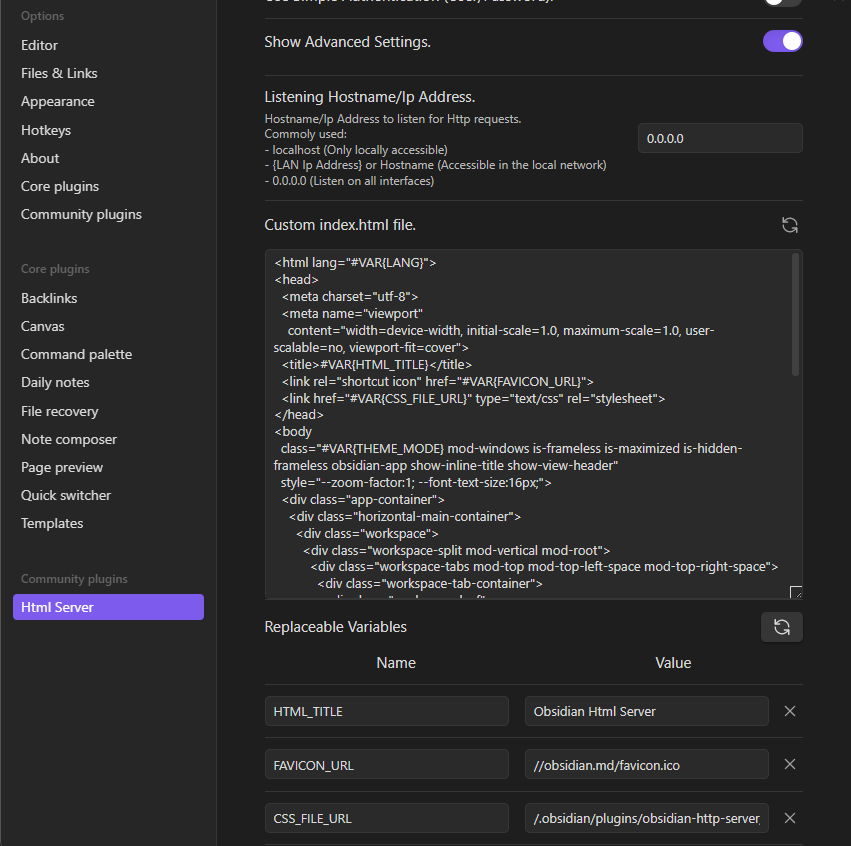
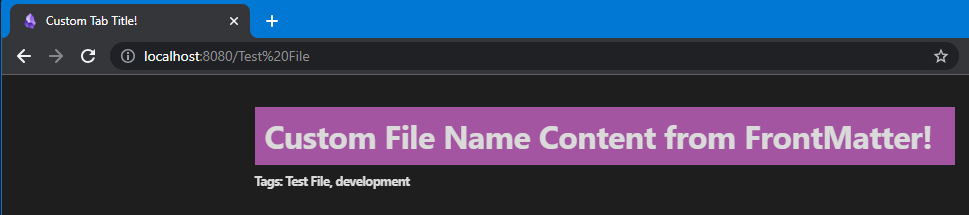
These variables have default values set in the plugins configuration, but can be modified using the frontmatter of each file. The variables are applied using the following priority:
- Variable values from the file's frontmatter:
---
tags: Test File, development
htmlvars:
  LANG: en
  HTML_TITLE: Custom Tab Title!
  RENDERED_CONTENT_FILE_NAME: '<div style="padding:10;
    background-color: #a455a1; width: 100%;"> Custom File Title
    Content from FrontMatter!</div>'
---
These variables must be set inside a property named
htmlvarsin the frontmatter following YAML syntaxis.
Variable values set in the settings.
These would work as default values if the variable is not set in a specific file.
Internal values set from the plugin.
The internal variables used at the moment are:
- RENDERED_CONTENT_FILE_NAME (The file name that is being opened)
- RENDERED_CONTENT (the whole content of the rendered file)
- THEME_MODE (
theme-darkortheme-lightaccording to your current appearance settings)
Please take note that you can overwrite the internal variables either from the settings or from the file's frontmatter.
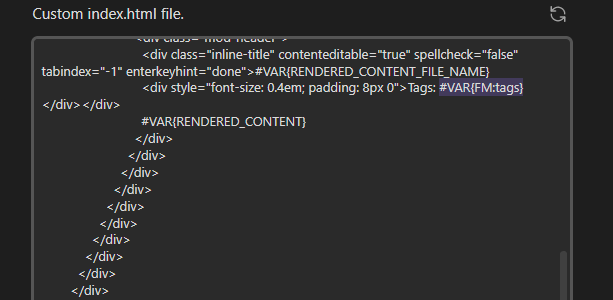
You can use other frontmatter properties as variables in your templates but they can only be Strings or Numbers and you must prefix FM: to the variable name.
Example:
---
tags: Test File, development
---
And in the html template you would use it like this:
#VAR{FM:tags}
This project is tested with BrowserStack. Check BrowserStack here..