Hover Bar
 gua59 downloads
Format selected text with a floating toolbar, text colors, highlights, and internal links.
- Overview
- Scorecard
- Updates5
A lightweight, offline selection toolbar for formatting text in desktop Obsidian.
What it is for
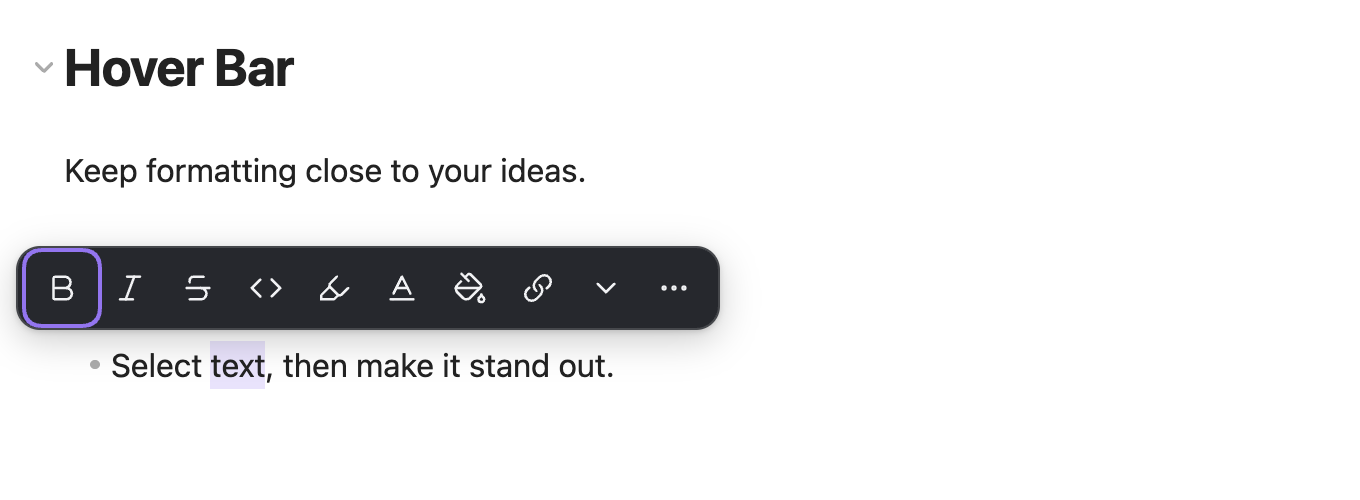
Select a phrase, make it bold, highlight an idea, give a term a color, or turn it into an internal link. Keep these small editing tasks close to the text you are working on.
The toolbar appears when you finish selecting text. Ordinary formatting stays in Markdown; custom text and background colors use small inline HTML spans.
Features
- A compact floating toolbar near your selection on desktop, with viewport-aware placement.
- Pin and reorder common actions per vault; unpinned actions and actions that do not fit stay available in More.
- Bold, italic, strikethrough, inline code, and standard Obsidian highlights.
- Named text and background color palettes, with controls to remove colors.
- Quick
[[internal links]]and a picker for existing notes. - Undo and redo through the editor's normal history.
- Light and dark theme support and keyboard navigation.
- Chinese text when Obsidian uses a Chinese language setting; English for every other language.
- Controls to disable automatic display while keeping a command to open the toolbar.
- Specific feedback for read-only editors, disabled modes, multiple selections, line breaks, formatting conflicts, and length limits.
How to use
- Open a Markdown note in Live Preview or Source mode.
- Select a plain-text phrase using your mouse or trackpad.
- Click a formatting button, or open a color palette and choose a color.
Click outside the toolbar or press Esc to close it. For keyboard access, use Show selection toolbar in the command palette. You can assign your own hotkey in Obsidian's hotkey settings.
| Action | Example saved in your note |
|---|---|
| Bold | **Important** |
| Strikethrough | ~~Outdated~~ |
| Highlight | ==Remember this== |
| Text color | <span style="color:#e05252">Important</span> |
| Background color | <span style="background-color:#fff3a3">Remember this</span> |
| Internal link | [[Concept]] |
Compatibility and limitations
Requires desktop Obsidian 1.8.7 or later, in Live Preview or Source mode. Mobile devices are not supported. Reading view does not show the toolbar.
Use a single text fragment within one logical line, including text in a heading, list item, or blockquote. Keep structural markers outside your selection. Complex mixed formatting, partial HTML spans, multiple selections, tables, code blocks, math, and frontmatter will not be rewritten. Unsupported actions explain their limitation.
Automatic selection quietly skips unsupported content. Open the toolbar manually or activate an unavailable action to learn why. Length protection checks the original selection, its full line, and the resulting line before writing. Select less text or split an overly long paragraph when needed.
Custom colors are saved as inline HTML. They remain in the note after disabling the plugin, but their appearance depends on the renderer and theme. Export tools may strip styles. Source mode shows the underlying markup, and Live Preview may reveal it while editing. The internal-link action intentionally writes wikilinks.
Installation
Hover Bar is not listed in the community directory yet. Install the packaged plugin from GitHub Releases:
- Download
main.js,manifest.json, andstyles.cssfrom the release assets. - Create a
hover-barfolder inside your vault's.obsidian/plugins/folder and copy the three files into it. - Restart Obsidian and enable Hover Bar in Settings → Community plugins.
When Hover Bar is available in the community directory:
- Open Settings → Community plugins in Obsidian.
- Select Browse and search for Hover Bar.
- Select Install, then Enable.
Preferences and keyboard access
Open Settings → Hover Bar to control automatic display, Live Preview, Source mode, and automatic display after keyboard selection.
Under Toolbar layout, use Pin, Unpin, Move up, and Move down to choose your main actions. Earlier actions in a custom layout stay visible first when the pane is narrow. The default layout prioritizes strikethrough and active basic formats so they remain easy to cancel. Restore default layout keeps the four switches; Reset all preferences resets both the switches and layout. Neither changes your notes.
All actions remain available in More when you unpin them or the pane gets narrower. Color and note pickers in More take one extra step. Color palettes reduce their column count in narrow panes; if the available area cannot fit usable controls, adjust the pane size or scroll before trying again.
Use Hover Bar: Show selection toolbar in the command palette to open the toolbar manually. Hover Bar: Toggle automatic toolbar turns automatic display on or off. Assign shortcuts in Settings → Hotkeys if you prefer; no default shortcuts are added.
The interface follows Obsidian's language setting: Chinese app languages use Simplified Chinese text, and every other language uses English. No separate language preference is needed.
After opening the toolbar manually, use arrow keys to browse actions and Enter or Space to activate. Back or Esc returns one level: a picker opened from More returns to More, then to the main toolbar, then to the editor. Unavailable buttons remain accessible with arrow keys; activating one explains its limitation without editing the note. Enter used to finish text composition in note search does not insert a link.
Layout changes take effect immediately and save automatically. If saving fails, your current layout remains active and you can retry in settings. External changes while a save is unfinished pause further saves; reloading uses the preferences currently on disk and discards unsaved local changes.
Privacy
Hover Bar works entirely offline, with no accounts, runtime network requests, telemetry, or access to files outside the vault. Its note picker uses vault file metadata, and formatting changes only the selection you explicitly act on.
Feedback and contributions
Ideas and reproducible issues are welcome in GitHub Issues. Read CONTRIBUTING.md before proposing an implementation, and SECURITY.md for sensitive reports.
Support development
Hover Bar is a free plugin. If you would like to support its continued development and maintenance, voluntary donations are welcome. Thank you for your support.
 |
 |
|---|---|
 |
 |
License
MIT © 2026 gua.