Homepage Studio
 Aluxes538 downloads
A modular desktop homepage for journals, tasks, plans, file groups, and writing activity.
- Overview
- Scorecard
- Updates10
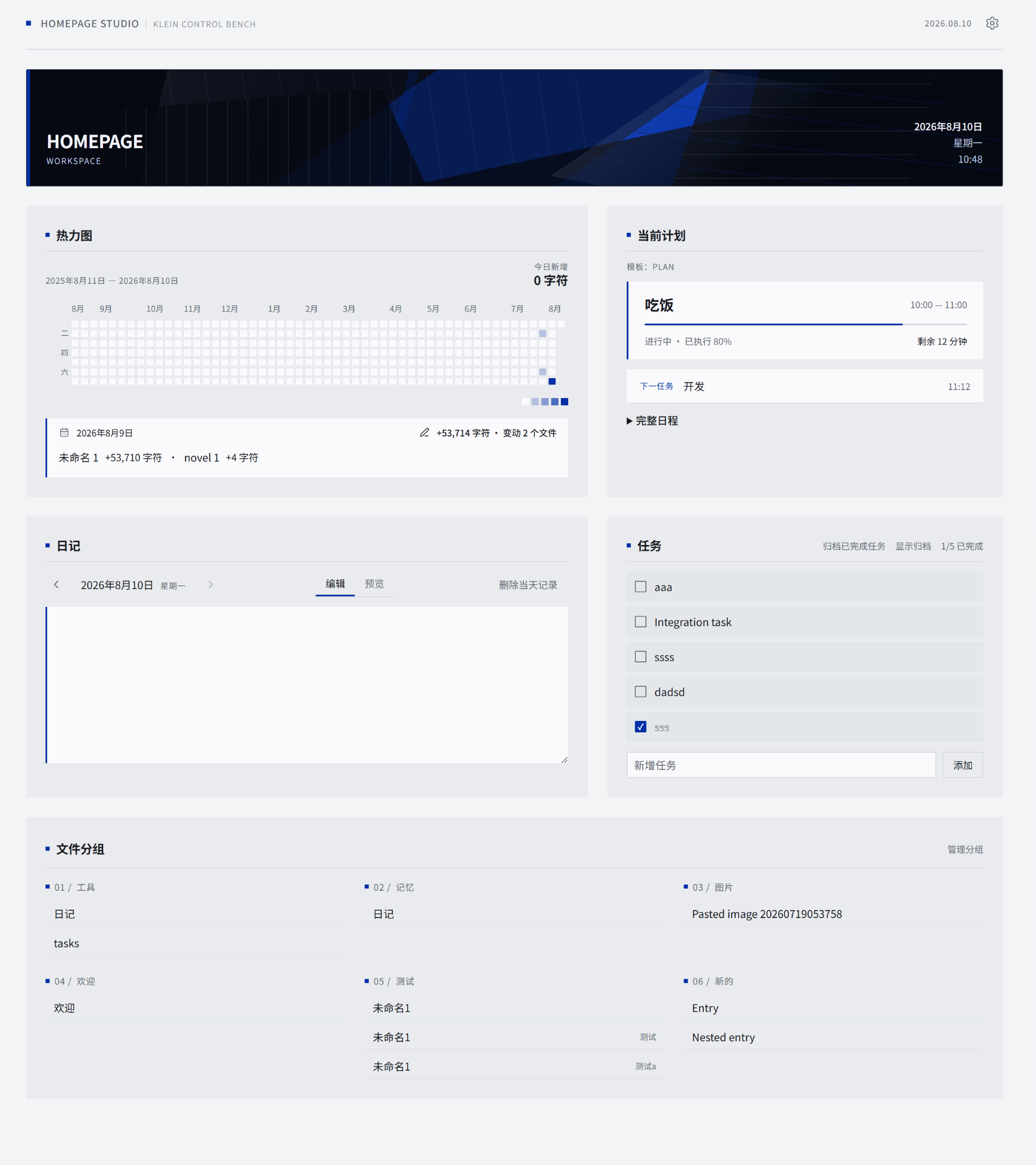
Homepage Studio is a desktop-only homepage for Obsidian. It brings writing activity, a date-section journal, homepage tasks, time plans, curated file groups, and configurable banners into one dedicated view. Six built-in themes share the same data and capabilities in light and dark appearances.
Requirements
- Obsidian desktop 1.8.7 or later.
- Windows, macOS, or Linux. Mobile is not supported.
- A vault in which community plugins are allowed.
Features
- Writing heatmap with daily totals and per-file change details.
- Single-file journal using
## YYYY-MM-DDdate sections. - One-time tasks plus daily and weekly tasks that reset from the local calendar, with optional archive controls and press-and-hold reordering within incomplete, completed, and archived task lists.
- Daily and weekly plan templates, including overnight time blocks.
- Manually curated file groups with press-and-hold reordering within and across groups on both the homepage and settings page, plus rename and missing-file recovery.
- Vault-image and optional remote-image banners with offline theme fallbacks.
- Per-theme module layout, light/dark appearance, and Chinese/English UI.
- Keyboard navigation, visible focus, reduced-motion support, and safe data recovery.
Installation
Install from Community plugins (recommended)
- Open Settings → Community plugins in Obsidian. If community plugins are not enabled yet, follow the prompt to enable them.
- Select Browse and search for Homepage Studio.
- Select the plugin, then choose Install and Enable.
- Run Open homepage from the command palette.
Install with BRAT
Use this method before the plugin is listed in the Community plugins directory or to test a GitHub release.
- Install and enable BRAT from Community plugins.
- Open the command palette and run BRAT: Plugins: Add a beta plugin for testing.
- Enter
https://github.com/AshenAshes/homepage-studio, then confirm the addition. - Enable Homepage Studio under Settings → Community plugins.
- Run Open homepage from the command palette.
Install manually
Download these three files from the latest GitHub release:
main.jsmanifest.jsonstyles.css
Create <vault>/.obsidian/plugins/homepage-studio/, copy the three files into it, restart Obsidian or reload community plugins, then enable Homepage Studio under Settings → Community plugins. Run Open homepage from the command palette.
Do not copy repository source files, test files, or development documentation into the plugin directory.
Settings and data sources
The settings page controls the interface language, theme and appearance, banner source, module visibility and order, heatmap preferences, journal source, task source and archive controls, plan templates, file groups, and plugin-data reset.
Homepage Studio reads or writes only explicitly configured sources:
- Plugin settings and module state are stored in the plugin's own
data.json. Previous valid state is backed up before the first write of a session and before destructive reset or migration operations. - The journal source is one Markdown file divided by second-level date headings such as
## 2026-08-10. - The task source is one Markdown file with a Homepage-managed active/archive boundary. One-time tasks can be archived; recurring tasks stay active and keep their cycle state in the file. Drag reordering persists the order directly in this managed region.
- File groups contain explicit vault file paths and preserve their manually arranged group and entry order; the plugin does not build a full-vault content index.
- The heatmap records positive net growth from Markdown files edited while open in the Obsidian editor. It does not count synchronization, imports, external edits, or non-Markdown files.
- Vault banners stay local. A remote banner URL is the only optional external request and is used only when the user configures that URL. Homepage Studio has no analytics, telemetry, crash reporting, or background update service.
All built-in banners and theme artwork are original offline CSS/SVG work bundled with Homepage Studio.
Development
npm install
npm run build
npm run verify
The production build creates the same three installable files listed above and does not create source maps.
Security and license
Report vulnerabilities through the process in SECURITY.md. Release changes and known boundaries are documented in CHANGELOG.md.
Homepage Studio source and original built-in artwork are released under the MIT License. Third-party development dependencies retain their own licenses.