Search...Search plugins and themes...
⌘K
Sign in
  • Get started
  • Download
  • Pricing
  • Enterprise
  • Account
  • Obsidian
  • Overview
  • Sync
  • Publish
  • Canvas
  • Mobile
  • Web Clipper
  • CLI
  • Learn
  • Help
  • Developers
  • Changelog
  • About
  • Roadmap
  • Blog
  • Resources
  • System status
  • License overview
  • Terms of service
  • Privacy policy
  • Security
  • Community
  • Plugins
  • Themes
  • Discord
  • Forum / 中文论坛
  • Merch store
  • Brand guidelines
Follow us
DiscordTwitterBlueskyThreadsMastodonYouTubeGitHub
© 2026 Obsidian

Hexo Toolkit

sissilabsissilab229 downloads

Maintain Hexo posts.

Add to Obsidian
  • Overview
  • Scorecard
  • Updates4

Hexo Toolkit is an Obsidian plugin that helps users to manage their Hexo posts, including converting notes to Hexo-compatible Markdown format.

Features

Conversion to Hexo-compatible Markdown

Users can write their posts in Obsidian and use this plugin to convert them to Hexo-compatible Markdown. Since Obsidian Markdown includes some special syntax not supported by Hexo, the plugin handles conversions as follows:

  • Extract Hexo Front-matter according to settings configured in the plugin
  • Convert internal title links (e.g. [[# Chapter One]], ...): the conversion method will depend on the Hexo renderer type in use.
  • Convert image formats, e.g. ![[Engelbart.jpg]], ![[Engelbart.jpg|100x145]], ![Engelbart|50](https://raw.githubusercontent.com/sissilab/obsidian-hexo-toolkit/HEAD/Engelbart.jpg), ...
  • Convert embedded Excalidraw images (e.g. ![[test.excalidraw]]) to svg
  • Convert link to a file, e.g. [[Hexo A]] -> [Hexo A](/aa/bb/cc/Hexo-A) (The /aa/bb/cc/Hexo-A must be set hexo-path: /aa/bb/cc/Hexo-A within Obsidian properties.)

Image Hosting Services

Users can set up Image Hosting Services to maintain the images of posts.

Local

When you convert a post in Obsidian using Local image service, all local images in the post should be copied to Hexo manually.

You can open the 'Hexo Conversion Result' window and then copy those images by clicking copy button within Image Matches.

Smms (SM.MS)

When you convert a post in Obsidian using Smms (SM.MS) image service, all local images in the post will be uploaded to SM.MS automatically.

Usage

Open command palette (default Ctrl/Cmd + p) to search and execute Hexo Toolkit: Convert, the conversion completes successfully when you see Hexo: Success 🎉 on the bottom-right status bar. And now, you can click this status and a 'Hexo Conversion Result' window will be popped up.
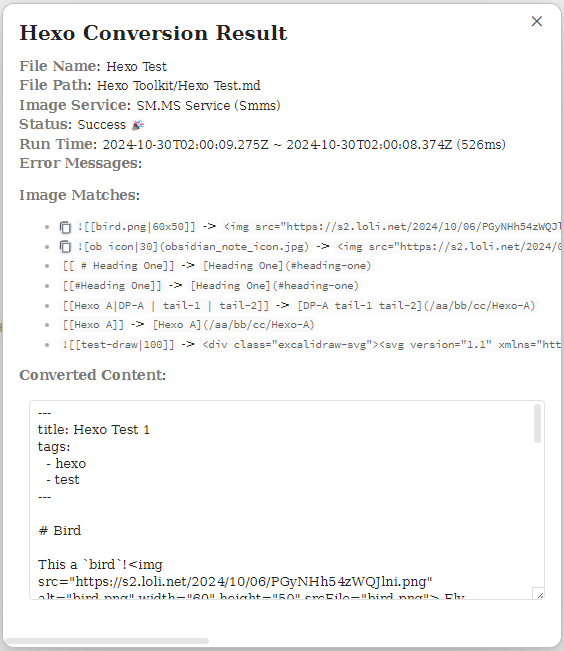
Hexo-Conversion-Result-Success

Commands

  • Hexo Toolkit: Convert: This command can only be executed within Markdown notes. Running it will convert the current active note to Hexo-compatible Markdown format. During the conversion, the status bar displays the current progress. Once completed, you can click the status bar to open a "Hexo Conversion Result" window with the conversion details.

Screenshot
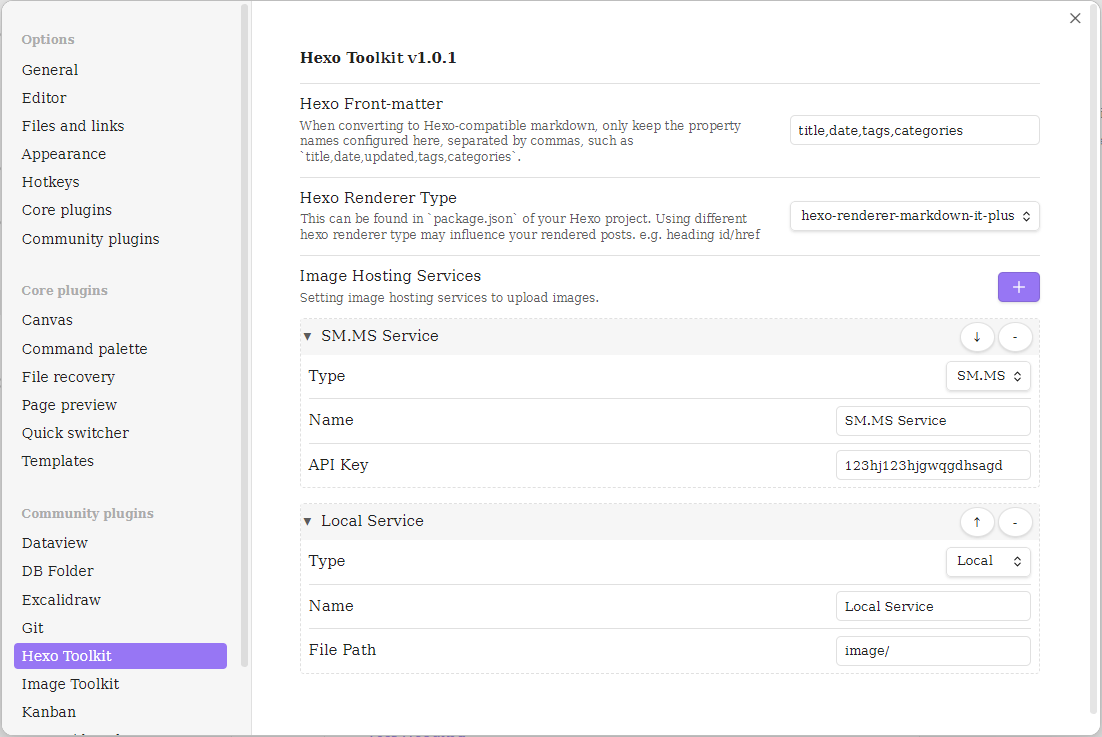
Plugin-Setting

75%
HealthGood
ReviewCaution
About
Convert Obsidian notes to Hexo-compatible Markdown, extracting front-matter and translating internal title links, images (including size variants) and embedded Excalidraw into Hexo-friendly formats. Upload images to SM.MS or copy local image matches and preview the conversion in a Hexo Conversion Result window.
ExportMarkdownImages
Details
Current version
1.0.3
Last updated
2 years ago
Created
2 years ago
Updates
4 releases
Downloads
229
Compatible with
Obsidian 1.0.0+
Platforms
Desktop only
License
MIT
Report bugRequest featureReport plugin
Author
sissilabsissilab
github.com/sissilab
GitHubsissilab
  1. Community
  2. Plugins
  3. Export
  4. Hexo Toolkit

Related plugins

Image Captions

Add captions to images with inline Markdown and link support. The caption format is compatible with the Commonmark spec and other Markdown applications.

JotBird

Publish notes as shareable web pages with one click. No account required.

Export Image plugin

Easily convert your article to image.

Importer

Import data from Notion, Evernote, Apple Notes, Microsoft OneNote, Google Keep, Bear, Roam, and HTML files.

Outliner

Work with your lists like in Workflowy or Roam Research.

Various Complements

Complete words similar to auto-completion in an IDE.

Linter

Format and style your notes. Linter can be used to format YAML tags, aliases, arrays, and metadata; footnotes; headings; spacing; math blocks; regular Markdown contents like list, italics, and bold styles; and more with the use of custom rule options.

Image Converter

Convert, compress, resize, annotate, markup, draw, crop, rotate, flip, align, drag-resize, rename with variables, and batch process images: WEBP, JPG, PNG, HEIC, TIF

Image Context Menus

Image context menus (mostly on right click): Copy to clipboard, Open in default app, Show in system explorer, Reveal file in navigation, Open in new tab.

PlantUML

Generate PlantUML diagrams.