Heading Rail
 DAST15 downloads
Dock-style clickable heading bars with live scroll tracking, wave hover and an expandable outline panel.
- Overview
- Scorecard
- Updates1
Compact heading navigation docked to the right edge of your note. Bars instead of a list: one bar per heading, width scaled by level. The active bar highlights itself as you scroll, and an outline panel expands on demand.
Features
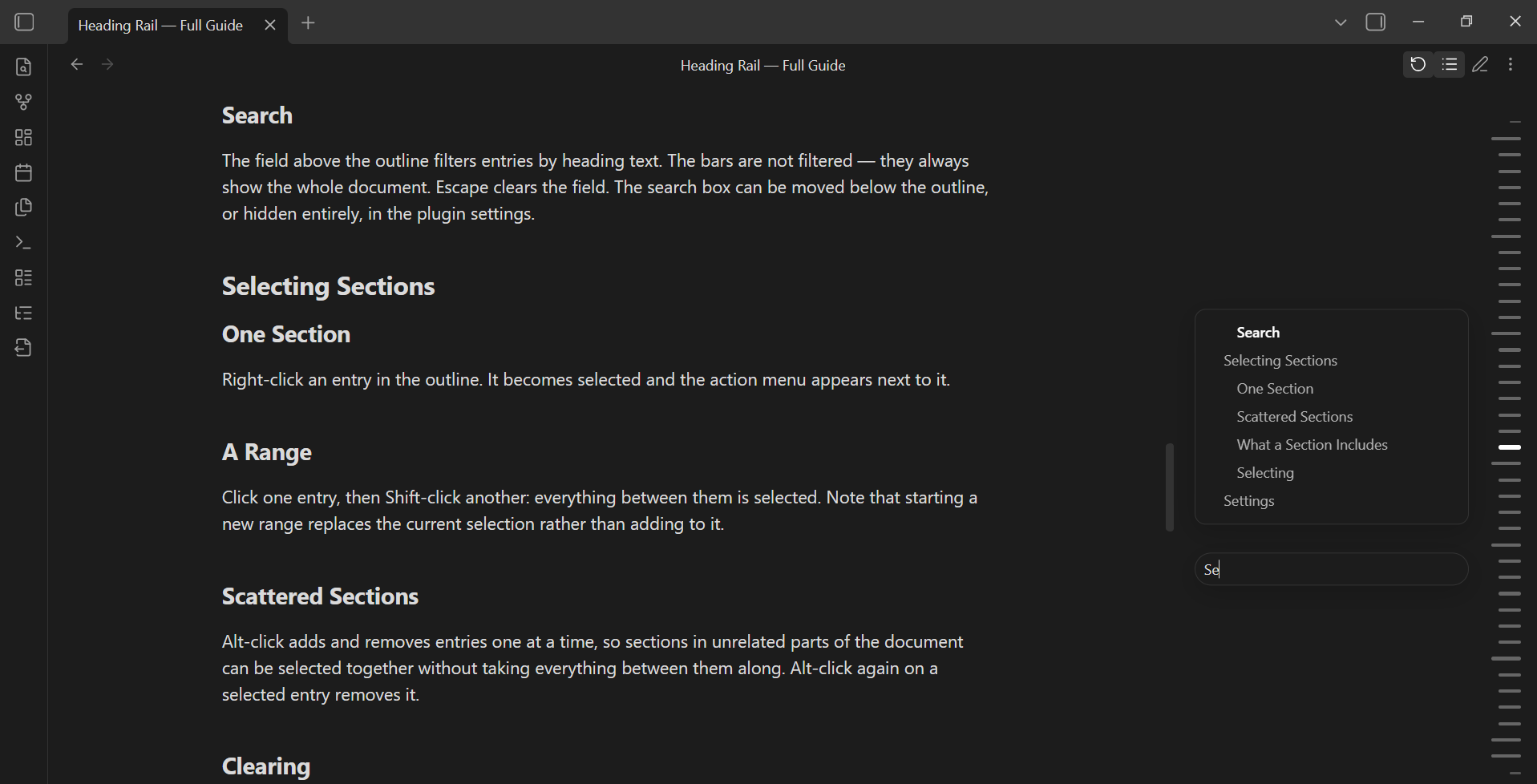
- Live position tracking — the active bar highlights itself while you scroll. No hovering needed.
- Dock-style hover — the bar under the cursor widens and its neighbours follow, so the target is easy to hit.
- No dead zones — the whole strip is clickable, only the spacing between bars is visual.
- Drag to scrub — hold the mouse button, or the space bar, and drag along the rail to scroll the document in real time.
- Faster wheel — scrolling over the rail moves the document several times faster than usual.
- Multi-column — on very long notes the bars split into additional columns instead of shrinking into a solid line.
- Outline panel — hold Ctrl to peek, right-click a bar to pin it open at that section. Hovering a bar scrolls the panel, not the document.
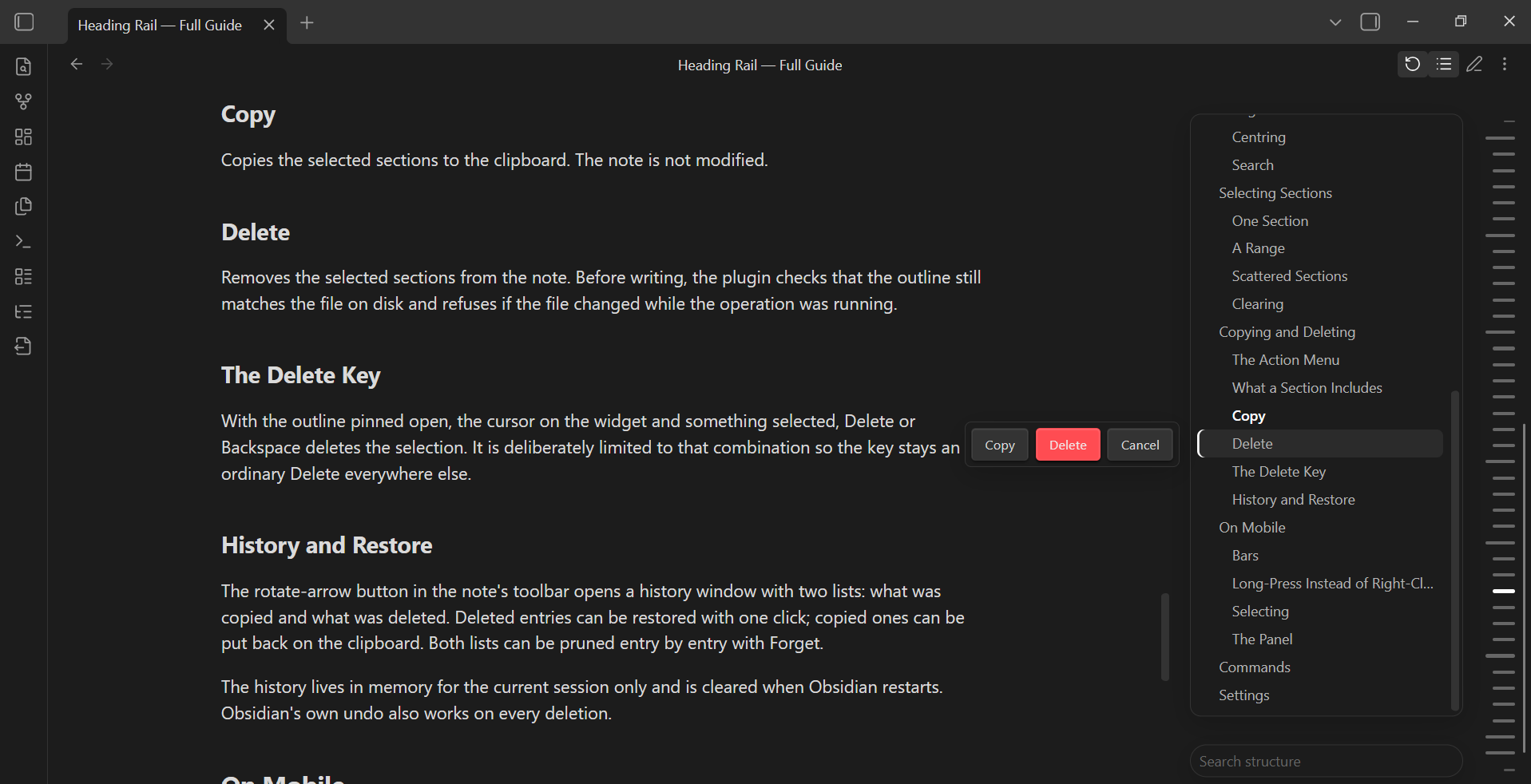
- Search — filter the outline without touching the bars.
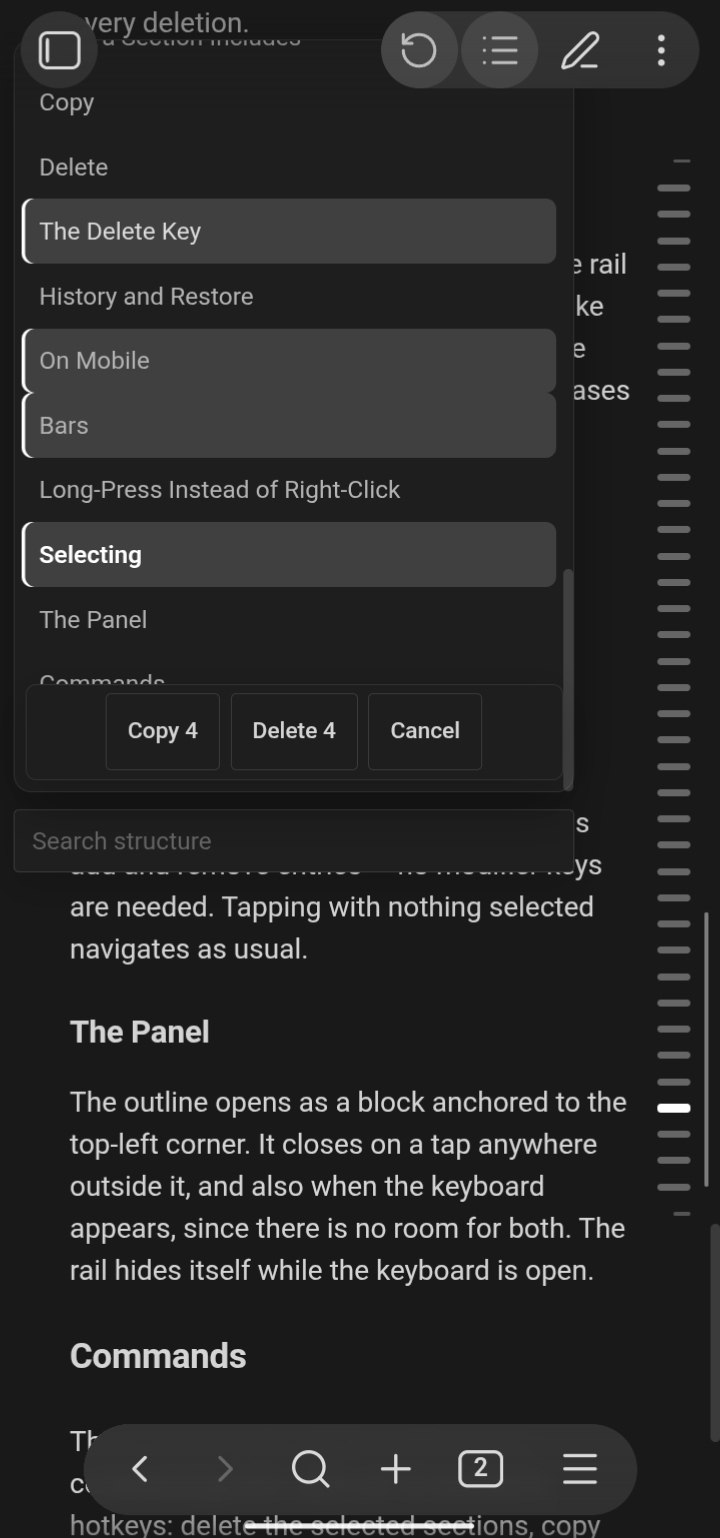
- Section actions — select sections and copy or delete them straight from the outline. Deleted sections go to a history you can restore from.
- Mobile — bars work on phones too: drag with a finger, long-press instead of right-click, outline opens as a panel from the corner.
Every colour comes from Obsidian's own variables, so the plugin follows your theme.
Screenshots
Desktop


Mobile


Usage
| Action | Desktop | Mobile |
|---|---|---|
| Jump to a section | Click a bar | Tap a bar |
| Scrub through the document | Hold and drag, or hold Space and move | Drag a finger along the rail |
| Peek at the outline | Hold Ctrl | — |
| Pin the outline open | Right-click a bar, or the toolbar button | Long-press a bar, or the toolbar button |
| Step between headings | Arrow keys while hovering the rail with the outline open, or Ctrl + arrows from anywhere | — |
| Select sections | Shift-click for a range, Alt-click to toggle | Long-press, then tap to add or remove |
| Copy or delete a selection | Right-click a selected item | Long-press a selected item |
| Restore a deletion | History button in the note toolbar | Same |
Install
Not in the community directory yet. Manual install:
- Download
manifest.json,main.jsandstyles.cssfrom the latest release. - Put them in
<vault>/.obsidian/plugins/heading-rail/. - Restart Obsidian, turn off Restricted mode, enable Heading Rail under Settings → Community plugins.
A note on deletion
This plugin can delete sections from your notes. Before every deletion it verifies that the outline still matches the file on disk, and it refuses to write if the file changed while the operation was running. Deletions go into an in-session history with one-click restore, and Obsidian's own undo still works. Even so — this is the one feature that modifies your files, so treat it accordingly.
Development
Plain JavaScript, no bundler. core.js holds the logic, styles.css the appearance; build.py assembles main.js from both and inlines a fallback copy of the CSS so the plugin still renders if styles.css fails to load.
python3 build.py
Edit core.js and styles.css — never main.js, it is generated.
License
MIT — see LICENSE.
Русский
Компактная навигация по заголовкам у правого края заметки. Вместо списка — полоски: по одной на заголовок, ширина зависит от уровня. Активная полоска подсвечивается сама при прокрутке, а полная структура раскрывается по требованию.
Основное: отслеживание текущего раздела без наведения; эффект дока — полоска под курсором расширяется вместе с соседними; попадание без мёртвых зон; протяжка мышью или пробелом прокручивает документ в реальном времени; ускоренная прокрутка колесом над рельсом; раскладка в несколько столбцов на длинных заметках; раскрываемая структура с поиском; выделение разделов с копированием и удалением, с историей и восстановлением; работа на телефоне через касания и удержание.
Все цвета берутся из переменных Obsidian, поэтому оформление следует вашей теме.
Установка: скачайте manifest.json, main.js и styles.css из последнего релиза, положите в <хранилище>/.obsidian/plugins/heading-rail/, перезапустите Obsidian и включите плагин в разделе Community plugins.
Про удаление: плагин умеет удалять разделы из заметок. Перед каждым удалением он сверяет структуру с файлом на диске и отказывается писать, если файл изменился во время операции. Удалённое попадает в историю с восстановлением в одно нажатие, обычная отмена Obsidian тоже работает. Тем не менее это единственная возможность, которая меняет ваши файлы — относитесь к ней соответственно.
Deutsch
Kompakte Überschriften-Navigation am rechten Rand der Notiz. Statt einer Liste: Balken — einer pro Überschrift, die Breite richtet sich nach der Ebene. Der aktive Balken hebt sich beim Scrollen selbst hervor, die vollständige Gliederung öffnet sich bei Bedarf.
Funktionen: Verfolgung der aktuellen Position ohne Hovern; Dock-Effekt — der Balken unter dem Zeiger wird breiter, die Nachbarn folgen; keine toten Klickzonen; Ziehen mit Maus oder Leertaste scrollt das Dokument in Echtzeit; schnelleres Scrollen mit dem Mausrad über der Leiste; mehrspaltige Anordnung bei sehr langen Notizen; ausklappbare Gliederung mit Suche; Abschnitte auswählen, kopieren und löschen, mit Verlauf und Wiederherstellung; Unterstützung für Mobilgeräte über Tippen und langes Drücken.
Alle Farben stammen aus den Variablen von Obsidian, das Plugin folgt daher Ihrem Theme.
Installation: manifest.json, main.js und styles.css aus dem neuesten Release herunterladen, nach <Vault>/.obsidian/plugins/heading-rail/ kopieren, Obsidian neu starten und das Plugin unter Community plugins aktivieren.
Hinweis zum Löschen: Das Plugin kann Abschnitte aus Notizen löschen. Vor jedem Löschvorgang wird geprüft, ob die Gliederung noch zur Datei auf der Festplatte passt; bei Änderungen während des Vorgangs wird nicht geschrieben. Gelöschtes landet in einem Verlauf mit Wiederherstellung per Klick, und das normale Rückgängigmachen von Obsidian funktioniert weiterhin.