Heading Indent Guides
 TIM_MIT88 downloads
Indent content by heading level, draw vertical guide lines for each level, and make heading sizes easier to tell apart.
- Overview
- Scorecard
- Updates7
See the structure of long notes at a glance. Content under each heading is indented by its level, a vertical guide line runs down every level, and heading sizes are easier to tell apart.
| Without the plugin | With Heading Indent Guides |
|---|---|
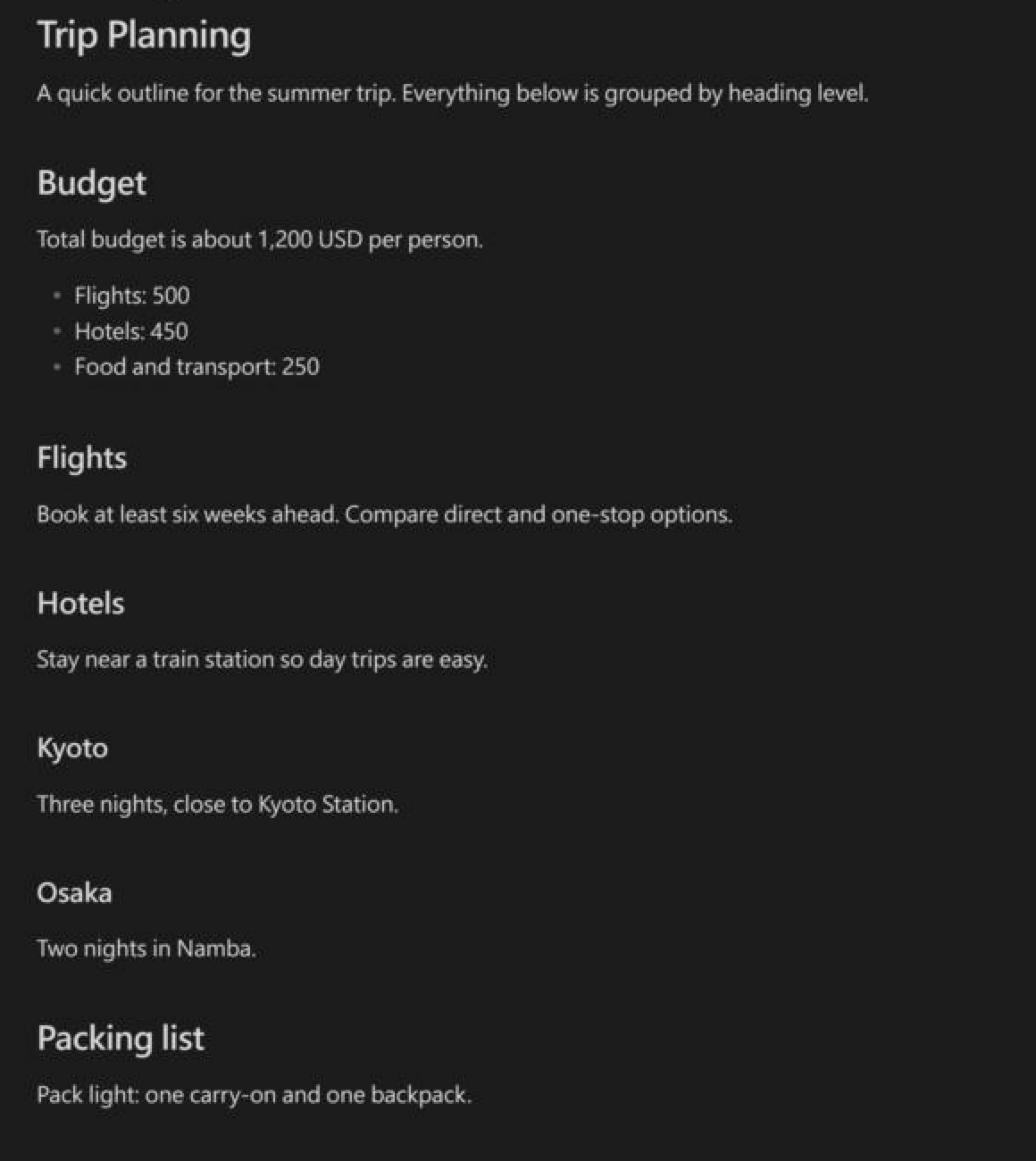 |
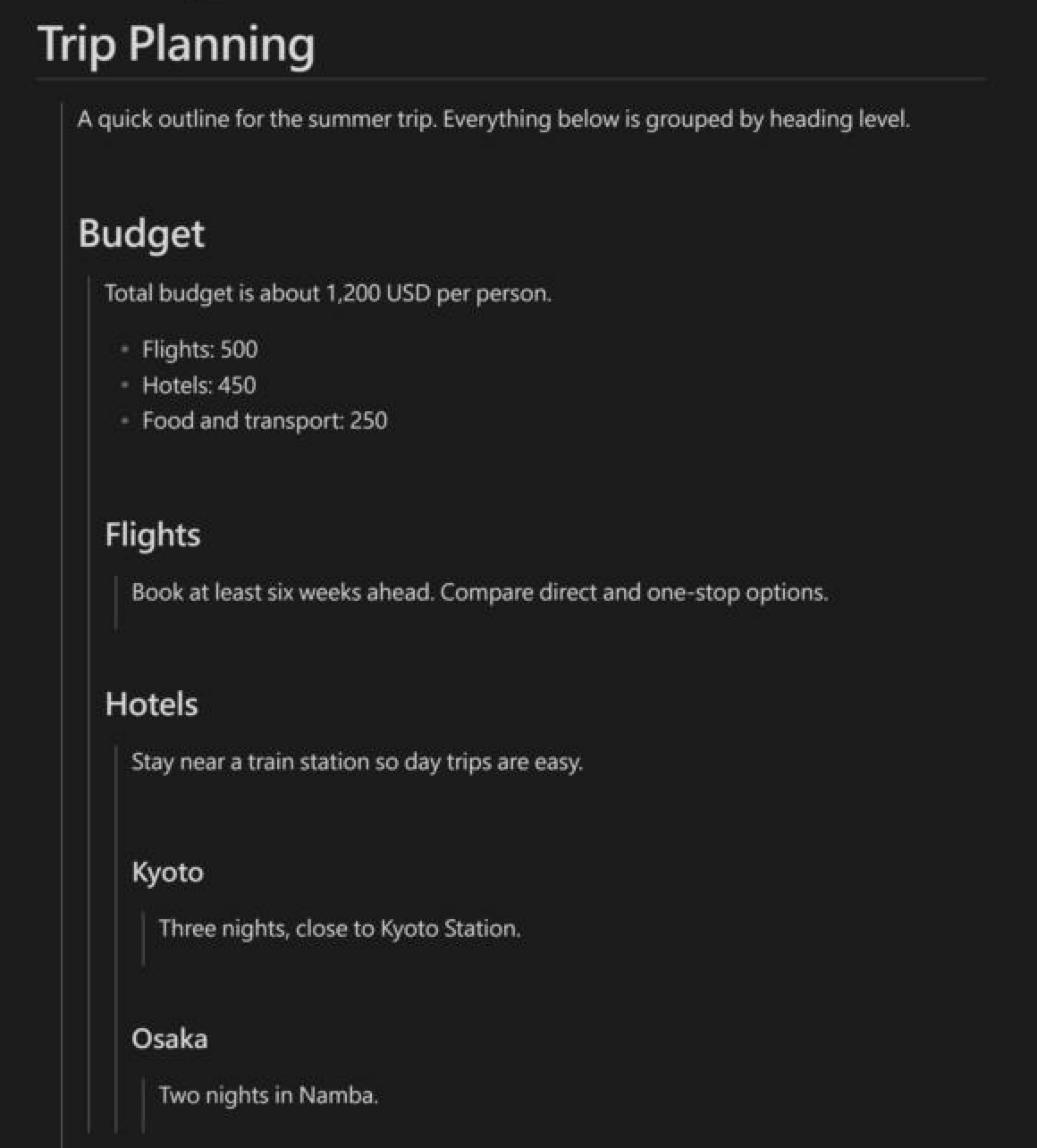 |
Features
- Indent by heading level: text, lists, code blocks, tables, and callouts move right to match the heading they belong to.
- Vertical guide lines: one thin line for each level, so you can see where a section starts and ends.
- Clearer headings: larger size and weight differences between H1–H6, and an underline under H1.
- Works in Live Preview, Source mode, Reading view, and PDF export, on desktop and mobile.
Installation
- Open Settings → Community plugins and turn off Restricted mode if it is on.
- Select Browse, search for Heading Indent Guides, then Install and Enable.
If you also use Heading Level Indent, turn it off so content is not indented twice.
Settings
| Setting | What it does |
|---|---|
| Settings language | Language of the settings page. Auto follows your Obsidian interface language. |
| Vertical guide lines | Show or hide the guide lines. |
| Clearer headings | Turn the larger heading sizes, weights, and H1 underline on or off. |
| Treat the highest heading as H1 | If a note only uses ## and below, ## becomes the first level, so nothing is indented by an extra step. |
| Indent per level | How far (in px) content under H1–H6 moves to the right. The guide lines follow automatically. |
The settings page is available in English, 繁體中文, 简体中文, 日本語, 한국어, Español, Français, Deutsch, Português (Brasil), and Русский. Other interface languages show English.
To turn indentation off for a single note, add this to its frontmatter:
---
heading-indent: false
---
Customizing the guide lines
Create a CSS snippet (Settings → Appearance → CSS snippets) so your changes are kept when the plugin updates:
body.hli-guides {
  --hli-color: var(--text-muted);  /* line color */
  --hli-w: 2px;                    /* line width */
  --hli-gap: 12px;                 /* distance between the line and the text */
}
中文說明
讓長筆記的層級一眼看清楚:標題底下的內容依層級往右縮排,每一層左邊有一條垂直參考線,各級標題的大小、粗細差異也更明顯。即時預覽、原始碼模式、閱讀模式和 PDF 匯出都有效果,電腦版和手機版都能用。
安裝:設定 → 第三方外掛 → 瀏覽 → 搜尋 Heading Indent Guides → 安裝 → 啟用。如果有裝 Heading Level Indent,請先關掉,不然會重複縮排。
設定:可以開關垂直參考線、開關加大標題差異、選擇是否把筆記中最大的標題當成 H1,以及調整 H1~H6 底下內容的縮排距離,參考線會自動跟著移動。設定頁面支援 10 種語言,預設跟著 Obsidian 的介面語言,也可以在「設定頁面語言」自己選。
單篇筆記關閉縮排:在 frontmatter 加上 heading-indent: false。
自訂參考線:到「設定 → 外觀 → CSS 片段」新增一個片段,貼上上面「Customizing the guide lines」的 CSS 再修改數值。不要直接改外掛的 styles.css,外掛更新時會被覆蓋。