Hans Kanban
 Hans Lin 林思翰3k downloads
Kanban and masonry card views for Bases: whole-card coloring by property, on-card status switching, adjustable column widths, swimlanes, and a minimal mode. UI in English and Traditional Chinese.
- Overview
- Scorecard
- Updates36
繁體中文 | English below
把 Obsidian 的筆記變成一塊「看板」:像便利貼一樣分欄排列,拖一拖就能更新進度。適合管理影片製作、待辦事項、寫作進度、任何「有不同階段」的工作。
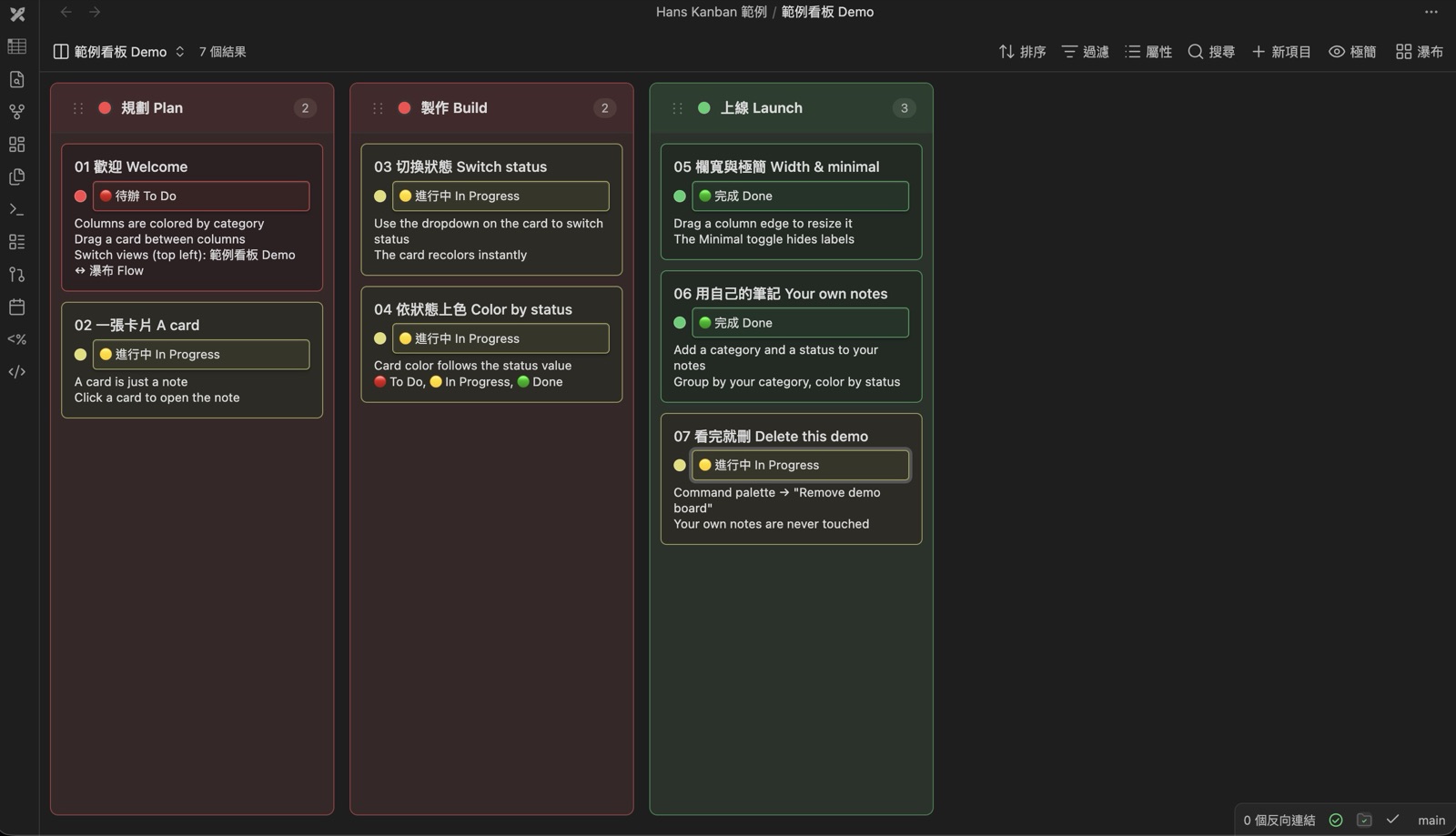
上圖就是內建的範例看板(指令面板 →「建立範例看板」一鍵生成):欄位依分類上色、卡片依狀態上色、卡片上的下拉選單可直接切換狀態。
這是 fork 版本:Hans Kanban 改自 Kanban Bases View(作者 I. Welch Canavan,MIT 授權),加上繁體中文介面、卡片依狀態上色與切換、可調欄寬、極簡模式等功能。原作者版權保留於 LICENSE。
與原版 Kanban Bases View 的差異
原版提供 Bases 的基本看板視圖,Hans Kanban 在其上加了:
- 繁體中文介面(依 Obsidian 語言自動切換,其他語言顯示英文)
- 整卡依屬性值上色,加上固定選項清單管理(改名 / 換色 / 刪除,附使用數統計)
- 卡片上直接切換狀態的下拉選單,變更即時重新上色
- 泳道(swimlane)雙軸分組
- 瀑布(masonry)卡片牆模式,依顏色順序 + 排序欄位自動排序
- 欄寬調整:全域滑桿 + 單欄拖拉(雙擊還原)
- 極簡模式(隱藏屬性標籤)與「隱藏空欄位」選項
- 檔案改名後卡片保留原位置(rename 同步)
- 快速新增卡片與範例看板產生器
新手教學:從零開始(跟著做就會)
完全沒用過也沒關係,照下面四步走一遍就上手了。
第 1 步:先裝一個叫 BRAT 的小工具
這個外掛還沒上架官方商店,要透過 BRAT 來安裝(BRAT 是社群常用的安裝小幫手,一次裝好以後就能自動更新)。
- 打開 Obsidian → 左下角齒輪 設定
- 點 第三方外掛(Community plugins)→ 瀏覽(Browse)
- 搜尋 BRAT → 安裝 → 啟用
第 2 步:用 BRAT 安裝 Hans Kanban
- 按
Cmd/Ctrl + P打開指令面板 - 輸入並選擇:BRAT: Add a beta plugin for testing
- 在欄位貼上這一行網址:
hansai-art/obsidian-hans-kanban - 按確定,BRAT 會自動下載安裝
- 回到 設定 → 第三方外掛,把 Hans Kanban 打開(啟用)
✅ 裝好了。接下來做你的第一塊看板。
第 3 步:準備幾則「有狀態」的筆記
看板要能分欄,每則筆記得有一個欄位告訴它「現在在哪一欄」。最簡單的做法是在筆記最上面加一段「屬性」。
新建一則筆記,最上面貼這幾行(兩條 --- 中間就是屬性區):
---
狀態: 待辦
---
下面再寫筆記內容就好。多做幾則,把 狀態 填成不同值,例如 待辦、進行中、完成。
小提醒:
狀態是欄位名稱,你也可以叫它階段、status都行,等一下分欄會用到它。
第 4 步:建立看板,看著筆記自動分欄
- 新建一個 Base:指令面板輸入 Create new base,或在資料夾按右鍵新增
- 在 Base 右上角加一個視圖,視圖類型選 Hans Kanban
- 在視圖設定的 Group by(依此分欄) 選你剛剛的
狀態 - 畫面就會出現「待辦 / 進行中 / 完成」三欄,你的筆記各就各位
🎉 完成!現在把卡片從「待辦」拖到「進行中」,那則筆記的 狀態 就自動改好了。
卡片顏色:打字就好,顏色自動來
這是 Hans Kanban 最核心的功能,搞懂一個觀念就全通了:
值開頭的 emoji 就是顏色。
🔴 初稿、🟢 完成這種值,外掛看到開頭的 🔴 🟢 就知道要配紅色、綠色。
而且你不需要自己打 emoji:
- 在視圖設定的 卡片顏色 / 狀態欄位 選你的狀態欄位(例如
狀態) - 之後不管在哪裡輸入新狀態(卡片下拉選單、筆記屬性、其他外掛的選單),只要打純文字(例如
校稿中),外掛就自動幫你配一個還沒用過的顏色,寫成🟣 校稿中存進筆記 - 共 10 種顏色(紅橙黃綠青藍紫粉棕灰),自動挑「目前用最少」的,所以新狀態不會跟舊狀態撞色
固定狀態選項與順序
預設下拉選單只會列出「筆記裡出現過的值」。想固定完整清單跟順序(連還沒有卡片用到的狀態也先列出來),在視圖設定的 狀態選項(依序) 把所有狀態照順序填進去,例如:
🔴 待辦
🟡 進行中
🟢 完成
之後每張卡的下拉選單都會固定顯示這三項、照這個順序。
管理狀態:改名、換色、刪除
按 Cmd/Ctrl + P 打開指令面板,輸入並選擇 管理狀態選項(改名 / 換色 / 刪除),會看到所有狀態的管理面板,每個狀態一行:
| 按鈕 | 功能 |
|---|---|
| ✏️ 改名 | 改文字,顏色不動。全部用到的筆記、看板設定會一起改好 |
| 🎨 換色 | 從 24 個 emoji(10 色 × 圓點 / 愛心 / 圖示變體)挑一個新顏色 |
| 🗑️ 刪除 | 刪掉沒人用的狀態。還有卡片在用的會擋下來,避免誤刪 |
每一行都會顯示「幾張卡片使用中」,所以哪些狀態是孤兒、哪些正在用,一目了然。改名與換色會同步到:筆記內容、看板設定、屬性選單(有裝 Metadata Menu 的話,它的選單也會一起更新)。
其他貼心功能
- 直接在卡片上換狀態:卡片上有個小下拉選單,點一下就能換階段,顏色立刻跟著變,不用拖。
- 整欄換色:點欄位標題旁的小圓點可以指定該欄顏色,整欄(外框+底色)都會跟著變。
- 調整欄寬:用滑桿一次調整全部欄寬,或拖某一欄的右邊界單獨調整(雙擊還原)。
- 極簡模式:工具列上的「極簡」鈕,一鍵把卡片上的屬性標籤藏起來,畫面更清爽。
- 範例看板:指令面板輸入「建立範例看板」,一鍵生出一塊可以玩的示範看板(含看板、瀑布兩種視圖,教你左上角切換),不會動到你既有的筆記。看完輸入「移除範例看板」一鍵清掉,只刪範例檔,你自己的檔案不會動。
- 工作模板:新建空白視圖可選 每日工作台(推薦) 或 專案進度看板;既有看板可從工具列按 模板 重新套用。模板只改 Base 視圖設定,絕不改卡片或筆記 frontmatter。
- 新視圖不會壞:還沒設定的視圖會顯示引導卡,分欄欄位打錯也只會出提示條,版面不會壞。
內建工作模板
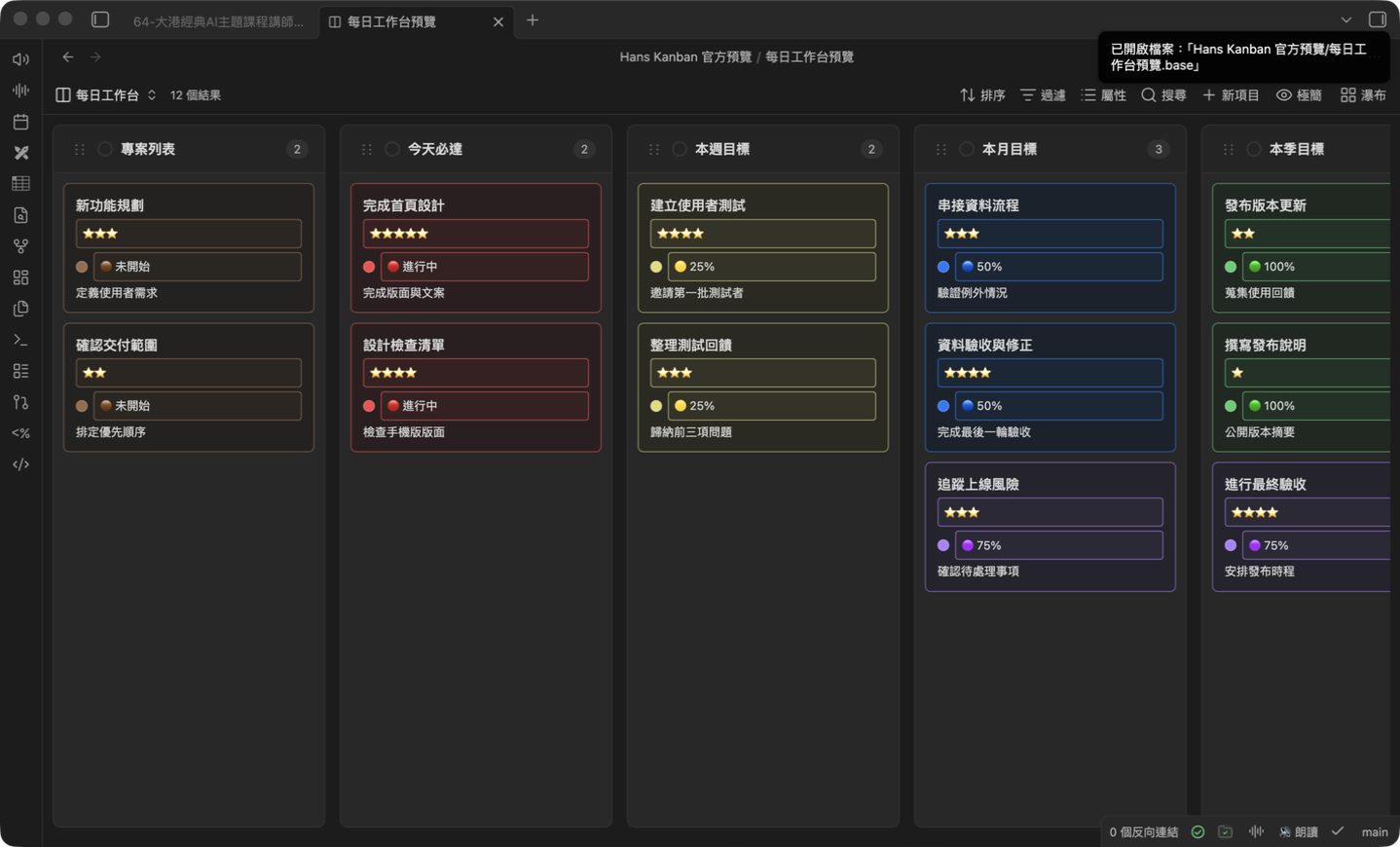
每日工作台(推薦):以時間安排今天、這週、這月與本季工作。
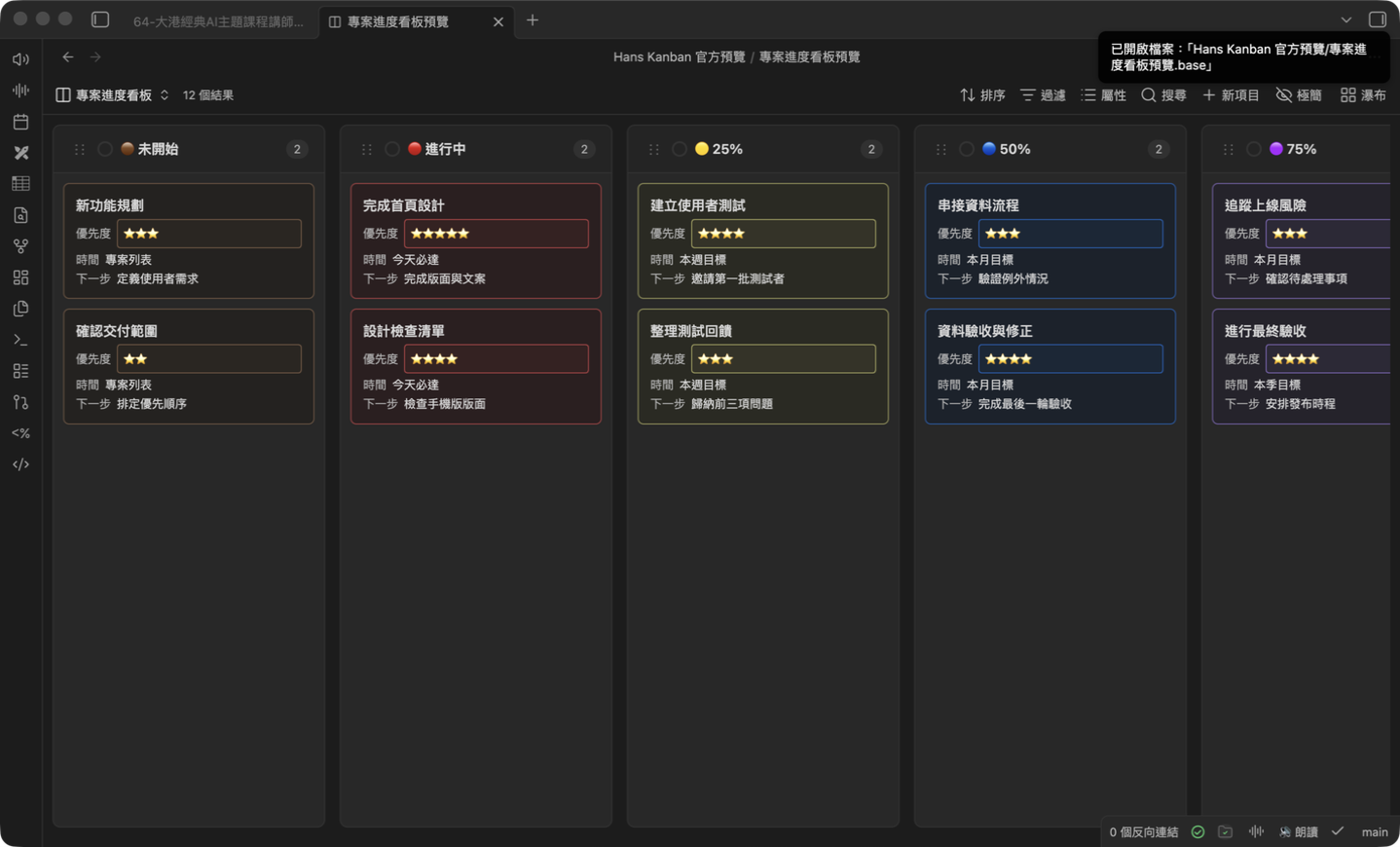
專案進度看板:以狀態追蹤從未開始到完成的交付進度。
資料存取範圍
這個外掛不連網路、不上傳任何內容,所有動作都在你的 vault 本機完成。會讀到「單一資料夾以外」的地方只有兩個時機,而且都要你自己下指令才會跑:
- 改狀態名稱 / 換狀態顏色:需要掃過筆記的 frontmatter,把所有用到該狀態的筆記一起改掉,並統計每個狀態目前有幾張卡在用。
- 同步看板設定:只開啟副檔名為
.base的設定檔,更新裡面的狀態順序,讓每一塊看板的欄位順序一致。
平常開看板、拖卡片、快速新增卡片都不會做全庫掃描:新卡片是從 Obsidian 的建檔事件直接取得,改名的卡片只會在它原本所在的資料夾裡找。
安全掃描可能將上述「全域狀態管理」標為 Vault Enumeration:這是因為外掛必須找出使用某個狀態的筆記與所有
.base設定,才能安全地完成跨看板改名、換色與刪除。此列舉只在你主動執行該管理操作時發生,且不會傳送任何檔案內容或路徑到網路。
English
Turn your Obsidian notes into a kanban board: cards in columns you can drag between to update progress. Great for tracking video production, to-dos, writing, or anything with stages.
The screenshot above is the built-in demo board (command palette → "Create demo board"): columns colored by category, cards colored by status, and a dropdown on each card to switch status in place.
This is a fork of Kanban Bases View by I. Welch Canavan (MIT), adding a Traditional Chinese UI, status-based card colors and switching, adjustable column widths, and a minimal mode. Original copyright is kept in LICENSE.
How this differs from the original
The original provides the base kanban view for Bases. Hans Kanban adds:
- Traditional Chinese UI (auto-detected from the Obsidian language; everything else falls back to English)
- Whole-card coloring by property value, with a managed option list (rename / recolor / delete, with usage counts)
- An on-card dropdown that switches status and recolors instantly
- Swimlanes (two-axis grouping)
- A masonry card-wall mode, auto-sorted by color order plus a sort property
- Column widths: a global slider plus per-column drag (double-click to reset)
- Minimal mode (hide property labels) and a hide-empty-columns option
- Renamed files keep their card position (rename sync)
- Quick-add cards and a demo-board generator
Quick start (beginner friendly)
1. Install BRAT (a small helper that installs and auto-updates plugins not yet in the store): Settings → Community plugins → Browse → search BRAT → Install → Enable.
2. Install Hans Kanban via BRAT:
Command palette (Cmd/Ctrl + P) → BRAT: Add a beta plugin for testing → paste hansai-art/obsidian-hans-kanban → confirm. Then enable Hans Kanban in Settings → Community plugins.
3. Give a few notes a status property. Add this to the top of a note (the part between the two --- lines):
---
status: To Do
---
Make a few notes with values like To Do, Doing, Done.
4. Build the board: Create a Base → add a view → pick Hans Kanban as the type → set Group by to status. Columns appear automatically. Drag a card to another column and its status updates.
Card colors: just type, colors come automatically
One idea explains the whole color system: the leading emoji in a value IS its color. 🔴 Draft is red, 🟢 Done is green.
You never have to type the emoji yourself:
- Set Card color / status property in the view options to your status property.
- From then on, whenever you type a plain new status anywhere (the on-card dropdown, note properties, other plugins' menus), the plugin picks a least-used color from a 10-color palette (red, orange, yellow, green, cyan, blue, purple, pink, brown, gray) and saves it as e.g.
🟣 Reviewing. New statuses never collide with colors already taken.
Fixed option list and order
By default the dropdown only lists values that already exist in your notes. To pin the full list and its order (including statuses no card uses yet), fill in Status options (ordered) in the view options, one value per line, e.g. 🔴 To Do, 🟡 Doing, 🟢 Done.
Manage statuses: rename / recolor / delete
Command palette → Manage status options (rename / recolor / delete) opens a panel listing every status with its usage count:
- ✏️ Rename: changes the text, keeps the color, and rewrites every note plus the board config.
- 🎨 Recolor: pick from 24 emoji (10 colors in dot / heart / icon variants).
- 🗑️ Delete: removes an unused status everywhere; statuses still in use are protected.
Renames and recolors also sync to the property suggester and, if you use the Metadata Menu plugin, to its select menus.
Nice extras
- On-card switch: a dropdown on each card switches the value and recolors instantly.
- Whole-column color: pick a color from the dot next to a column title; the outline and body tint to match.
- Column width: a global slider, plus a per-column drag handle (double-click to reset).
- Minimal mode: a toolbar toggle hides per-card property labels for a cleaner board.
- Demo board: command palette → "Create demo board" builds a playground board (with both a kanban and a masonry flow view, so you learn the view switcher) without touching your notes. Done exploring? "Remove demo board" cleans it all up and never touches your own files.
- Work templates: a new empty view starts with 每日工作台(推薦) or 專案進度看板. Existing boards can use the toolbar 模板 action to reapply either one. Templates only change Base view settings, never cards or note frontmatter.
- Views that don't break: unconfigured views show a guided setup card, and a bad group-by property only shows a warning banner.
Data access
The plugin makes no network requests and uploads nothing; everything happens locally in your vault. Only two operations look beyond a single folder, and both run solely on a command you invoke yourself:
- Renaming or recoloring a status: reads note frontmatter across the vault to rewrite every note using that status, and to count how many cards each status currently has.
- Keeping boards in sync: opens files with the
.baseextension only, to update the stored status order so every board lists its columns the same way.
Everyday use never scans the vault: newly created cards come straight from Obsidian's file-creation event, and a renamed card is looked up only within the folder it already lived in.
Development
npm install      # install dependencies
npm run build    # type-check + build to dist/
npm run dev      # watch and rebuild
npm test         # run the test suite
npm run lint     # eslint
The plugin uses the .obk- CSS class prefix to avoid collisions with other plugins and themes.
License
MIT. See LICENSE.
Acknowledgments
- Forked from Kanban Bases View by I. Welch Canavan (MIT).
- Built with SortableJS for drag-and-drop.