
- Overview
- Scorecard
- Updates5
Getnote Sync provides controlled, two-way synchronization between Getnote knowledge bases and a local vault.
Features
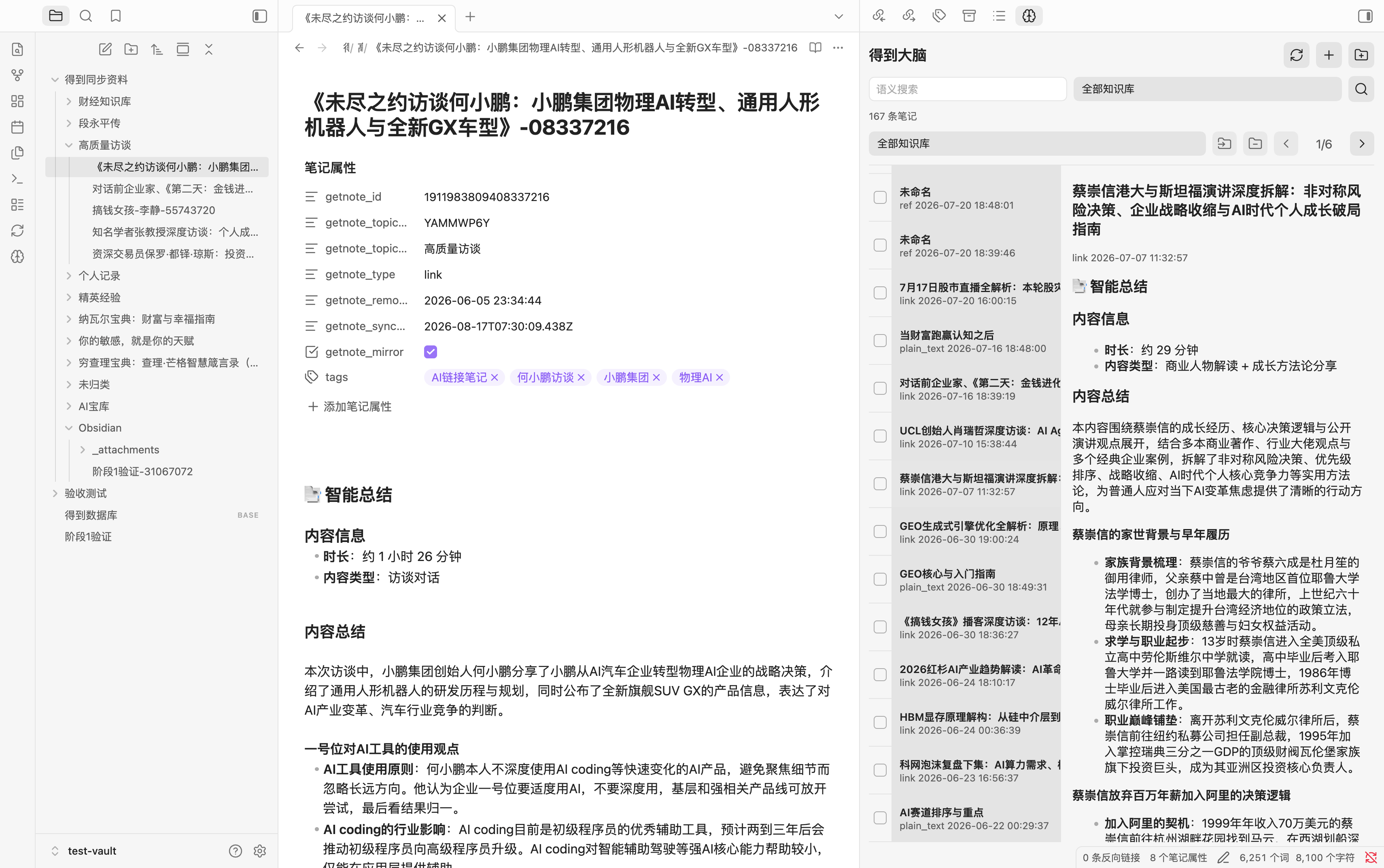
- Mirror Getnote notes to Markdown files, organized by knowledge base.
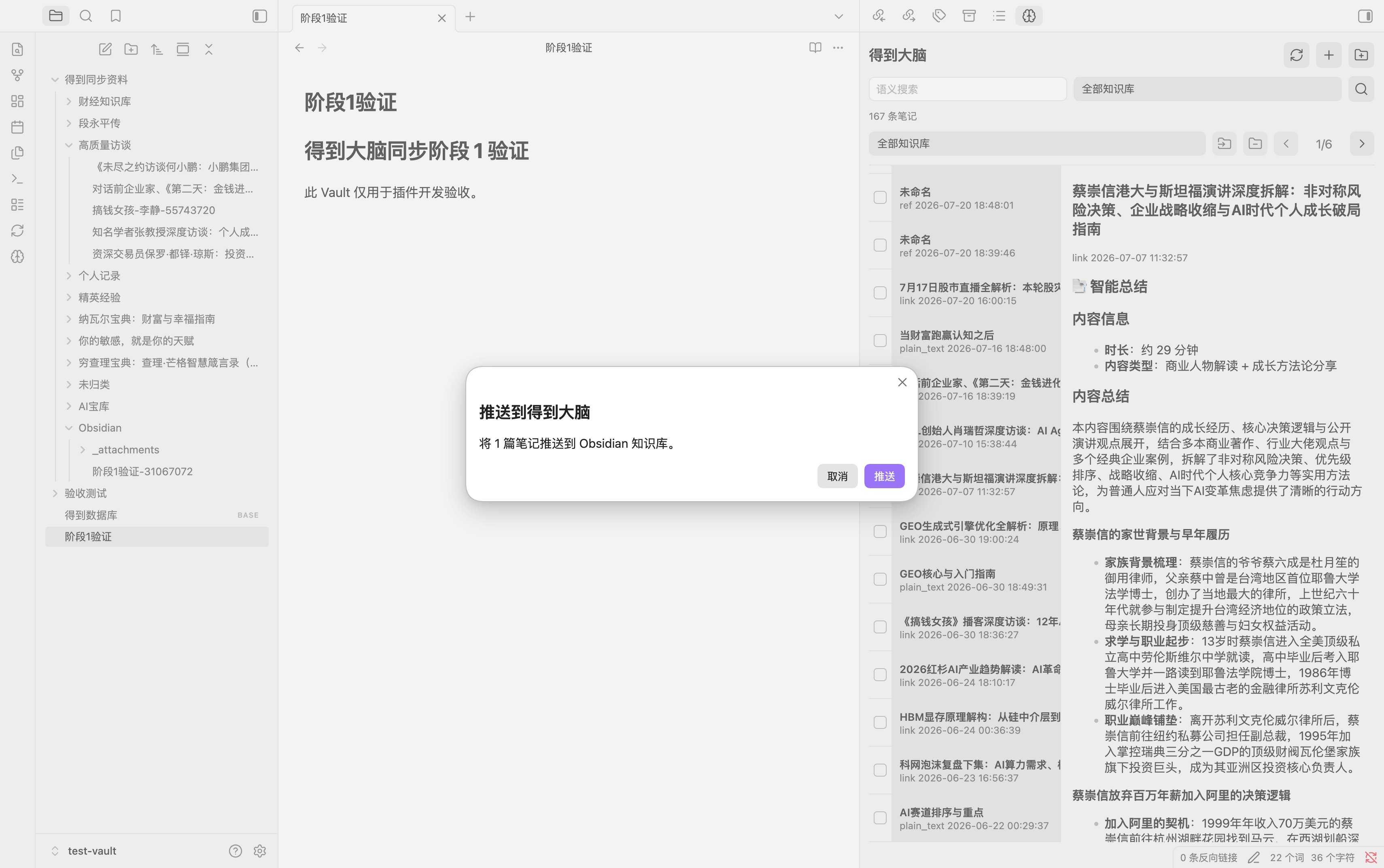
- Push the current note, a single selected file, or multiple selected files to Getnote.
- Browse, filter, search, create, tag, and categorize notes in the built-in dashboard.
- Download images and attachments, retain conflict copies, clean orphaned attachments, and export sync failures.
How Synchronization Works
Getnote is the remote knowledge source, while the vault is a local mirror and editing surface.
- Pull synchronization fetches remote note lists and details on startup, on a schedule, or when manually requested. Markdown frontmatter records the remote note ID, knowledge-base ID, content hash, and last synchronization time.
- Push synchronization is explicitly initiated from the command palette, file context menu, multi-file context menu, or dashboard. The plugin creates or updates the corresponding remote note in the Getnote
Obsidianknowledge base. - Change detection compares remote hashes, local mirror hashes, and file state. Unchanged notes are skipped to prevent duplicate writes.
- Safety boundaries keep automatic synchronization read-only. Creating, updating, tagging, categorizing, and recovery actions require an explicit user action.
- Conflicts and attachments are handled without silently overwriting local edits. Attachments are stored in a dedicated
_attachmentsdirectory and can be cleaned when no longer referenced.
Installation
Community plugins
After approval in the community directory, search for Getnote Sync in the plugin browser.
Manual installation
Copy these files to .obsidian/plugins/getnote-sync/ inside your vault:
main.js
manifest.json
styles.css
Then enable Getnote Sync in the community plugin settings.
Configuration
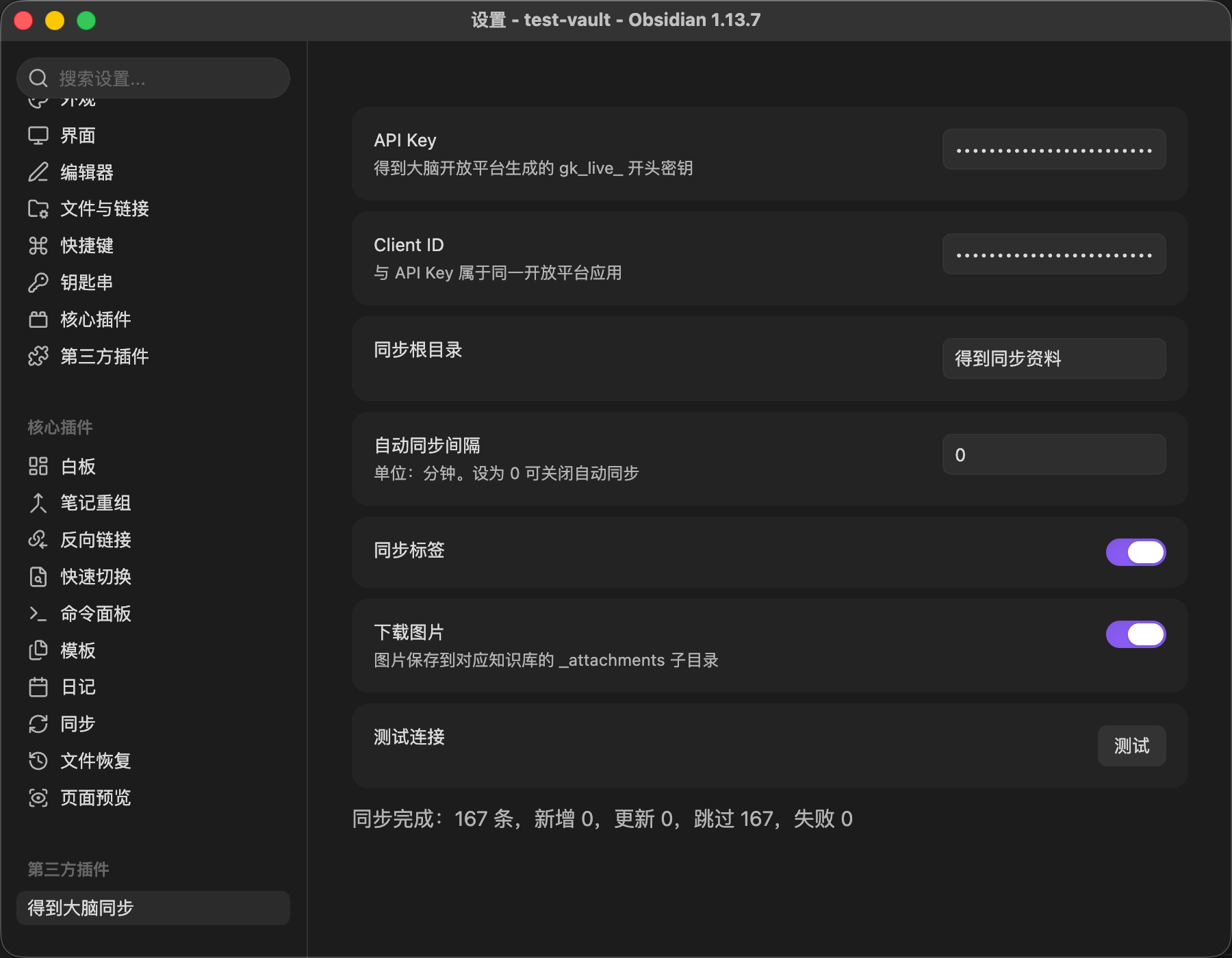
Configure the following values in the plugin settings:
- API key beginning with
gk_live_ - Client ID
- Synchronization root folder
- Automatic synchronization interval
- Synchronization tags
- Image downloads
Use Test connection to validate the current credentials and configuration.
Screenshots
Build
npm install
npm run typecheck
npm test
npm run build
Security
- Automatic synchronization only reads remote content.
- Remote writes require an explicit user action.
- Credentials are stored in the plugin's
data.jsonfile. - Write requests are not retried automatically to avoid duplicate note creation.
Development Notes
See Stage 0 findings and the end-to-end acceptance record for implementation and validation details.
HealthExcellent
ReviewPassed
About
Sync Getnote and Obsidian in a controlled two-way model: perform automatic, read-only pulls from Getnote into your Vault and manually push single or multiple Markdown files back to Getnote. Open the Getnote console to browse, search, filter and page notes; manage tags, create or reclassify notes, sync images and attachments into an _attachments folder, keep conflict copies and clean orphan attachments.Details
Current version
0.1.4
Last updated
3 weeks ago
Created
Last month
Updates
5 releases
Downloads
96
Compatible with
Obsidian 1.5.0+
Platforms
Desktop, Mobile
License
MIT