
- Overview
- Scorecard
- Updates20
Geode
Geode syncs Obsidian vaults between your devices through a server you run yourself. Each device encrypts your notes before sending them, so the server stores only encrypted data and never sees file names or note contents. Edits usually reach your other devices within a few seconds.
Features
Sync
- Edits reach your other devices within seconds.
- Syncs desktops and Android phones.
- Edits made offline wait and upload when the connection returns.
- Changes made while Obsidian was closed are picked up the next time you open it.
- Renames and moves are followed, and a note renamed on another device stays open.
- Edits to the same note on two devices merge by themselves.
- When they can't merge, both versions are kept for review, side by side, with Keep original, Keep conflict and Keep both.
- A mass delete is held instead of applied: sync pauses, and you restore the missing files or confirm the delete.
- Selective sync: leave folders out, and choose which Obsidian settings and community plugins follow the vault.
flowchart TD
  base["Base version<br/>the note both devices started from"]
  base --> laptop["Laptop edit<br/>changes one line"]
  base --> phone["Phone edit<br/>adds a new line"]
  laptop --> merged["Merged note<br/>both edits, no conflict"]
  phone --> merged
  laptop --> same["Both changed the same line"]
  phone --> same
  same --> file["Conflict file<br/>both versions kept"]
  file --> review["Review<br/>Keep original, Keep conflict, Keep both"]
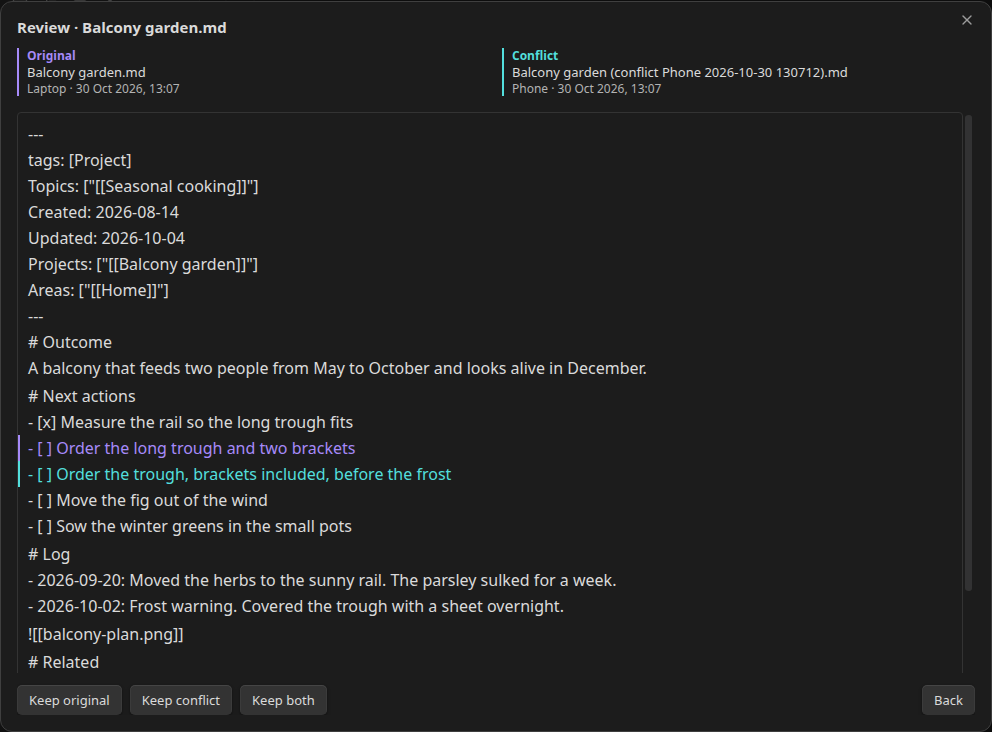
Taken on plugin v0.41.7.
Recovery
- File history for every note, with a diff against the current version and a restore. It works for attachments too, follows renames, and is in each file's context menu.
- Deleted files are kept for 30 days, so you can restore one or delete it forever.
- Export a decrypted copy of the vault to a folder (desktop).
- Resync from scratch when a device has drifted.
- Rejoining over an existing folder keeps the local files the server doesn't know in a
Geode backupfolder inside the vault, instead of uploading them over your notes.
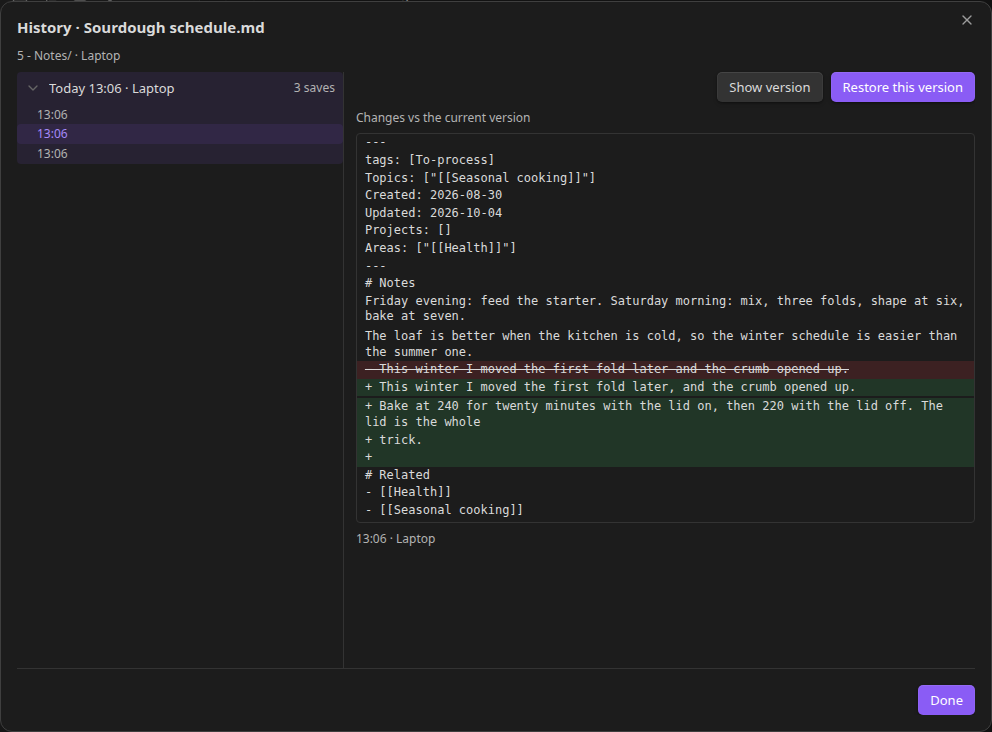
Taken on plugin v0.41.7.
Seeing what is happening
- A status icon for synced, syncing, offline, paused, locked, in conflict or on hold. Its menu has pause and resume, sync activity, conflicts, deleted files, devices and settings.
- Sync activity: what changed, one row per file, with the device and the time.
- Settings shows the space the vault uses on the server, when it last backed up, and buttons to push or reconcile now.
- The devices on the vault, with revoke for a lost or stolen one.
- Banners when something needs you: an error, a pause, or a plugin update.
- A Logs page in settings with Copy logs for a bug report, and a Developer console toggle that also mirrors it to the DevTools console.
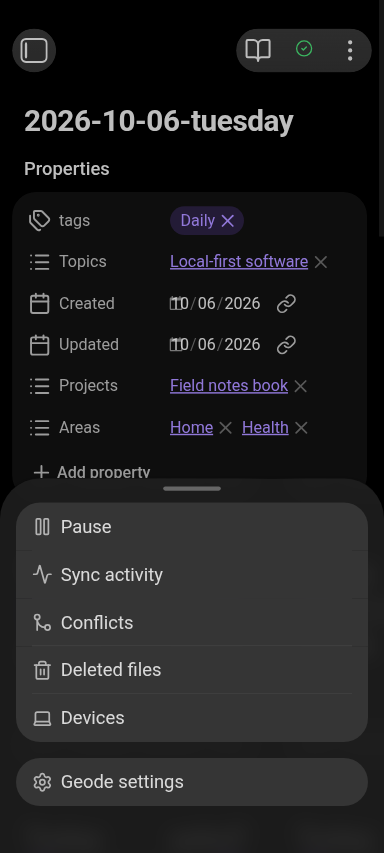
Taken on plugin v0.41.7.
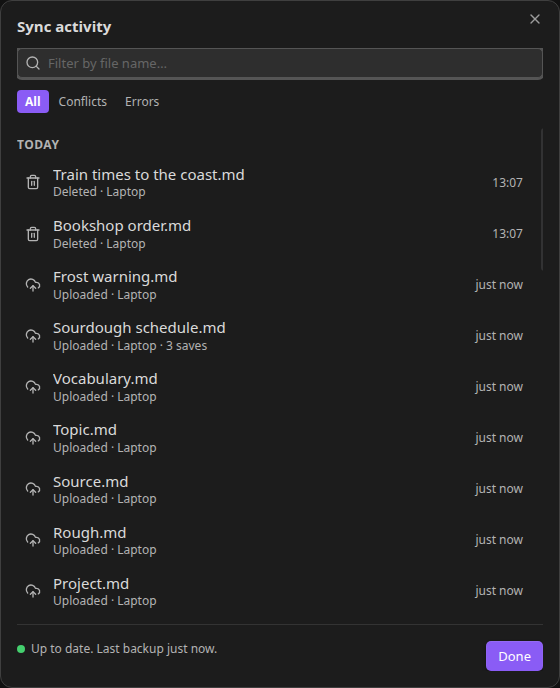
Taken on plugin v0.41.7.
Security and setup
- End-to-end encryption: each device encrypts your notes, so the server never sees note contents or file names.
- A setup wizard that creates a vault or joins an existing one.
- Lock and auto-lock: lock the vault now, or let it lock itself after a set number of idle hours.
- Change the passphrase at any time. Geode estimates the run first, and resumes it if it is interrupted.
- Choose the encryption strength per vault, from the wizard or later in settings.
- Rotate the admin token by changing it in the server's
.env, rename or leave the vault, and change the server address. - Self-hosted: a VPS or a computer at home, with Tailscale for access from outside.
- No telemetry.
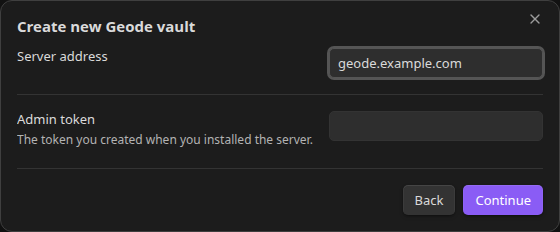
Taken on plugin v0.41.7.
Every other screen, and the command that reshoots them all: docs/screenshots/README.md.
Requirements
- A server with Docker and Docker Compose: a VPS, or a computer at home (x86_64 or ARM64). The smallest VPS plan is enough.
- Obsidian 1.8.7 or newer on each device. Geode is tested on desktop (Windows, macOS, Linux) and on Android. iOS is not tested yet.
- The admin token you set in the server's
.env. You need it to add devices.
Use one sync tool per vault. Don't sync a Geode vault with iCloud or Google Drive at the same time.
Install the server
Geode runs from a published image, so there is nothing to clone and nothing to build. It needs a machine with Docker and Compose v2, and a directory of its own.
compose.yaml pulls ghcr.io/hrt-htk/geode:latest: the release that has been promoted to the
community directory. To follow every release instead, including the betas BRAT installs, put
ghcr.io/hrt-htk/geode:beta in its place.
On a VPS with a domain
At your DNS provider, add an A record that points your domain at the VPS IP address, and delete a leftover AAAA record for the same name. Caddy, which Geode starts for HTTPS, gets its certificate for the address DNS hands out.
On the server, make the directory and fetch the two files:
mkdir geode && cd geode
curl -fsSLO https://raw.githubusercontent.com/Hrt-Htk/geode/main/compose.yaml
curl -fsSL https://raw.githubusercontent.com/Hrt-Htk/geode/main/.env.docker.example -o .env
Open
.envand fill in two things: theGEODE_ADMIN_TOKENvalue, and the VPS block below it (uncommentCOMPOSE_PROFILES=httpsandGEODE_TRUST_PROXY, setGEODE_DOMAIN). Generate the token with:openssl rand -base64 36 | tr -d '\n/+=' | cut -c1-40Create the data folder for the container's user, then start Geode. It is 0700 because the database holds device tokens:
mkdir -p data && sudo chown 1993:1993 data && sudo chmod 700 data
docker compose up -d
Open
https://geode.example.com/versionin a browser. It shows the server version. If it fails with a TLS error, Caddy is still getting the certificate: open it again after 15 seconds.Check that the server answers as an admin, not just that it is up. This is the request the plugin makes when it lists vaults, so it also proves the admin token and the database work.
[]is the right answer on a fresh server: the database holds no vaults yet. After the setup wizard it lists your vault instead.curl -s -H "Authorization: Bearer <the token from .env>" \ https://geode.example.com/vaults
Use wss://geode.example.com as the server address. geode.example.com works too: an address with
no scheme gets https, unless it is a private or local one.
Geode and Caddy both come back after a reboot.
On a computer at home
The same two files and steps, with the home block in .env instead: uncomment
COMPOSE_PROFILES=forward and GEODE_PUBLISH=0.0.0.0:8080, and leave the domain lines alone.
On your home network, use http://192.168.1.20:8080 as the server address, with your server's LAN
IP in place of 192.168.1.20. Plain http is fine inside your own network. Typed without a scheme, a
private or local address (localhost, 10.x, 192.168.x, 172.16 to 31.x, 100.64 to 127.x) also defaults
to http; any other address defaults to https. Open http://192.168.1.20:8080/version in a browser
to check the server.
To reach the server from outside your home, use Tailscale. Install it on
the server and on every device, then use http://TAILSCALE_IP:8080 as the server address.
Tailscale encrypts the traffic between your devices.
Phones connecting to a plain http address have not been tested yet. If your phone can't connect,
use the domain setup with HTTPS.
Coming from the old install script
Geode used to install as a systemd service, and that path is gone. To move the same server to Docker:
Do steps 2 and 3 above, with your existing admin token as
GEODE_ADMIN_TOKEN: it is in/etc/geode/geode.env. If the old script set up Caddy for your domain, keep it and use the own proxy block in.env(COMPOSE_PROFILES=forward,GEODE_PUBLISH=127.0.0.1:8080,GEODE_TRUST_PROXY=1): that Caddy already forwards to127.0.0.1:8080. Without a domain, use the home block.Instead of step 4, stop the old server, copy its data and start Geode:
sudo systemctl disable --now geode sudo cp -a /opt/geode/data ./data sudo chown -R 1993:1993 data sudo chmod 700 data docker compose up -d
Your devices reconnect by themselves: their tokens are in the copied data. The old install is left
where it is; delete /opt/geode, /etc/geode and /etc/systemd/system/geode.service once the new
one works.
Install the plugin
From the community directory
- In Obsidian, open Settings → Community plugins → Browse and search for Geode.
- Click Install, then Enable.
Obsidian then updates Geode with your other community plugins.
With BRAT
BRAT installs plugins straight from a GitHub repository, so it gets every release here, including the betas, before they are promoted.
- In Obsidian, open Settings → Community plugins → Browse, search for BRAT, then install and enable it.
- In BRAT's settings, open Beta plugins → Add beta plugin, paste
https://github.com/Hrt-Htk/geodeand click Add. - Enable Geode, either in BRAT or under Settings → Community plugins.
By hand
- Download
main.js,manifest.jsonandstyles.cssfrom the latest release. - Create the folder
<vault>/.obsidian/plugins/geode/. - Put the three files in it, then enable Geode under Settings → Community plugins.
Phone file apps hide the .obsidian folder, so on a phone install from the community directory
instead.
Set up the first device
- Open Settings → Geode and click Run setup wizard.
- Choose Create a new vault.
- Enter the server address and the admin token, then click Continue.
- Enter a vault name and a passphrase, then the passphrase again under Confirm passphrase. The device name is already filled in.
- Pick an Encryption strength. Standard (default) suits most devices; Lower is faster on phones, and Higher may fail on older phones. Every device on the vault uses it. You can change it later under Settings → Geode → Advanced → Encryption strength.
- Click Create vault. Sync is running once the wizard shows Connected. Your vault is syncing. Click Done to close the wizard.
The passphrase encrypts your notes and needs at least 12 characters. It is never sent to the server, so nobody can reset or recover it. If you lose it, the data on the server can't be decrypted. Notes already on your devices stay readable.
Add another device
Install the plugin fresh on each device. Don't copy the vault folder from another device:
.obsidian/plugins/geode/ holds the device identity, and two devices sharing one identity cause
replay loops and false conflicts.
- Install the plugin as above.
- Open Settings → Geode → Run setup wizard and choose Join an existing vault.
- Enter the same server address and admin token, then click Load vaults.
- Pick your vault and enter the same passphrase as on the first device.
- Click Join. Your notes start downloading; click Done to close the wizard.
The admin token is long. On a phone, paste it instead of typing it, for example from a password manager.
Rejoining over an old copy. A device that still holds this vault and its Geode data (a revoked device, a device that was offline for months) joins the same way, and Geode makes it match the server instead of pushing the old folder back:
- Notes you did not change on that device take the server version. Deletes and moves made on another device apply here too.
- Notes you did change on that device keep their normal merge, and a note edited on both sides becomes a conflict you resolve as usual.
- Files Geode cannot match to anything on the server, such as notes written on that device while it was
offline, are moved to a
Geode backupfolder inside the vault instead of uploaded. That folder never syncs, on any device.
The setup wizard warns you before the join runs and reports how many files it kept. This needs the device's Geode data: a recovery that wiped it (a fresh plugin folder) leaves nothing to compare, and that join uploads the folder as new notes, so remove the old files first.
If you already copied a vault folder and see conflicts or replay loops, run the setup wizard on that device and join again. It gets a new identity, and your passphrase still works.
Update
The plugin and server don't need to run the same version. When versions differ, sync keeps working and Geode's settings show Plugin update available or Server update available. Sync stops only when the wire protocol changed or the server requires a newer plugin. The settings then show Update required or Server update required. Update the side the message names, then reload Obsidian.
Server: Geode's settings have a Server update row. With the update job installed (optional,
docs/architecture/server.md §11) its Update button pulls the new
image, waits for Geode to report healthy, and puts the old image back if it does not come up. Without
the job, the row's copy button gives the command to run in the compose directory:
docker compose pull geode && docker compose up -d
Either way your data and admin token stay, and Caddy keeps serving. A new image only exists when a
release is cut, and /version reports the one that is running. The tag in compose.yaml decides
which releases you get: latest moves only when a release is promoted to the community directory,
beta moves on every release.
Plugin: from the community directory, click Check for updates under Settings → Community plugins; there you get the versions that were promoted. BRAT installs every release, including pre-releases, so a new build reaches you as soon as it is cut: click Update next to Geode in BRAT's settings, or replace the three files with the ones from the latest release.
Backup and restore
Everything the server keeps is in data/ next to compose.yaml: a SQLite database and the encrypted
blobs. The data is encrypted, so you can store backups anywhere, such as another computer, a USB drive
or object storage. The database itself is not: it holds vault names and device tokens, so keep a
backup about as private as the server.
Back up with a consistent copy of the database plus the blobs, from the compose directory:
sudo apt install -y sqlite3 rsync # once
sudo mkdir -p /path/to/backup
sudo sqlite3 data/geode.db ".backup /path/to/backup/geode.db"
sudo rsync -a --exclude 'geode.db*' --exclude 'before-migration.sqlite*' \
data/ /path/to/backup/
The two excludes drop the live database, which sqlite3 .backup already copied consistently, and
before-migration.sqlite: the copy the server writes before a pending migration (see
docs/architecture/server.md §3). That one is a stopgap for going back
straight after an update, and stale as soon as the server runs again, so it does not belong in a
backup.
To restore, stop Geode, copy the backup over data/ and start it again:
docker compose down
sudo rsync -a --delete /path/to/backup/ data/
sudo chown -R 1993:1993 data
docker compose up -d
--delete is what makes the restore restore. A running server keeps its newest changes in
geode.db-wal beside the database, and SQLite replays that file over whatever database it finds, so a
restore that leaves the old -wal in place comes back holding the newer state even though the
restored geode.db is the backup's. --delete removes geode.db-wal and geode.db-shm, and with
them the blobs of files and vaults created after the backup: the server then serves exactly the
backup's state.
Then check what the server serves. [] is correct when the backup held no vaults; otherwise it lists
the vaults the backup contained:
curl -s -H "Authorization: Bearer <the token from .env>" \
  https://geode.example.com/vaults
Try a restore at least once so you know the backup works. Full procedure:
docs/testing/strategy.md §6.
Admin token
The admin token lets you add devices and manage the server. Keep it private, like a password.
- Where it is:
GEODE_ADMIN_TOKENin the.envnext tocompose.yaml. That file holds the whole token, so keep it private (chmod 600 .env), and copy the token from there when the setup wizard asks for it. - Rotate it: put a new value in
.env, thendocker compose up -d. The old token stops working. Existing devices keep syncing; use the new token to join devices and for admin actions.
Lost or stolen device
A device that has joined the vault can read and change your notes until you revoke it.
- In Obsidian, open Settings → Geode → Devices → Manage.
- Click Revoke next to the lost device and enter the admin token when asked.
The device can no longer sync from that moment. If you get it back, join it again like a new device.
Uninstall
Server: from the compose directory:
docker compose down -v
cd .. && rm -rf geode
-v removes Caddy's certificate volume as well. Geode's own data is a bind mount, not a volume: it
goes with the directory. The image stays on disk until you remove it:
docker image rm ghcr.io/hrt-htk/geode:latest.
Plugin: disable Geode under Settings → Community plugins, then delete the
<vault>/.obsidian/plugins/geode/ folder.
Troubleshooting
| Problem | What to do |
|---|---|
| Can't reach the server | docker compose ps shows what runs and docker compose logs geode what the server says. Then query it: curl -v https://geode.example.com/version (home server: curl -v http://192.168.1.20:8080/version). It answers with JSON that includes the server version. If it does, check that an admin request works: curl -s -H "Authorization: Bearer <the token from .env>" https://geode.example.com/vaults answers [] or your vaults. |
| "That admin token isn't valid" | Copy it again from GEODE_ADMIN_TOKEN in .env and paste it exactly. |
| Wrong passphrase when joining | Geode rejects it right away. Passphrases are case sensitive. |
| Notes don't appear after joining | Give the first sync a moment. If nothing arrives, run Resync from scratch from the command palette. |
| Replay loops or repeated conflicts after copying a vault | Two devices share one identity. See Add another device. |
| "Update required" or "Server update required" | See Update. |
Network use
Geode has one remote service: the Geode server you run yourself. The setup wizard asks for its address, and every request the plugin makes goes to that address and nowhere else.
- Sync. The plugin keeps one WebSocket open to
/vaults/<id>/syncand reports each change there. Encrypted chunks go over HTTP to/blobson the same host, and the reads behind history and catch-up come back the same way. A server with a domain getswss://andhttps://; a server on your home network getsws://andhttp://. - The rest of the plugin. Creating and listing vaults, joining one, file history, restore, the deleted-files list and the space figure in settings are calls to the same address.
- Update notices. Your own server reports a version mismatch when the plugin connects. The plugin reads no update feed of its own; updating is Obsidian's job through the community directory or BRAT, or the download in Install the plugin.
The server receives:
- Encrypted chunks of your notes and attachments. A chunk is named by the hash of its plaintext: that is how the server skips a chunk it already holds, and how it can tell which files share content.
- A keyed hash of each file path, plus each path and its metadata under the vault key.
- The vault and device names, and the size and time of every edit.
It never receives note contents or file names in the clear.
There is no telemetry, no analytics, no crash reporting and no third-party service: no CDN, no font or icon host, no update endpoint of its own. Those are the only network calls the plugin makes.
Privacy and security
- Each device encrypts your notes with a key derived from your passphrase before anything is sent.
- Keys are kept in Obsidian's storage on each device. Copying the vault folder does not copy them.
- The server's web log drops the WebSocket protocol header that carries each device token, so tokens never reach the log.
- Geode's container has no Docker access and can't reach the internet or your network. On a machine shared with other services, it can still reach any of them that accept connections from everyone: Docker can't block that, only the machine's firewall can.
- Use a strong passphrase. Anyone holding a device token, or the server's data, can try passphrases offline against your encrypted notes, and only the passphrase's strength stops them. If a device is lost, revoke it and change the passphrase.
- This device's sync token and a plaintext list of your file paths live in the plugin's own folder,
inside your Obsidian config directory (
plugins/geode/). Geode never syncs that folder, but it must stay on the device: another sync tool that copies your config directory would carry the token to its server. Keep one sync tool per vault.
Found a security problem? Report it privately, not in a public issue: SECURITY.md.
Limits
- One person per vault. Geode is not built for sharing a vault between people.
- No live collaborative editing. When two devices change the same note, Geode merges the changes, or keeps both versions in a conflict file when it can't.
- One sync tool per vault (see Requirements).
- One vault stores at most 20 GiB on the server by default: its chunks plus the metadata of every
change it keeps. Past that, uploads and trash restores are refused (blob POST answers
507, a commit or restorestorage_full). Deleting frees space only once compaction and blob garbage collection have run, so the quick way back is a bigger cap: setGEODE_VAULT_MAX_BYTES(bytes) in.envand rundocker compose up -d. The server logs the cap it actually uses at startup. A commit is also bounded per file: 10 000 chunks, 64 KB of encrypted metadata and 8 KB of encrypted path. At the chunker's 256 KB average that caps a single file at about 2.5 GB (640 MB if every chunk were the 64 KB minimum, 10 GB if every chunk hit the 1 MB maximum), and a larger file cannot be committed.
How it is built
- Server: Deno, SQLite and a blob store on disk, in a Docker image behind Caddy for HTTPS.
- Plugin: TypeScript, libsodium for encryption, FastCDC for chunking and
node-diff3for merging. - The encryption and chunking code is shared by the server and the plugin.
main.js is about 3.5 MB because it is the whole plugin in one file: the sync engine and every
library it runs on, bundled by deno task build:plugin (scripts/plugin-build.ts, esbuild). More
than half of the size is libsodium, which arrives as WebAssembly inlined as base64. An Electron
window never finishes fetching a separate .wasm file, so the build extracts the WebAssembly module
from libsodium's own JavaScript, inlines it, and patches libsodium to start from those bytes
synchronously. Nothing is loaded from the network when the plugin runs.
Contributing
Architecture and build order: docs/architecture/overview.md.
Index of all documents: docs/README.md.
Contribution rules: CONTRIBUTING.md.
License
Apache-2.0. See LICENSE.