Frog Encrypter Mobile
 rainfr0g2 downloads
Encrypt text fragments, notes, and files in your vault on mobile.
- Overview
- Scorecard
- Updates1
Encryption of text fragments, notes, and files inside the Obsidian vault.
Frog Encrypter Mobile lets you encrypt selected text, entire notes, and any files directly inside Obsidian. Files are encrypted using AES-256-GCM and PBKDF2 (SHA-512) algorithms.
📱💻 Works on mobile devices and desktop. The plugin is optimized for mobile, but also works on desktop systems. However, for desktop we recommend Frog Encrypter — its version uses Electron APIs for byte-level file reading and writing, and chunked processing, which makes encryption significantly gentler on RAM, and it has additional features.
❤️ Support
If you find Frog Encrypter Mobile useful, please support development:
- ⭐ Star the repository
- ☕ Buy me a coffee
Author: RainFr0g
✨ Features
- Text encryption — only the selected fragment inside a note is encrypted.
- Note encryption — the note becomes a
.mdencfile but remains editable directly in Obsidian. - File encryption — any file supported by Obsidian is encrypted into
.fenc. - Compression — optional DEFLATE compression before encryption, configurable by file extension.
- Password manager — stores passwords in memory for a set time and automatically tries them on every decryption.
🔄 Compatibility
Files created by this version are fully compatible with the desktop Frog Encrypter. You can encrypt a note on your phone and decrypt it on desktop, and vice versa.
📂 Supported formats
Frog Encrypter Mobile can encrypt and decrypt any file type supported by Obsidian, including formats added by third-party plugins. Obsidian out of the box supports 24 file types.
| Category | Extensions | Behavior when encrypted |
|---|---|---|
| Notes | .md |
✅ View and edit |
| Images | .png .jpg .jpeg .bmp .svg .webp .avif .gif |
✅ View only |
| Audio | .mp3 .wav .m4a .flac .oga .ogg .opus .3gp |
✅ Listen only |
| Video | .mp4 .webm .mov .mkv .ogv |
✅ View only |
| Documents | .pdf |
❌ Requires decryption |
| Visual notes | .canvas |
❌ Requires decryption |
In total, 22 out of 24 formats can be previewed directly in encrypted form. Only PDF and Canvas require full decryption.
🖱 Usage
In the editor
Encryption
You can encrypt text using the command palette, or for convenience, add these commands to the editor toolbar.
How to add commands to the toolbar:
Step 1. Open the toolbar settings:

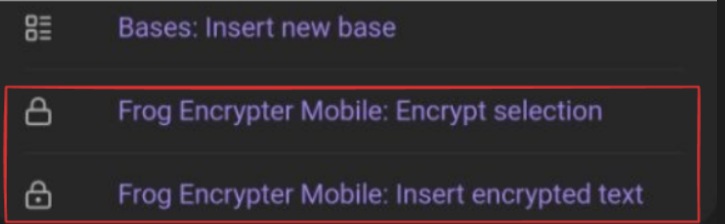
Step 2. Add the desired Frog Encrypter command:
Step 3. Enjoy:

Available commands:
- Encrypt selection — encrypt the selected text (appears only when text is selected)
- Insert encrypted text — open a modal window to enter text and a password
Decryption
In encrypted text, you will see a lock icon.
- Short press — open the decryption window.
- Long press (or right-click on desktop) — open a context menu with options:
- Decrypt — decrypt with the option to edit and save
- Decrypt and copy — decrypt and immediately copy the result to the clipboard
In the file explorer
Long press (or right-click on desktop) on a file or folder:
- Note → Encrypt note
- File → Encrypt file
- Encrypted note → Decrypt note
- Encrypted file → Decrypt file
- Folder or empty space → New encrypted note
Ribbon buttons
- New encrypted note — create a new empty encrypted note in the default notes folder
- Lock all encrypted notes and files — close all open encrypted tabs
- Clear password cache — forcibly clear the password cache
⚙️ Settings
- Confirm password — asks for password confirmation when encrypting to avoid typos
- Remember password — enables storing entered passwords in memory
- Autofill recent password — automatically fills in the last successfully used password
- Password lifetime — how long a password remains in memory after the last manual entry (TTL)
- Compression mode:
Always— compress everythingNever— do not compressCompress by extension— configure rules by extension (e.g., compress.txt, skip.jpg)
🔐 Security
- Algorithm: AES-256-GCM
- Key derivation: PBKDF2 (SHA-512) with 200,000 iterations
- Compression: DEFLATE (via pako)
- Storage: encrypted data is stored in base64 (strings and notes) or in binary format (files)
- Chunking: file encryption uses asynchronous chunked processing. Chunking is not used for strings and notes.
🚀 Performance
PBKDF2 as protection against brute force. Key derivation uses PBKDF2 with 200,000 SHA-512 iterations. This is deliberate — it makes password brute-forcing computationally expensive, extending the search time from hours to hundreds of years. The trade-off is that each new (password, salt) pair requires a one-time key derivation, which takes a noticeable amount of time.
When Remember password is enabled, saved passwords are automatically tried against each encrypted file. With only a few passwords in memory, this is imperceptible. With more than 10 passwords, trying them sequentially can push decryption time past one second, and it keeps growing with each additional password. Keep a reasonable number of passwords in memory to avoid slowdowns when opening your records.
If speed matters more than convenience, disable Remember password and enter the password manually — then each decryption involves exactly one PBKDF2 derivation, with no trial-and-error.
The delay only applies to files opened for the first time. Once a file has been successfully decrypted with a given password, its derived key is cached in memory. Subsequent opens of the same file reuse the cached key and skip PBKDF2 entirely, making them essentially instant.
Compression — a trade-off between speed and size. Running DEFLATE before encryption noticeably slows down encryption and decryption of large files, since compression costs CPU time. However:
- On text documents (
.md,.txt,.json,.xml,.html, source code), compression typically reduces size by 3–10×, while the speed cost is minor — text compresses quickly. - On media files (
.jpg,.png,.mp4,.mp3), compression brings almost no size reduction but still spends time. That's why they are excluded from compression by default. - On already-compressed archives (
.zip,.7z,.gz), DEFLATE is useless — they are already compressed. - On large binary files (
.exe,.dll,.iso), compression can slow the operation down several times without a meaningful size gain.
By default, the Compress by extension mode is used with a sensible set of rules. If maximum speed matters, switch the mode to Never.
⚖️ Comparison with the desktop version
Frog Encrypter Mobile works on both mobile devices and desktop, but it has fundamental differences from the desktop version Frog Encrypter, due to platform limitations.
Frog Encrypter (Desktop)
The desktop version uses Electron APIs (fs, path), which gives it two key advantages:
- Byte-level file reading and writing — the file is not loaded entirely into memory, but processed as a stream, chunk by chunk.
- Streaming encryption of large files — even when encrypting a file of several gigabytes, RAM usage remains consistently low, around 20–30 MB, regardless of file size.
The desktop version can also encrypt external files — those located outside the Obsidian vault, via system dialogs.
Frog Encrypter Mobile
Mobile Obsidian does not provide access to Electron APIs, so the plugin uses the Vault API:
vault.readBinary()loads the entire file into anArrayBuffer— RAM usage scales with the file size.- When encrypting large files, memory consumption grows proportionally to the file size, which makes working with very large files demanding on RAM. On devices with limited memory, this may cause slowdowns or app termination.
- No external file support — mobile Obsidian does not provide system file dialogs.
- No archive packing — the
.fpackfeature from the desktop version is unavailable.
⚠️ Warning
Use at your own risk
- Passwords are never stored in plaintext. If you forget your password, data cannot be recovered.
- The encryption methods used have not undergone an independent audit.
- Bugs may appear at any time. You are fully responsible for data safety and keeping regular backups.