Search...Search plugins and themes...
⌘K
Sign in
  • Get started
  • Download
  • Pricing
  • Enterprise
  • Account
  • Obsidian
  • Overview
  • Sync
  • Publish
  • Canvas
  • Mobile
  • Web Clipper
  • CLI
  • Learn
  • Help
  • Developers
  • Changelog
  • About
  • Roadmap
  • Blog
  • Resources
  • System status
  • License overview
  • Terms of service
  • Privacy policy
  • Security
  • Community
  • Plugins
  • Themes
  • Discord
  • Forum / 中文论坛
  • Merch store
  • Brand guidelines
Follow us
DiscordTwitterBlueskyThreadsMastodonYouTubeGitHub
© 2026 Obsidian

Font Slider

MattMatt23 downloads

Drag a slider to set the editor font size.

Add to Obsidian
  • Overview
  • Scorecard
  • Updates1

Drag a slider to set the font size of your notes.
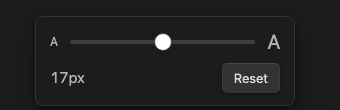
The font size slider

How to use

  • Click Size: 17px in the status bar at the bottom of the window, then drag the slider. Text resizes as you drag.
  • The control lives in the status bar, so it's always available no matter which note or tab is active.
  • The size applies to every note, in both editing and reading view. Headings scale with it. Menus, sidebars and the rest of the interface keep their size.
  • Reset returns to the font size set under Settings → Appearance.
  • Press Escape or click anywhere else to close the slider.

Commands

  • Show font size slider
  • Increase font size
  • Decrease font size
  • Reset font size

You can assign hotkeys to any of these under Settings → Hotkeys.

Adding it to a toolbar

If you use a toolbar plugin such as Editing Toolbar, add the Font Slider: Show font size slider command as a button. The slider opens directly under the button you clicked.

On mobile, where there's no status bar, use the ribbon icon or the command.

Settings

  • Smallest size (px) and Largest size (px) set the slider's range. The default is 10–40px.

Privacy

Font Slider makes no network requests and collects no data. It stores only your chosen size and range, in the plugin's own settings file.

License

MIT

HealthExcellent
ReviewCaution
About
Drag the status-bar slider to set the font size of all notes and watch text resize live in both editing and reading views. Scale headings with body text while keeping menus and sidebars the same, and use commands or the ribbon to show, increase, decrease, or reset the size.
FontsStatus bar
Details
Current version
1.0.0
Last updated
4 days ago
Created
4 days ago
Updates
1 release
Downloads
23
Compatible with
Obsidian 1.4.0+
Platforms
Desktop, Mobile
License
MIT
Report bugRequest featureReport plugin
Author
MattMattztrawhcs
schwartzreports.org
GitHubztrawhcs
  1. Community
  2. Plugins
  3. Fonts
  4. Font Slider

Related plugins

EasyView

Adds functionality to easily scale font size and switch themes from the status bar.

Minimal Theme Settings

Control the colors and fonts in Minimal Theme.

Custom Font Loader

Customize your vault with any font you want (+ Support for Android and iOS).

Colored Text

Color the selected texts.

Day Planner OG

Day planning from a simple task list in a Markdown note (bare bones, preserves the features and behavior of the original plugin).

WebNovel Assistant

A comprehensive Obsidian plugin for web novel writers. Track word counts, goals, and focus time. Manage foreshadowing, timelines, and timed tasks. Includes a bilingual UI and OBS overlay.

Better Word Count

Count the words of selected text in the editor.

Reading Time

Add the current note's reading time to the status bar.

Custom Note Width

Effortlessly change the line width of each note individually. Provides multiple ways to customize the experience, making it both efficient and user-friendly to adjust line widths.

Fontsource

Load custom fonts from Fontsource into your notes.