Folder Nodes
 ZhengYX665 downloads
Turn every folder into a same-named node with visual navigation, selection creation, and scalable ordering.
- Overview
- Scorecard
- Updates27
English · 简体中文 · 繁體中文 · 日本語 · 한국어 · Deutsch · Français · Español · Português (Brasil) · Русский · Tiếng Việt · العربية
Keep a folder and its same-named note together in Obsidian. For example, A/A.md belongs to folder A; Folder Nodes treats this pair as a node. Browse its children, files, and connections without replacing Obsidian's File Explorer. If either half is missing, it appears as Incomplete for you to fix or leave unmanaged.
Screenshots
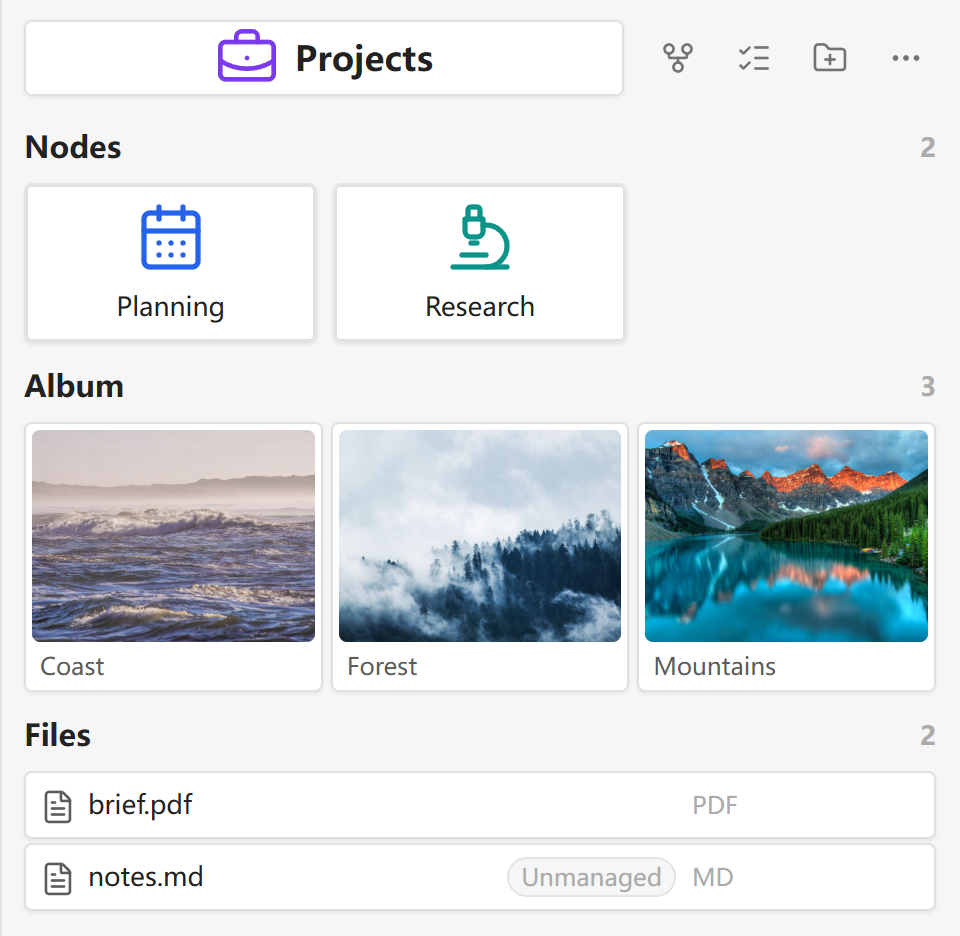
Node contents
Open a folder's child notes, pictures, videos and other files from one sidebar. Files you've chosen not to manage are still accessible.
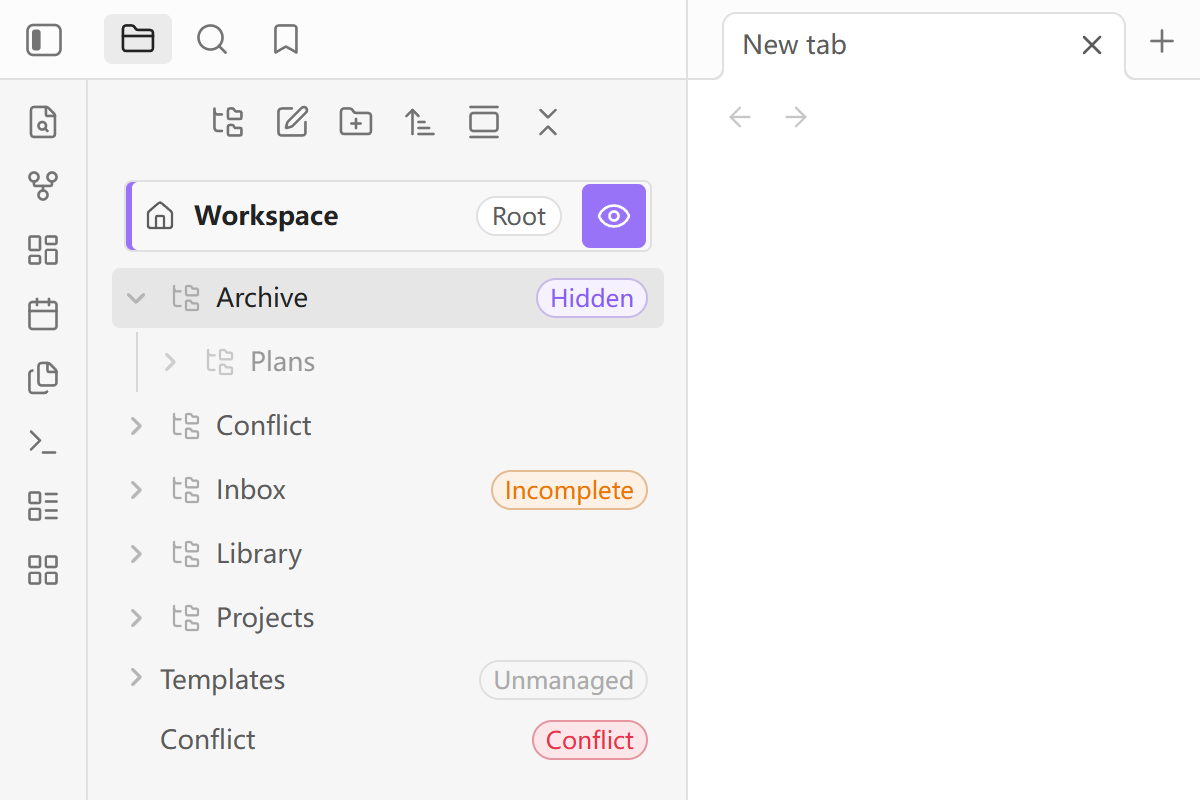
File Explorer
Keep using Obsidian's own File Explorer. Folder Nodes adds a Root entry, shows which folders have a matching note, and lets you choose icons or reorder nearby nodes. Regular file and folder actions still work.
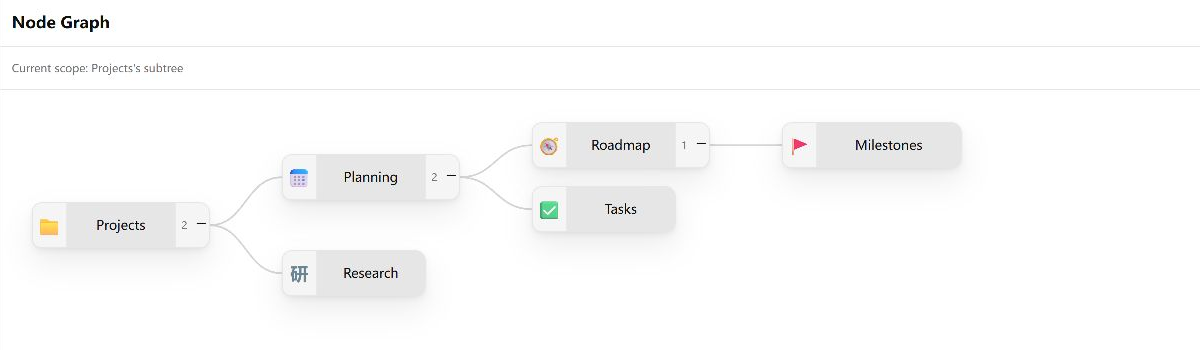
Node Graph
Browse every managed node with Global, focus on one node and its descendants with Subtree, or show a node alongside its parent and nearby connections with Local. Expand branches as needed and switch between 2D and 3D.
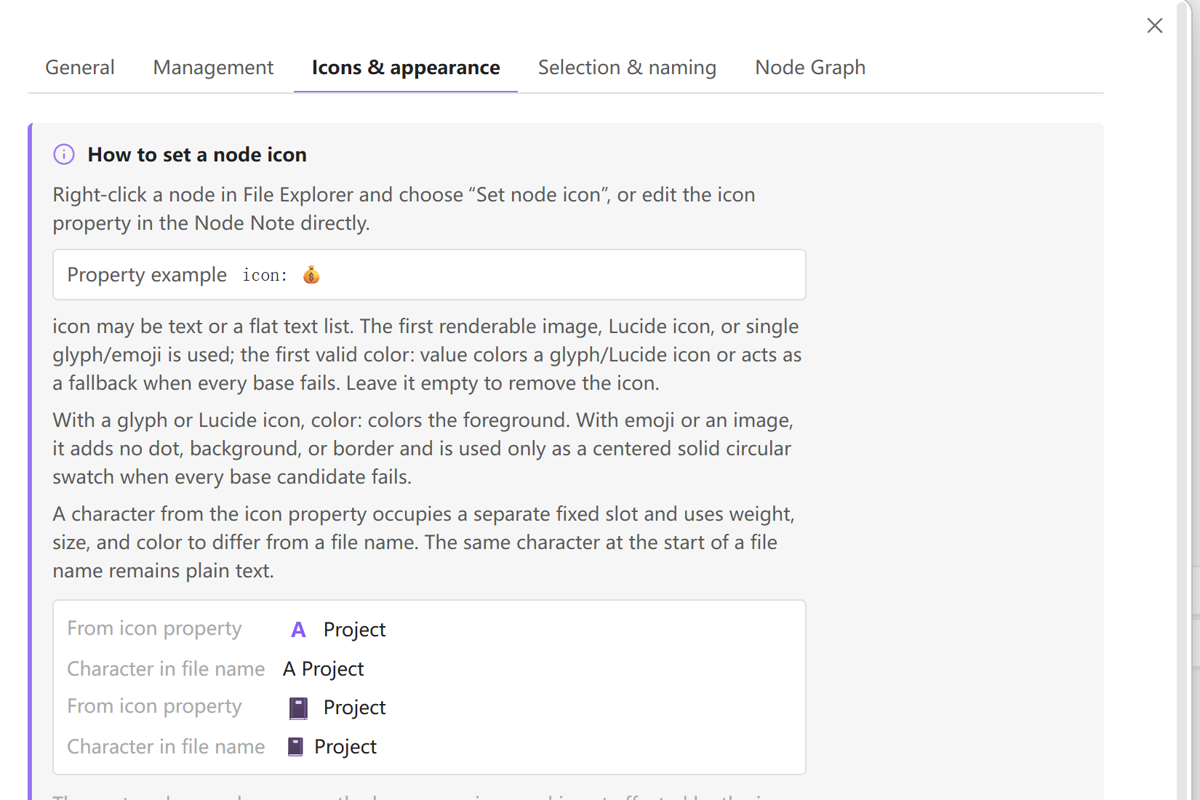
Icons & appearance
Use a picture from your vault, a Lucide icon, a letter, emoji or a color. The settings page shows a live preview.
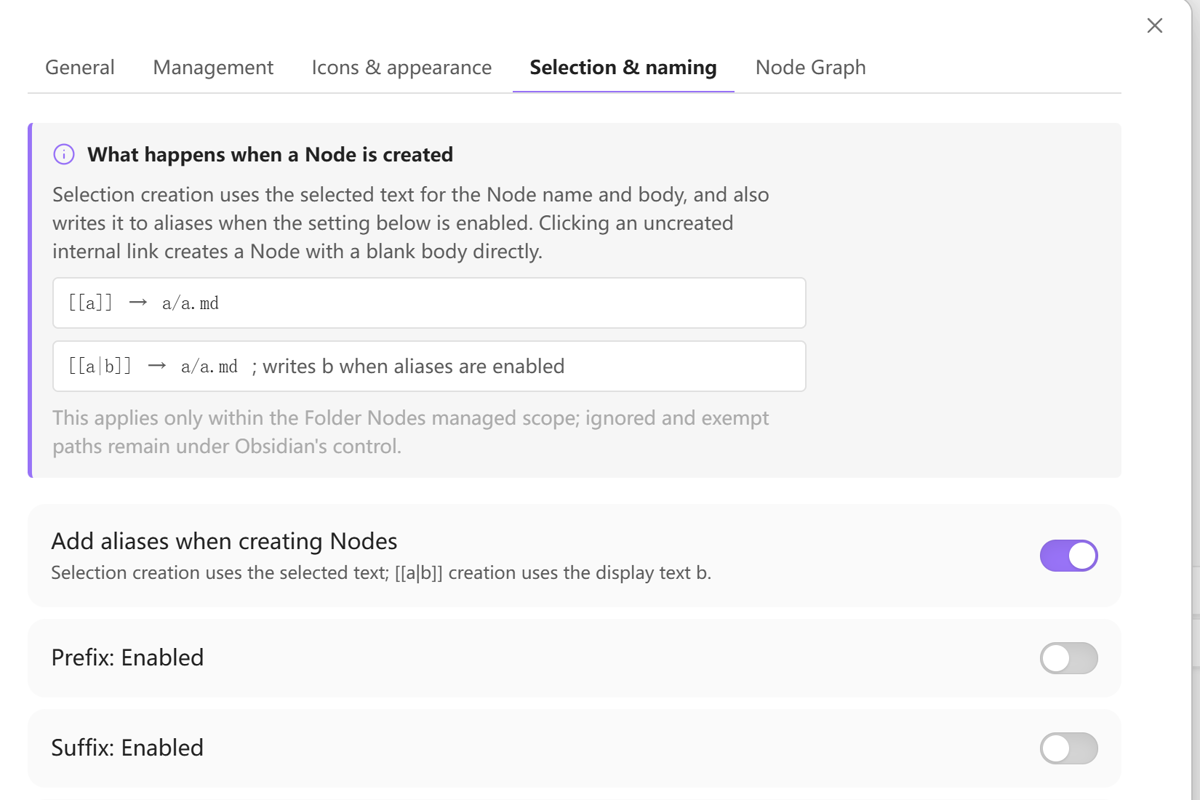
Selection & naming settings example
This example shows naming and alias settings. The current page also includes Confirm before creating, enabled by default. For creation from selected text, it opens a separate preview of the node name, destination, and aliases. The selected text becomes the new note body.
Features
- Folder-based nodes. Create, rename, move, merge, reorder, and delete complete Folder Nodes while keeping Obsidian's native New note and New folder actions available.
- Clear incomplete states. A folder without its same-named note, or a Markdown note without its matching folder, stays visible as Incomplete until you complete it or mark it unmanaged.
- File Explorer integration. Click a complete node's folder name to open its Node Note. The Root eye temporarily reveals nodes hidden by Folder Nodes for the current session. Name mode leaves Obsidian's native sibling order alone; Manual mode uses explicit Folder Nodes ranks.
- Node Contents sidebar. Browse child nodes, a static media album, and ordinary files in separate paged sections. GIFs use still thumbnails; video and audio never receive inline playback controls.
- Node Graph. Structure is always the hierarchy. An optional Show links switch overlays resolved links between Node Notes without changing the structural layout.
- Create from selected text. Choose Create Folder Node from selection to create a child node, write the selected text into the new note, and replace the selection with a link. Links follow Obsidian’s global link-format settings. Confirm before creating defaults on and can be turned off in Selection & naming. Table-cell selections are handled safely; cross-cell selections are rejected before writing.
- Create from uncreated links. In managed scope, clicking an unresolved
[[a]]creates the completea/a.mdnode; an explicit nested link path can also create missing ancestor nodes. With aliases enabled,[[a|b]]writesbtoaliases. Unsafe or unmanaged targets keep Obsidian's native behavior. - Node icons. Read one Obsidian
iconText/List as ordered image, Lucide, glyph, emoji, orcolor:candidates, with optional ancestor inheritance. - Hidden subtrees. A node can store
hidden=true. Folder Nodes then hides that subtree only in File Explorer, Node Contents, and Folder Nodes Graph; Obsidian Search, Quick Switcher, backlinks, native Graph, links, and direct file access still work. - Unmanaged boundaries. Exact paths and name-start rules let you exclude Markdown files or whole folder subtrees from Folder Nodes management without hiding them.
- Preview-first maintenance. Bulk organization and legacy-property migration show what will change before writing. Conflicts or ambiguous input stop the operation instead of guessing.
- Local-only operation. Folder Nodes does not upload Vault content or make network requests.
Requirements and compatibility
- Obsidian 1.12.7 or later.
- Desktop Obsidian and Android Obsidian are supported. Android uses menus and native folder moves instead of HTML5 drag-and-drop.
- iOS compatibility has not been verified.
- A complete node uses exactly one same-named Node Note. Unmanaged rules define boundaries where Folder Nodes does not perform structural actions.
Installation
Community Plugins
Open Settings → Community plugins → Browse, search for Folder Nodes, install it, and enable it. If it is not available in your catalog, use manual installation.
Manual installation
Download the versioned folder-nodes-<version>.zip from the latest release and extract its folder-nodes directory into Vault/.obsidian/plugins/. You can also install the three loose files below.
Download one matching release and place these three files in Vault/.obsidian/plugins/folder-nodes/:
main.jsmanifest.jsonstyles.css
Reload Obsidian and enable Folder Nodes. Do not mix runtime files from different releases.
Upgrade
Keep Vault/.obsidian/plugins/folder-nodes/data.json when it exists. Replace only the three runtime files above unless you intentionally want to reset plugin preferences and unmanaged rules.
Usage
Getting started
- Back up your Vault and open Settings → Folder Nodes → General and Management.
- In File Explorer, a complete node consists of a folder and a same-named Markdown note, for example
A/plusA/A.md. An orange Incomplete item is missing one side. Complete the ones you want managed, or mark them Unmanaged; the plugin will not silently create or move missing files. - Use New node, the node context menu, or the command palette to create a complete node. Unmanaged items remain available in Obsidian, but Folder Nodes does not perform structural node operations there; it does not hide or delete those files.
More actions and safeguards
- Use Create Folder Node from selection to turn selected text into a child node. In managed scope, clicking an unresolved
[[a]]or[[a|b]]link can also create a complete Folder Node. - Open Node contents to browse the current node's children, media, and files. Right-click, More, or Shift+F10/Menu opens the same actions.
- Open Node Graph to browse the hierarchy: Global covers the Vault, Subtree anchors one node, and Local adds its parent. Expand branches, search, switch between 2D/3D, or enable Show links to overlay references.
- On desktop, dropping a node into another changes its parent. Exact before/after ordering requires the parent's Manual child order. On Android, use native folder movement or Move / Move up / Move down.
- Native Move/Delete operates on the selected file or folder; a native rename of a complete node's folder or Node Note also synchronizes the other half when unambiguous. Commands labelled containing node explicitly act on the whole Folder Node. Check the target before moving or deleting.
- Batch organize and Migrate Folder Nodes properties always preview the paths before confirmation; Health check is read-only. Cancel if the proposed scope differs from your intention.
Node Contents shows the current path and explains empty, hidden, unmanaged, or incomplete states. Use the available buttons to open a valid parent, review management rules, run read-only Health, or reveal hidden nodes for this session. In Canvas graphs, arrow keys move toward the nearest node in that screen direction; Home and End select the first and last visible nodes.
If creation fails after a note was created, cleanup removes only files it can still prove are unchanged and owned by that operation. An opened or edited note is kept. The error lists the remaining paths and reason: save and review those files before removing anything manually.
Before merging nodes
Save and close every tab editing the source and target Node Notes and the Markdown descendants being moved before starting Merge node. The merge moves children into the target folder, appends the source note's body to the target note, and then removes the source folder according to Obsidian's deletion setting.
The merge checks supported relative Markdown links such as ../Reference.md before writing. It refuses links whose targets would change, unsupported relative reference definitions (including a destination on the next line), and other ambiguous destinations. It does not rewrite relative links. Resolve the reported links before retrying, keep a recoverable copy of important notes, and check links and attachments after a successful merge. If an editor opens, checked notes change, or the plugin unloads before source removal, the operation stops and attempts to roll back its own changes while preserving user edits.
Settings
- General — interface language, hidden-marker behavior, and optional Root homepage.
- Management — unmanaged Markdown/folder rules, bulk organization, property migration, and read-only Health. By default, Markdown names beginning with
.or_and rootAGENTS.md/CLAUDE.mdare unmanaged; folders whose names begin with.or_are unmanaged. Protected Vault/system folders remain outside managed structure. - Icons & appearance — icon inheritance, File Explorer placement, note-title display, and emoji font selection.
- Selection & naming — confirmation for selected-text creation, aliases, plus optional prefix/suffix naming sources and timestamp formats.
- Node Graph — enablement, default dimension, 2D direction, and large-graph thresholds.
Follow Obsidian selects the corresponding supported interface language from Obsidian. You can also choose an interface language manually. Switching languages does not change note contents, filenames, or node properties.
Folder Nodes property
Folder Nodes stores structural options in one flat Obsidian Text List named folder-nodes. Defaults are omitted, and the property is removed when no tokens remain.
folder-nodes:
  - order=manual
  - rank=1024
  - hidden=true
order=manualenables manual child ordering for that parent.rank=Nstores a child's manual order number, which usually needs no manual editing.hidden=truehides the node and its managed children in File Explorer, Node Contents and Node Graph. It does not delete files or affect Obsidian Search.
Published legacy fields folderNodeChildrenSort, folderNodeSiblingRank, and folderNodeHidden remain readable. Use Management → Migrate Folder Nodes properties to preview the exact notes that would change. Update Folder Nodes on every device first, then confirm the migration. Startup never migrates note properties automatically.
Icon property
The icon property accepts one string or a flat list of strings:
icon:
  - "[[Assets/project.svg]]"
  - "lucide:folder-tree"
  - 文
  - "color:#7c3aed"
Folder Nodes tries base candidates in order. A missing image falls through to the next candidate. The first valid color: value colors a text/Lucide icon; for emoji and images it is used only as a fallback swatch if no base candidate can be displayed.
The picker loads the current list, supports add/remove/reorder/presets, and previews File Explorer and Node Contents. Unknown or multi-grapheme values cannot be saved through the picker. Inheritance begins only after the current node has no usable local candidate.
Limitations
- Structural identity is the current normalized Vault path, not a permanent node ID.
- Alternate canonical note names such as
README.md,index.md, or_A.mdare not supported. - Merge stops on path or frontmatter conflicts and relative-link safety refusals rather than offering a complex conflict-resolution UI or a general link rewriter; see Before merging nodes.
- Android has no HTML5 drag handles or drop targets.
- Node visuals do not fetch remote images, recolor arbitrary inline SVG, generate PDF/video thumbnails, preview HEIC/HEIF, or provide inline video/audio playback.
- Node Contents is not a second complete Vault tree and does not transactionally move multiple ordinary files.
- Very large graphs switch to Canvas rendering. Structure remains complete; only the optional link overlay is bounded.
Privacy and security
Folder Nodes runs locally and makes no network requests. It reads Vault paths, metadata, and note text only for documented features such as structure checks, migration previews, link indexing, and Node Graph.
User actions can create, edit, move, rename, merge, or trash notes and folders. Multi-step operations are serialized and check known conflicts; preview-first maintenance rechecks targets before commit. Merge checks supported relative links and refuses unsafe or ambiguous destinations. Complete-node deletion follows Obsidian's configured deletion setting, which need not be the system trash.
The plugin writes generated Markdown links to the system clipboard only after an explicit copy action and never reads the clipboard. Preferences and unmanaged rules stay in plugin data.json; structural tokens stay in Node Notes.
For security reports, use the repository's security policy.
Development
Use Node.js 24.19.0 and npm 11.17.0.
npm ci
npm run check
npm run release:check
Project documents:
Support
- Q&A for usage and configuration questions.
- Ideas for feature and workflow proposals.
- Show and tell for tips and examples.
- GitHub Issues for reproducible bugs and concrete feature requests.
When filing a public issue, include the Folder Nodes version, Obsidian version, operating system, a synthetic folder structure, and exact reproduction steps. Remove private Vault paths and note content.
License
MIT © ZhengYX