Folder Cover Wall
 arebrodo26 downloads
Browse Obsidian folders as a visual cover wall in the sidebar, with custom covers from vault or external images.
- Overview
- Scorecard
- Updates3
Folder Cover Wall turns Obsidian's left sidebar into a visual folder browser. Each folder is displayed as a large cover card, while notes and other files remain accessible inside the selected folder.
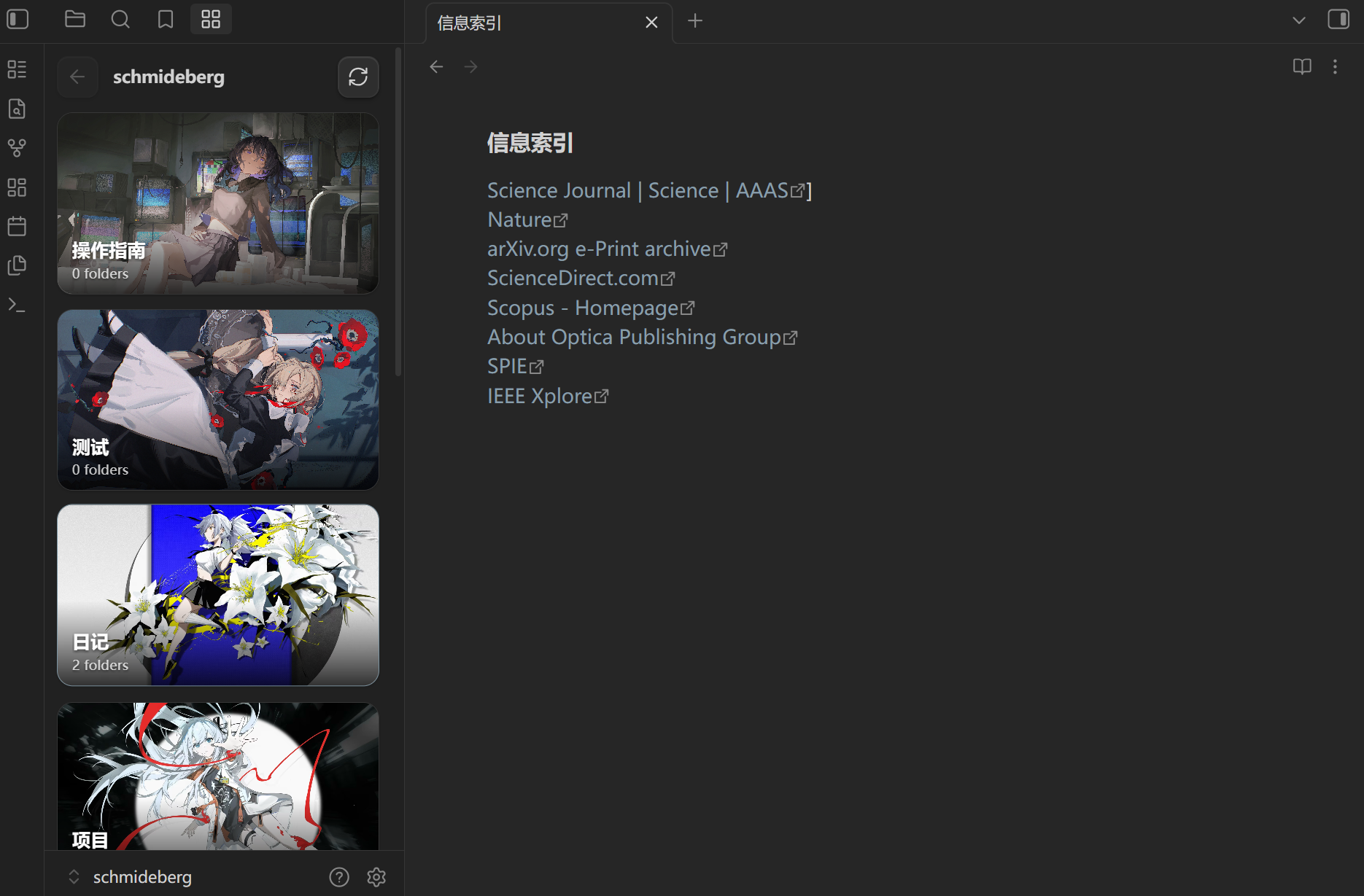
Features
- Browse folders as large visual cover cards in the left sidebar.
- Navigate through nested folders without opening a separate dashboard in the main editor area.
- Keep notes and files accessible below the folder wall.
- Choose a cover image from anywhere inside the current vault.
- Choose an external image from elsewhere on the computer.
- Automatically use
cover.jpg,cover.png,.folder-cover.jpg, and similar filenames. - Optionally use the first image directly inside a folder as its cover.
- Use a generated fallback cover when no image is available.
- Configure root folder, card width, aspect ratio, folder/file counts, and file visibility.
- Preserve folder cover assignments when folders are renamed.
- Preserve nested folder covers when a parent folder is renamed.
- Manage copied external cover images from plugin settings.
- Remove unused external images and clean orphaned cover mappings.
- Reuse the same stored external image across multiple folders without duplicating it.
- Reduce cover-image memory use with optimized WebP thumbnails and lazy loading.
Quick Start
After enabling the plugin, open Folder Cover Wall from the left sidebar or use the Command Palette.
Available commands:
- Folder Cover Wall: Open cover wall
- Folder Cover Wall: Replace current left sidebar view with cover wall
- Folder Cover Wall: Manage external cover storage
- Folder Cover Wall: Optimize stored cover images
You can also enable Replace left pane automatically in the plugin settings if you want Folder Cover Wall to open automatically.
Browse folders
Click a folder card to enter that folder.
Use the back button or the folder title at the top to return to a parent folder.
Notes and other files inside the selected folder remain available below the folder cards.
Set a folder cover
Right-click a folder card and choose one of the following:
- Choose cover from vault… — use an image already stored inside the vault.
- Choose external image… — select an image from anywhere on your computer.
- Clear custom cover — remove the assigned custom cover and return to automatic cover selection.
Automatic cover priority
Folder Cover Wall chooses a cover in this order:
- Manually selected external or vault image.
- A configured cover filename such as
cover.jpg,cover.png,.folder-cover.jpg, or.folder-cover.png. - The first image directly inside the folder, if enabled.
- A generated fallback cover.
Performance and memory use
v0.6.1: fixes duplicate Folder Cover Wall sidebar tabs that could accumulate after repeated restarts. Existing duplicates are cleaned automatically on the next startup.
Version 0.6.0 introduces a lower-memory cover pipeline designed for large image libraries.
- External images are reduced to a configurable maximum resolution and converted to WebP before being stored.
- Vault images can be rendered through temporary low-resolution WebP thumbnails without modifying the original files.
- Cover images are prepared only when their cards are near the visible area.
- Thumbnail generation is concurrency-limited to reduce temporary memory spikes.
- A small bounded thumbnail cache is used instead of keeping an unlimited number of decoded cover images alive.
- Cover image elements are released when the folder wall refreshes or closes.
Default performance settings are designed for the sidebar and can be adjusted under Settings → Folder Cover Wall → Performance.
Existing external cover images from earlier versions are automatically optimized when v0.6.0 is loaded for the first time.
Rename-safe covers
Custom cover assignments automatically follow renamed folders.
If a parent folder is renamed, cover assignments for nested folders are migrated as well.
This prevents old folder paths from leaving behind unused cover mappings.
External Cover Storage
External images selected from outside the vault are copied into the plugin's internal cover library so they remain available even if the original image is moved, renamed, disconnected, or deleted.
Open:
Settings → Folder Cover Wall → External cover storage → Manage
or run:
Folder Cover Wall: Manage external cover storage
The storage manager lets you:
- See how many external images are stored.
- See the total embedded storage size.
- See which folders use each image.
- See optimized cover dimensions and source/storage sizes.
- Optimize stored images for the current performance settings.
- Remove individual stored images.
- Remove unused external images.
- Clean orphaned folder-cover mappings.
- Remove all externally stored cover images.
The same external image is stored only once, even when it is used by multiple folders.
Security and privacy
- Folder Cover Wall makes no network requests for cover images.
- External images are only read after the user explicitly selects them.
- External imports are restricted to JPEG, PNG, and WebP and source files larger than 32 MB are rejected.
- Stored data URLs are validated before decoding.
- The vault image picker enumerates vault files only when the user opens that picker, so it can list available local images.
- GitHub CI runs the official
eslint-plugin-obsidianmdrecommended checks before builds and releases.
External images and privacy
External images are read locally. The optimized cover copy is stored as embedded image data in the plugin's data.json.
The plugin does not upload external images anywhere.
Because a local optimized copy is stored, moving or renaming the original image does not break the folder cover.
The original source image is not modified.
Settings
Folder Cover Wall includes options for:
- Root folder
- Card minimum width
- Card aspect ratio
- Folder counts
- File counts
- File visibility
- Automatic use of the first image in a folder
- Automatic left sidebar replacement
- Maximum cover resolution
- WebP cover quality
- Temporary optimization of vault cover images
- Lazy loading of cover images
- External cover storage management
Installation
Community Plugins
After the plugin is available in the Community Plugins directory:
- Open Settings → Community plugins → Browse.
- Search for Folder Cover Wall.
- Install and enable it.
Manual installation
Copy the following files into:
<Vault>/.obsidian/plugins/folder-cover-wall/
Required files:
main.js
manifest.json
styles.css
Reload Obsidian, then enable Folder Cover Wall under Community plugins.
Why I made this
I built Folder Cover Wall with the help of GPT because I wanted a more visual and expressive way to browse folders — something closer to the polished, cover-based folder experience found in apps like Craft.
I personally enjoy interfaces where folders feel less like plain lists and more like visual spaces. Since I could not find an existing plugin that matched exactly what I wanted, I used GPT to help turn the idea into a working plugin.
I'm sharing it for others who also enjoy a more colorful, visual, and "fancy" way to organize their workspace.
Feedback, ideas, and bug reports are very welcome.
Development
Requirements:
- Node.js 18 or newer
- npm
Install dependencies:
npm install
Run the official Obsidian lint rules:
npm run lint
Start a development build:
npm run dev
Create a production build:
npm run build
The production build outputs main.js in the repository root.
Repository
GitHub: https://github.com/Arebrodo/folder-cover-wall
Issues: https://github.com/Arebrodo/folder-cover-wall/issues
Releasing
See RELEASING.md.
The repository includes a GitHub Actions workflow that can create a release automatically when you push a version tag such as:
0.6.0
License
MIT. See LICENSE.