
- Overview
- Scorecard
- Updates13
This plugin enhances the Obsidian File Explorer by introducing essential file management features. It adds several new commands to interact with the File Explorer, allowing users to bind hotkeys for efficient keyboard-only file management.
Version 1.2: Introduces the new pathexplorer codeblock. See details below.
Version 1.3: Introduces the ability to use URL schemas as commands in Open With....
Version 1.4: Introduces move note and go to folder commands. Pathexplorer can show now absolute paths and you can use environment variables in the paths.
Version 1.5: Introduces show-count and show-count-recursive options in path explorer. They allow to show the number of folders and files inside each folder, either immediate or recursive.
Features
- Open With: Open files or folders using custom commands.
- Create Subfolder: Create a subfolder within the current folder.
- Create Folder: Create a sibling folder.
- Create Note: Create an empty note in the current folder.
- Duplicate: Duplicate files or folders.
- Move: Move selected files or folders to a new location.
- Copy: Copy selected files or folders to a new location.
- Copy, Cut, Paste: Copy or cut selected files or folders to the clipboard and paste them.
- Clear Clipboard: Clear the clipboard contents.
- Toggle Selection: Toggle the selection of a file or folder.
- Select All: Select all files and folders.
- Invert Selection: Invert the current selection.
- Deselect All: Clear all selections.
- Rename: Rename files or folders.
Version 1.1
- Go to File/Folder: Locate and focus on a file or folder in the file explorer.
- Open file/folder with...: Open file or folder in the file explorer with custom program.
Version 1.2
pathexplorercodeblock: Display files and folders from specified paths and open them using custom commands.
Version 1.4
- Move note: Move active note to a new location.
- Go to Folder: Locate and focus on a folder in the file explorer.
Copy/Move Conflict Resolution
When file conflicts occur, choose from the following resolution methods:
- Overwrite: Replace the existing file or folder.
- Skip: Ignore the conflicting file or folder.
- Keep: Retain both files by renaming the new one.
Usage
File Explorer Commands
NOTE: These commands are available only when the
File Explorerpanel is focused.
File Manager: Create a subfolder within the focused or active file/folder.File Manager: Create a folder as sibling of the focused or active file/folder.File Manager: Create a note within the focused or active folder.File Manager: Duplicate focused or active file/folder,File Manager: Copy selected files/folders to clipboard,File Manager: Cut selected files/folders to clipboard,File Manager: Paste files/folders from clipboard to selected folder,File Manager: Clear clipboard,File Manager: Move selected files/folders to a new folder.File Manager: Copy selected files/folders to a new folder.File Manager: Select all siblings and children of the focused or active file/folder.File Manager: Toggle selection of the focused or active file/folder.File Manager: Clear selection.File Manager: Invert selection.File Manager: Rename focused or active file/folder.
Version 1.1
File Manager: Go to file or folder in file explorer.File Manager: Open with <command>.
Version 1.4
File Manager: Move active note to a new folder.File Manager: Go to folder in file explorer.
Global Commands
NOTE: The following commands are available if a file explorer exists in Obsidian.
File Manager: Go to file or folder in file explorer.File Manager: Go to folder in file explorer.
NOTE: This command is globally available. If the file explorer is active, the focused or selected file/folder will be used for the
Open Withcommand. Otherwise, the currently active document will be used.
File Manager: Open with ...
Open with...
Create custom Open With commands in the settings tab.
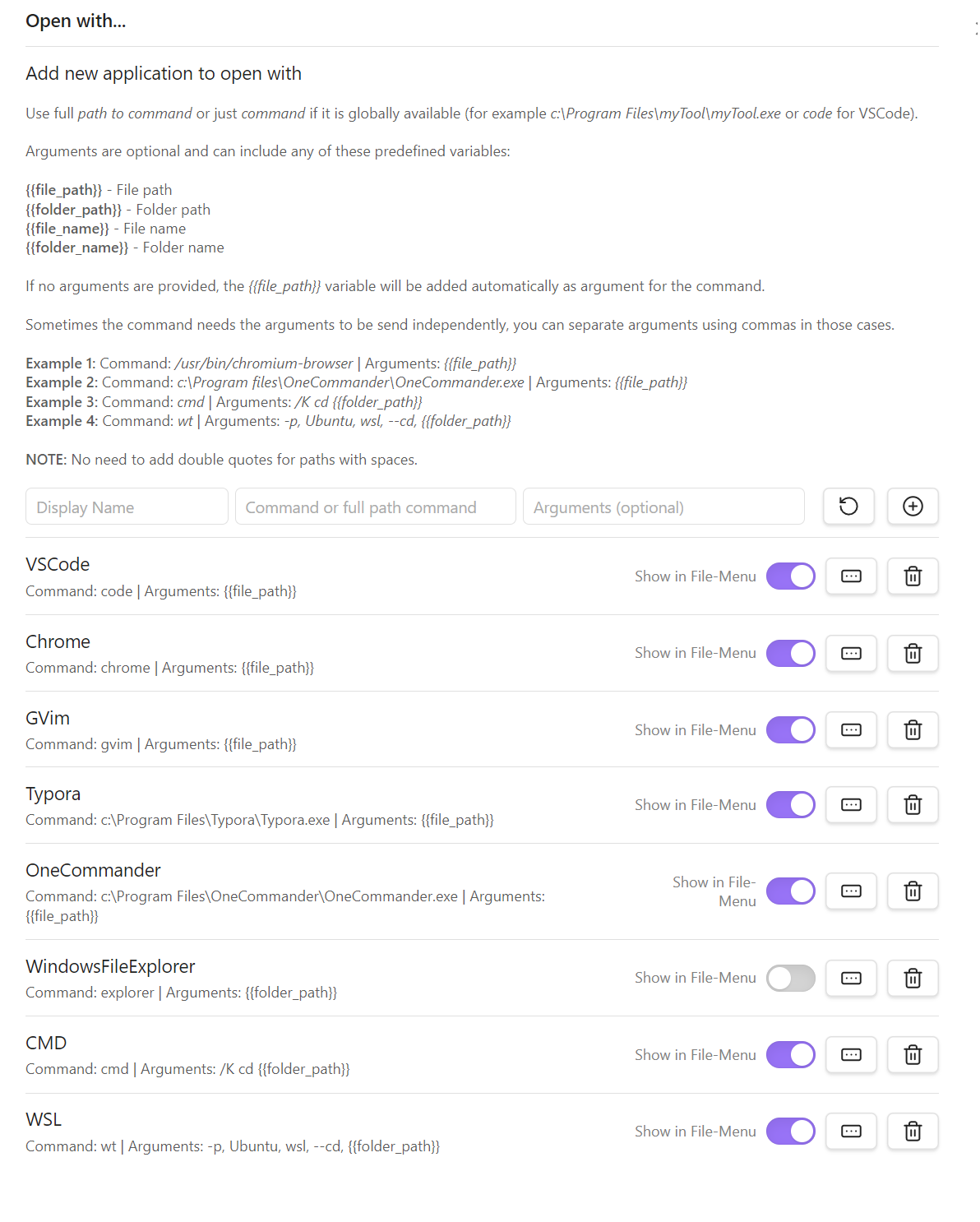
NEW: Version 1.3.1 allows to define app URL Schemas as commands (for example: ulysses://x-callback-url/open?path={{file_path}}).
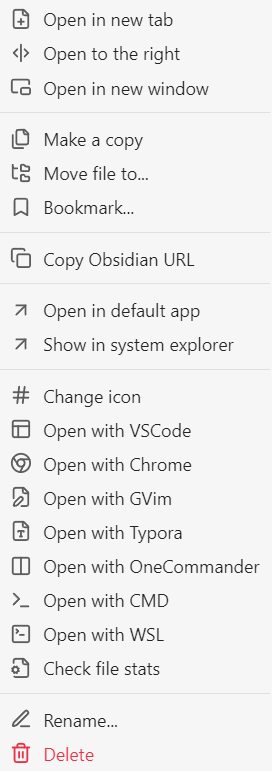
The Open With commands are also available in the File Context Menu if enabled in the settings.
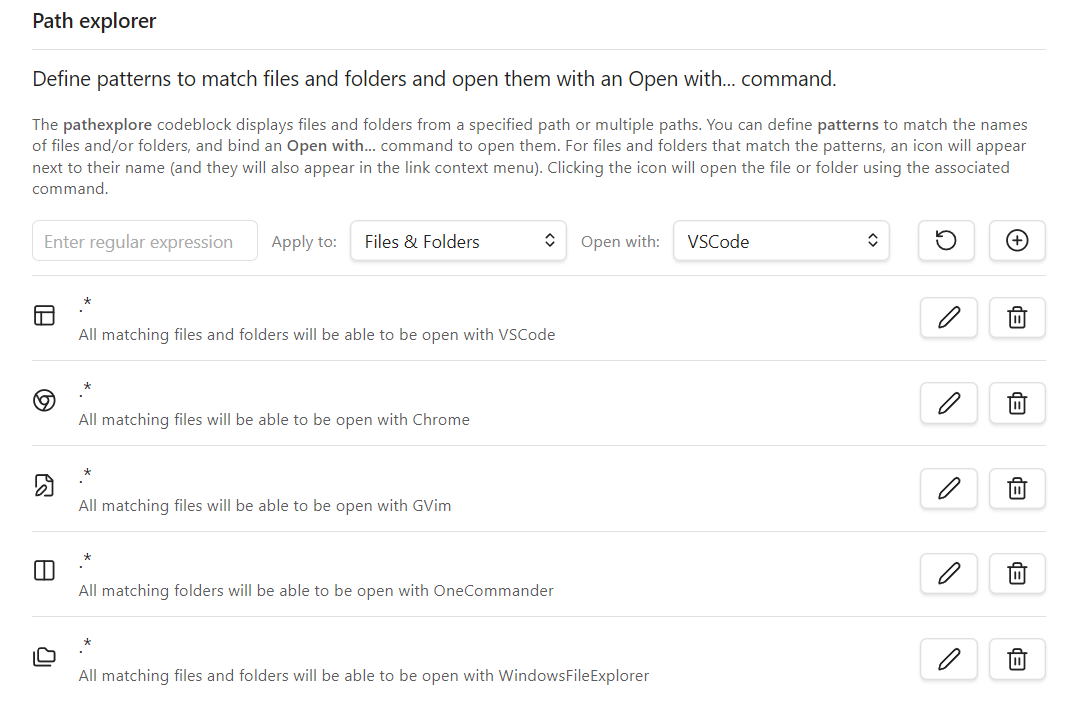
pathexplorer codeblock
Version 1.2 introduces the pathexplorer codeblock. For example, adding the following codeblock to a note:
```pathexplorer
# Path or paths to explore.
path $HOME/dev/dump_shortcuts
path c:\tools\obsidian
path %USERPROFILE%\projects

# If present include dump_shortcuts as root of files and folders.
include-root

# Use .gitignore syntax to ignore files/folders.
ignore .git/
ignore .venv/
ignore old/
ignore build/
ignore dist/
ignore test*/
ignore __pycache__/
ignore .*
ignore *.bat
ignore *.spec

# Define max-depth (default 1)
max-depth 3

# Define max-files (default 100)
max-files 20
```
Will render the following output in reader mode:

pathexplorer codeblock syntax.
#
For line comments
path <relative or absolute path>
Version 1.4
Now you can use environment variables in the path. The Linux/Mac format (
$<var>) and the Windows format (%<var>%) can be used interchangeably. On Windows, theHOMEenvironment variable will be translated toUSERPROFILEif it does not exist.Specify paths to explore. Multiple paths can be defined, one per line.
include-root
Include the root folder as the parent of its children.
max-depth
Max depth level to explore in the tree.
max-files
Max number of files/folders to display.
ignore
Ignore files/folders using
.gitignorepatterns. Inverted patterns (!<pattern>) are also supported. Multiple ignore patterns can be defined, one per line.flat [<none> | hide-files | hide-folders]
Display files and folders as a list without hierarchy. Use optional flags to hide files or folders.
hide-icons
Hide command icons next to files/folders.
Version 1.4
absolute-path [<none> | all | root]
Display absolute path on folders. By default
noneis used (no absolute paths).allflag shows absolute path in every folder.rootflag show absolute path in root folder.Version 1.5
show-count
Show, next to each folder name, the number of folders 📂 and files 📄 immediately inside it, e.g.
Music (2📂10📄).show-count-recursive
Show, next to each folder name, the total number of folders/files nested at any depth inside it, e.g.
Music (12📂22📄). Note this scans the whole subtree on every render, so it can be slow on very large or deeply nested folders.If both
show-countandshow-count-recursiveare present, both counts are shown side by side, separated by|, e.g.Music (2📂10📄|12📂22📄)(immediate|total).
Create custom patterns in the settings tab.
Installation
Install File Manager from the Community Plugins section.
Configuration
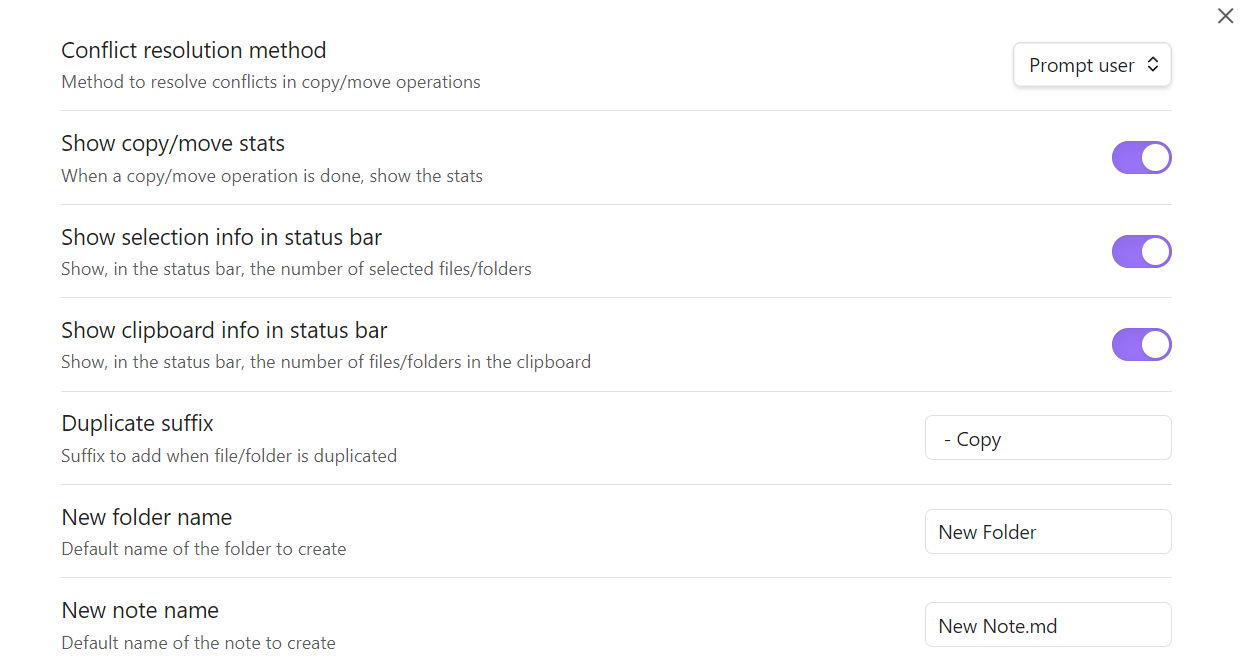
Customize plugin behavior using the general settings tab.
NOTE: Refer to the Open With and pathexplorer sections for additional settings.
Development
- Clone this repository into the
.obsidian/pluginsfolder of an Obsidian Vault. - Ensure Node.js version is at least v16 (
node --version). - Run
npm installto install dependencies. - Run
npm run devto start compilation in watch mode. - Enable the
File Managerplugin in Obsidian settings.
Support
For issues or feature requests, open an issue on the GitHub repository.
License
This plugin is licensed under the MIT License.
Roadmap
- Add merge functionality for folder copy/move.
- Auto-select files in the destination after copying/moving.
- Add sorting customization to
pathexplorercodeblock.
Acknowledgments
This plugin was inspired by the following plugins. Thanks to their developers: