External File Embed and Link
 oylbin8k downloads
Embed and link local files outside your vault with relative paths for cross-device and multi-platform compatibility.
- Overview
- Scorecard
- Updates18
Embed and link local files outside your obsidian vault with relative paths for cross-device and multi-platform compatibility.
Features
- Embed external files (Markdown, PDF, Images, Audio, Video) outside your obsidian vault.
- Create links to files outside your obsidian vault that open with system default applications.
- Reference files using virtual directories for cross-device and cross-platform compatibility.
- Provide commands to add embeds or links via file picker.
Virtual Directories
The plugin uses a flexible virtual directory system that allows you to:
- Map any local directory to a virtual directory ID
- Configure different paths per device for the same virtual directory ID
- Access files using the format:
VirtualDirectoryId://relative/path/to/file
Home and vault directories are pre-defined as virtual directories:
home://- Points to your user home directoryvault://- Points to your Obsidian vault directory
You can define additional virtual directories in the plugin settings. This allows you to:
- Use the same note across multiple devices, even when file paths differ
- Reference files outside your vault in a consistent way
- Maintain compatibility across different operating systems
Detailed Usage
Embedding External Files
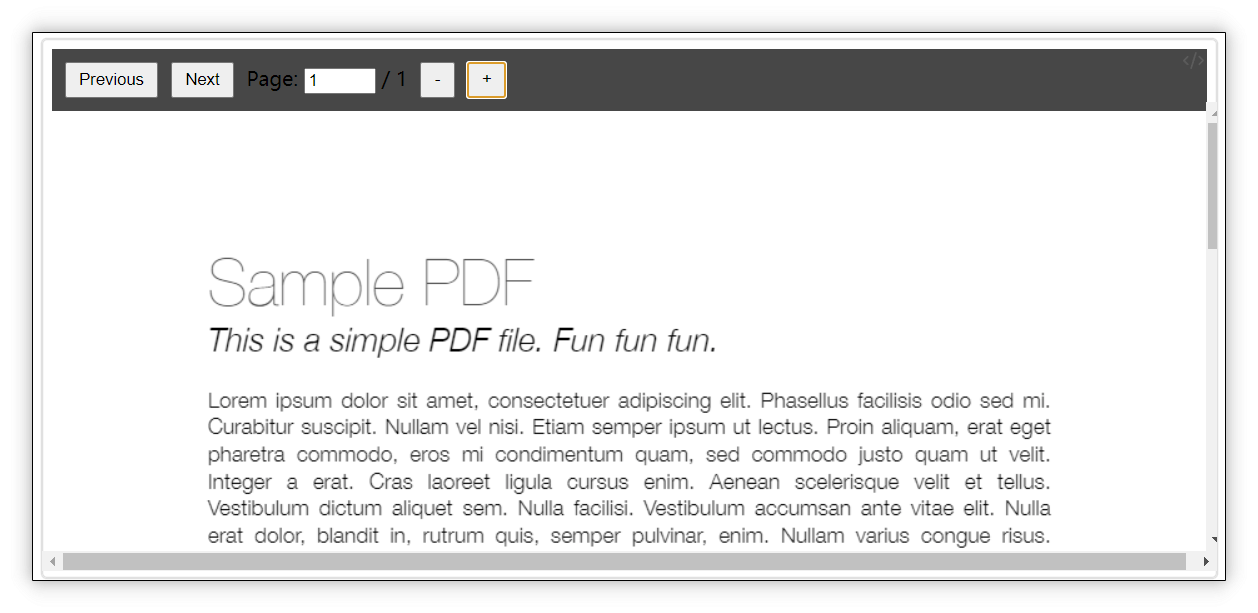
You can embed files using paths relative to a virtual directory. For example, if your Home path is C:\Users\username, you can embed a PDF file from C:\Users\username\SynologyDrive\work\Document.pdf like this:
```EmbedRelativeTo
home://SynologyDrive/work/Document.pdf
```
This will be rendered in Live Preview and Reading Mode as:
You can also use a custom virtual directory. For example, if you've defined a virtual directory called "project" that points to different paths on different computers:
```EmbedRelativeTo
project://documents/report.pdf
```
Using virtual directories ensures compatibility across different computers and operating systems, especially useful when syncing files with services like SynologyDrive.
Supported File Types for Embedding
Almost the same as Obsidian's Accepted file formats documentation except for JSON Canvas files.
- Markdown:
.md,.markdown,.txt - Images:
.avif,.bmp,.gif,.jpeg,.jpg,.png,.svg,.webp - Audio:
.flac,.m4a,.mp3,.ogg,.wav,.webm,.3gp - Video:
.mkv,.mov,.mp4,.ogv,.webm - PDF:
.pdf
Embedding Options
Following Obsidian's Embed files documentation, this plugin supports parameters for controlling display behavior:
Markdown Files
Add header name after # to embed only the header section:
```EmbedRelativeTo
home://SynologyDrive/work/Document.md#This is a header
```
PDF Files
Add parameters after # to control page number, width, and height:
```EmbedRelativeTo
home://SynologyDrive/work/Document.pdf#page=3&width=100%&height=80vh
```
Images & Videos
Add dimensions after | to control size:
```EmbedRelativeTo
home://Downloads/test.png|400
```
```EmbedRelativeTo
home://Videos/test.mp4|800x600
```
Folders
You can embed a folder by put /# after the folder name , and it will list all the files in the folder.
You can also add parameters after # to filter the files to embed.
```EmbedRelativeTo
home://Downloads/#extensions=pdf,mp4
```
External File Links
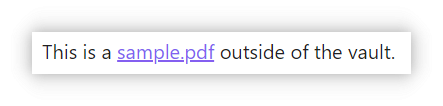
If you don't need to render the file content in Reading Mode, you can create inline links within paragraphs to external files:
This is a <a href="#home://Downloads/sample.pdf" class="LinkRelativeTo">sample.pdf</a> outside of the vault.
Which renders as:
Adding Embeds or Links
Using Commands
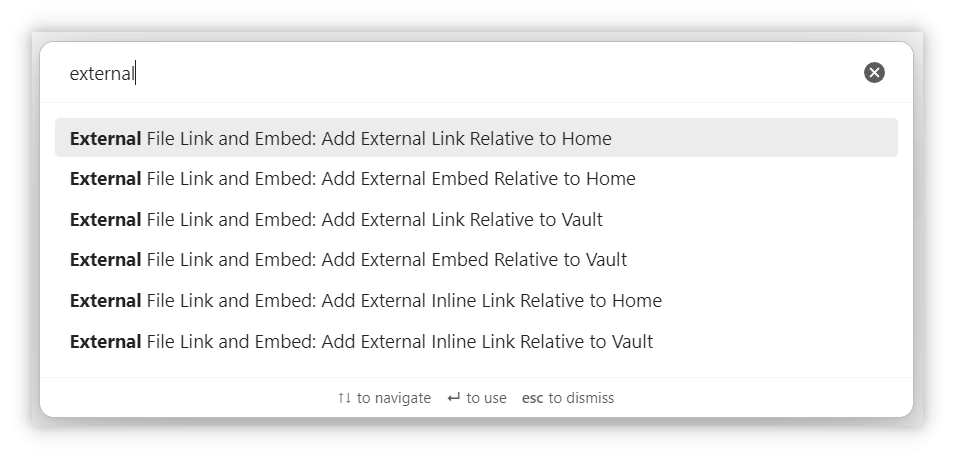
Type "external" in the command palette to see available options:
Add external embed: Opens a dialog to select a virtual directory and file for embeddingAdd external inline link: Opens a dialog to select a virtual directory and file for linking
Both commands will automatically generate the appropriate code with the correct syntax.
Development
This project follows a containerized DevOps workflow. The host machine only needs Docker (with Docker Compose v2) and bash; Node.js is not required on the host.
The Makefile is the single entry point and forwards every command to dev.sh, which executes the actual logic inside a node:18-alpine container.
Prerequisites
- Docker Desktop (or Docker Engine) with Docker Compose v2
- bash (Git Bash or WSL on Windows)
Quick Start
# 1. Configure your local plugin directory
cp .env.example .env
# Edit .env and set VAULT_PLUGIN_DIR to your Obsidian plugin folder, e.g.
#   VAULT_PLUGIN_DIR=~/SynologyDrive/AppDataSync/obsidian/.obsidian/plugins/external-file-embed-and-link

# 2. Verify your environment
make doctor

# 3. Start the dev container (runs esbuild in watch mode in the background)
make up
make logs        # follow esbuild output

# 4. Build a production bundle
make build

# 5. Deploy to your Obsidian vault
make install     # host-side cp main.js / styles.css / manifest.json -> $VAULT_PLUGIN_DIR

# 6. Stop the dev container
make down
Available Targets
Run make help to see them all. Key targets:
| Target | Description |
|---|---|
make help |
Show all available targets |
make doctor |
Check Docker / Docker Compose / .env configuration |
make deps |
Install npm dependencies inside the container |
make lint |
Run ESLint inside the container |
make build |
Build the plugin (production mode) inside the container |
make clean |
Remove main.js |
make test |
Run Jest unit tests inside the container |
make up |
Start the dev container (esbuild watch in background) |
make down |
Stop the dev container |
make restart |
Restart the dev container |
make status |
Show container status |
make logs |
Tail dev container logs |
make shell |
Open a shell inside the dev container |
make artifacts |
List build artifacts (main.js, styles.css, manifest.json) |
make install |
Host-side: copy artifacts to $VAULT_PLUGIN_DIR |
make release |
Bump version and tag (make release VERSION=x.y.z) |
Notes
node_modulesis stored in a Docker named volume to avoid host/container binary mismatches (notably for esbuild's native binaries on Windows). It is not visible on the host filesystem; if you want IDE intellisense, you can runnpm installon the host independently — this is optional and outside the containerized workflow.make installis the only target that runs on the host. It simply executescpand requires nothing beyond bash.make release VERSION=x.y.zbumps the version (inside the container, vianpm version --no-git-tag-version), commits the bump on the host, creates a git tag locally, and prints the push instructions. The existing GitHub Actions workflow on tag push handles the actual release.
Acknowledgement and License Notice
This project uses PDF.js for PDF rendering, which is made available under the Apache License 2.0. A copy of the PDF.js license can be found in the LICENSE file of the PDF.js repository.
If you distribute this project or its binaries, please ensure that you include the appropriate copyright and license notices as required by the Apache License 2.0.
For more information on PDF.js and its contributors, visit the official GitHub repository.