Excalidraw Hotkeys
 Liam Gour102 downloads
Hotkeys for Excalidraw: colour, fill, resize, align, duplicate with an arrow. Set every key in Settings, Hotkeys.
- Overview
- Scorecard
- Updates20
Draw in Excalidraw with your keyboard. Every colour, fill, line, font and size is one key. Make a mind map from a list, line up shapes, and lay arrows that go around boxes, without moving the mouse to a menu.
It also has layouts, looks for a whole drawing, pen presets, stamps, macros, a leader key, moving between shapes with keys, and a smart search. On a phone or tablet, one button has every action.
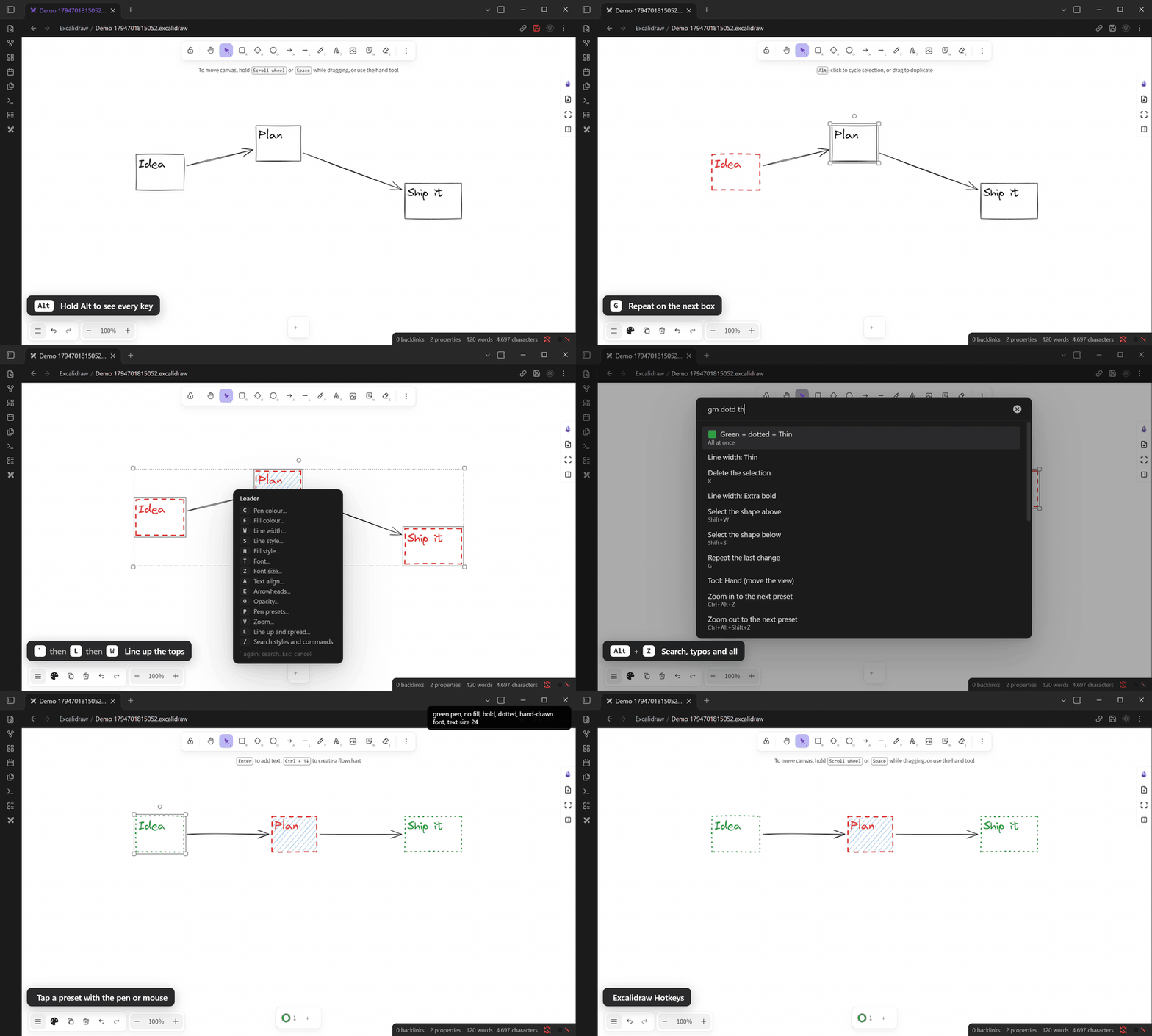
Read the guide: the keys to learn first, the one rule, and the full leader menu. The same guide is inside Obsidian: run Open the guide.
Every action is an Obsidian command. You choose the keys in Settings → Hotkeys, like any other command. Each command also works from a vimrc (exmap + obcommand excalidraw-hotkeys:<id>).
Start
- Install and turn on the plugin. It needs the Excalidraw plugin.
- On first start, a popup asks if you want the suggested keys. Press Use suggested keys.
- Or later: open Settings → Excalidraw Hotkeys → Keys and press Use suggested keys. This gives every command without a key the key in the table below. Keys you already set stay as they are, and a suggested key that another command already uses is skipped. Reset all keys to suggested replaces them all.
New here? Run Practice the keys: a two-minute lesson in a new drawing, where each step checks itself. Or run Open the guide (or press the leader key, then ?). It shows the six keys to learn first, the one rule all style keys follow, and a map of the leader menu, all with your own keys.
Hold Alt, Ctrl or Shift for a moment in a drawing. A panel shows what each key does with it. Let go to hide it.
Run Show my hotkeys at any time to see your keys. Its search understands what you mean, like thicker line. Press Save as note in that window to write the list to a note.
Commands
The suggested keys are all under the left hand, so the right hand stays on the mouse or pen.
- Alt + key does a thing.
- Alt + Shift + key goes back one step on a cycle key (line style, line width, fill style, font, align, arrowheads). You can turn this off in Settings.
- Other keys use Shift for their own job: Alt+Shift+number is fill, and Ctrl+Shift+W/A/S/D duplicates.
| Command | Suggested key |
|---|---|
| Colour | |
| Pen colour 1–8 (lines, arrows, text) | Alt+1 … Alt+8 |
| Fill colour 1–8 (inside of shapes) | Alt+Shift+1 … Alt+Shift+8 |
| No line / No fill | Alt+0 / Alt+Shift+0 |
| Cycle fill style (none, hachure, cross-hatch, solid) | Alt+F, back Alt+Shift+F |
| Reset to black with no fill | Ctrl+` |
| More see-through / More opaque | Alt+X / Alt+Shift+X |
| Lines | |
| Cycle line style (solid, dashed, dotted) | Alt+D, back Alt+Shift+D |
| Cycle line width (thin, bold, extra bold) | Alt+Q, back Alt+Shift+Q |
| Cycle arrowheads (none, end, both, start) | Alt+E, back Alt+Shift+E |
| Cycle arrow shape (straight, curved, elbow) | Alt+W, back Alt+Shift+W |
| Shapes | |
| Cycle sketchiness (clean, sketchy, very sketchy) | Alt+S, back Alt+Shift+S |
| Round or sharp corners | Ctrl+Alt+R |
| Pick a look for the whole drawing | ` K L |
| Label an arrow | ` R L |
| Mind map and connect | |
| Connect the selected shapes with arrows | Ctrl+Alt+A |
| Move a box up / down among its siblings | Alt+Up / Alt+Down |
| Move a box up a level / under the box above | Alt+Left / Alt+Right |
| Paste a list as a mind map / copy the map as a list | ` N V / ` N Y |
| Put the map in a note as a list | ` N I |
| Tidy the map / fold a branch | ` N T / ` N F |
| Fold all / open all | ` N Z / ` N O |
| Style | |
| Copy style / Paste style | Ctrl+Alt+C / Ctrl+Alt+V |
| Text | |
| Cycle text align (left, centre, right) | Alt+A, back Alt+Shift+A |
| Cycle font (hand-drawn, normal, code) | Alt+T, back Alt+Shift+T |
| Font size up / down (small, medium, large, very large) | Alt+G / Alt+Shift+G |
| Fit box to text | Alt+B |
| Duplicate with an arrow | |
| Up / left / down / right | Ctrl+Shift+W / A / S / D |
| Size | |
| Bigger / smaller (or thicker / thinner line) | Alt+R / Alt+Shift+R |
| Wider / narrower | Alt+C / Alt+Shift+C |
| Taller / shorter | Alt+V / Alt+Shift+V |
| Zoom | |
| Zoom preset 1–9 | Ctrl+Alt+1 … Ctrl+Alt+5 |
| Zoom in / out to the next preset | Ctrl+Alt+Z / Ctrl+Alt+Shift+Z |
| Pen presets | |
| Use pen preset 1–9 | Ctrl+Shift+1 … Ctrl+Shift+5 |
| Save pen as preset 1–9 | none (or the leader key, then P, S and a number) |
| Search | |
| Search styles and commands | Alt+Z |
| Line up and spread (leader, then L) | |
| Line up left / right / top / bottom edges | ` L A / D / W / S |
| Centre left to right / top to bottom | ` L C / ` L X |
| Spread out evenly across / down | ` L H / ` L V |
| Tidy into a grid / Swap two shapes | ` L G / ` L P |
| Same width / height / both | ` L Z W / H / B |
| More, with the leader key | |
| Select similar: pen colour, fill, type, style | ` M C / F / T / S |
| Turn right or left 90° / 15° | ` U E / Q, ` U D / A |
| Flip left to right / top to bottom | ` U H / ` U V |
| Lock / Unlock all | ` U L / ` U U |
| Link to a note | ` I |
| Put in a frame / next frame / previous frame | ` G F / N / P |
| Save a stamp / place stamp 1 to 9 | ` J S / ` J 1 |
| Recent colours: pen / fill | ` D 1 / ` D F 1 |
| Record a macro / play macro 1 to 9 | ` Q R / ` Q 1 |
| Drawing keys (set in Settings → Drawing keys) | |
| Select / Rectangle / Diamond / Arrow / Text / Eraser / Frame | V / R / D / A / T / E / F |
| Ellipse (C for circle) / Line (S for straight) / Pen (W for write) | C / S / W |
| Delete the selection | X |
| Select the shape above / left / below / right | Shift+W / A / S / D |
| Follow the arrow out of / back into the selected shape | Shift+F / Shift+R |
| Leader key | ` (the key left of 1) |
| Repeat the last change | G |
| New connected box / New box beside (mind map) | Tab / Shift+Tab |
| Change shape (box, circle, diamond) | Shift+C |
| Other | |
| Open the guide | ` ? |
| Show my hotkeys | none |
Drawing keys work only inside a drawing, and never while you type. To change one, open Settings → Drawing keys, click its key, then press any key or combo, like W or Alt+P. They are not in Obsidian's Hotkeys list, because a plain letter there would stop that letter from typing in every note. Each tool is also a command, so you can give it a Ctrl or Alt key in Settings → Hotkeys.
A command for each single line style, line width, font, font size, align and arrowhead is hidden. Turn on Show one-by-one commands to list them too.
How the keys work
Colour and style keys work on what you are using:
- Something selected: the key changes it. Your pen stays the same.
- Nothing selected: the key changes your pen, so the next thing you draw or write gets it. This works for colour, line width, line style, fill style, arrowheads, font, font size, align and opacity. A key that has nothing to change says so, and does nothing else. A short popup says what changed.
- Typing a text: colour, font, font size and align keys change that text.
Pen keys change lines, arrows and text. Fill keys change only the inside of boxes, circles and diamonds. Each colour key shows a short popup with the colour. The status bar at the bottom right shows your pen and fill colour while a drawing is open.
Repeat
G does your last change again, like . in vim. Make one box red, dashed and bold. Then select the next box and press G. All the changes you made to one thing count as one change. With nothing selected, G puts the change on your pen.
Mind map
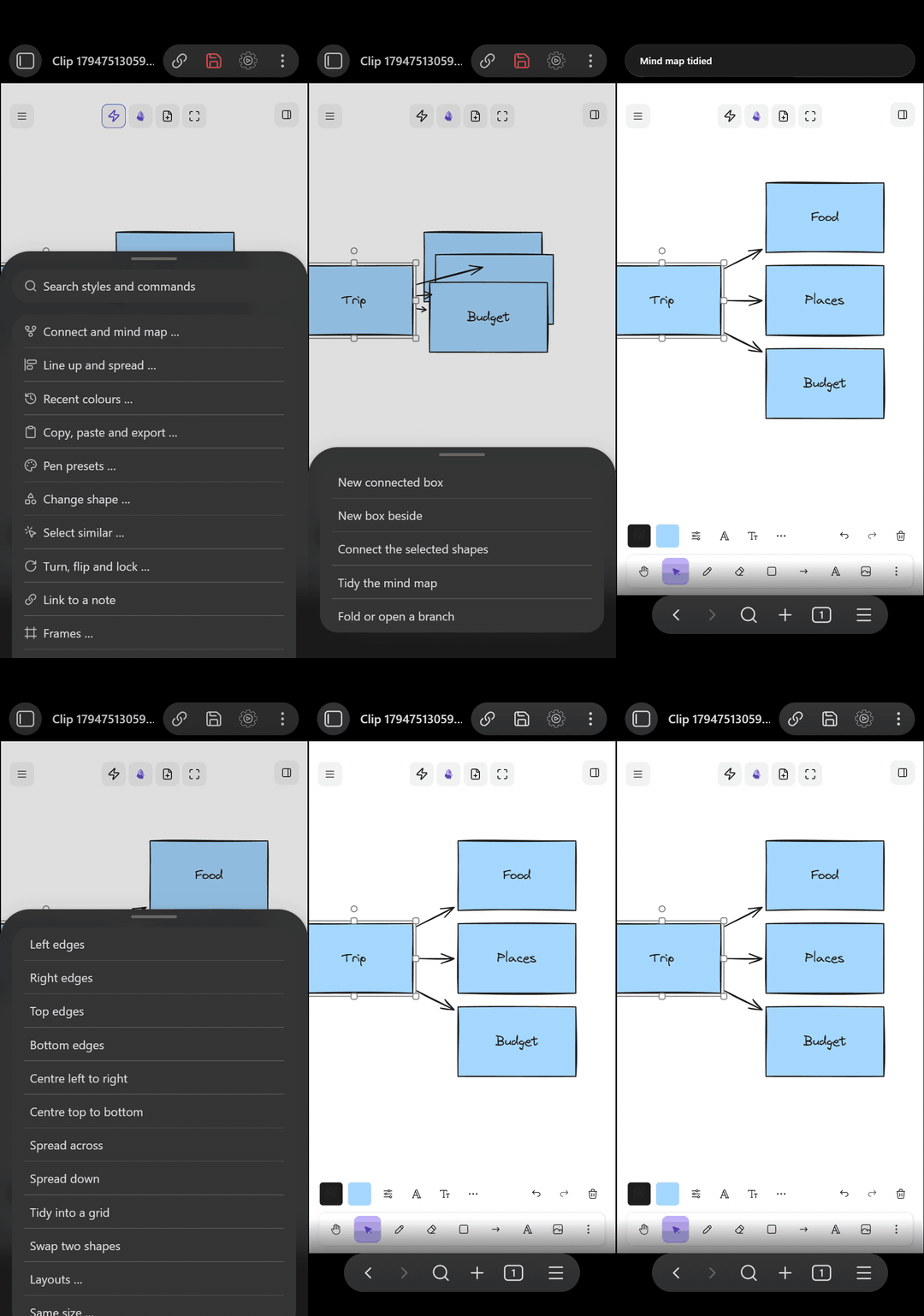
Select a box and press Tab. A new box appears with an arrow from yours, and you type its label at once. Press Tab on the same box again: the next child goes under the first. Shift+Tab adds a box beside the selected one, from the same parent. New boxes grow away from their parent, so a map can go right, left, up or down.
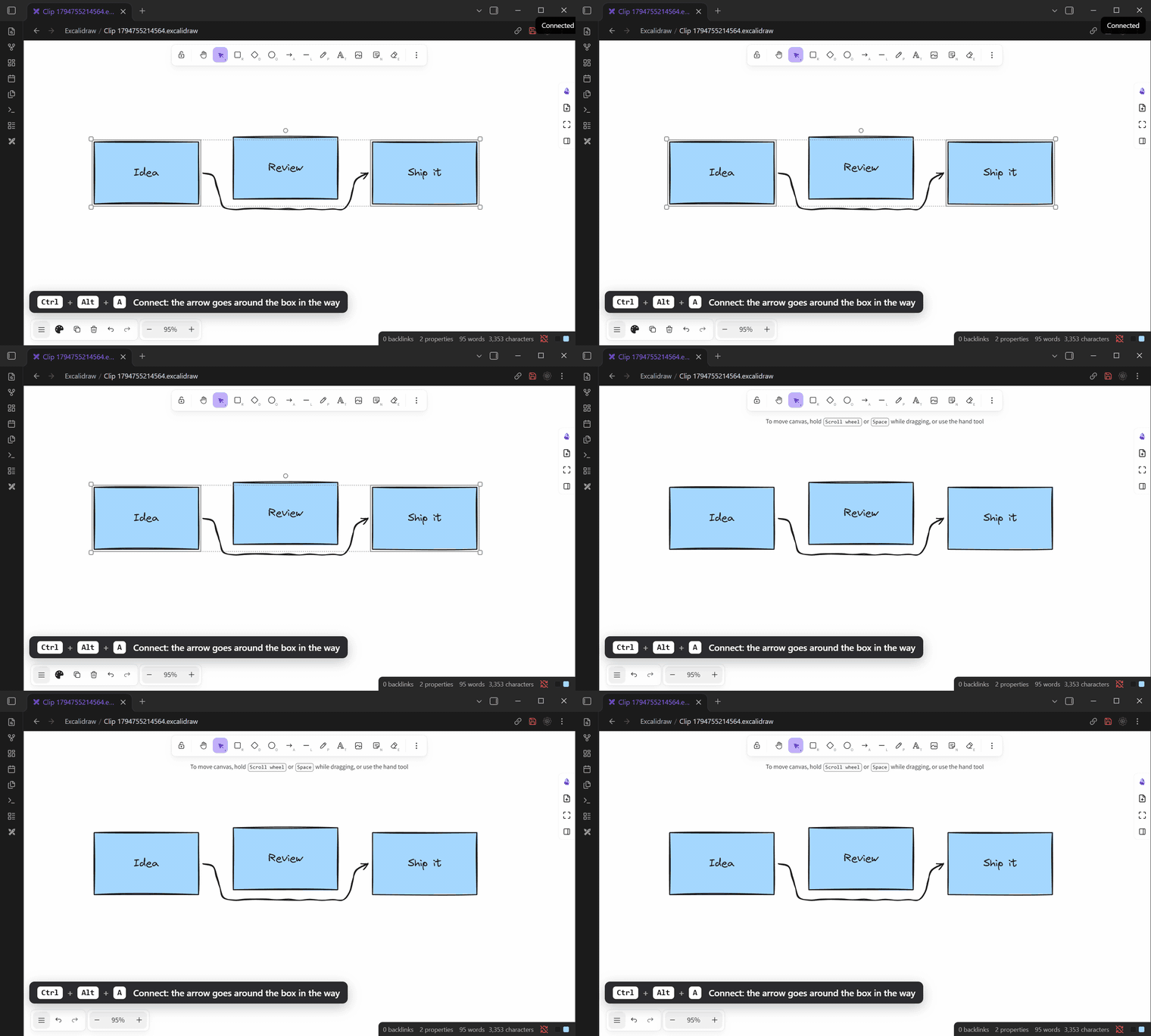
Ctrl+Alt+A ties the selected shapes together with arrows, in the order they sit.
Leader, N, T tidies the whole map, so no branch overlaps another. Leader, N, F folds a branch: the boxes under the selected box hide, and a small +3 says how many. The same key shows them again, next to the box even if you moved it.
Leader, N, Z folds every branch. Leader, N, O opens them all.
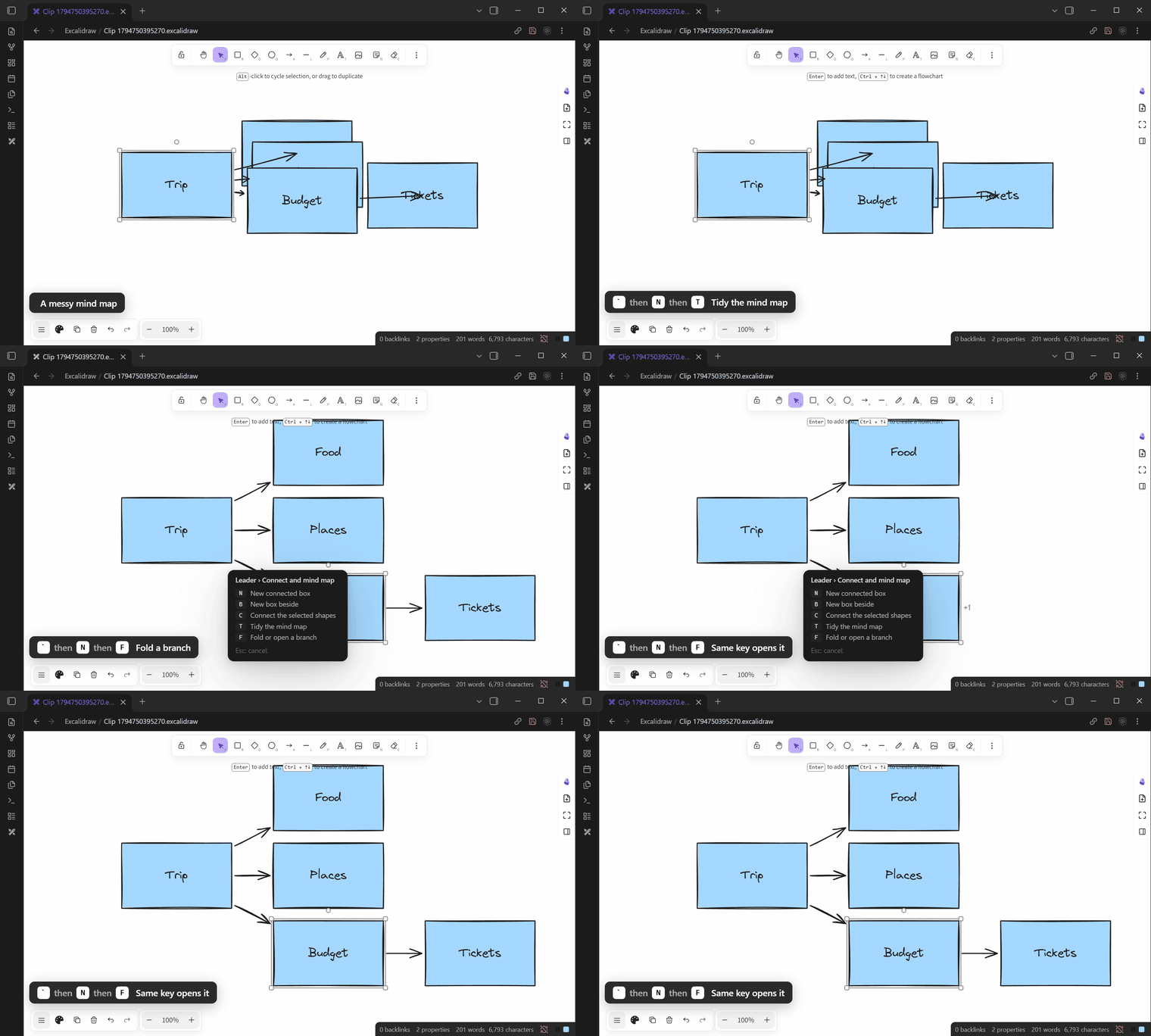
From a list, and back. Copy a bullet list from a note. In a drawing, press leader, N, V. Each item becomes a box, joined to the item it sits under. Leader, N, Y copies a map as a list, and leader, N, I puts the list at the end of a note.
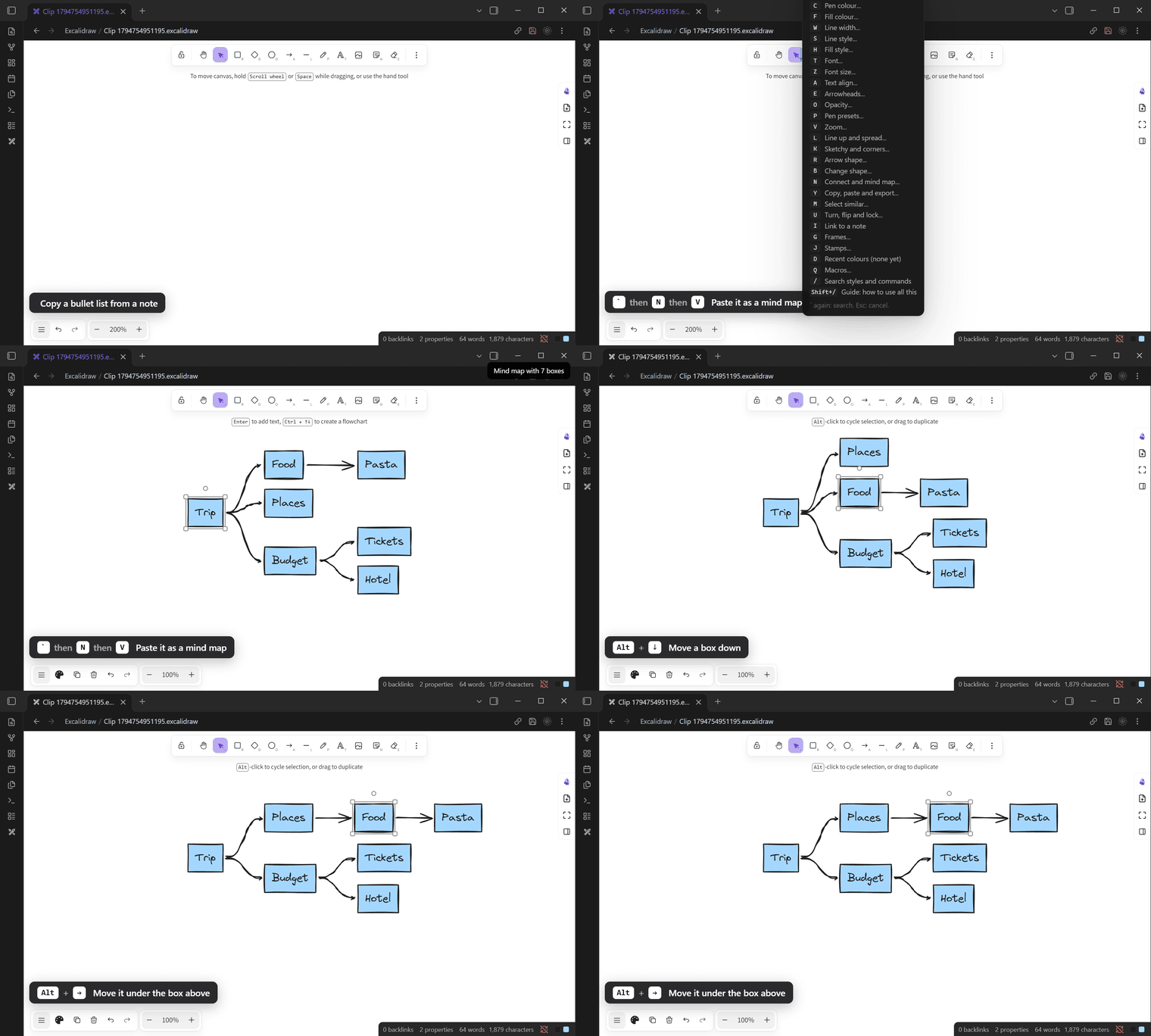
Edit it like an outline. Select a box. Alt+Up and Alt+Down move it among its siblings. Alt+Left moves it up a level. Alt+Right moves it under the box above it. The map tidies itself after each move.
Arrows that look hand-placed
Every arrow this plugin draws (mind map, connect, duplicate) leaves from the sides that face each other, from the middle of each side, with a small gap. When the shapes are in line it is straight. When they are not, it is a soft S-curve, like a hand-drawn map. Choose Curved, Straight, Elbow or Like my pen in Settings → Moving and sizing → Arrow style.
When a shape moves (line up, spread, grid, swap), its arrows are laid fresh the same way, so they never end up cutting across a box. An arrow you drew with your own bends keeps them and stretches. This also works when you drag a shape with the mouse (turn it off in Settings → Moving and sizing).
When a box sits between the two shapes, the arrow goes under or over it, not through it.
Shapes and arrows
Alt+S makes shapes clean, sketchy or very sketchy. Ctrl+Alt+R gives boxes and diamonds round or sharp corners. Alt+W makes arrows straight, curved or elbow (right-angle bends). Shift+C turns a box into a circle, then a diamond. It keeps the label, the style and the arrows. With nothing selected, these change your pen.
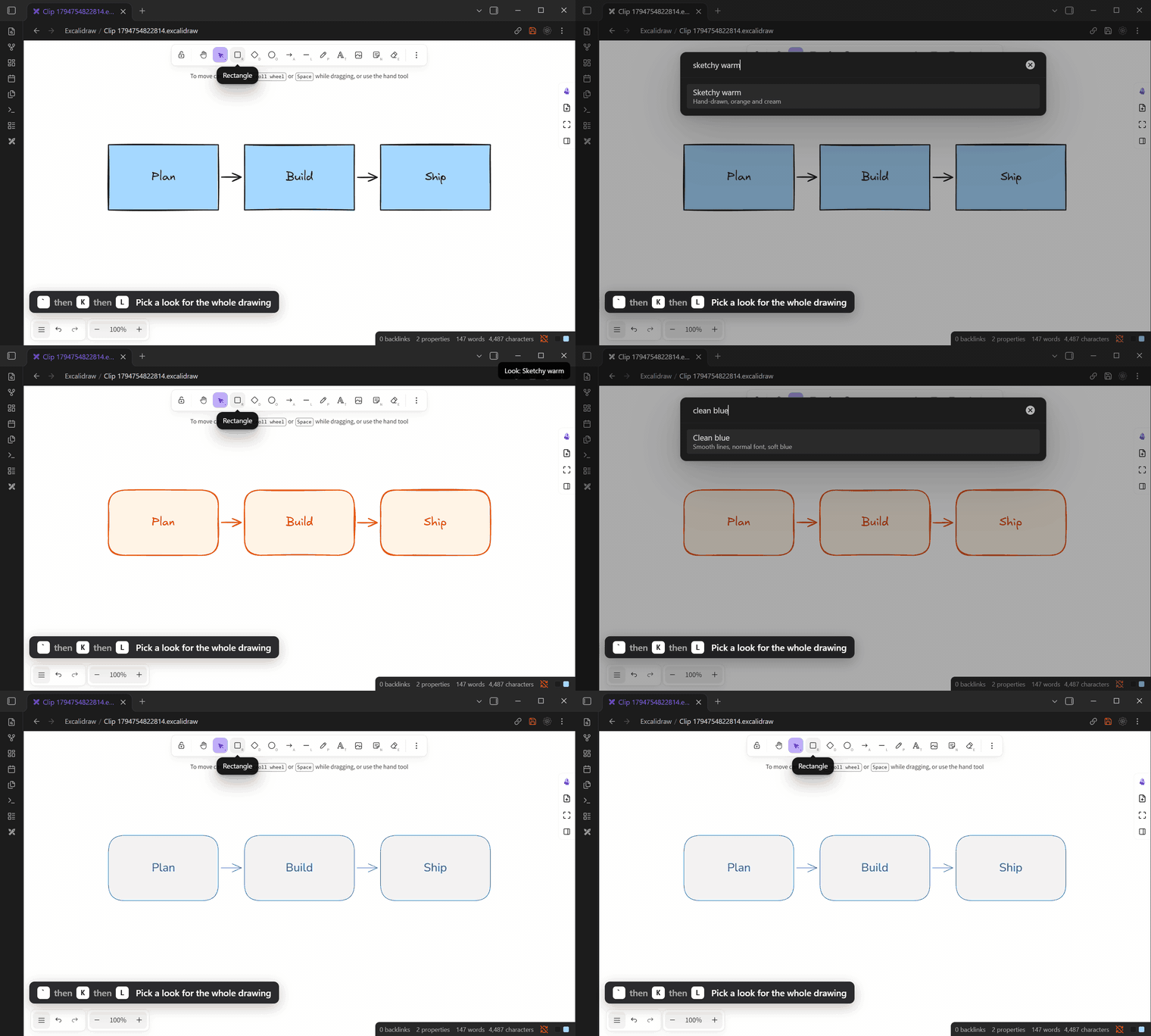
Leader, K, L gives the whole drawing one look: Clean blue, Sketchy warm, Bold grey, Soft green or Plain ink. All boxes, lines and text change in one step, and one Ctrl+Z undoes it.
Select an arrow and press leader, R, L to type a label on it.
Copy and paste a style
Ctrl+Alt+C copies the whole style of the selected shape, or of your pen. Ctrl+Alt+V pastes it on the selection, or on your pen.
Pen presets
A preset is a saved pen: colour, fill, fill style, line width, line style, font, size, align, arrowheads and opacity. Save pen as preset N saves the selected shape's style, or your pen if nothing is selected. Use pen preset N works like every other key: on the selection, on your pen, or on the text you type. Rename or delete presets in Settings → Pen presets.
The preset bar sits in Excalidraw's own bottom row, next to zoom. Click a preset to use it. Right-click one to save over it. + saves a new one. The bar also shows the last colours you used (click: pen, right-click: fill), and buttons you add for any command in Settings → Pen presets. You can turn the bar off there too.
Settings → Pen presets → Share exports your presets, colours, stamps, macros and bar buttons to one file. Copy that file to another vault and press Import there.
Line up and spread
Select 2 or more shapes, press the leader key, then L. A, D, W and S line up the left, right, top or bottom edges. C and X centre them. With 3 or more shapes, H spreads them out evenly across and V spreads them down. G tidies them into a grid, P swaps two, and Z makes them the same size. Each one is also a command, so you can give it a key in Settings → Hotkeys.
Lining up never piles shapes on each other. If a shape would land on another, or too close for an arrow, it moves down (or right) to leave a clear gap. So three boxes lined up left become a neat column.
It lines things up the way you see them:
- A group, a box with its label, and a frame with what is in it move as one.
- A loose text on a drawing, or right next to it, moves with that drawing, like a caption. This works even when you select only the drawing. A caption that belongs to another shape stays where it is.
- A turned shape lines up by its turned corners.
- Arrows tied to a shape follow it. Elbow arrows keep their right angles.
- Shapes too big to have gaps between them get evenly spaced middles.
- Locked things never move.
Leader, L, L lays the selection out as a flowchart (F, in a row with arrows), a timeline (T), a kanban board (K, three columns) or a 2×2 grid (M).
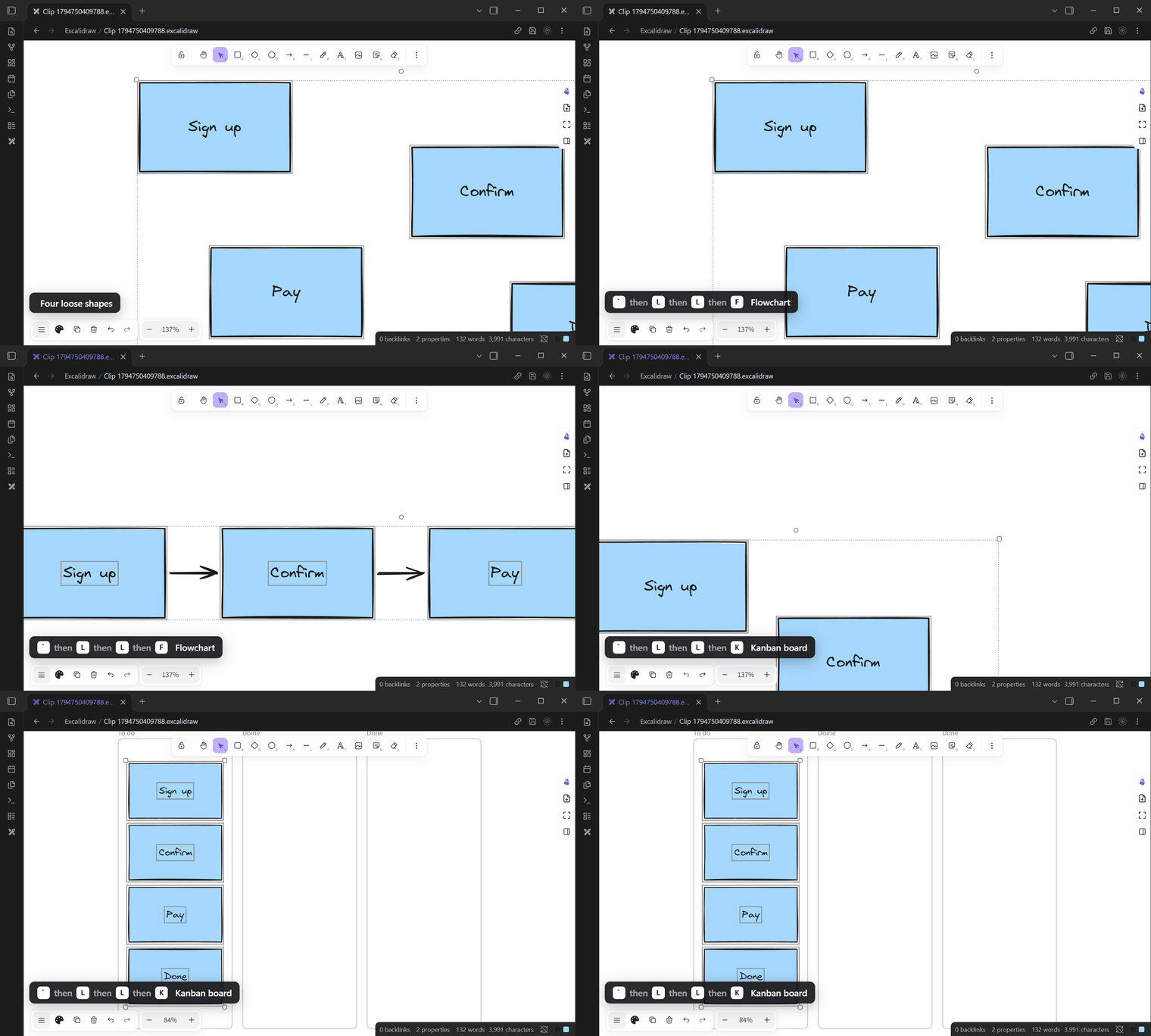
Moves glide into place, and each one is one undo step. Change the speed, or turn the glide off, in Settings → Moving and sizing.
Select, turn, lock, link and frames
With the leader key: M selects everything like the selected shape (same pen colour, fill, type or style). U turns, flips and locks. I links the selection to a note, with the smart search. G puts the selection in a frame, and jumps from frame to frame like slides.
Copy as an image
Leader, Y, I copies the selection as a PNG, or the whole drawing when nothing is selected. Leader, Y, N saves the PNG and adds it to the end of a note you pick.
Phones and tablets
Obsidian on a phone or tablet has no keyboard shortcuts, so the plugin keeps to a light version there. A ⚡ button in the drawing's top row opens every action, with the same names as the leader menu. It leaves out what Excalidraw's own bar already has (colours, line, font), and it takes no room from the drawing. With a keyboard (a tablet keyboard cover, DeX), turn on Settings → Excalidraw Hotkeys → I use a keyboard on this device to get all the keys on that device.
Stamps
Select some shapes, then press the leader key, J and S. That saves them as a stamp, named after its first text. Press the leader key, J and a number to place it at the mouse. J / finds one by name.
Macros
Press the leader key, Q and R, then do some steps: keys, leader keys, search picks and bar clicks. Press the leader key, Q and R again to stop. The status bar says Recording while it records. Play it with the leader key, Q and its number.
Leader key
Press the leader key (`), then a short row of plain keys. A panel shows the choices at each step. Examples:
` C 3: pen colour 3.` F 0: no fill.` W 2: bold line.` S D: dashed.` H X: cross-hatch fill.` P 1: use preset 1.` P S 1: save preset 1.` V 3: zoom preset 3.` L A: line up left edges.` `or` /: search.
Escape or a click cancels.
Change the menu letters in Settings → Leader menu. There you can also add your own sequences for any Obsidian command, like ` X X for one you use a lot. Settings tells you when a sequence replaces a built-in key.
Move between shapes
Shift+W/A/S/D selects the nearest shape above, left, below or right. With nothing selected, it selects the shape nearest the middle of the screen. Shift+F follows an arrow out of the selected shape. Shift+R follows it back.
Search
Alt+Z opens a search for styles and commands. It knows other words (circle, thicker, copy, see-through), small typos and short forms like grn. Type several styles at once, like blu dashd thik. The top result then sets all of them in one step. Type a colour code like #ff8800 for that pen colour, or fill #ff8800 for that fill.
Diagonal move
Hold two arrow keys to move the selection on a diagonal. Hold Shift too for a bigger step. This one is not in the Hotkeys menu.
Settings
The first page has 9 parts:
- Keys: use or reset the suggested keys, only the basic keys, or the leader key only, show the key when you click a button, what's new after an update, the key panel and its wait time, Shift goes back, show one-by-one commands, catch keys before Excalidraw, and where the hotkey note goes.
- Drawing keys: a key for each tool, for moving between shapes, the mind map, change shape, repeat, and the leader key. Click a key and press any key or combo. The × button removes it.
- Leader menu: the letter for each menu, and your own sequences for any command.
- Pen presets: the preset bar, bar or one ⚡ button (one button on phones and tablets by default), your own bar buttons, and rename or delete your presets. Share has Export everything and Import everything: one file with all your settings, keys, presets and stamps, to move to a new computer.
- Stamps and macros: rename or delete them.
- Colours: the 8 pen colours and 8 fill colours, and the status bar colours. Colour 1 is Excalidraw's own ink: white in dark mode, black in light mode. If you change a colour, its name follows the new colour. The square next to each colour shows how it looks in the drawing.
- Zoom: the presets, for example
25, 50, 100, 200, 400, the zoom speed, and zoom on the selection. - Duplicate: what a copy keeps, and the gap to it.
- Moving and sizing: diagonal move, resize step, fit padding, arrow style, arrows follow a mouse drag, and move speed.
Every edit is one undo step. Ctrl+Z undoes a duplicate with its arrow in one press.
Install by hand
Download main.js, manifest.json and styles.css from the latest release. Put them in <vault>/.obsidian/plugins/excalidraw-hotkeys/. Turn the plugin on in Settings → Community plugins.
Build
npm install
npm run build
License
MIT