Euphoric Flashcards
 Daniel33 downloads
Enchanting spaced-repetition flashcards that teach you how to use the word, instead of memorising it.
- Overview
- Scorecard
- Updates5

Euphoric Flashcards
A minimal spaced repetition flashcard plugin for Obsidian that makes flashcards genuinely engaging again. Inspired by and based off the legendary OSR Plugin, Euphoric Flashcards revamps and extends the plugin's productive feature set while cutting down on complexity, optimising functionality and modernising the user interface.
If you've used or are using your Obsidian vault to learn a new language on your own, the system introduced by Euphoric Flashcards might be the missing piece for evolving collected vocabulary and grammar into applied conversational knowledge.
What is Euphoric Flashcards and why does it exist?
First of all, Cześć! I'm Daniel. I speak seven languages, 5 of 'em fluently, 1 in intermediate proficiency and am currently learning two more in concurrence. I have been learning languages by myself as a sidekick since about four years now and just about for an hour a day. Currently I'm learning Chinese and Spanish. Throughout all mistakes and successes in my language learning journey I have created a tiny, fun and effective system to apprehend a richness in both grammar and vocabulary rapidly.
This plugin, instead of solely being a mundane repository for your vocabulary, forms the backbone of your learning and unifies raw input and grammatical concepts in a feature suite that gives you the leverage to understand, explain, and apply (not simply memorize) your words. At its core it's still a flashcard plugin. But one, that dynamically adjusts to your distinct type of note taking, and interacts with you by letting you form sentences or explain contents. Of course, this plugin is just a part of a small coherent system.
Euphoric Flashcards refines spaced repetition with features I found missing, or opened PRs on from every other open-source flashcard app or plugin I've used:
- A flexible, dynamic syntax that captures more than just words:
- Configurable word-type declarations (noun, adj, or custom types)
- Embedded usage examples and sentences
- A field for notes and explanations
- Support for transliterations of glyphic languages or pronunciations, e.g.
汉语 - hànyǔ - Chinese
- Native two-way card reviews
- A Sentence Builder review mode, for practicing deliberate sentence construction with your own flashcards
- An Anki-like spaced-repetition algorithm with load balancing
[!WARNING] THIS GUIDE IS BEING MOVED The below guide is being rewritten into a short follow-along getting-started guide on its dedicated webpagee. Once complete, it will be removed from here.
This is a preview video demonstrating the syntax and UI
🧭 Where to?
- If you're new to flashcards in Obsidian, I recommend you follow the Quick Start Guide which happens to also be the full guide on the plugin. Takes at most about 10 minutes and introduces you cohesively to everything Euphoric Flashcards has to offer.
- Are you transitioning from another flashcard plugin such as OSR? Euphoric Flashcards is designed to be compatible with the scheduling- and card syntax of OSR with the only difference being that we use the symbols
-,:,=, as unchangeable functional operators here. Therefore words/flashcards containing them as part of the content might cause the parser to interpret them incorrectly. I recommend you to refactor your flashcard notes to match the syntax pattern by either manual means, or using the quick help of AI. You might then also skim over the Quick Start Guide to make sure nothing surprises you. - Here's a tiny concise one-page Documentation
🪄 Quick Start and Featureset
This little rundown of the most important (all) features will get you ready to use the plugin in under 10 minutes. Follow along in your own Obsidian vault on either mobile or desktop to apprehend the simple functionality.
0. Prerequisites
- Create or have an existing Obsidian vault
- Download this plugin in
Settings>Community Plugins(Enable them if a prompt appears) >Browseand search for "Euphoric Flashcards" - In
Settings>Community Pluginsfind this plugin and enable it
0.1 Information if you're new to (Flashcards in) Obsidian
Choosing Obsidian to write your notes and flashcards has several advantages compared to dedicated flashcard applications out of the App Store.
- Obsidian works privately, locally, and works fully offline (So does this plugin)
- Obsidian is absolutely free (but you should donate to the team)
- Keeping notes along flashcards in Obsidian lets you have all your language material in one centralised location
- Notes are written in the universal
.mdfile-format. It is similar to.txtand can easily be processed and exported into almost every other existing text (or file) format. If you ever decide to migrate your files, there's no easier way of doing it. - Absolutely nothing constraining or molding your workflow into a predefined pattern. Use the app like you want it to be used.
Let's dive into it...
1. Card Syntax
In this plugin, cards are defined as text content in one of your files. Depending on the special characters (operators) you use, you can add more than just a word and translation to your cards.
-operator separates word, and translation-also defines an optional explanation text you can append to the word
:defines one (or multiple) usage examples such as sentences=declares a word type (noun, adjective, verb) Configure your own word types in the plugin settings
The most minimal example of a functional is
word - translation

conocer - to know, to meet
When reviewing it later, the plugin will show either the word or translation and you'll have to guess, and reveal the respectively other side. We can specify that it is a verb using = before the last -
word =wordType - translation

conocer =v - to know, to meet
The = operator expects a trailing symbol that determines the type of the word/card you're creating. You can create a custom type by going into the plugin's settings (Settings > Community Plugins > Three dots next to Euphoric Flashcards > Settings) and under the Card Types Section press Add Type. A type expects a distinctive identifier (e.g. v for verb, mc for masculine noun), a label ("verb", "masculine noun), and a colour. The identifier is what you put behind the = operator (=v, =mc).
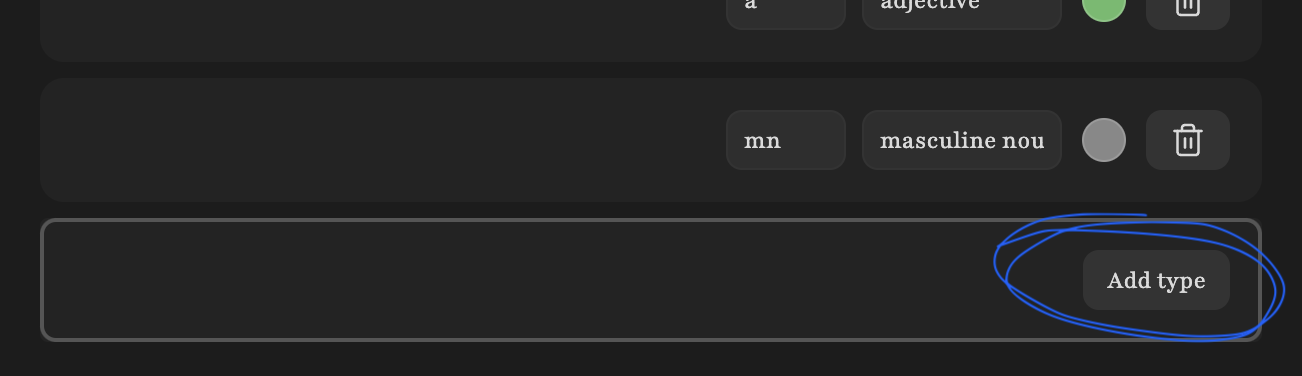
Using the other operators - and : we can add much more than just a type. The example below defines an explanation for the word (text after first -)
word - explanation =wordType - translation

conocer - conocer changes to conozco in 1st p. =v - to know, to meet
Additionally, let's add an example sentence with : after the explanation.
word - explanation : example sentence =wordType - translation

conocer - conocer becomes conozco in first person, present tense : te conocí en otoño =v - to know, to meet
Want multiple example sentences? Easy, just chain them separated by : operators.
word - explanation : example sentence 1 : example sentence 2 : example sentence 3 =wordType - translation

conocer - conocer becomes conozco in first person, present tense : te conocí en otoño : quiero conocerte : me gusta conocer nuevos amigos =v - to know, to meet
Multiline Card Syntax
If you like putting a lot of material into your flashcards, use -- instead of - and :: instead of :. These operators tell the plugin to search for content on the next line. This doesn't alter the flashcard, but makes it easier to read and edit in your vault. Taking our previous example, we can rewrite it as:
word --
explanation ::
example sentence 1 ::
example sentence 2 ::
example sentence 3 =wordType --
translation

conocer --
conocer becomes conozco in first person, present tense ::
te conocí en otoño ::
quiero conocerte ::
me gusta conocer nuevos amigos =v --
to know, to meet
2 Decks
We define and review only flashcards that are part of a deck. Decks are Obsidian tags. Add a tag above a group of cards and they belong to that deck. Let's do that quickly.
#español
conocer =v - to know, to meet
otoño =mn - autumn
or in Obsidian
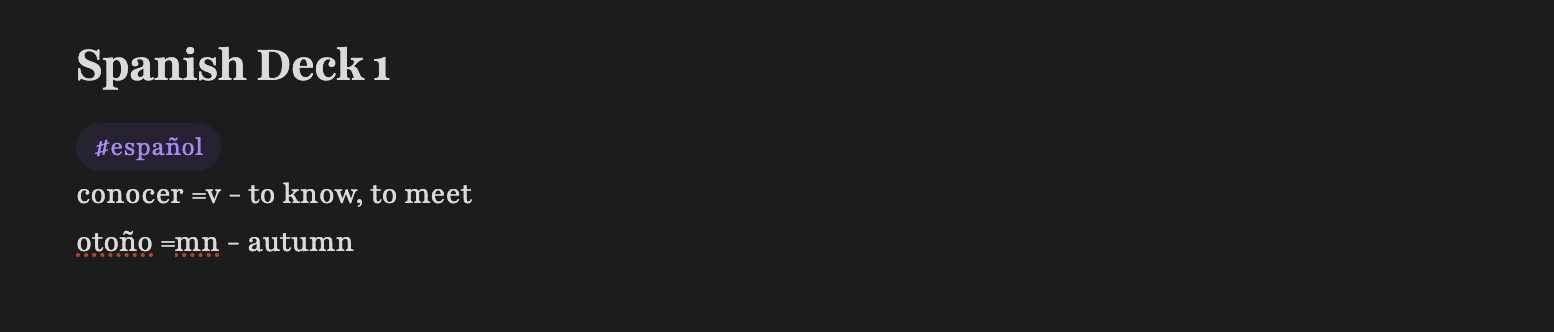 Now we must return into the settings of the plugin to register the deck. In the
 Decks section add the tag #español as a flashcard deck tag. Just like that. (Separate multiple tags by defining them on a newline)
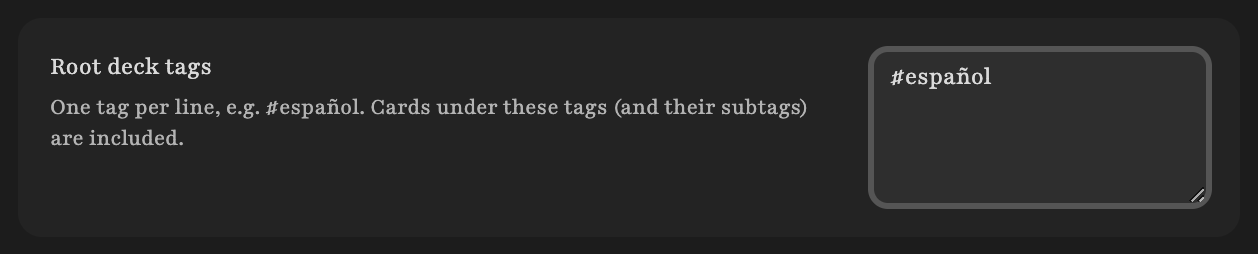
The plugin will now register the deck and use its cards. Before moving on to reviewing, imagine that in another (or the same) file you define a sub-tag of that #español tag. For example #espanol/2026/09 for the vocabs from September.
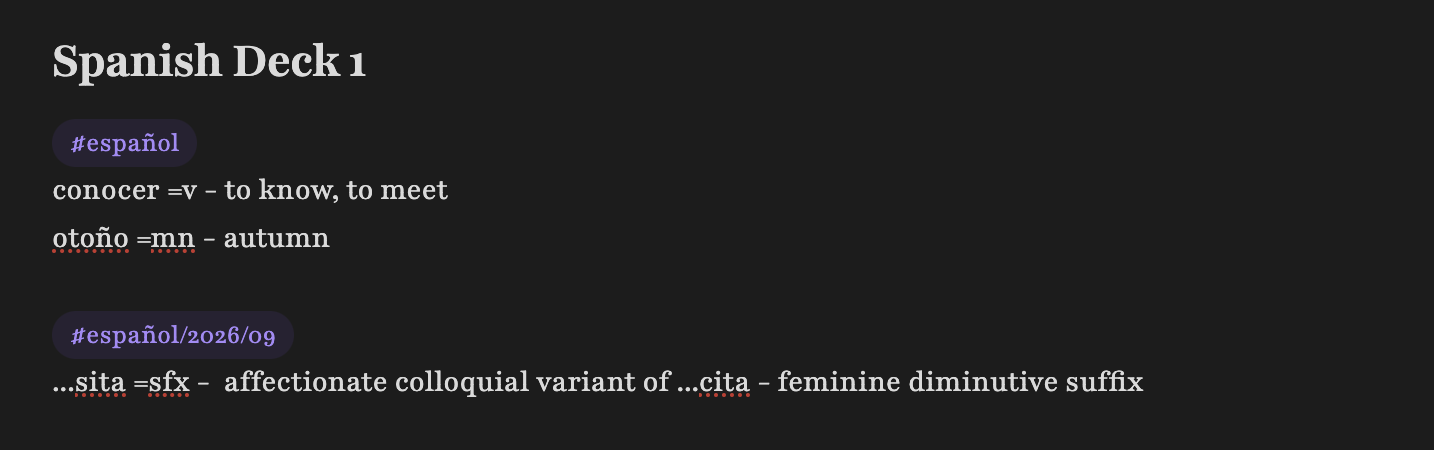 Using the
 / symbol as part of the tag name we created the sub-deck structure
español (root deck)
├── 2026
│   ├── 09
│   └── other decks (#español/2026/...)
└── other decks (#español/...)
If you have defined #español as your "Root deck tag" in the plugins settings, all subdecks like that #espanol/2026/09 we just made, will be recognised automatically across your vault.
3 Modes
Let's get reviewing now. We learned how to structure words and how to define a deck. To open the Review explorer, execute the command Euphoric Flashcards: Review. (Ctrl + P, Cmd + P, or a downward swipe from the top of your mobile's screen, depending on your platform) The explorer opens:
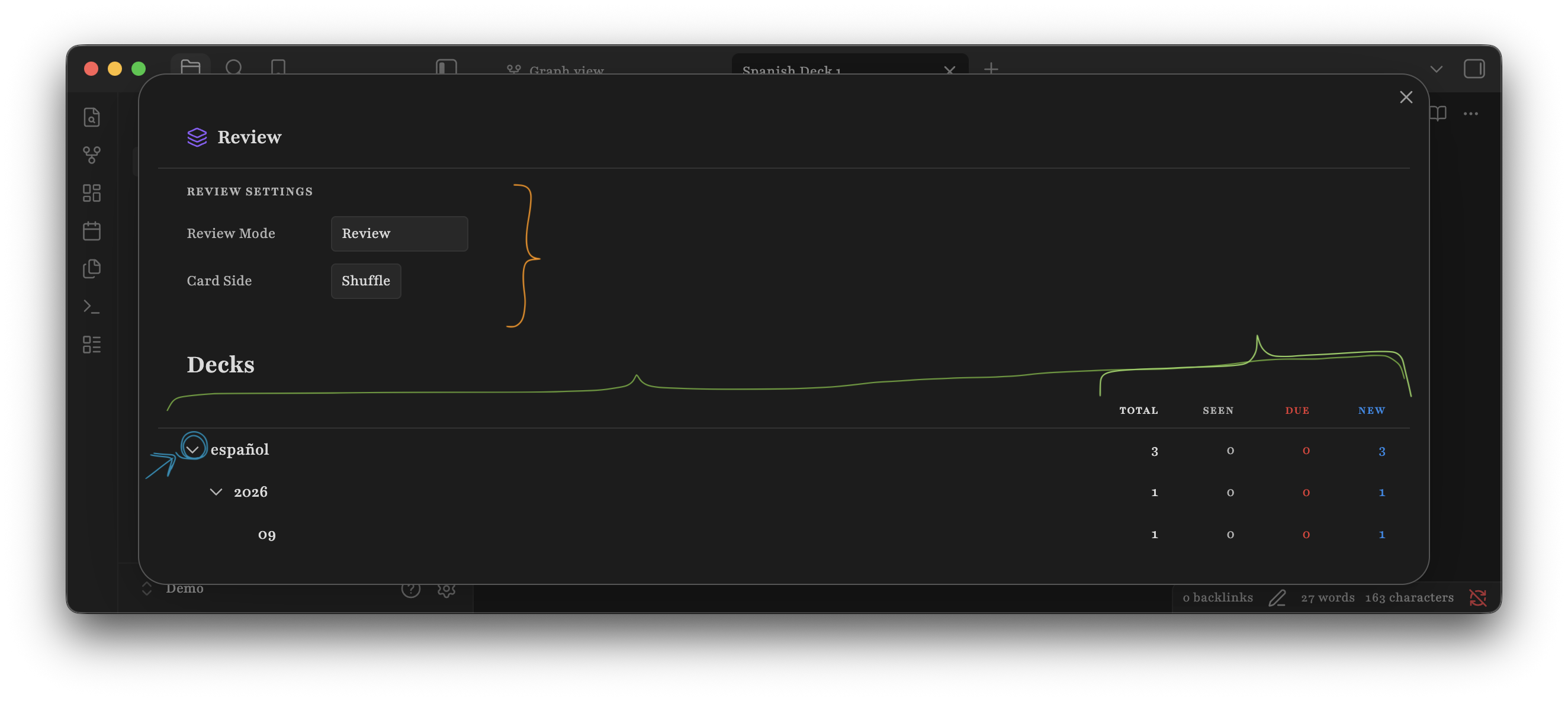
The explorer is the central dashboard to configure and start your reviews from. It is structured into multiple parts:
Review Settings (orange brace): Here you'll configure the mode by which you will be practicing your flashcards with.
Review Mode:The kind of review you will be performing. You can choose from:- Review: The regular review you do once a day. Based on your comprehension of the fashcards, it will schedule cards as due in the future for spaced-repetition.
- Cram: Additional full review, refresher. The plugin will review all flashcards in the selected deck regardless of schedule. But it won't alter any schedules.
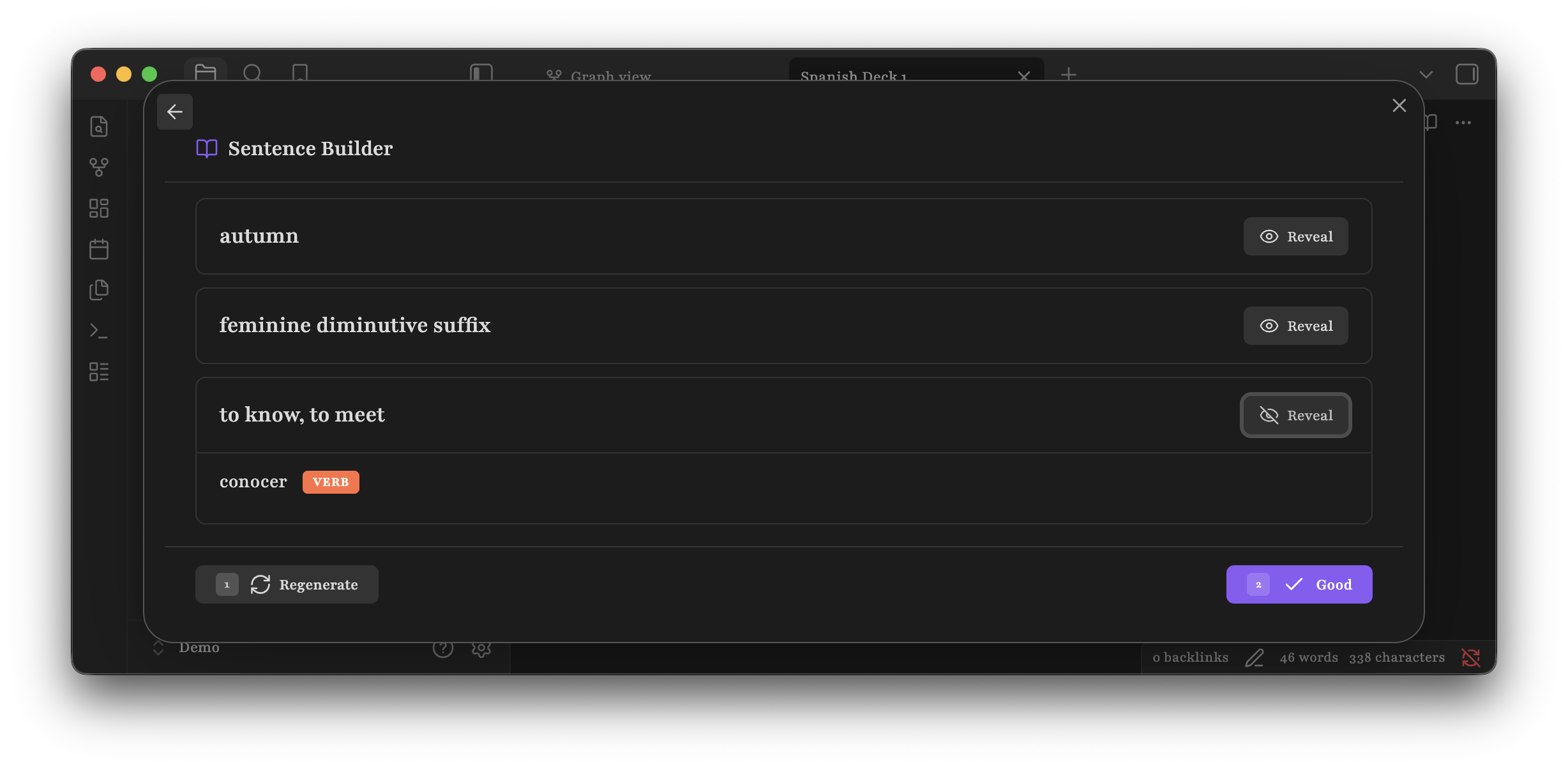
- Sentence Builder: An active exercise mode that draws a certain amount of cards from across your flashcards and presents them to you. Your task is to formulate a logical sentence in the language you're learning including these words. (You can configure the amount in the plugin's settings)
Card Side:This plugin will treat each card that you define as two:word - translationandtranslation - wordand test you on both sides of the card. By changing the Card Side setting, you can filter to only receive your cards on one side (e.g. alwayswordas guessword andtranslationas resolution), but I recommend you leave it to the two-sidedshuffleoption. It really helps to learn the word from both sides.
Deck Explorer (dark green brace): The deck explorer lists all decks that the plugin has detected. If your deck isn't listed here, make sure the root tag of your deck (e.g.
#españolwould be the root tag of any#español/...or#español/.../...decks) is defined in the plugins settings as discussed in the Decks section. View subdecks by expanding the chevron to the left of their parent root deck (blue arrow and circle).Deck Stats (light green brace): The deck stats show statistics for each individual deck.
Begin a Review
To begin a review
- Select a mode of review in the Review Settings and its preferences
- Simply press on a deck from the Deck Explorer to begin the review
- If you press on a deck that has subdecks, i.e. on
#españolall flashcards from its subdecks will also be loaded into your review session.
- If you press on a deck that has subdecks, i.e. on
Let's choose "Review" as Review Mode and keep the Card Side as "Shuffle". I'll press on my #español deck, and you on yours. Depending on your device, the modal might look a little different.
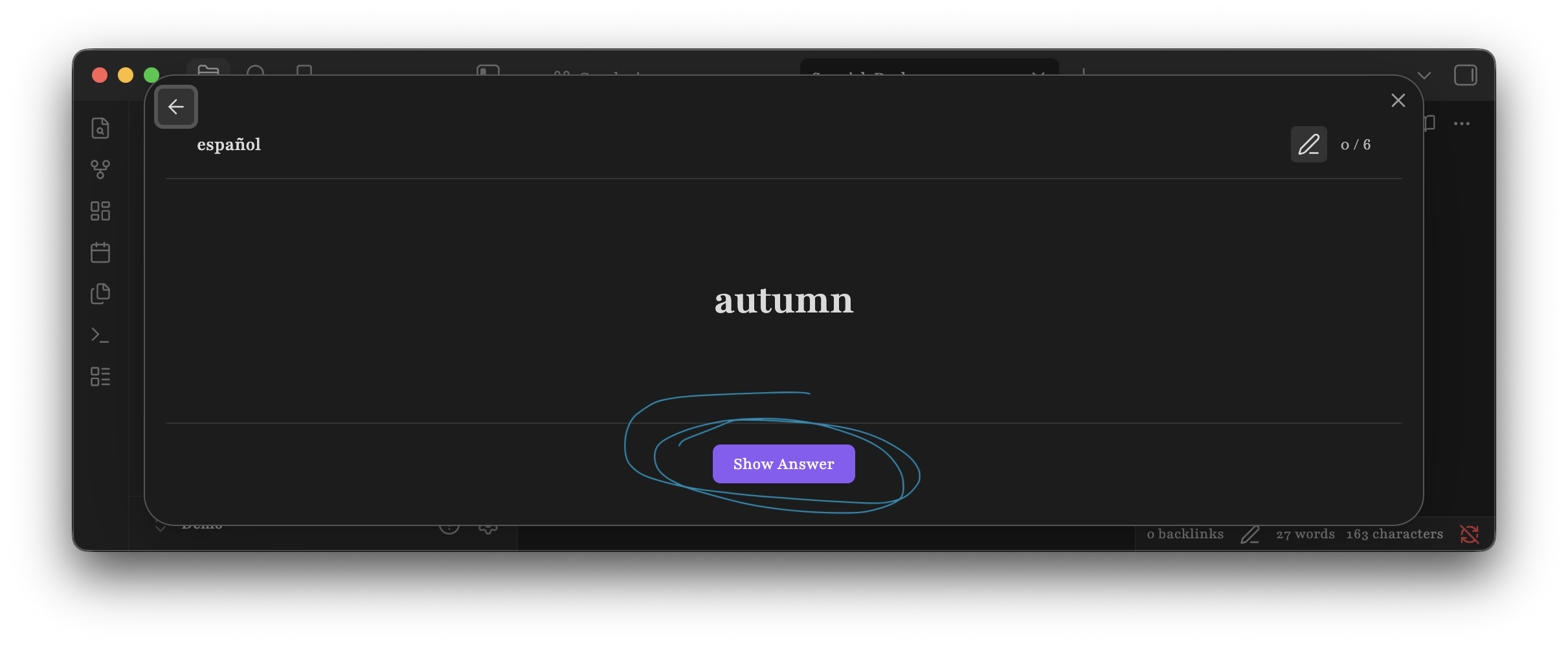
We're shown the backside of our card "autumn". Previously, we defined it simply as
otoño =mn - autumn
I will take a guess at the spanish word for "autumn", which is "otoño" and press Show Answer (blue circle).
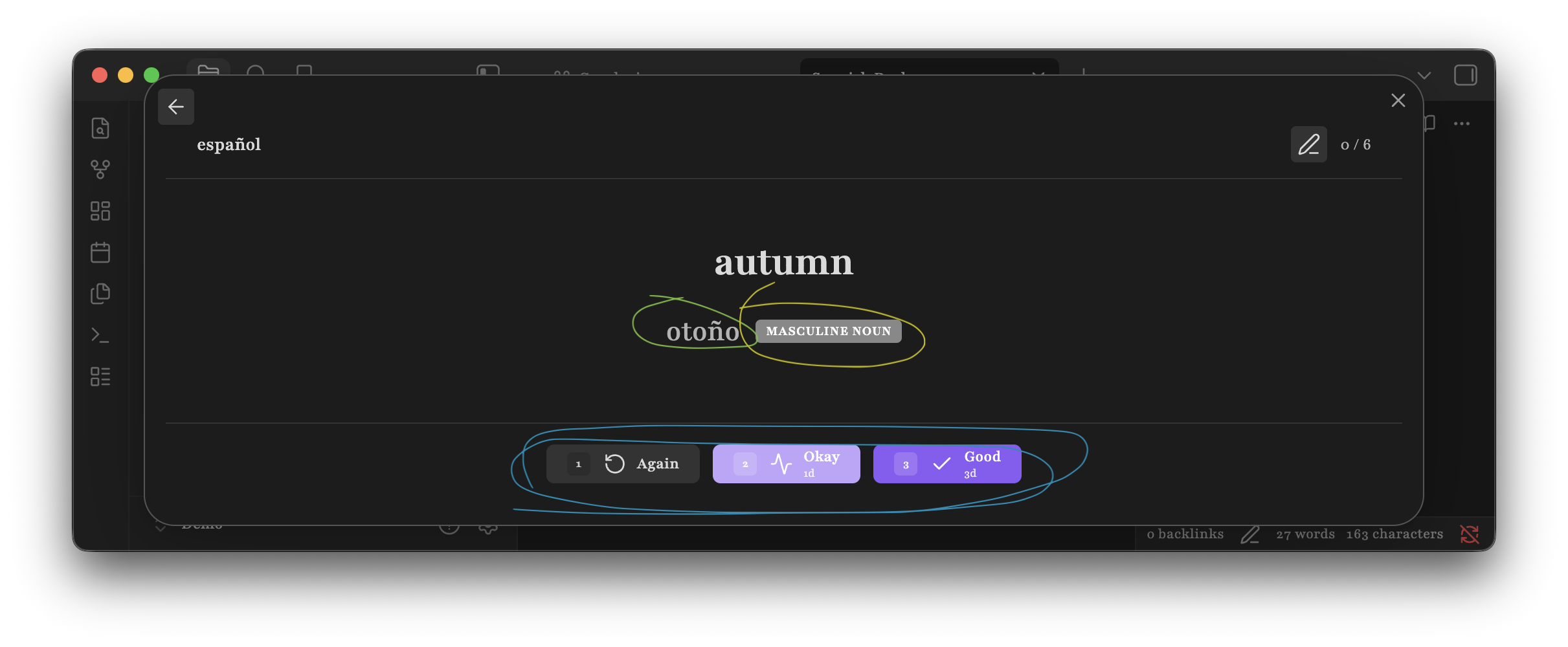
The rest of the word's details are revealed. The translation is indeed "otoño" (green circle), the type of word is masculine noun (yellow circle) as we configured in the syntax section of this introduction.
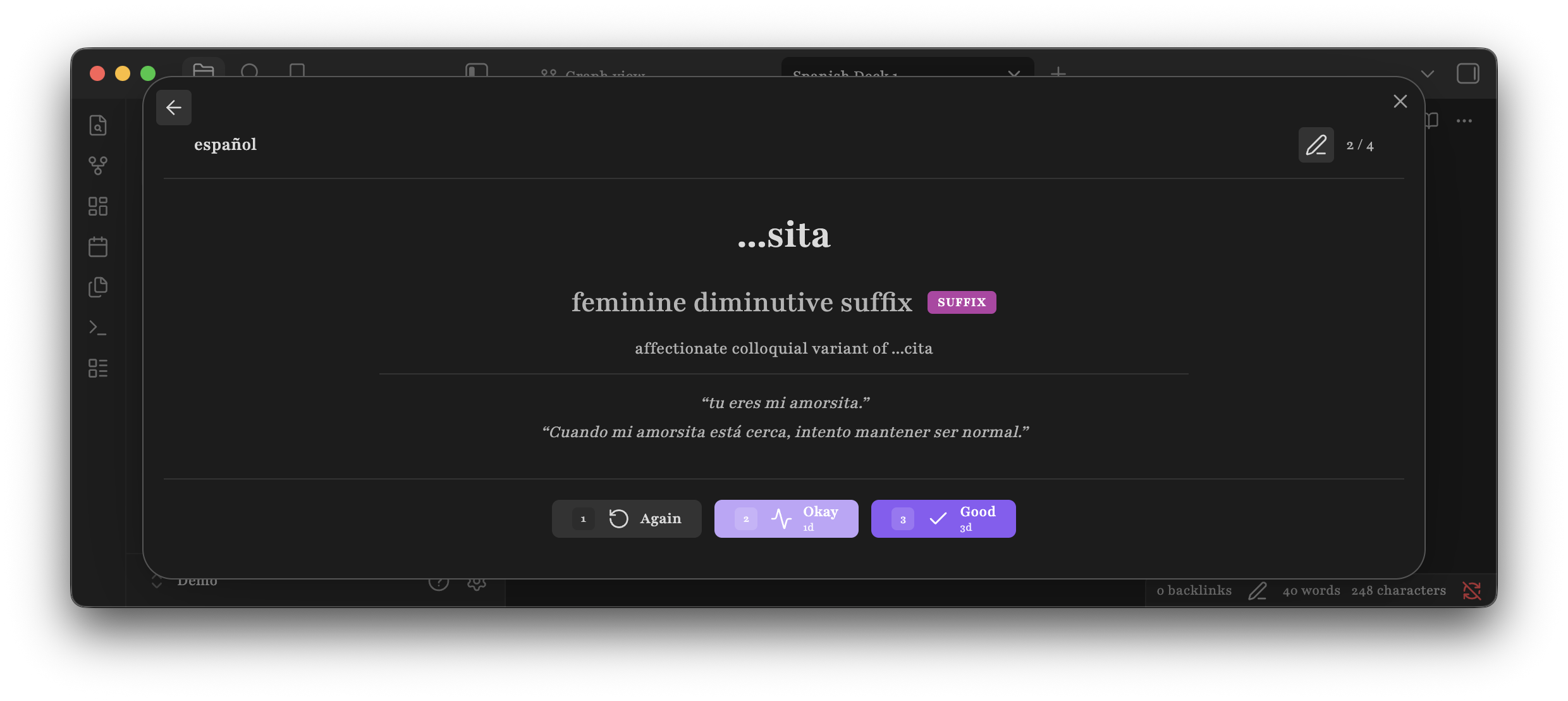
 Depending on how much you've defined for your flashcard, clicking on
 Show Answer might reveal more- or less content. This is an example of a packed card with multiple example sentences, a type, and an explanation
4 A Few Extras
Arriving here you have just learned the full feature-set this plugin has to offer and are fully ready to begin using it. Only systems that one understands have the chance of sticking to one, which is the reason for why I wanted to carry you through the process step-by-step.
I still have a few useful mentions/clarifications below
- For you Desktop users, the following keyboard shortcuts might be of convenience for review
Space,Enter-> reveal card1,2,3-> buttons
- The plugin settings allow you to configure the plugin more than what I've shown in this introduction. If you prefer studying till (or past) midnight (as is the case for me) you might find the
Start of daysetting useful. Otherwise you can also tune the scheduling eases to your liking and some other helpful functionality. - The Documentation outlines all functionality
I also would recommend you to install the Omnisearch Obsidian plugin. It makes it so much easier to find words across many notes in your vault.
Well, that's it. Divertirse y mucho éxito on your language learning journey!
Daniel
🧩 More Examples
Sentence Builder
This is how the sentence builder panel looks like
Single-Note Flashcard Example
This code-block declares most possible syntax variations.
#español/vocabulario

hablar - to speak
comer - to eat
vivir - to live
llegar - to arrive

caminar =v - to walk
bonito =a - pretty, beautiful
la lástima =n - shame, embarrassment
el madrugador =n - early riser

dormir : necesito dormir más esta semana - to sleep
esperar : te espero fuera =v - to wait, to hope
olvidar : olvidé mi cartera en casa =v - to forget

conocer - conocer becomes conozco in 1st p. : te conocí en otoño y te perdí en la primavera =v - to know, to meet somebody new
recordar - to remember, also used as "to remind" : no recuerdo dónde lo dejé =v - to remember / to remind
conseguir - to get or achieve something, also used colloquially to mean "to manage to do" : no consigo entenderlo =v - to get / to manage

#español/frases

hasta la vista ::
Hasta la vista amigo ::
Hasta la vista, nos vemos semana que viene. =p --
Til' next time

que más da =i - What difference does it make?

más vale tarde que nunca =i - Better late than never

lo que sea --
whatever, used to express indifference or resignation ::
lo que sea, tú decides ::
¿Vienes o no? Lo que sea. =p --
Whatever / I don't mind either way

de vez en cuando : de vez en cuando me apetece algo dulce =p - every now and then

no hay mal que por bien no venga --
every cloud has a silver lining, lit. there is no bad from which good does not come ::
perdí el trabajo pero encontré uno mejor, no hay mal que por bien no venga. =i --
Every cloud has a silver lining
Acknowledgements
I'd like to warmheartedly thank the contributors and supervisors of the original Obsidian Spaced Repetition Plugin for laying the fundament of this idea and continuously developing a project, that I used for almost three years before the thought of a modernised, lean alternative came into my mind. Euphoric Flashcards currently also adopts the OSR-2 scheduling algorithm.