Easy Timeline
 romelium3k downloads
This simplifies creating and visualizing timelines from text using dates and metadata.
- Overview
- Scorecard
- Updates10
The Easy Timeline plugin for Obsidian allows you to create timelines easily. It’s inspired by the historica plugin, and it’s designed for those who need a simple way to visualize events over time. It allows references in properties to be used by relative dates.
How to Use Basic
You want to turn this into a timeline
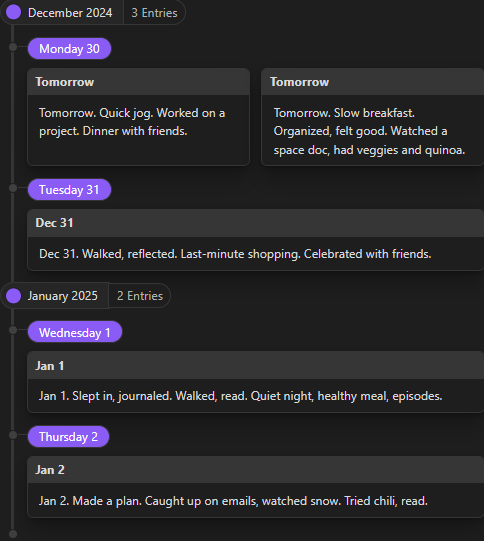
Tomorrow. Quick jog. Worked on a project. Dinner with friends.

Tomorrow. Slow breakfast. Organized, felt good. Watched a space doc, had veggies and quinoa.

Dec 31. Walked, reflected. Last-minute shopping. Celebrated with friends.

Jan 1. Slept in, journaled. Walked, read. Quiet night, healthy meal, episodes.

Jan 2. Made a plan. Caught up on emails, watched snow. Tried chili, read.
Creating a timeline is as easy as adding a simple block. Just use the following syntax:
```timeline
```
That's all! The timeline block will automatically be processed, and each section will be defined by two new lines (or one in the settings).
A Bit More
Block Content
You can either format it this way, where the timeline block renders content using the text outside the block:
Today. Slow breakfast. Organized, felt good. Watched a space doc, had veggies and quinoa.

Tomorrow. Quick jog. Worked on a project. Dinner with friends.

Dec 31. Walked, reflected. Last-minute shopping. Celebrated with friends.

Jan 1. Slept in, journaled. Walked, read. Quiet night, healthy meal, episodes.

Jan 2. Made a plan. Caught up on emails, watched snow. Tried chili, read.

```timeline
```
Or, you can format it this way, by placing the content inside the block. You can also use explicit settings with this approach:
```timeline sort:desc
Today. Slow breakfast. Organized, felt good. Watched a space doc, had veggies and quinoa.

Tomorrow. Quick jog. Worked on a project. Dinner with friends.

Dec 31. Walked, reflected. Last-minute shopping. Celebrated with friends.

Jan 1. Slept in, journaled. Walked, read. Quiet night, healthy meal, episodes.

Jan 2. Made a plan. Caught up on emails, watched snow. Tried chili, read.
```
Dates
Each section's date is determined by the first valid date mentioned in the section. You can use various formats supported by Chrono, including:
Relative Dates:
- Today
- Tomorrow
- 5 days ago
- 2 weeks from now
- This Friday at 13:00
Specific Dates:
- 17 August 2013
- Sat Aug 17, 2013 18:40:39
- 2014-11-30T08:15:30
Timezones:
- You can use common timezone abbreviations like
EST,JST,UTC, etc. (e.g.,Today at 3pm EST)
- You can use common timezone abbreviations like
Feel free to experiment with other date formats recognized by Chrono.
Reference
The relative dates (e.g. Today, Last week) will use the file created date as the reference by default but you can set it by having a 'created' property which the Update Time is useful for. Use any valid Chrono specific date format:
created: 2018-12-14T18:56
or
created: 14 December 2018, at 6:56pm
Customize sections
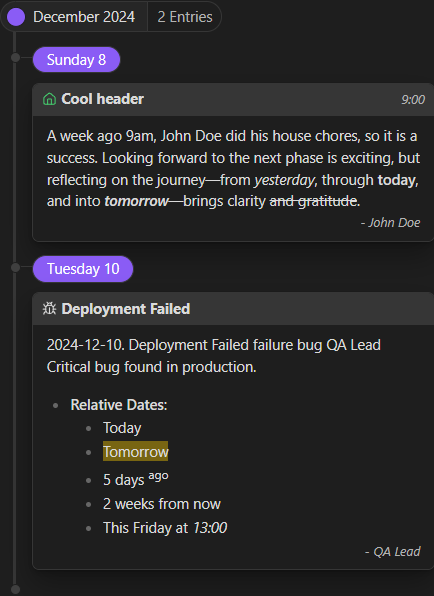
Customize sections using inline metadata for each sections such as author, icon, status, and title. The title metadata can be inferred from the heading. If no title or heading is provided, it falls back to the capitalized date text. Icon use lucide. Status will change the color of the icon, the possible values are success, danger, warning, info. Like this:
## Cool header
A week ago 9am, [author:: John Doe] did his [icon:: house] chores, so it is a [status:: success]. Looking forward to the next phase is exciting, but reflecting on the journey—from *yesterday*, through **today**, and into ___tomorrow___—brings clarity ~~and gratitude~~.

2024-12-10. [title:: Deployment Failed] [status:: danger] [icon:: bug] [author:: QA Lead] Critical bug found in production.
- **Relative Dates**:
  - Today
  - ==Tomorrow==
  - 5 days <sup>ago</sup>
  - 2 weeks from now
  - This Friday at _13:00_
If you don't want dataview to detect a inline metadata, just use a single colon (e.g. [author: John Doe] instead of [author:: John Doe])
Note: The plugin supports embedding. If you embed a file containing a timeline block, it will correctly use the embedded file's content and reference date.
Settings
- You can use a regex pattern to find which property to use by toggling the
Use Regexsetting. (e.g. set(creat|ref)inReferencesetting) - You can set which property name or regex to be used to get the reference by the
Referencesetting. - You can set the default reference date to be the file's creation date or last modified date by the
Default Reference Datesetting. - The default sorting is ascending. You can set the default sorting of a timeline to be ascending or descending by the
Sortingsetting. - You can set if sections will be divided by a single line or double line by toggling the
Use single linesetting. - You can display the exact date and time written in the text, respecting timezones like (EST) or (JST) by toggling the
Preserve Timezonessetting. By default, it sorts events by their absolute global time. - You can sort events by their local time (ignoring timezone differences) instead of their absolute global time by toggling the
Sort Relative to Timezonesetting.
Customizing the Source Block
You can provide explicit settings (reference and sort) in several ways. These settings have the highest precedence.
Explicit Reference
To explicitly set the reference for a timeline block, use any valid Chrono specific date format.
1. In the code block language line:
```timeline reference:"2011 Oct 25"
```
2. Inside the block (on a separate line or inline):
```timeline
reference: 2011-10-25
[reference:: 2011-10-25]
```
3. Outside the block (inline):
[reference:: 2011-10-25]
```timeline
```
Explicit Sorting
To explicitly set the sorting for a timeline block, you can use asc or desc.
1. In the code block language line:
```timeline sort:asc
```
2. Inside the block:
```timeline
sort: desc
[sort:: desc]
```
3. Outside the block:
[sort:: desc]
```timeline
```
Issues, Bugs, and Feature Requests
If you’ve found a bug, have an idea for a feature, or want to share feedback, please let me know by opening an issue.
I’ll do my best to get back to you quickly.