Easy Text Highlighter
 Tiffany Iong129 downloads
Highlight, underline, and organize selected text. Filter highlights by color or style, then copy them or create a Markdown note.
- Overview
- Scorecard
- Updates5
Keep the words that matter. Highlight, underline, and collect passages in Obsidian without changing your original Markdown.
Use · PDF · Highlights · Filter--export · Customize · Install · Your-data
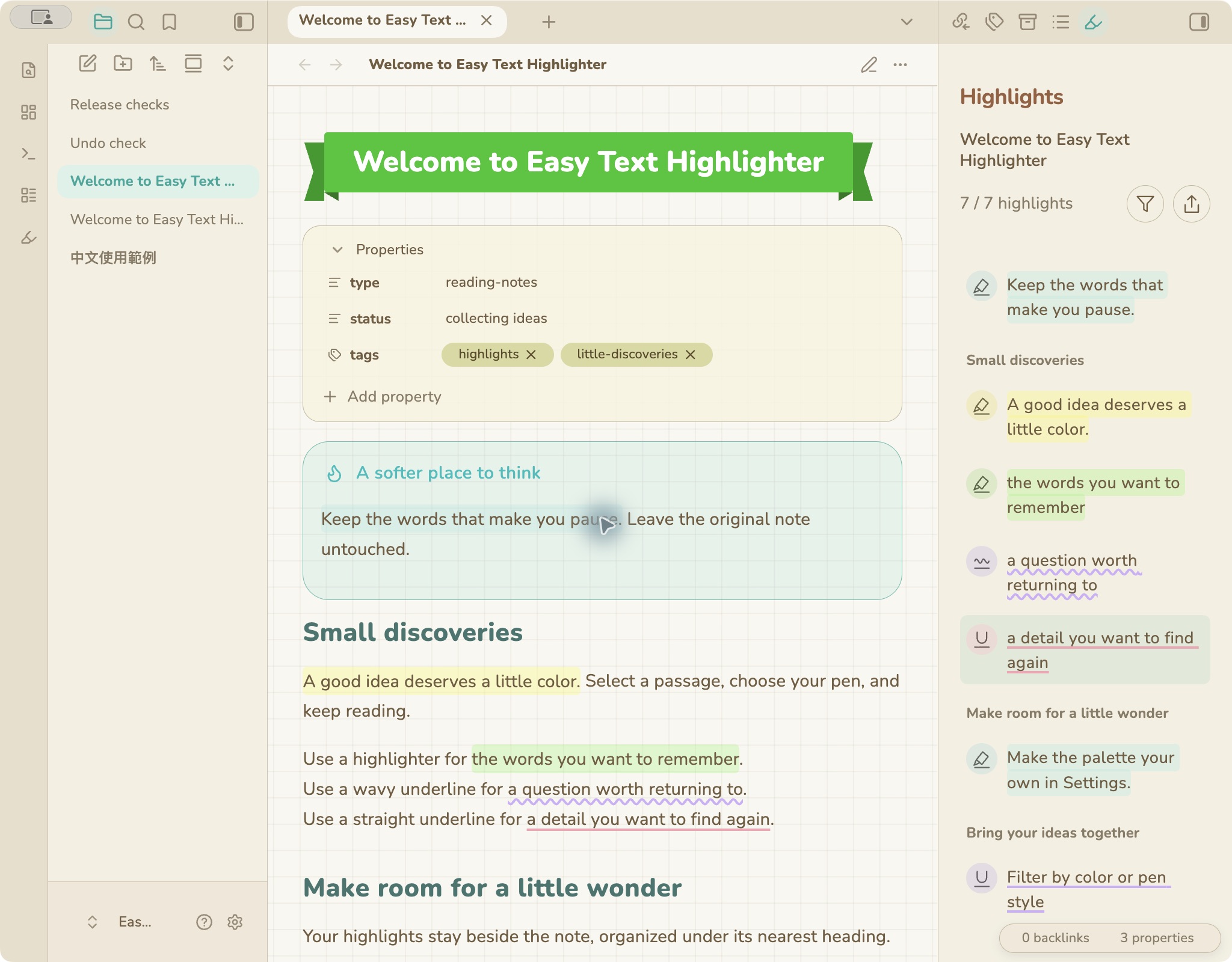
Shown with Animal Island Cozy, my warm, colorful Obsidian theme. The theme is optional; Easy Text Highlighter works with other themes too.
Use
- Select text in Reading View or Live Preview.
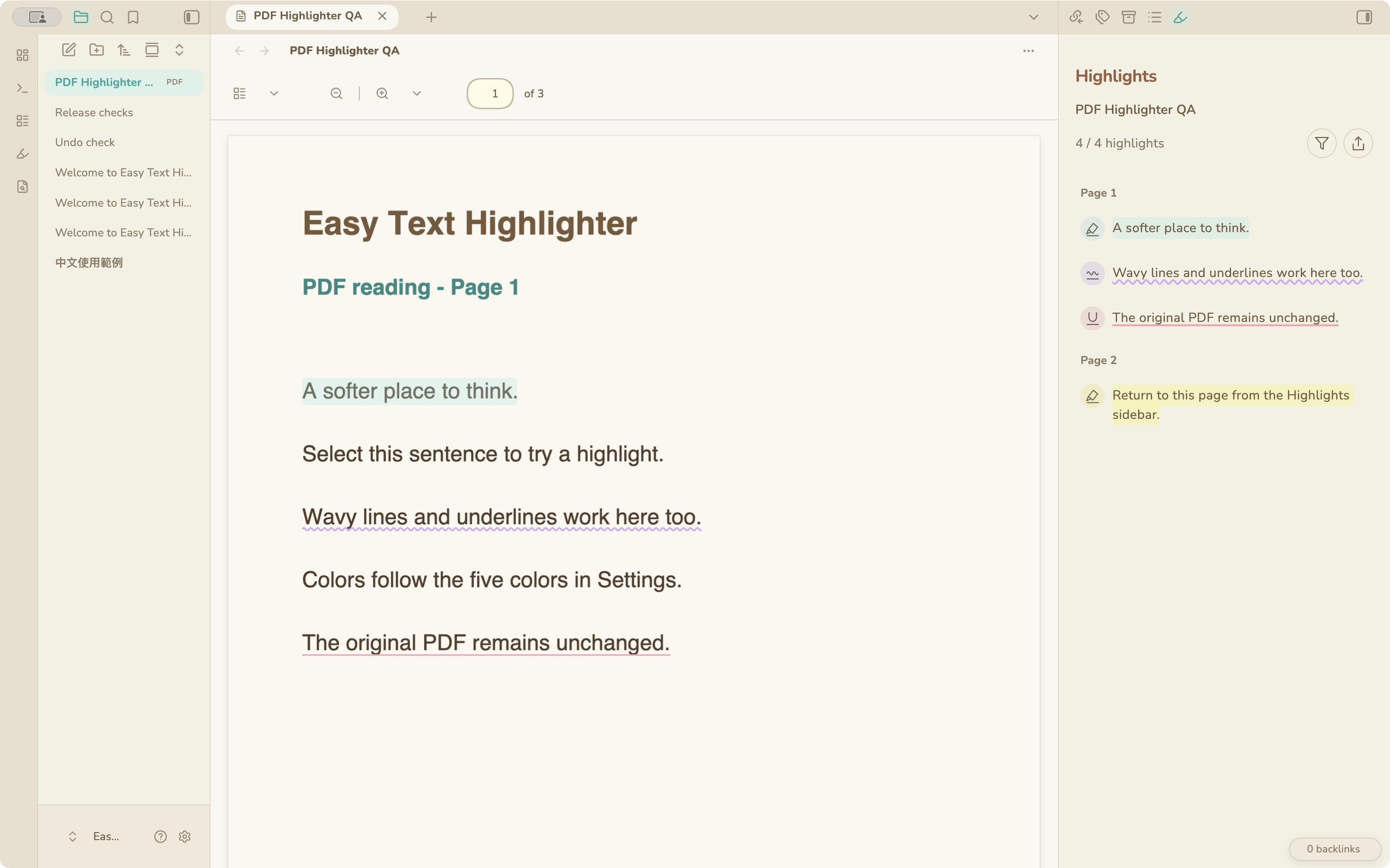
- Choose highlighter, wavy underline, or underline. Your last color is applied immediately.
- Use the five-color palette to change the color.
Click an existing highlight to edit it. To remove it, click the same pen with the diagonal slash. Selecting even one character inside a highlight is enough. Overlapping marks become one highlight.
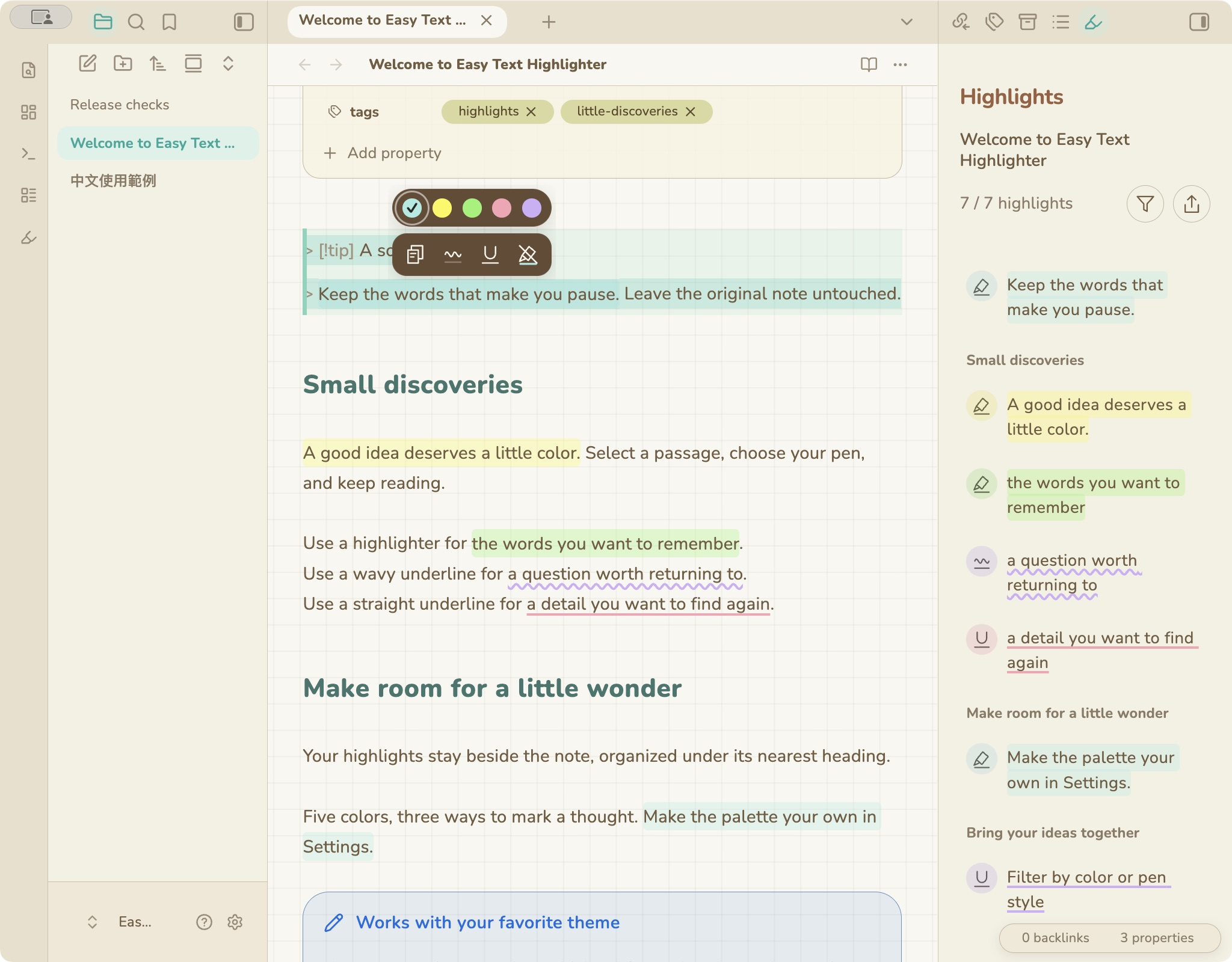
Select text in Obsidian’s PDF reader and use the same pens and colors. The sidebar groups excerpts by page; click an excerpt to return to its passage. Copy or create Markdown with links to the source PDF pages.
The PDF is never modified. Marks live in plugin data and appear while this plugin is enabled. Scanned PDFs need a selectable text layer; OCR is not included.
Highlights
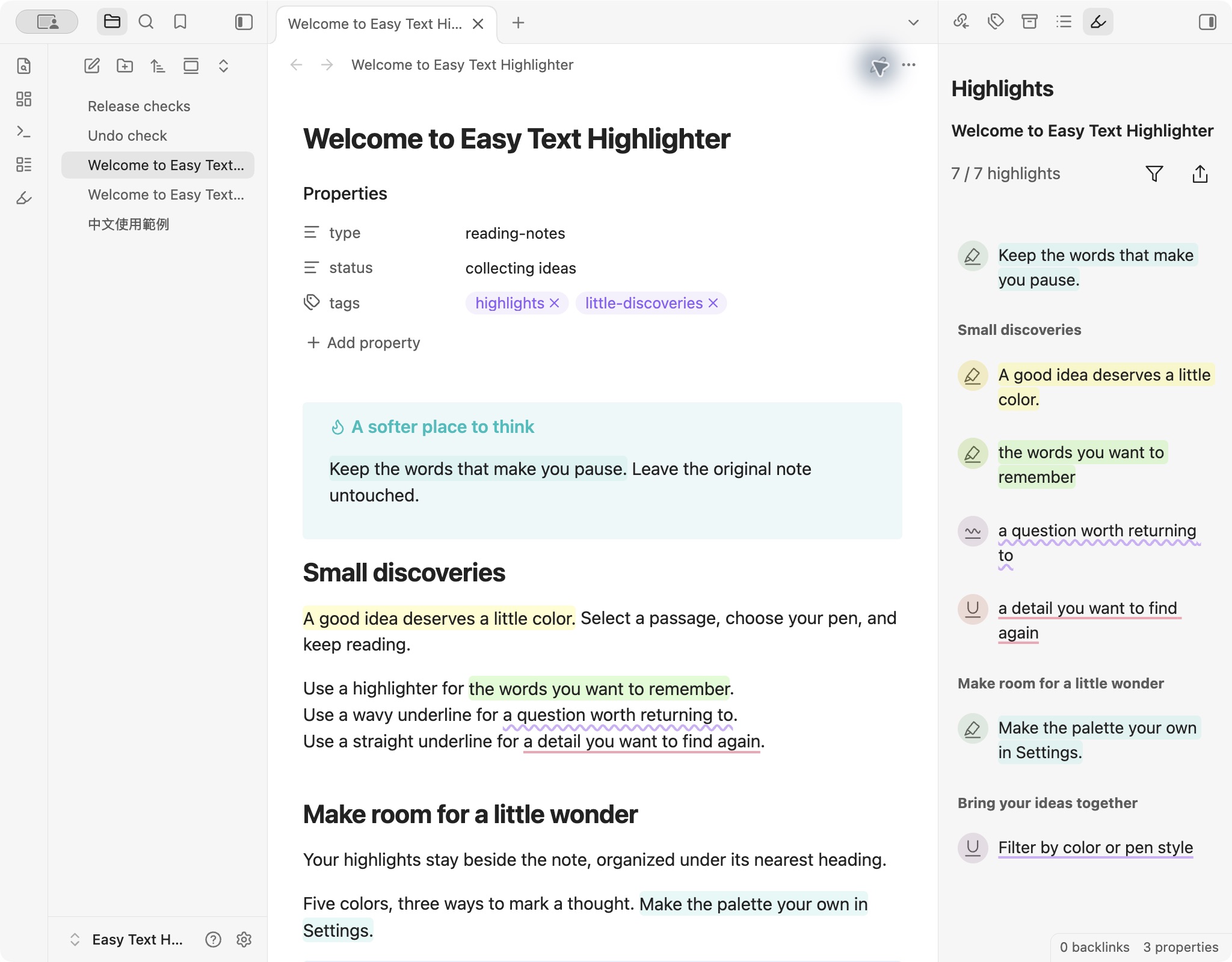
Open Highlights using the ribbon icon or the command palette. The sidebar follows the active note and lists excerpts under their nearest heading, in document order. Each excerpt keeps its color and pen style. Click it to return to the passage.
Filter & export
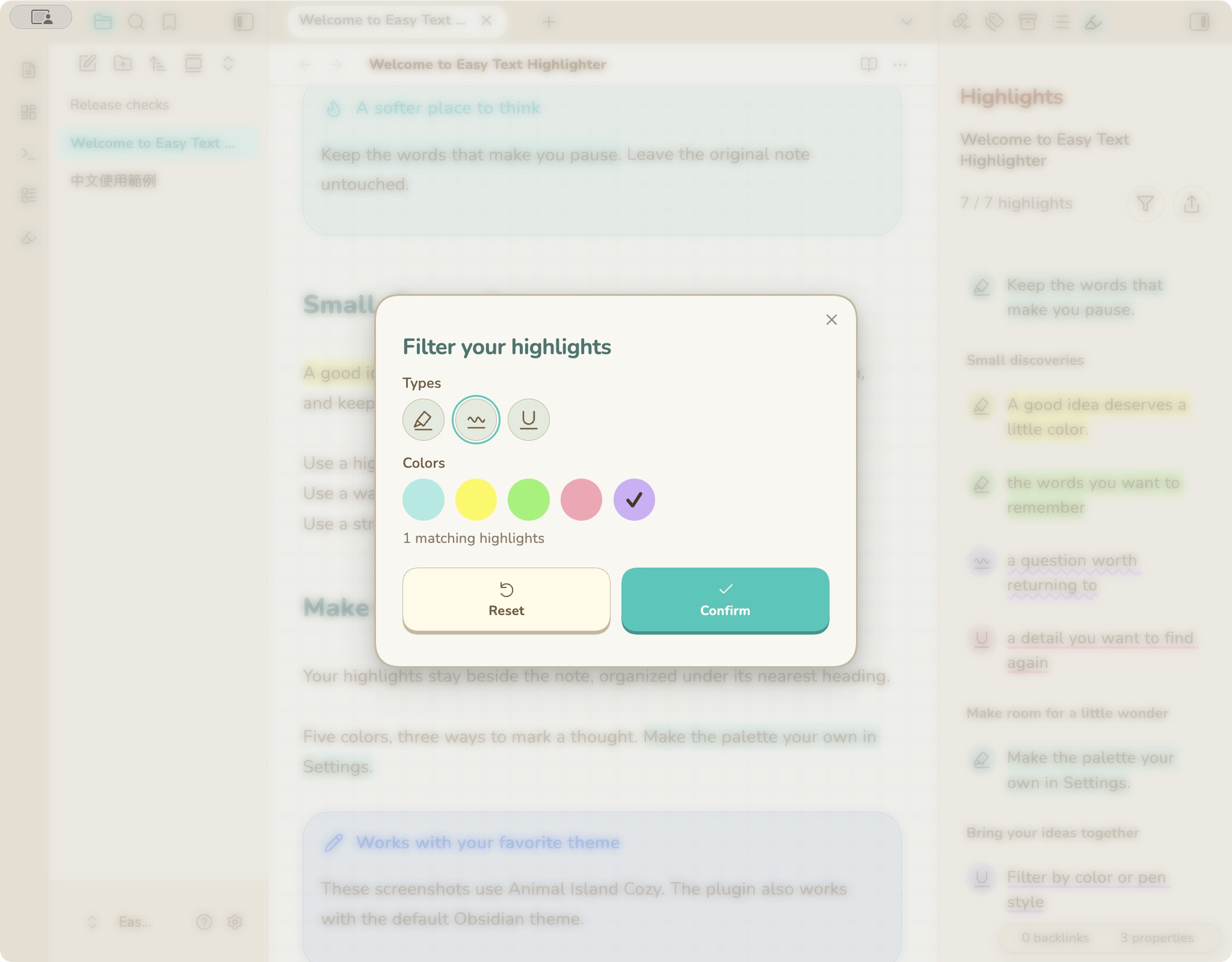
Filter by multiple pen styles and colors. Empty selections mean all; Reset restores all results.
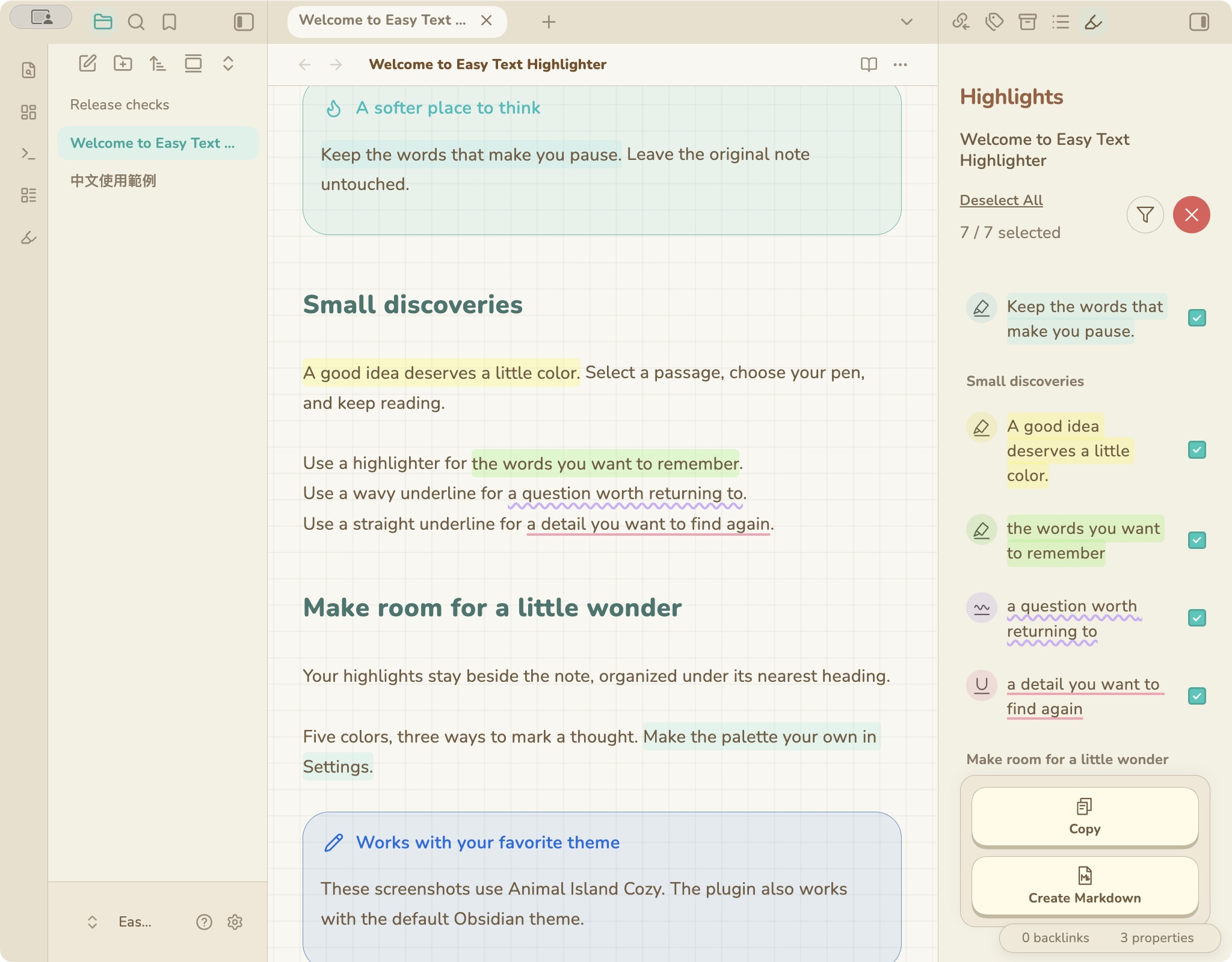
Choose Export, then select excerpts using the rows or their checkboxes. All visible results start selected. Select All / Deselect All affects the filtered list.
- Copy puts a heading-organized Markdown summary on your clipboard.
- Create Markdown saves a new note beside the original, using a numbered name if needed. A source link at the top returns to the original note and creates an Obsidian backlink.
- The red X exits export mode.
Customize
Yellow is Color 1 and the default for new installations; teal is Color 2. Existing highlights keep their colors.
Open Settings → Easy Text Highlighter to choose five custom colors, the default pen/color, line thickness, highlight height, and background opacity. Changing a palette color updates existing highlights and the sidebar.
Languages: English, Traditional Chinese, Simplified Chinese, Japanese, Korean, Spanish, French, German, Portuguese, and Italian. Auto follows Obsidian.
Install
Open Settings → Community plugins → Browse, search for Easy Text Highlighter, then install and enable it. You can also open the Obsidian plugin page and choose Add to Obsidian.
Manual installation from the GitHub release:
- Create
<vault>/.obsidian/plugins/easy-text-highlighter/. - Download
main.js,manifest.json, andstyles.cssinto that folder. - Reload Obsidian and enable Easy Text Highlighter in Community plugins.
Requires Obsidian 1.14.5+. Desktop tested on macOS. The interface adapts to narrow screens and uses a bottom sheet for mobile filters; physical iOS/Android testing is still pending.
Your data
No account, payment, telemetry, or network requests. Highlights and preferences stay in this vault’s plugin data.json; your original notes are unchanged. Back up that file with your vault. Sync it if you want the same highlights on another device. Exported Markdown contains readable excerpts, not the colored annotation data.
Annotations use the original text and nearby context to follow edits. Heavily rewritten or ambiguous passages may need to be marked again. The plugin’s undo covers recent annotation changes; normal typing and paste use Obsidian’s undo.
Development
Node.js 20 or newer. No runtime dependencies are bundled; Obsidian supplies its own APIs and CodeMirror.
npm ci
npm test
npm run lint
npm run build
npm run check
Release notes · Validation · MIT license
Related theme & plugins
Optional companions for your Obsidian vault:
| Project | Type | What it adds |
|---|---|---|
| Animal Island Cozy | Theme | Warm colors, paper backgrounds, and customizable visual styles. |
| Animal Island Calendar | Plugin | A date and time picker for note Properties. |
The plugins also work with other themes; Animal Island Cozy is optional.