Diaro Backup Import
 theluckystrike1 downloads
Import a Diaro backup with journal entries, tags, and photos.
- Overview
- Scorecard
- Updates1
Move a local Diaro journal into dated Markdown notes with tags, folders, moods, locations and photos. Select a backup ZIP, check the preview, then create notes in a vault folder. The import does not need a Diaro account or a network connection.
The reader supports an unencrypted ZIP with version 2 of DiaroBackup.xml at its root. Keep the original backup while you check the result. The screenshots use a small synthetic journal with three entries and a garden image.
Features
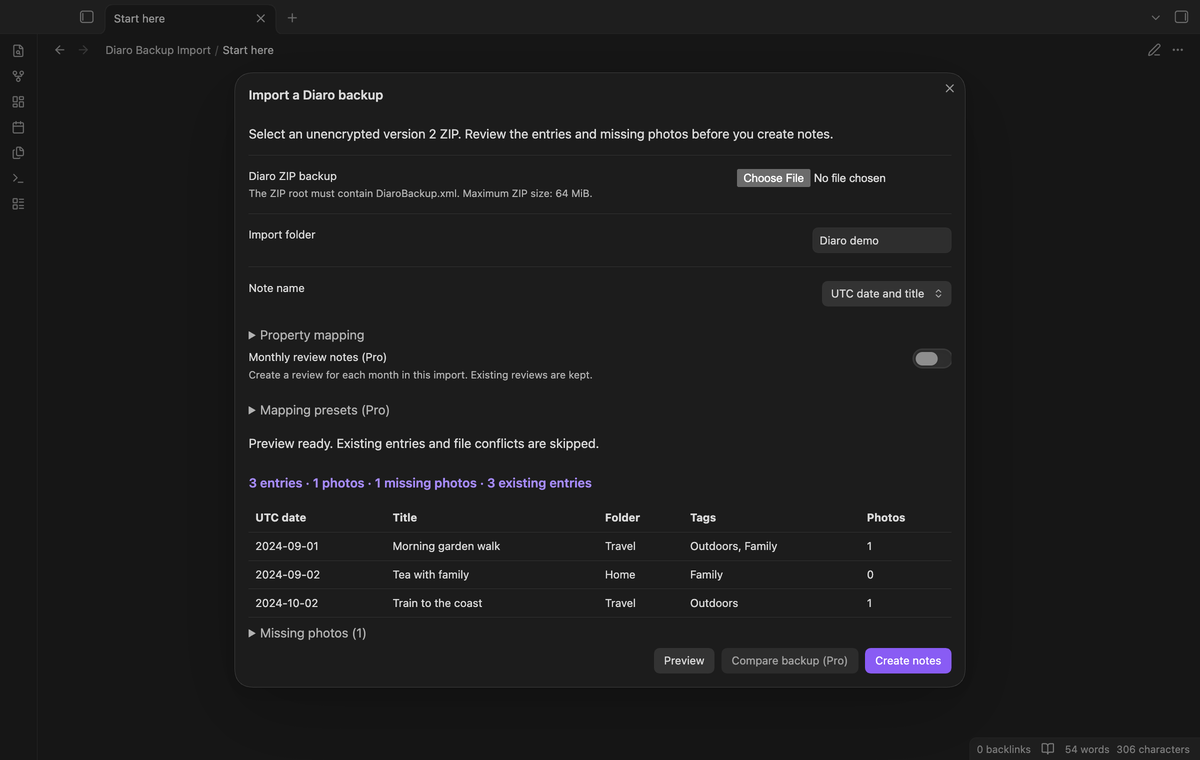
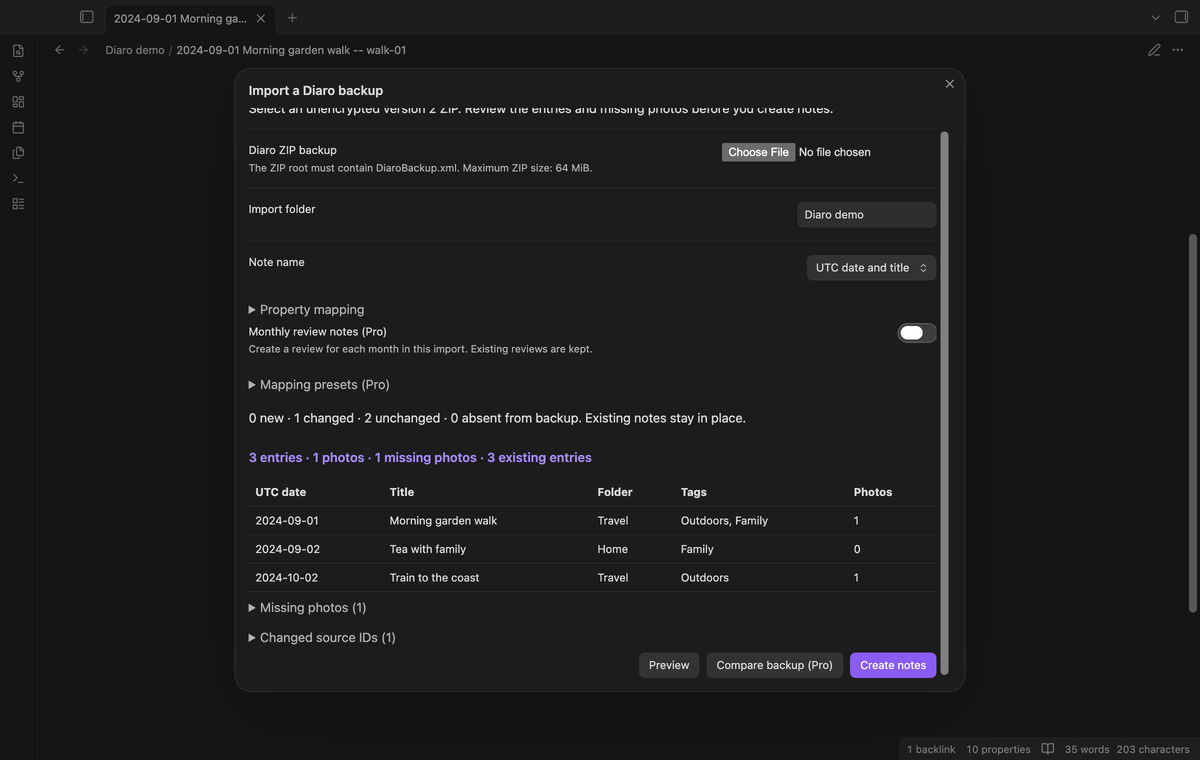
Preview entries and missing photos
The preview shows entry, photo, missing photo and existing entry counts. Its table shows the first eight entries with their UTC dates, titles, folders, tags and photo counts. Expand the missing photo list to see the source paths. Source warnings identify metadata IDs that have no matching row. File conflicts identify paths that already contain a different file.
A missing photo does not block the text import. The note gets a missing photo message. Use this list to check whether the backup includes the media that you expected.
Dated notes with source properties
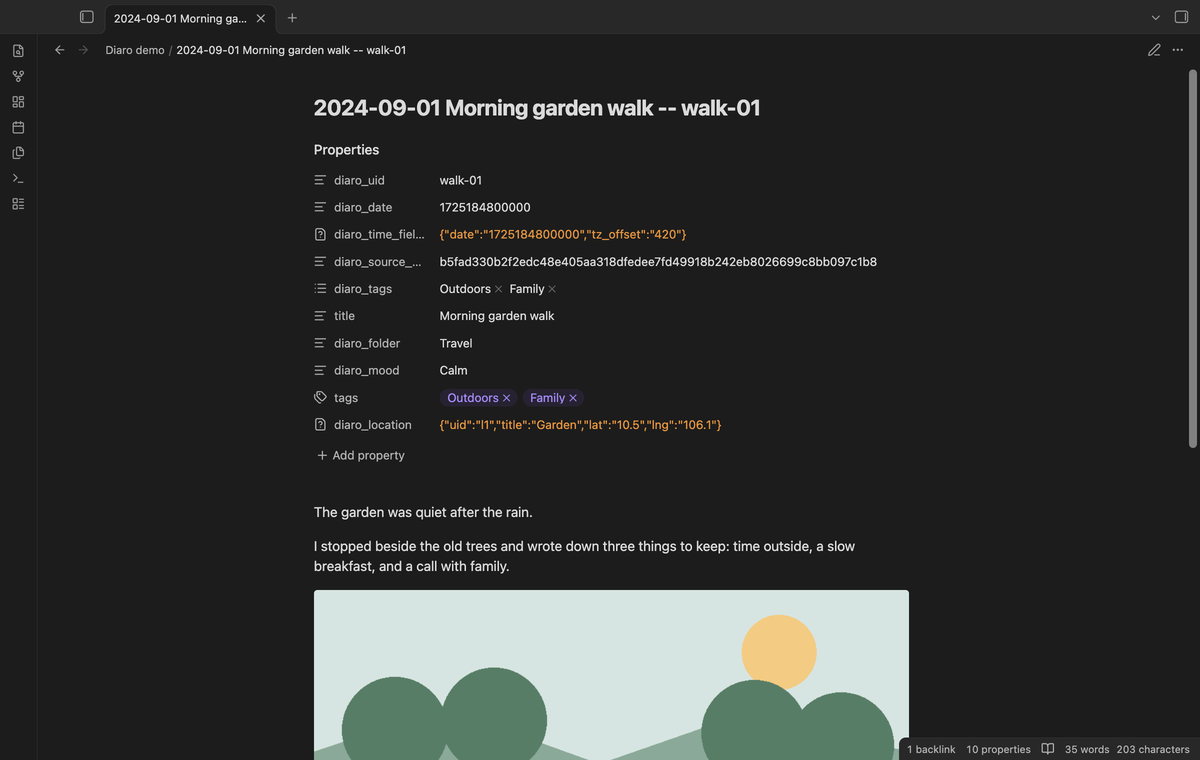
Each note has the source ID, original date string, original time fields and source tag labels. Folder, mood and location records are joined by ID. The default filename has the UTC date, title and source ID. The source ID helps separate entries with the same title on the same day.
Choose the shorter date and ID format if titles make paths too long. Reserved filename characters are replaced. The import uses UTC for the date; it retains the source timezone offset without interpreting its unit. Plain text keeps its line breaks. HTML text becomes Markdown, so the layout can differ from Diaro.
Photos in the vault
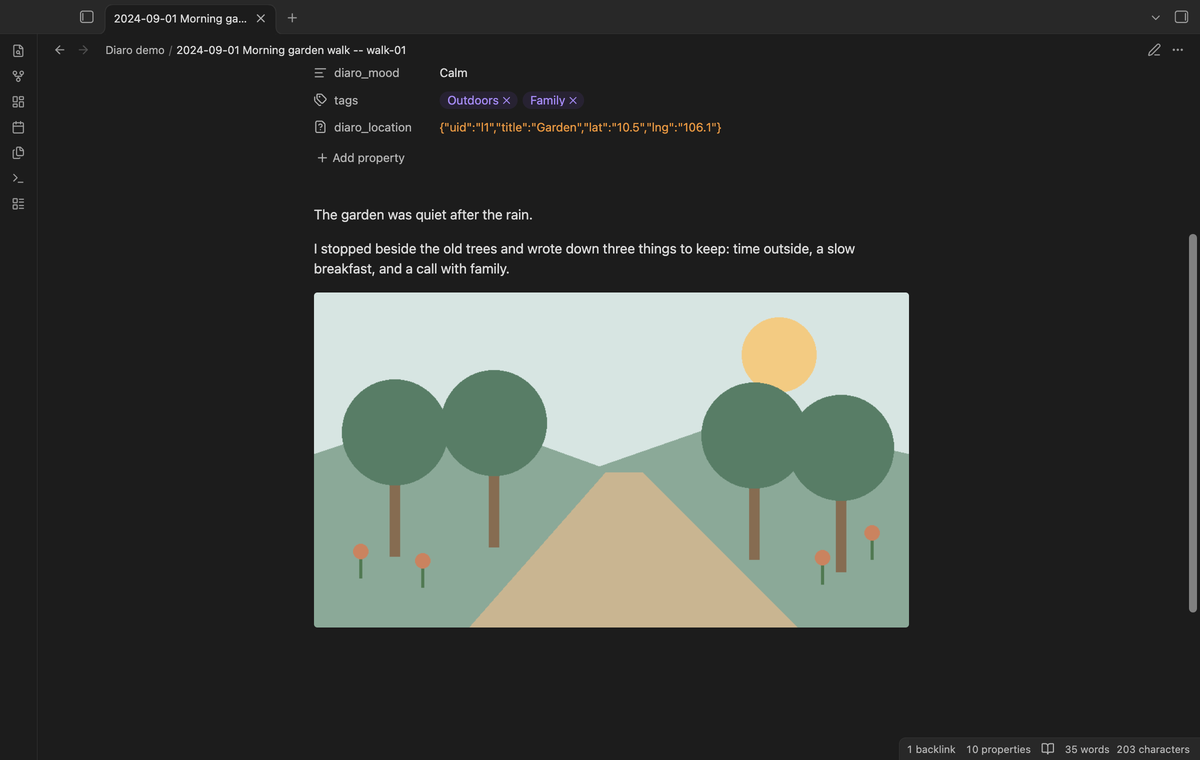
Referenced JPEG, PNG, GIF, WebP, HEIC and HEIF files are copied from media/photo/ into the import folder's attachments folder. Notes embed the local files. Display support depends on the image format and device. The tests use PNG images.
The importer removes HTML resource tags and Markdown image syntax from source text. Photos come from the backup attachment records. Web links in the source text can remain as links. Selecting one can open its website. The importer does not fetch those links.
Saved mapping presets (Pro)
Change the property names for title, folder, mood and tags in the import window. This mapping is free. Pro lets you save up to 20 named mappings and load one for another import. A preset also saves the note name format. Source ID, date, time, location and hash properties have fixed names.
Use distinct property names that start with a letter and contain ASCII letters, numbers or the _ character. Names used for source properties are reserved. Loading a preset opens a fresh preview with that mapping.
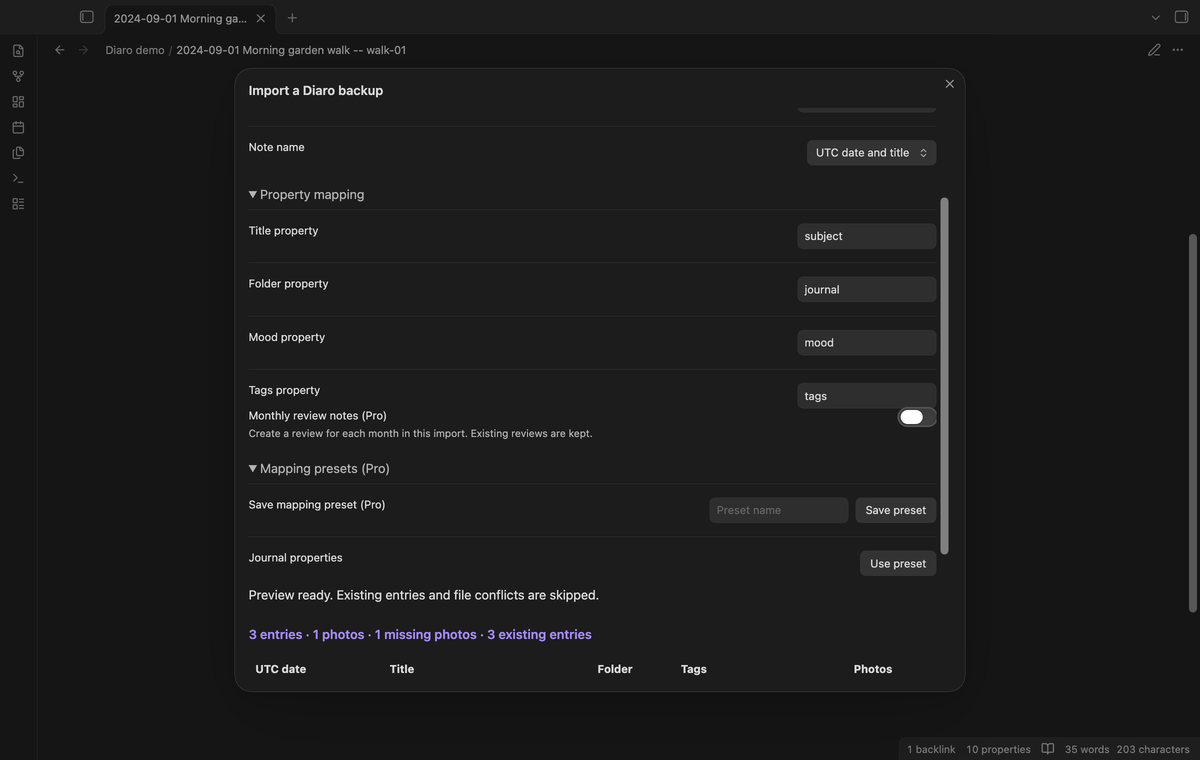
Compare a later backup (Pro)
Select a later backup, use the same destination folder, then select Compare backup. The result counts new, changed, unchanged and absent source IDs. Changed means that source fields or referenced photo bytes differ from the hash saved during import. Local edits to note text do not change that source hash.
Comparison reports changes. It does not update or delete existing notes. To inspect changed entries as new notes, choose a separate destination folder. An absent ID means that the later backup lacks the entry; it does not prove that you deleted it in Diaro.
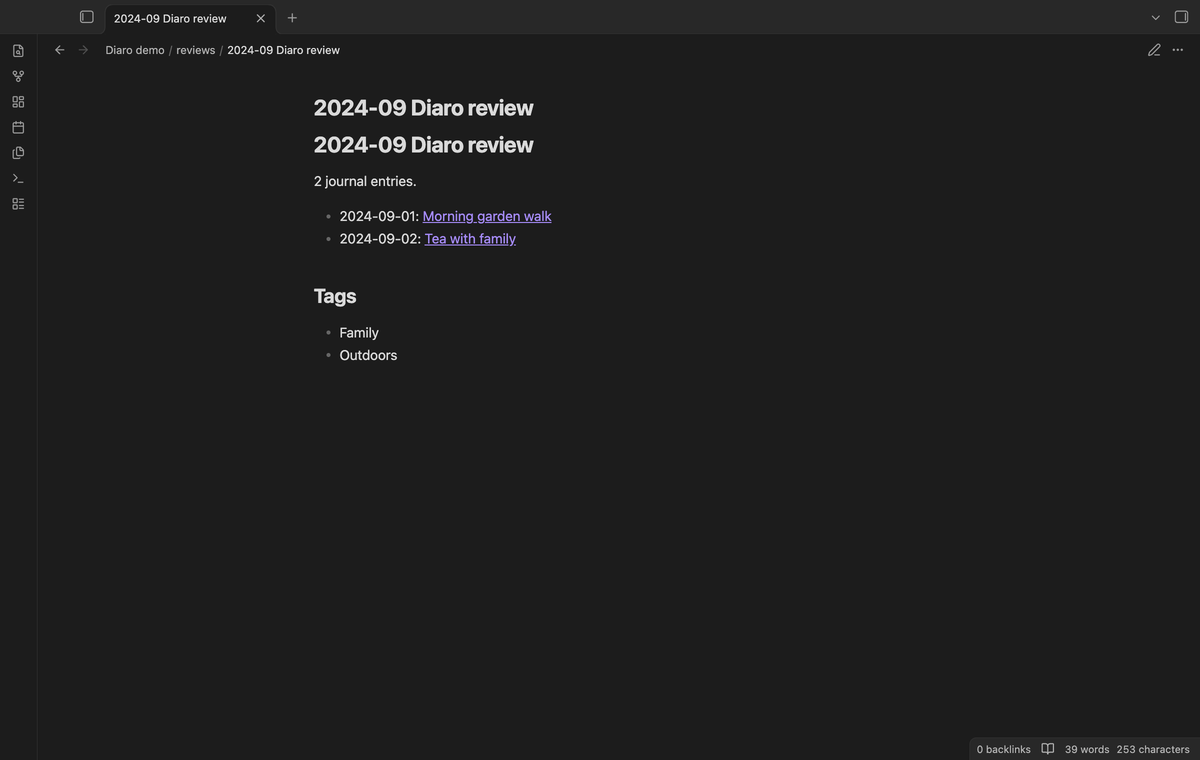
Monthly review notes (Pro)
Turn on Monthly review notes before import. Each month with newly created entries gets a review in the reviews folder. The review lists dated links and tag labels. It contains only the entries created in that import run. Existing review files are kept, and the result reports their path as an error instead of replacing them.
Install
For manual installation, copy main.js, manifest.json and styles.css from a release into <vault>/.obsidian/plugins/diaro-backup-import/. Enable the plugin in Community plugins. Obsidian 1.13.4 or later is required.
Usage
- Make an unencrypted ZIP backup in Diaro and keep a copy.
- Run the command
Diaro Backup Import: Import a Diaro backup. - Select the ZIP and check the destination folder, counts and warnings.
- Change the note name or property mapping if needed, then select Preview again.
- Select Create notes. Read the result counts and expand import errors if shown.
- Open the first note, check its properties and photo, then check other entries.
Existing source IDs in the destination folder are skipped, including notes moved within that folder. Existing note paths are also skipped. An identical local photo can be reused. Different photo bytes cause a file conflict. Moving notes outside the destination folder or removing their source IDs prevents that folder scan from finding them.
Settings
The settings tab sets the default import folder and contains the GitHub Sponsors controls. The import window has the destination folder, note name format, property mapping and Pro options. A completed import saves its folder and mapping for the next run. Named presets are stored in the plugin's local settings file.
FAQ
Which backups are outside this version?
Encrypted archives, XML versions other than 2, ZIP64 archives, split ZIP files and backups inside a wrapper folder are rejected. Audio, video and templates are outside the import scope. Limits are 64 MiB for the ZIP, 128 MiB of expanded selected files, 32 MiB per selected file, 16 MiB of XML text, 20000 entries and 25000 ZIP members. Larger journals need smaller backups.
What happens if a write fails?
The result lists errors and counts files already created. A partial import can leave notes and photos in place. Keep the backup, resolve the storage problem and preview again. The next import can find existing source IDs and reuse matching photo bytes. Check the reported errors before you remove files.
What did you test?
Unit tests use synthetic XML and ZIP fixtures, an in-memory vault, file conflicts and simulated write failures. End-to-end tests use the real desktop app on the minimum supported and latest public versions. They check the file picker, note and photo writes, repeat import, comparison and Pro guards. The browser test covers CDATA because the unit DOM library lacks that XML support.
We did not test a phone or tablet, Linux, a light theme, private Diaro journals, HEIC display, encrypted backups, a live payment or live GitHub sign-in. Sponsorship tests use local test answers. There is no claim of compatibility with XML versions other than 2.
Payment, account and network
The core features are free. Pro features need a GitHub Sponsors sponsorship of theluckystrike: $5 a month or more, or $15 once. A total payment of $15 meets the payment requirement for Pro without further payment. Sign-in and the checks below still apply. Your notes stay readable and editable with or without Pro.
GitHub handles the payment. Sponsor at https://github.com/sponsors/theluckystrike. You need no account for the free features. Pro needs the GitHub account that sponsors.
Until you select "Sign in with GitHub" in the settings, Diaro Backup Import makes no network requests. Sign in uses the GitHub device flow. Diaro Backup Import sends its public client ID and the scope read:user to https://github.com/login/device/code and shows you a code. While you enter the code at https://github.com/login/device, it asks https://github.com/login/oauth/access_token every few seconds to check the sign-in status. The scope permits profile reads only. GitHub needs this access to show the sponsorship tier. It grants no repository scope and no write access.
After sign in, Diaro Backup Import sends one query to https://api.github.com/graphql. It checks if the signed-in account sponsors theluckystrike. It asks for the tier and the total payment to theluckystrike. The plugin reuses a successful check for 7 days. Failed checks can retry after 6 hours. Select Refresh to request an earlier check. It sends no note content, file names or other vault data, and it has no telemetry.
After a successful check, Pro can work offline for up to 14 days. Sign out or a negative sponsorship answer turns Pro off. The plugin stores the GitHub token through the secret storage API of Obsidian. It does not put the token in its saved settings or its local sponsorship data. The local storage of this device keeps your GitHub login, the tier and the time of the last check. Sign out clears the token. You can also revoke the access in your GitHub settings, under Applications.
Support
Report a problem in the repository issues with the app version, backup version and error text. Use a small synthetic sample if possible. Remove personal journal text and photos before sharing a backup. Keep the original backup until you have checked the imported notes. Publisher: theluckystrike, notemods.com.