DayTime Tracker
 Hong SeongChan230 downloads
Log daily activities into intuitive 10-minute grid timelines and archive them directly in Obsidian notes.
- Overview
- Scorecard
- Updates7
An Obsidian plugin that lets you intuitively log daily activities in a 10-minute grid timetable and stores them in your note.
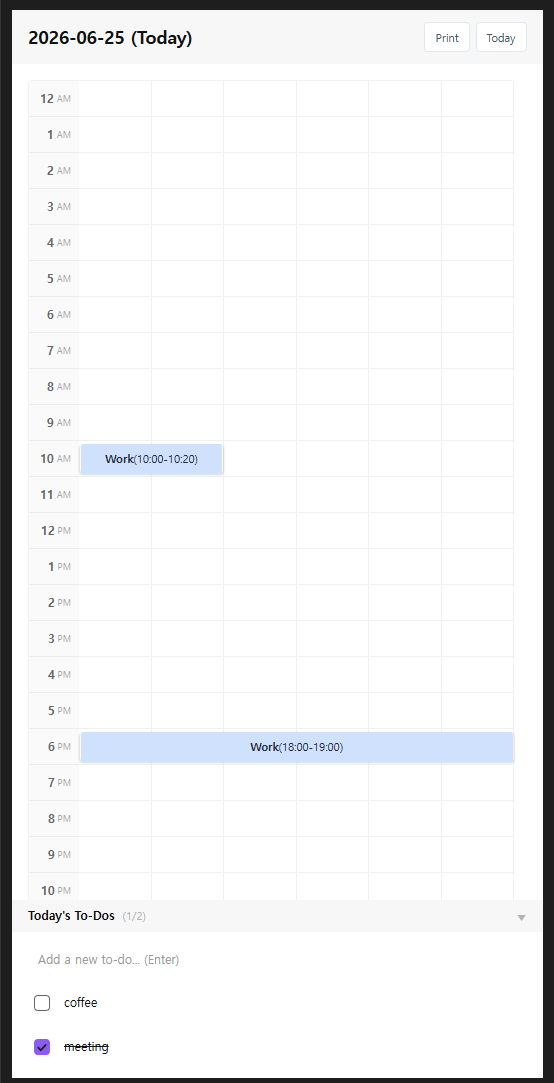
✨ Key Features
- 10-Minute Timetable Grid: Displays 24 hours of the day with 6 cells per hour (10 minutes per cell). You can easily record your activities by dragging and selecting a time range.
- Category-Based Grid & Visualization: Each activity log is overlayed on the timeline with color chips based on the designated category. Hovering over a log shows a tooltip with details and the linked To-Do item.
- Collapsible To-Do List & Timeline Integration:
- A collapsible To-Do list is situated at the bottom of the timeline view.
- When marking a To-Do as complete: A confirmation window asks,
"Would you like to record this To-Do on the timeline?". Clicking [Confirm] opens the activity log modal with the To-Do text pre-filled and the time set to the current hour. - When unchecking a To-Do: If a linked timeline log exists, a confirmation window pops up asking,
"Would you like to delete the linked timeline log too?", supporting one-touch synchronized deletion.
- Intuitive Form Layout: The fields in the activity creation and edit modal are arranged cleanly in the order of:
Time settings -> Category chip selection -> Notes (detailed description) -> Linked To-Do, facilitating quick entries. - Personalization (Settings):
- General: Configure the start and end hour range for the day, toggle whether to automatically hide the note's properties section (Frontmatter Metadata Container), select the UI language (Korean/English), and choose a background theme mode (Default / Paper White).
- Category Management: Edit the names and customize the colors of the 5 default categories (Work, Study, Rest, Reading, Exercise). You can also add up to 10 custom categories, and easily delete custom ones by clicking the
Xbutton.
- Go to / Create Today's Daily Note: Features a one-touch button to search for or create today's daily note (
YYYY-MM-DD.md) and open it immediately. - Print Timeline to PDF & Export HTML:
- Click the [Print PDF] button at the top-right header to export today's timeline grid and To-Do list into a print-optimized HTML file.
- The exported file opens automatically in your system's default browser, providing a dedicated print button to save it as a clean PDF or print it without font or styling issues.
💡 Usage
- Open the Timeline View:
Click the calendar-clock icon in the ribbon menu or search for
Open DayTime Tracker Viewin the command palette (Ctrl + PorCmd + P) to open the timeline panel in the right sidebar. - Open Daily Note: If there is no active note, click the [Create Today's Daily Note] in the timeline view to immediately generate and start logging on today's note.
- Use To-Do List & Interactivity:
- Click the arrow button in the "Today's To-Dos" header to collapse or expand the section.
- Add new tasks and check the checkbox when they are completed.
- Follow the prompts in the confirmation modal to immediately map the completed To-Do to the timetable, or dynamically sync and delete the linked timeline log when unchecking a task.
- Drag to Record & Select To-Do:
- Drag and drop on the timetable to select a time range.
- In the activity modal, you can click on any incomplete To-Do chips at the bottom to automatically pre-fill the activity details.
- Once saved, a colored block will overlay the grid and the log entry will be saved in the note's Frontmatter.
- Print PDF / Export:
- Click the [Print PDF] button at the top-right header of the timeline.
- Once exported, a notice will appear and a browser tab will automatically open with a print preview.
- Click the [Save as PDF / Print] button at the top of the browser page to open the print dialog.
📝 Update History
For the full release history, see GitHub Releases.
1.0.7 (2026-08-03)
- Added a setting to choose the folder where today's daily note is created via the [Today] button.
- The sidebar view now shows "Create today's daily note" instead of the timeline grid when the active note isn't a daily note (not named
YYYY-MM-DD), preventing logs from being written to an unrelated note. - Fixed an issue where the "Hide Document Properties Block" setting could fail to apply right after load; it now re-applies once the workspace finishes loading and whenever you switch notes.
HealthExcellent
ReviewSatisfactory
About
DayTime Tracker is a visual productivity tool for Obsidian. Capture your day in 10-minute blocks using an interactive grid. Ideal for time-tracking and productivity analysis. Seamlessly saves your logs to your notes for permanent storage.Details
Current version
1.0.7
Last updated
2 months ago
Created
3 months ago
Updates
7 releases
Downloads
230
Compatible with
Obsidian 1.11.0+
Platforms
Desktop, Mobile
License
MIT