Discourse Analysis Tool
 sots1689121 downloads
Create and edit visual discourse-analysis bracket diagrams for biblical texts, natively in your vault.
- Overview
- Scorecard
- Updates31
Create and edit visual discourse-analysis bracket diagrams for biblical texts, natively in your vault. This plugin adds a new file type — .da — that Obsidian opens in a dedicated diagramming view, so a passage's discourse structure lives alongside your other sermon-prep notes and syncs with the rest of your vault.
Prefer the browser? The same tool runs as a free web app at sots1689.github.io/DA-Tool (no install; your work is kept in the browser between visits, and you can save a project as a standalone HTML file). The web app has the same features, with a light/dark switch, UI size menu, and custom colors (at the bottom of its color scheme menu).
What it does
Discourse analysis (also called phrasing or bracketing) is a method of visually mapping how the clauses/propositions of a biblical passage relate to one another — main lines, subordination, logical relationships (ground, purpose, contrast, etc.) — using nested brackets. The tool is organized into three tabs that follow the exegetical workflow:
Brackets
- Paste in a passage and split it into individual propositions. Verse numbers are detected automatically — line-prefixed, superscript, or embedded mid-sentence — along with passage references in headers, trailers, and citations
- Propositions are numbered by verse (5a, 5b, 5c…). Splitting or inserting re-letters the verse group in order, drag-reordering keeps labels intact, and any label can be clicked to edit by hand
- Double-click a proposition to split it at the exact click point
- Bold, italic, and underline within propositions (Ctrl+B / Ctrl+I / Ctrl+U)
- Connect propositions with two-node or single-node brackets; nesting depth is computed automatically so brackets never cross
- Label brackets with logical relationships, with a built-in reference for 20 relationship types; type
forhereforeto get ∴ - Double-click a bracket's label box to mark it as the passage's main point (shown in a distinct color)
- An Instructions button opens Bracketing Instructions: Daniel Fuller's bracket symbols for each relationship, the steps of discourse analysis, and hints for bracketing (adapted from G. K. Beale's Exegetical Manual)
- Indent/outdent, drag-and-drop reorder, and undo/redo your edits (Ctrl+Z, Ctrl+Y or Ctrl+Shift+Z, or the ↶ / ↷ buttons)
- Zoom controls and a right-to-left mode for Hebrew text
- Export the diagram as a PNG saved directly into your vault
Text Flow
A Word-like canvas for laying out a whole Greek passage clause by clause — independent clauses left-justified, dependent clauses indented — as preparation for discourse analysis. An Instructions button opens Blake Franze's Text Flow Instructions (v1.6) right inside the tool, with guidelines and worked examples (Matt 8:23–29, 1 John 1:5–10). The → button copies each line into the Brackets tab as a proposition, keeping its indent level and verse number.
Sentence Flow
The same canvas, kept separately, for grammatically breaking down individual complex sentences. Its Instructions button opens Sentence Flow Instructions adapted from G. K. Beale's Exegetical Manual: governors, what to subordinate to nouns and verbs, dependent clauses, fine points, and a worked flow of John 13:1–5.
Both flow tabs support:
- Tab-aligned columns via a configurable default tab stop (Shift+Tab removes a tab); Ctrl+M / Ctrl+Shift+M indent the whole line
- New lines keep the previous line's indent, so you can flow a passage with just Enter and Tab
- Bold, italic, and underline
- Plain-text paste (tabs are preserved as tab stops)
- Their own independent zoom level
- A ? button with the editor's keyboard shortcuts
- Correct rendering of polytonic Greek accents
Customization (Obsidian)
- Optionally adopt your Obsidian theme's colors, or pick custom colors for panels, brackets, selection, and the main-point highlight in the plugin settings
Everything is stored as plain JSON inside the .da file itself, so diagrams are portable, diffable, and work with whatever sync method you already use for your vault (Obsidian Sync, git, etc.).
Example
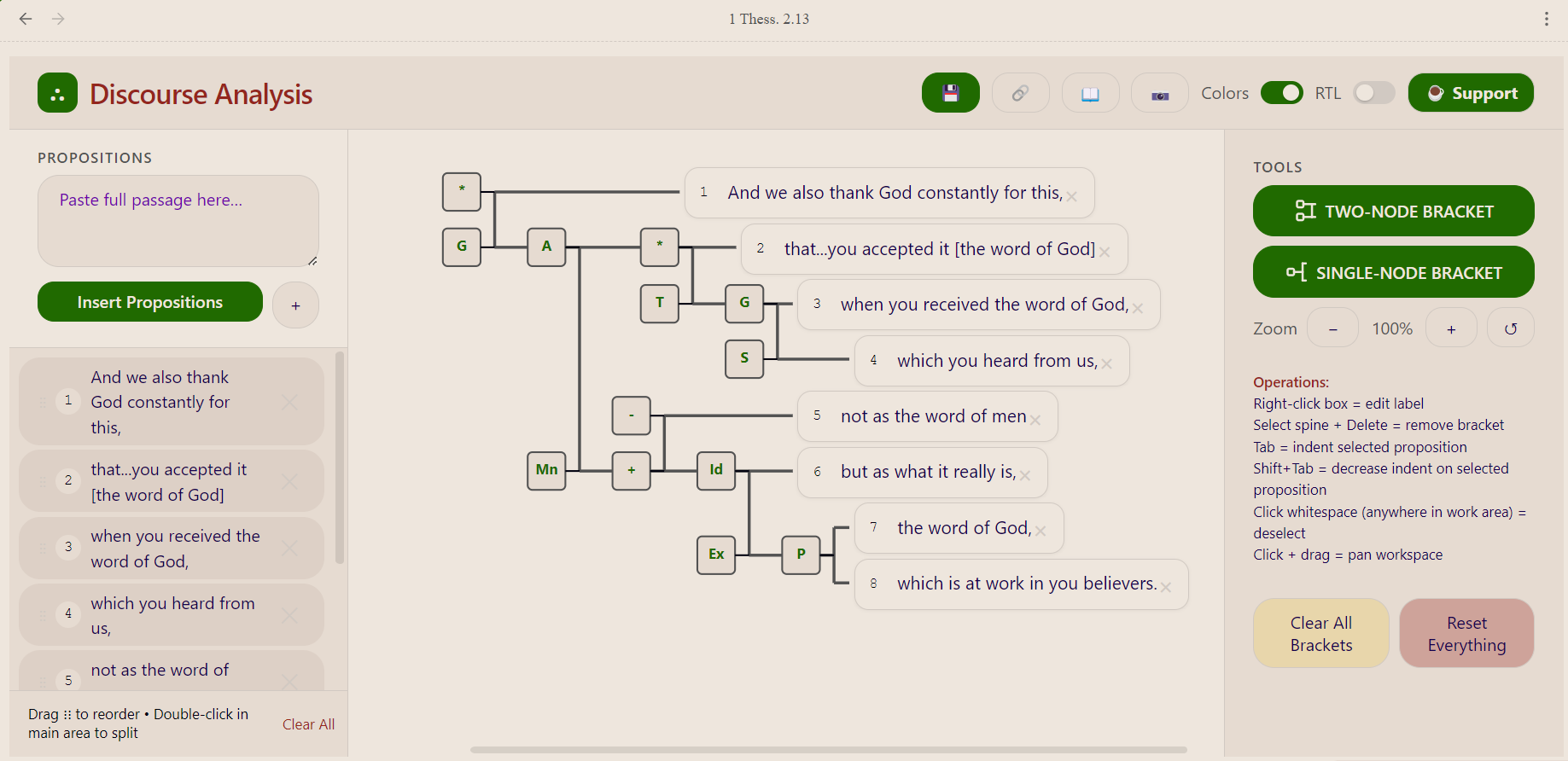
A discourse analysis diagram for 1 Thessalonians 2:13, showing nested brackets with logical relationship labels (G = ground, A = action, T = temporal, etc.):
Usage
- Click the bracket icon in the ribbon (or run Create new Discourse Analysis from the command palette) to create a new
.dafile and open it in the diagram view. - Optionally start in the Text Flow tab: paste the Greek text and flow it clause by clause with Enter and Tab (click Instructions for the guidelines).
- On the Brackets tab, paste your passage into the Propositions panel and click Insert to split it into verse-labeled rows. Double-click any row to split it further.
- Select one or more propositions, then use Add Two-Node Bracket or Add Single-Node Bracket to connect them.
- Right-click a bracket's label box to set its logical relationship; double-click it to mark the main point.
- Drag rows in the sidebar to reorder propositions, use Tab/Shift+Tab to indent/outdent, and Delete to remove a selected item.
- Use the export button to save a PNG snapshot of the diagram next to your
.dafile.
The file saves automatically as part of Obsidian's normal save behavior — there's no separate "save project" step.
Known limitations
- Visual styling is a hand-ported, reasonable-fidelity approximation of the original web tool's look, not a pixel-perfect reproduction.
- No automated test suite; changes are verified through manual testing.
Development
cd obsidian-plugin
npm install
npm run dev    # esbuild watch mode
npm run build  # production build
See the source in obsidian-plugin/src/ — main.ts registers the .da view, commands, and settings, DAView.ts contains the diagramming engine and flow canvases. The web app is the single self-contained index.html.
Credits
Text Flow Instructions (v1.6) by Blake Franze.
Sentence Flow Instructions and Bracketing Instructions adapted from G. K. Beale's Exegetical Manual (with material from Daniel P. Fuller's Hermeneutics Syllabus, as summarized by Scott Hafemann).