Custom Selected Word Count
 John Banister2k downloads
Provides advanced word counting features for selected text across all view modes. Goes beyond basic word counting with customizable path exclusion, and more.
- Overview
- Scorecard
- Updates18
A plugin for Obsidian that provides comprehensive text analysis for selected text across all view modes and Canvas cards. Features advanced word counting, character counting, and sentence counting with customizable path exclusion, modern UI design, and detailed history tracking.
Plugin in Action
See the Custom Selected Word Count plugin in active use, demonstrating how it provides real-time feedback in your editor.
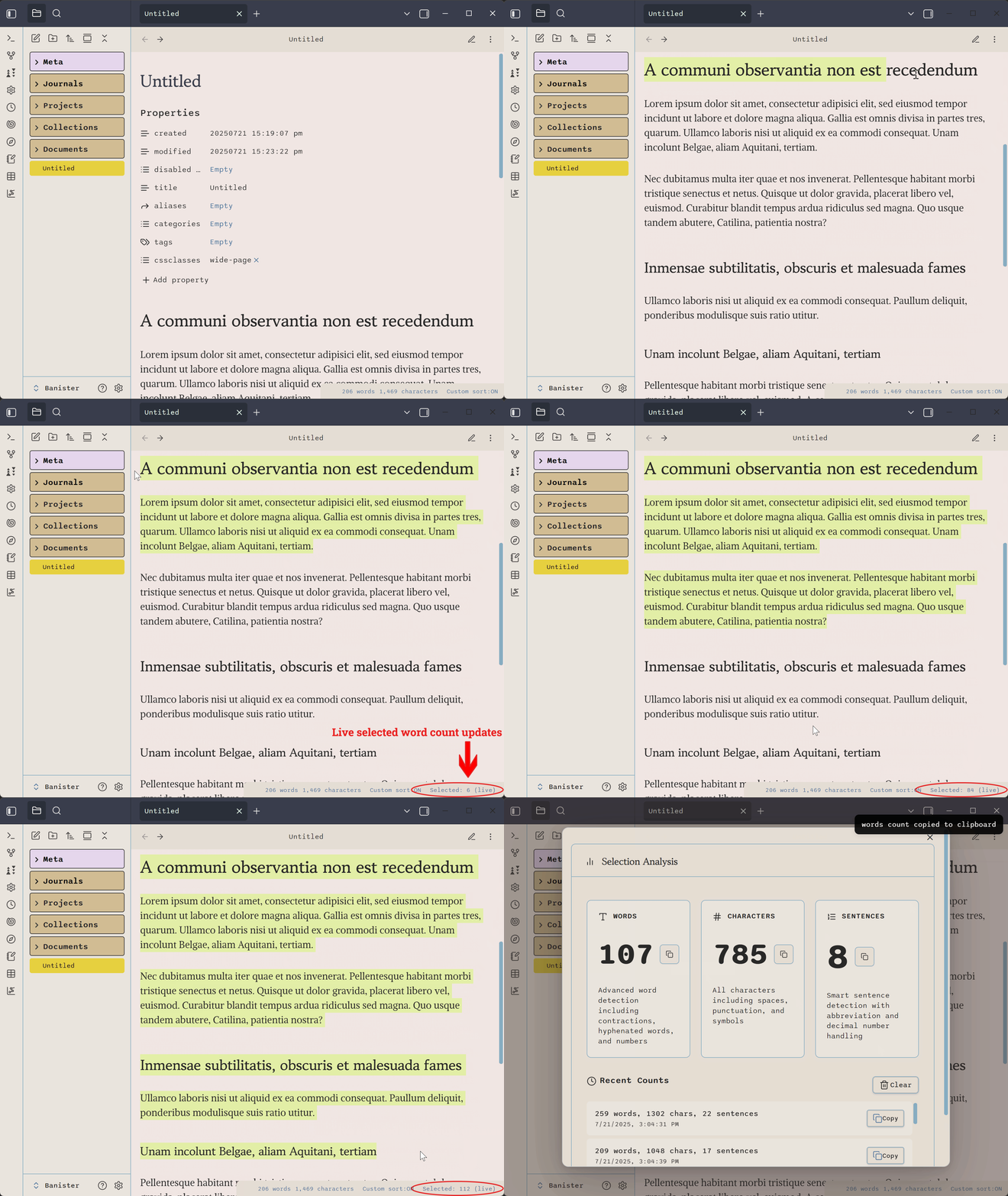
Selecting text automatically displays the word count in the status bar, with live updates as you adjust your selection.
Settings Overview
This animated overview showcases the various configuration options available within the Custom Selected Word Count plugin.
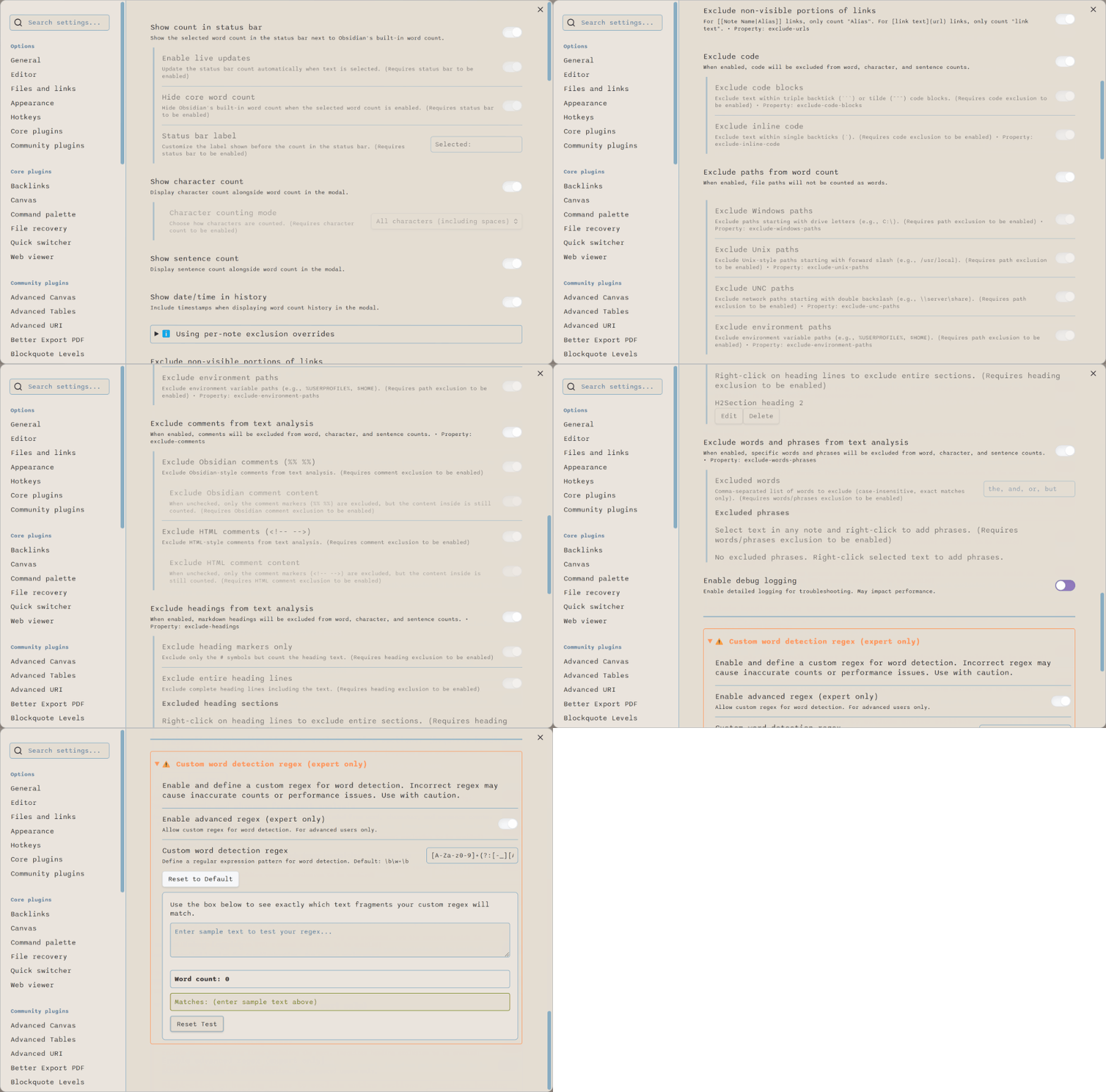
Explore the comprehensive settings, from basic display options to advanced exclusion rules.
Key Features
- Comprehensive Text Analysis: Advanced word, character (with configurable modes), and sentence counting with sophisticated detection across all view modes and Canvas cards.
- Modern User Interface: Card-based modal design, individual copy buttons, multi-metric history tracking, command palette, and optional status bar/ribbon integration.
- Granular Exclusion Rules: Fine-tune counting by excluding code, paths, comments, headings, specific words/phrases, and support for per-note overrides.
- Customization & Extensibility: Define custom word detection via regex for expert users and enjoy flexible, persistent settings.
- Accurate Link Processing: Ensures only visible text in Markdown links is counted.
Installation
- Open Obsidian Settings
- Go to Community Plugins and disable Safe Mode
- Click Browse and search for "Custom Selected Word Count"
- Install the plugin
- Enable the plugin in your list of installed plugins
Usage
- Select text in any view mode or Canvas card
- Access the text analysis:
- Use the command palette and search for "Count Selected Words"
- Click the ribbon button (if enabled)
- Click the status bar count (if enabled)
- View the real time word count in the status bar (if enabled)
- View comprehensive analysis in the modal:
- Word count with advanced detection
- Character count (if enabled in settings)
- Sentence count (if enabled in settings)
- Copy individual metrics to clipboard
- View historical analysis data
Detailed Configuration & Screenshots
For a comprehensive look at all of the plugin's settings and how they are presented, refer to the screenshots below:
| Screenshot | Description |
|---|---|
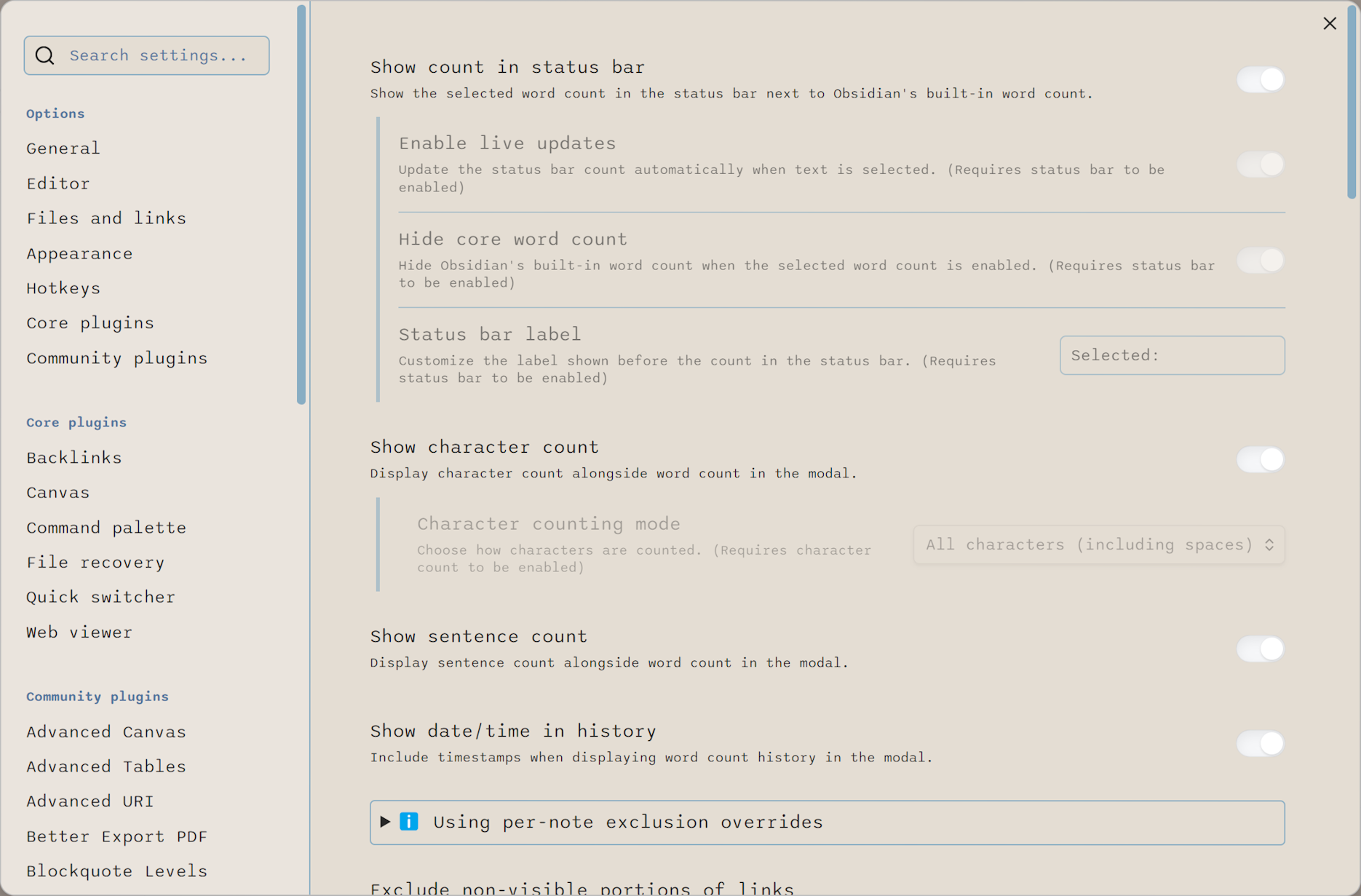 |
Status bar: Show count in status bar, Enable live updates, Hide core wordcount, Status bar label Modal: Show character count, Character counting mode, show sentence count, Show date/time in history |
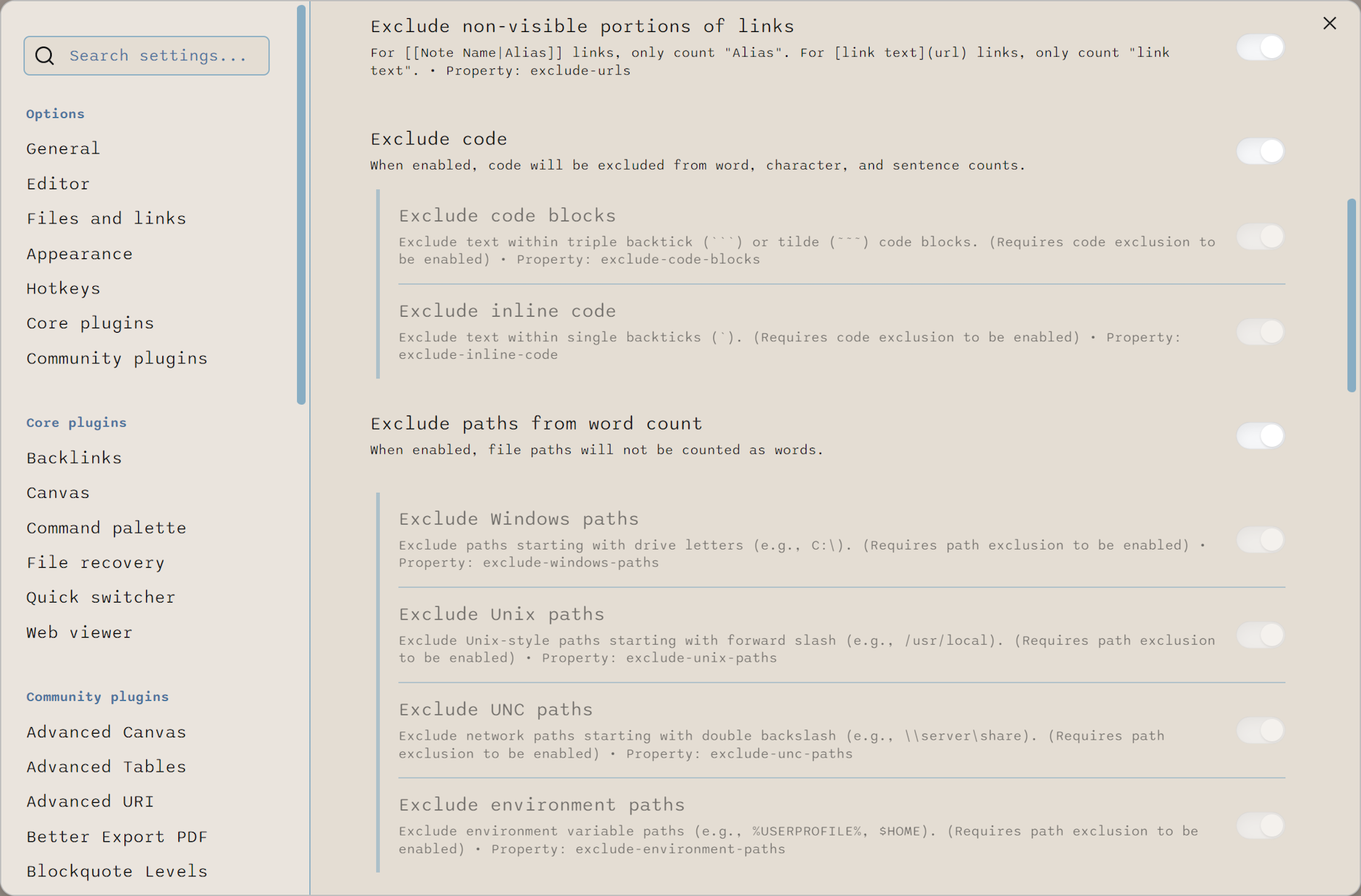 |
Code: Exclude code, Exclude code blocks, Exclude inline code Paths: Exclude paths from word count, Exclude Windows paths, Exclude Unix paths, Exclude UNC paths, Exclude environment paths |
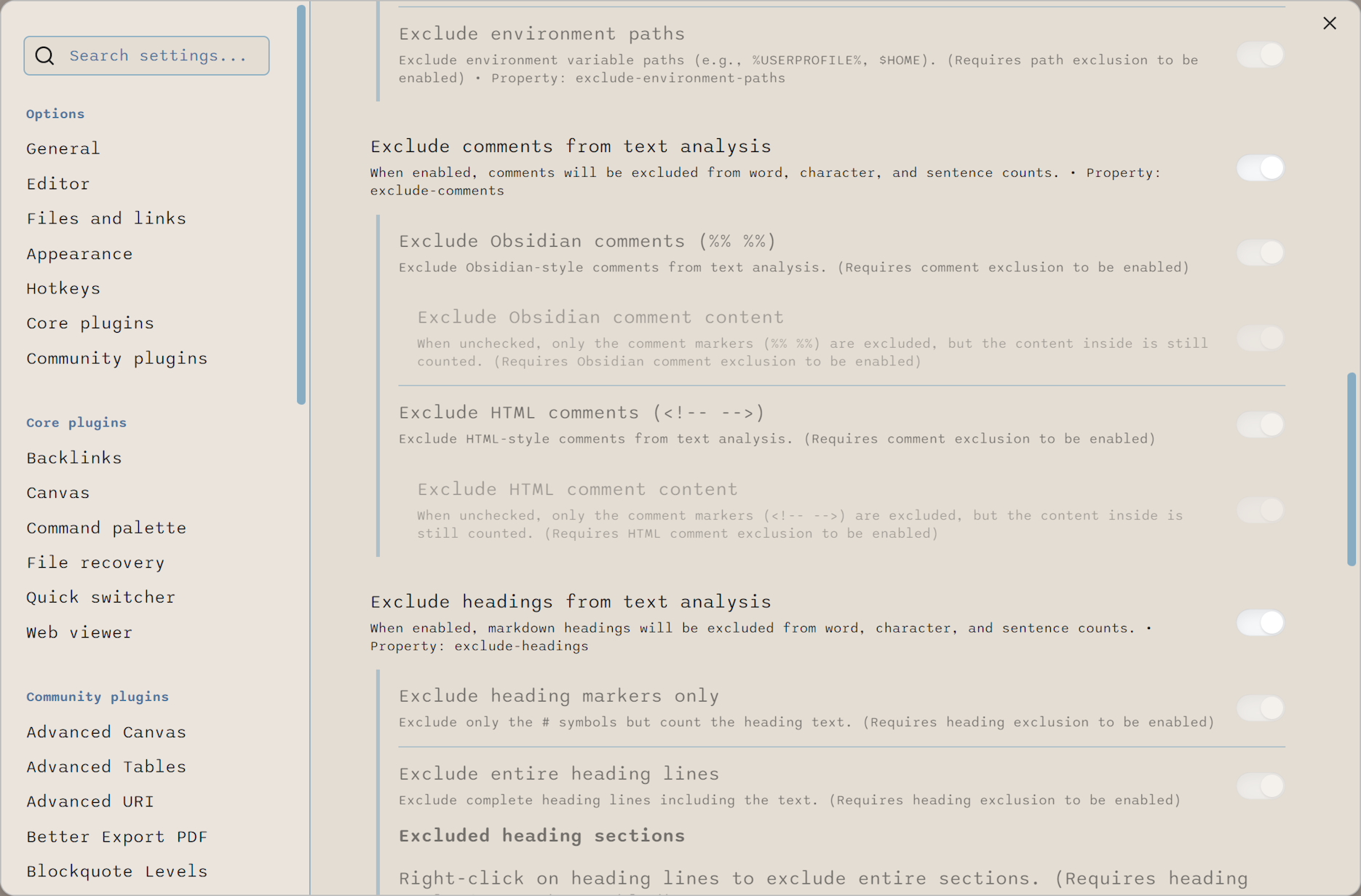 |
Comments: Exclude Obsidian comments, Exclude Obsidian comment content, Exclude HTML comments, Exclude HTML comment content Headings: Exclude heading markers only, Exclude entire heading lines, Exclude heading sections |
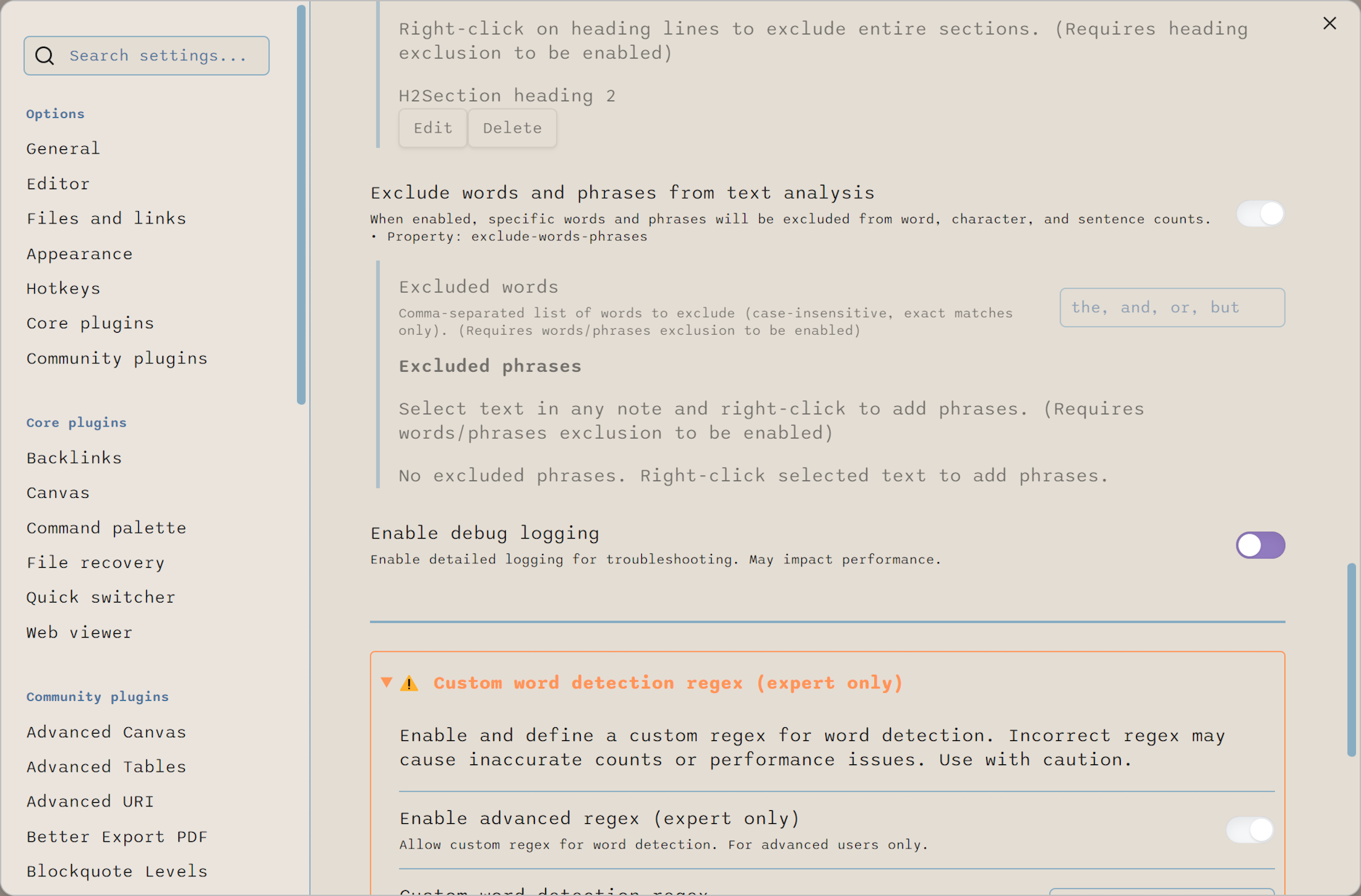 |
Words and phrases: Exclude words, Exclude phrases Logging: Enable debug logging, Logging level (not shown) Custom word detection regex |
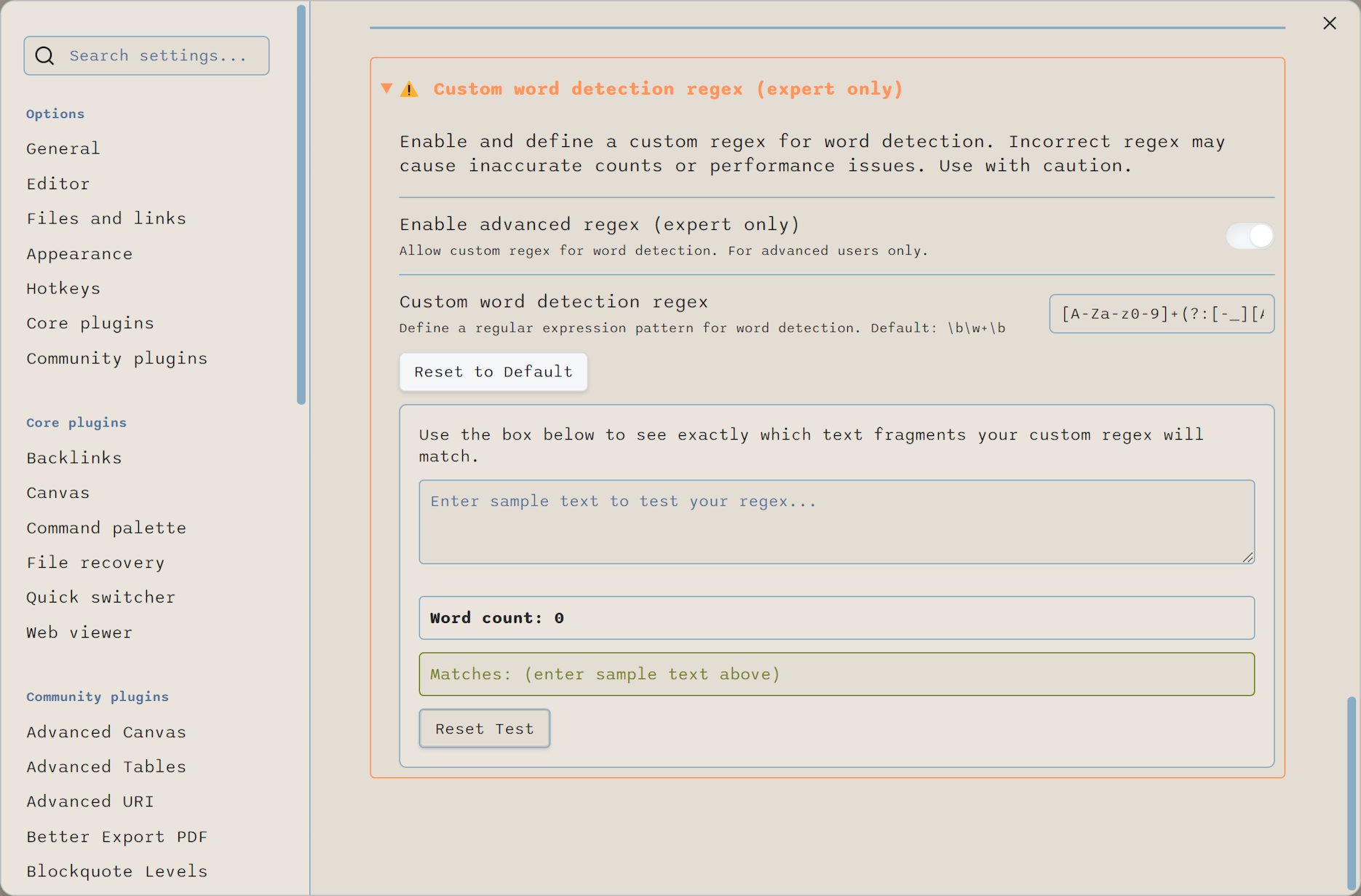 |
Custom word detection regex (continued) |
Per-Note Exclusion Overrides
You can override global exclusion settings for individual notes using two methods:
YAML Frontmatter Override
Add a cswc-disable property to your note's frontmatter:
---
cswc-disable: [exclude-urls, exclude-comments]
---
Or disable all exclusions:
---
cswc-disable: all
---
Inline Comment Override
Use special comments to disable exclusions for specific sections:
This text follows global exclusion rules.

<!-- cswc-disable -->
This section ignores all exclusions - URLs, paths, and comments are counted.
<!-- cswc-enable -->

Back to normal exclusion rules.
You can also use Obsidian comment syntax: %% cswc-disable %% and %% cswc-enable %%.
Support My Work
If you find this plugin useful, please consider supporting its development!
Documentation
For comprehensive documentation, visit the Documentation Hub which includes:
- Getting Started Guide - Detailed usage instructions and examples
- Settings Reference - Complete settings documentation
- Word Counting Principles - How the plugin counts words
Exclusion Logic Details (Click to expand)
The settings page now includes a detailed "Exclusion Logic Details" section. For each exclusion type (Windows Paths, UNC Paths, Unix Paths, Environment Variable Paths, File Extension Exclusion, file:/// Protocol), you will see:
- The regex pattern used
- A plain-English explanation
- Example matches and non-matches
- A "Copy Regex" button for advanced users
- All details are in a collapsible section for clarity
This makes it easy to understand what is being excluded and why.
Getting Support
If you encounter any issues or have a feature request, please create a GitHub issue.
Mobile Compatibility
This plugin is primarily developed and tested for Obsidian Desktop. While it may work on Obsidian Mobile, mobile support is currently untested. Some features—such as the ribbon button and status bar integration—are not available on mobile. If you use this plugin on mobile and encounter any issues or have suggestions, please report them on GitHub. Your feedback is appreciated and will help improve mobile compatibility in future updates.