Callout Tools
 yujia48 downloads
Callout templates and copy button: insert callouts or admonitions from presets (type, custom title, collapsible fold) by hotkey, wrap the selection; copy nested callout content to clipboard. Mobile.
- Overview
- Scorecard
- Updates1
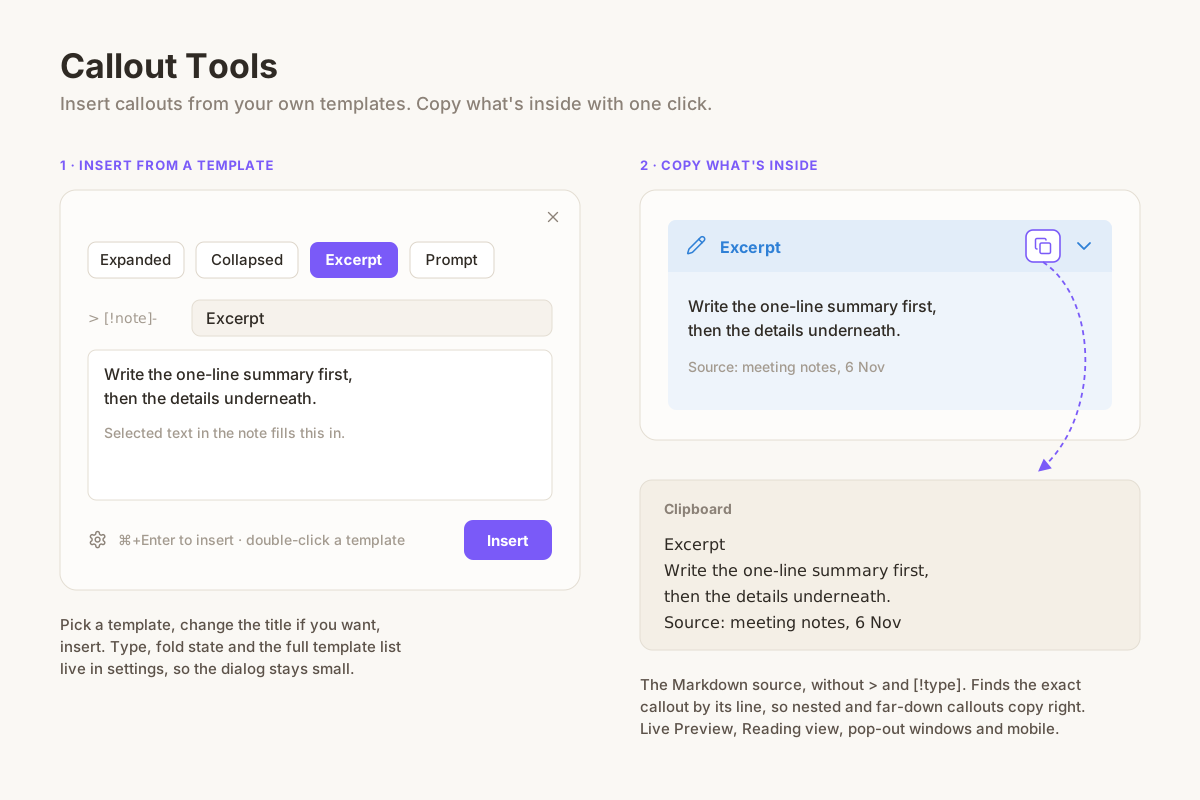
Two small things that come up every time you use callouts:
- Typing
> [!note]- Titleby hand. You probably use the same few callouts over and over: an excerpt, a collapsed note, a prompt. Callout Tools keeps them as templates. Run Insert callout, pick one, and it's in, with the type, title and fold state you set. - Copying what's inside a callout. Selecting the text drags in
>and[!type], or loses the formatting. Callout Tools adds a copy button to the callout's title bar that copies the Markdown inside, cleanly.
Insert from a template
- Run Callout Tools: Insert callout from the command palette, a hotkey or the mobile toolbar.
- Pick a template. Its type and fold state are shown as
> [!note]-next to the title, which you can change for this one callout. - Type the content, or select text in the note first and it's filled in for you.
- ⌘/Ctrl+Enter inserts. Double-click a template to insert it straight away.
- Blank lines are added around the callout when needed, so it never merges into a quote above it or swallows the paragraph below it. The cursor ends up inside the callout, ready to type.
Everything else (adding, renaming, reordering, deleting templates, picking the type and fold state) lives in settings, so the dialog stays small. The type picker shows each callout type with its icon and colour from your theme.
Copy a callout
Hover a callout and a copy button appears in its title bar, next to the fold arrow. It copies:
- the custom title, if there is one, then
- the content as Markdown, without the
>and[!type]markers.
It reads the callout from the note's source by its line number, so it copies the right callout even in long notes, works for callouts nested inside other callouts, and copies what you see in both Live Preview and Reading view. On phones and tablets the button is always shown, faintly, since there's no hover.
In Live Preview, Obsidian's own Edit this block button sits in the same corner, so it's hidden on callouts while the copy button is on. Click the callout's text to edit its source as usual. The copy button can be turned off in settings.
Use cases
- Insert a collapsed "Excerpt" or "AI prompt" callout with one hotkey.
- Wrap a selected paragraph in a callout.
- Copy an AI prompt you keep in a callout and paste it into a chat app,
without
>characters. - Copy one callout from inside another.
Settings
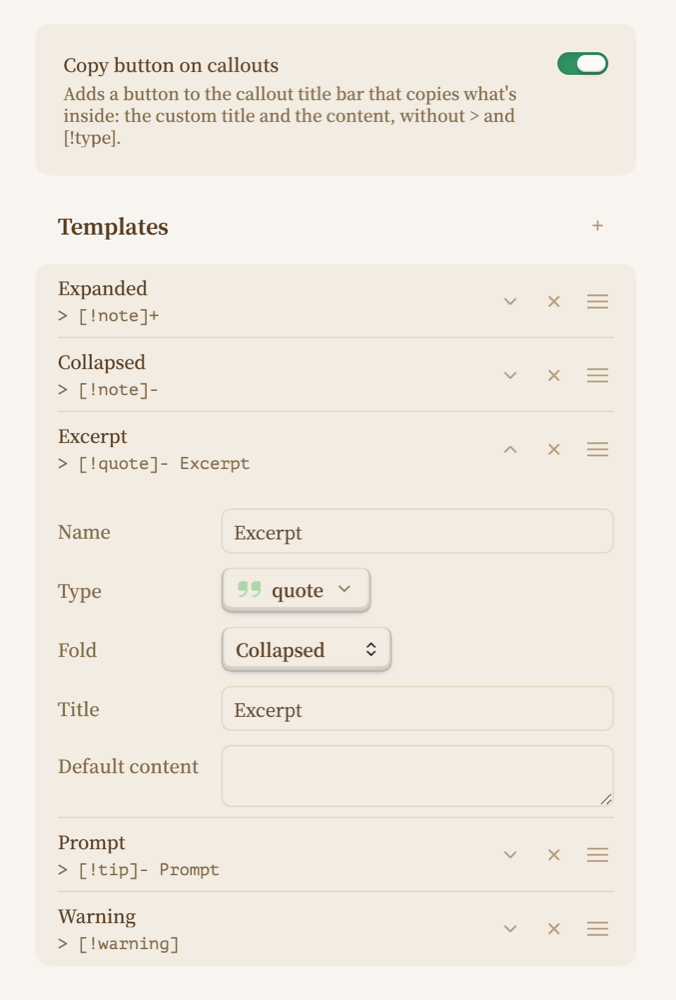
- Copy button on callouts: on by default.
- Templates: a list. Click a template to edit its name, type, fold state (expanded, collapsed or not foldable), title and default content. Drag to reorder, ✕ to delete, + to add. New installs start with two: Expanded and Collapsed.
English and Chinese interface, following Obsidian's language.
Install
Search for Callout Tools in Settings → Community plugins, or copy
main.js, manifest.json and styles.css from the latest release into
<vault>/.obsidian/plugins/custom-callout/.
License
MIT