
- Overview
- Scorecard
- Updates5
Renders cornell fenced code blocks as a two-column
Cornell Notes layout in Reading view.
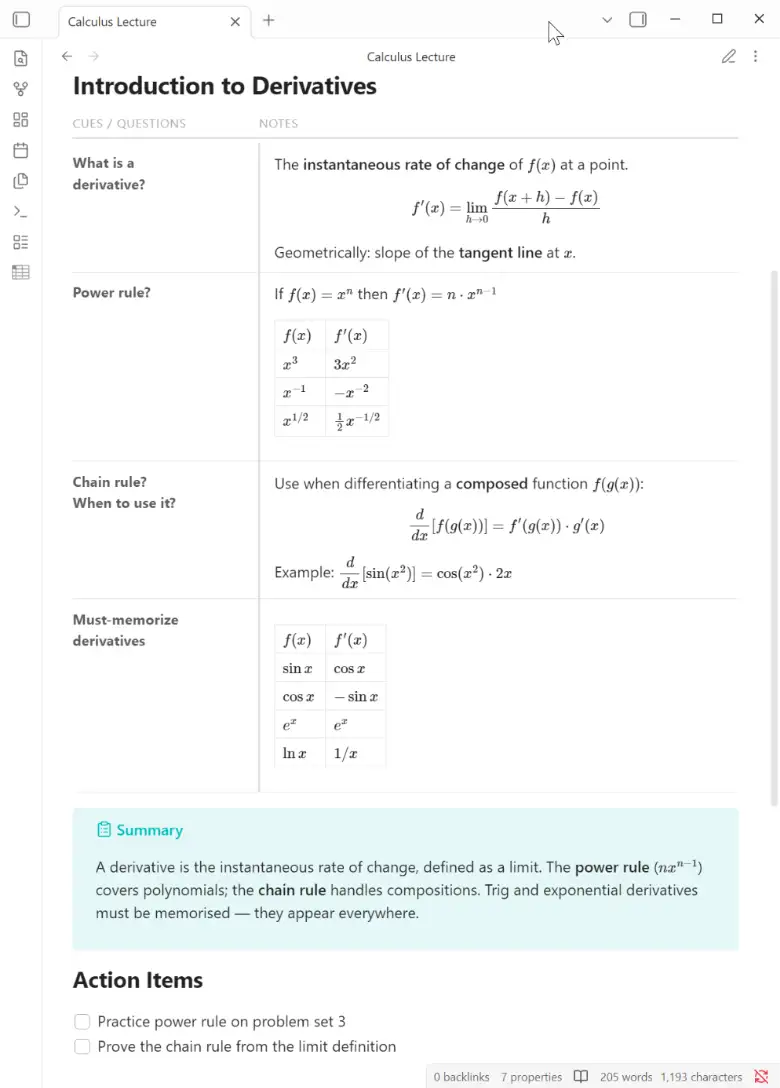
Features
- Two-column layout with configurable column widths (default 28% cues / 72% notes)
- Supports any Markdown in both columns: paragraphs, lists, tables, code blocks, callouts, math, mermaid diagrams, images, wikilinks
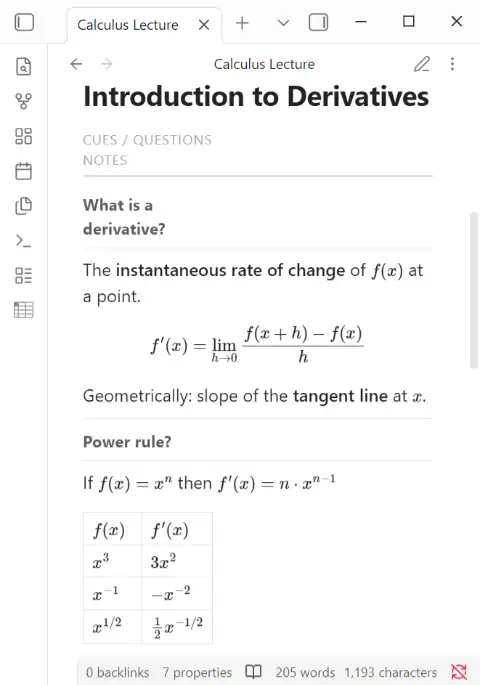
- Mobile-responsive: columns stack vertically on narrow screens
- Plain-text storage — readable and editable without the plugin
- Configurable headers, borders, and column widths via the settings page
(or per-block with
::noheader,::header,::borders,::columnsdirectives)
Installation
Community plugins (once approved)
Settings > Community plugins > Browse > search Cornell Notes > Install > Enable
Manual install
- Download
main.js,manifest.json,styles.cssfrom the latest release - Copy all three files into
<your-vault>/.obsidian/plugins/cornell-notes/ - Settings > Community plugins > enable Cornell Notes
Via BRAT (beta)
- Install BRAT
- BRAT > Add Beta Plugin >
https://github.com/bytetiles/obsidian-cornell-notes
Usage
Wrap your Cornell Notes rows in a 4-backtick cornell fence.
Use ::cue to start a row and ::note to start the note for that row.
::cue
What is a window function?
::note
A calculation across related rows **without collapsing** them.

Unlike GROUP BY, all original rows stay visible.

::cue
What does PARTITION BY do?
::note
Splits rows into logical groups inside the window.

| PARTITION BY | GROUP BY       |
|--------------|----------------|
| keeps rows   | collapses rows |
Syntax rules
| Element | Syntax |
|---|---|
| Start a new row | ::cue on its own line |
| Switch to note | ::note on its own line |
| Cue-only row | ::cue with no following ::note |
| Code block inside | use ```lang ``` (safe inside 4-backtick outer fence) |
Always use 4 backticks for the outer fence (
````cornell). This lets you freely use triple-backtick code blocks inside.
Block directives
Directives go before the first ::cue in a block and override the vault-wide
default for that block only. Vault-wide defaults are set in
Settings → Community plugins → Cornell Notes.
| Directive | Effect |
|---|---|
::noheader |
Hide the header row |
::header Cues | Notes |
Custom column labels (pipe-separated) |
::borders solid |
Border style: solid / dashed / dotted / off |
::borders dashed 2pt/1pt #4A90D9 |
Style + accent/row thickness + hex color |
::columns 20 |
Cue column width in % (10–90) |
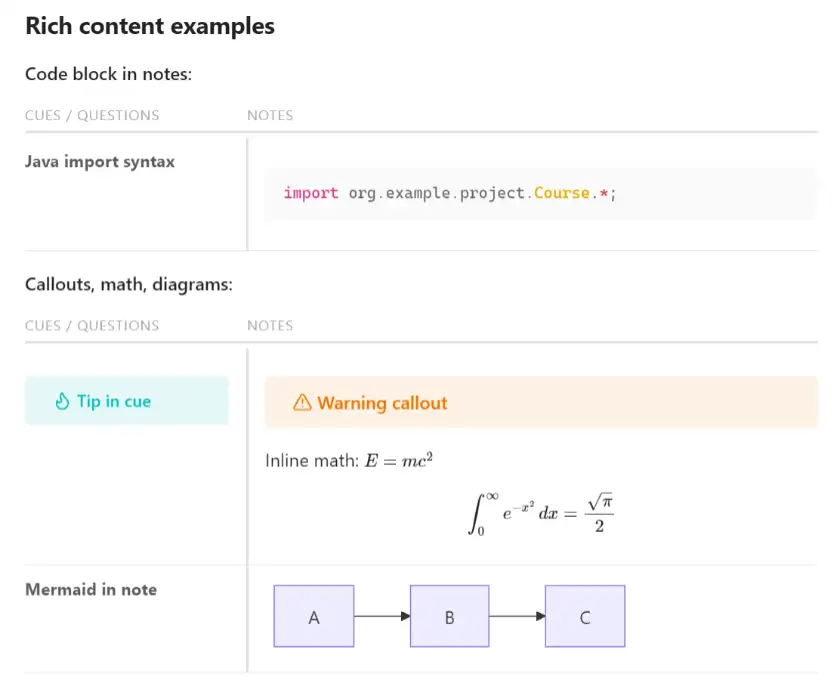
Rich content examples
Code block in notes:
::cue
Java import syntax
::note
```java
import org.example.project.Course.*;
```
Callouts, math, diagrams:
::cue
> [!tip] Tip in cue
::note
> [!warning] Warning callout

Inline math: $E = mc^{2}$

$$\int_0^\infty e^{-x^2}\,dx = \frac{\sqrt{\pi}}{2}$$

::cue
Mermaid in note
::note
```mermaid
graph LR
  A --> B --> C
```
Mobile view
On screens narrower than 700 px the columns stack vertically (cues first, then notes below).
Known limitations
| Feature | Status |
|---|---|
~sub~ / ^sup^ Obsidian syntax |
✗ Not rendered — use <sub> / <sup> HTML or Unicode (₂, ²) |
| Live Preview two-column layout | ✗ Reading view only — edit mode shows plain text |
HealthGood
ReviewPassed
About
Render Cornell Notes from 4-backtick fenced blocks using ::cue and ::note markers into a responsive two-column layout in Reading view. Allow full Markdown in both columns — including code blocks, callouts, math, mermaid diagrams, images, and wikilinks — while keeping the source as plain text editable without the plugin.Details
Current version
1.0.4
Last updated
4 months ago
Created
4 months ago
Updates
5 releases
Downloads
2k
Compatible with
Obsidian 1.4.0+
Platforms
Desktop, Mobile
License
Apache-2.0