Copy Color
 NotAVirus86 downloads
Show a color swatch in your notes. Click to copy, or convert between color formats.
- Overview
- Scorecard
- Updates4
Copy Color
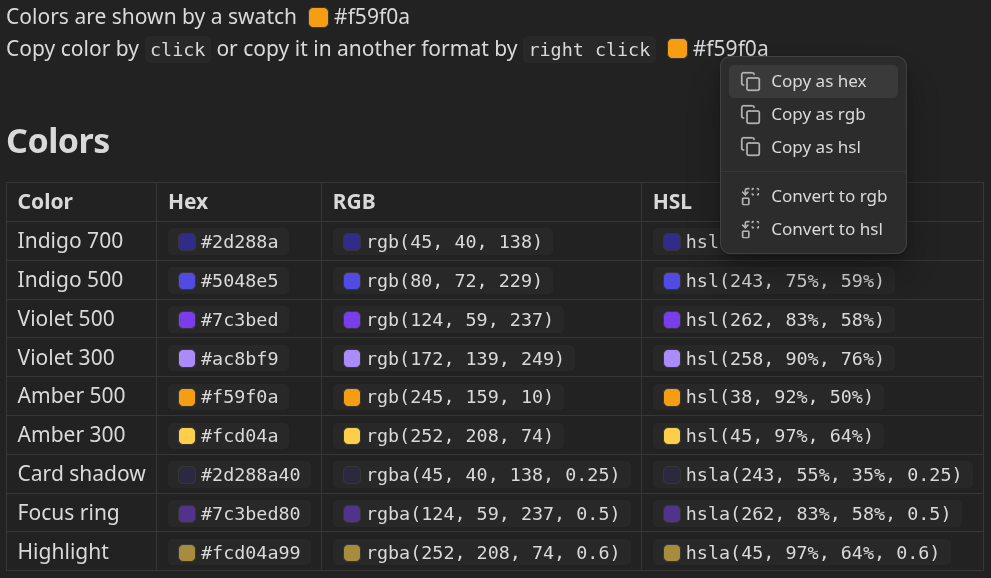
See the colors in your notes, and copy or convert them with one click.
Write a color code like #ff8800 or rgb(255, 136, 0) in a note, and Copy Color shows a small swatch of that color next to it. Handy for design notes, palettes and style guides.
Installation
- In Obsidian, open Settings > Community plugins.
- Turn on community plugins if they're off, then select Browse.
- Search for Copy Color, then select Install and Enable.
Usage
- See the color: color codes get a swatch in Reading view and Live Preview, with a few exceptions.
- Copy it: click or tap a code to copy it as written.
- Copy it in another format: right click and choose hex, rgb or hsl (desktop only).
- Convert it in the note: in Live Preview, right click a color and choose Convert to.
- Convert many at once: in Live Preview, use the command palette (Convert colors to hex, to rgb or to hsl) or right click a selection.
While your cursor is on a color in Live Preview, you see the plain text, so you can edit it as usual.
Hex codes and tags
Obsidian reads a bare #ff8800 as a tag. To get a swatch, put it in backticks or add a backslash:
The button is `#ff8800` and the border is \#ff8800.
Hex codes made only of digits, like #123456, aren't tags, so they work as is, and so do rgb() and hsl(). For the same reason, converting to hex outside backticks writes \#ff8800.
Supported colors
| Format | Example |
|---|---|
| Hex | #ff8800 |
| Hex with alpha | #ff880080 |
| RGB | rgb(255, 136, 0) or rgb(255 136 0) |
| RGB with alpha | rgba(255, 136, 0, 0.5) or rgb(255 136 0 / 50%) |
| HSL | hsl(32, 100%, 50%) or hsl(32 100% 50%) |
| HSL with alpha | hsla(32, 100%, 50%, 0.5) or hsl(32 100% 50% / 50%) |
Short hex codes like #abc aren't supported, because they are too easily confused with tags.
When a color gets no swatch
- It's attached to other text, as in
color:#ff8800or"#ff8800". Punctuation right after it is fine. - It's in a code block, math or front matter.
- It's inside formatting: bold, italics, highlights, strikethrough, links, comments or inline HTML.
- You're in Source mode.
Privacy
Copy Color only writes to your clipboard when you click or tap a color or choose a copy option. It never reads your clipboard, uses the network or collects data.