Contextual AI Reader
 Taoye261 downloads
AI language-learning reader for Obsidian with contextual translation, vocabulary explanations, and bilingual Markdown notes.
- Overview
- Scorecard
- Updates14
中文 · 日本語 · 한국어 · Español · Français · Deutsch
Contextual AI Reader is an Obsidian desktop reading companion for translation, contextual vocabulary, text-to-speech, excerpts, PDFs, Markdown, and language learning with YouTube transcripts.
It supports configurable language direction: choose the language you are reading, or let the plugin auto-detect it, then choose the language you want to learn with. The default is auto-detect source language and Simplified Chinese as the target language.
The plugin can use local AI assistant CLIs such as Codex and Claude Code, or direct API-token backends such as OpenAI and Anthropic.
System Requirements
Use the desktop version of Obsidian on macOS, Windows, or Linux. Mobile Obsidian can read synchronized notes and generated files, but it cannot run the local CLI/video-tool workflows. Marketplace users do not need Node.js, npm, or this source repository. Install the plugin from Obsidian Community Plugins, then choose one AI backend:
- Codex subscription/local login: install the Codex app or CLI, run
codex loginwhen using the CLI, and leaveCodex commandempty for auto-detection or enter its full path. - Claude Code local login: install and sign in to Claude Code, then leave
Claude commandempty or enter its full path. - API mode: choose OpenAI or Anthropic and enter the corresponding API key. No local AI CLI is required.
Basic Markdown/PDF selection, quick translation, text-to-speech, excerpts, and API-backed AI do not require YouTube tools. For protected YouTube captions, clean frame capture, or no-CC transcription, install both yt-dlp and ffmpeg:
| System | Install video tools | Executables detected by default |
|---|---|---|
| macOS | brew install yt-dlp ffmpeg |
/opt/homebrew/bin, /usr/local/bin, or PATH |
| Windows | winget install yt-dlp.yt-dlp and winget install Gyan.FFmpeg |
yt-dlp.exe / ffmpeg.exe in PATH, including Scoop shims |
| Ubuntu/Debian | sudo apt update && sudo apt install yt-dlp ffmpeg |
/usr/bin or PATH |
| Other Linux | Install yt-dlp and ffmpeg with the distribution package manager |
/usr/local/bin, ~/.local/bin, or PATH |
Restart Obsidian after installing command-line tools. If auto-detection fails, enter the complete executable path in plugin settings. No-CC speech-to-text additionally needs a Groq or OpenAI API key.
Local Data And Cache
Settings, API keys, vocabulary cache, YouTube transcripts, and YouTube translations are stored per vault in:
<your-vault>/.obsidian/plugins/contextual-ai-reader/data.json
Do not delete data.json, delete the plugin folder, reset plugin data, or replace the vault without copying this file if you want to keep the cache. Each vault has a separate cache. The YouTube cache retains the 30 most recently used videos; an exact transcript/language/prompt match avoids another AI request. Screenshot PNGs and generated transcript notes are ordinary vault files in their configured folders and are not deleted when the cache is cleared.
data.json may contain API keys. Back it up privately and do not commit, publish, or share it. If .obsidian is synchronized to other devices, protect the synced vault accordingly.
Features
- Translate selected text into your configured target language.
- Show the selection popup only when holding the primary modifier key while selecting text:
Commandon macOS,Ctrlon Windows/Linux. - Explain selected vocabulary with local/cache results first, then optionally enrich it with AI using the current paragraph as context.
- Use the built-in local English-to-Chinese dictionary when the target language is Chinese; other language pairs use quick translation, cache, and optional AI context.
- Translate selected text from PDFs when Obsidian can select the PDF text layer.
- Read selected text aloud with the system text-to-speech voice.
- Save selected passages or vocabulary notes to an excerpt note with source references.
- Translate the current Markdown file and append the target-language translation below the original.
- Translate the current Markdown file into interleaved source/target-language paragraphs.
- Batch translate multiple Markdown files by file path, folder path, or wildcard.
- Reduce token overhead on long chapters by merging consecutive short prose paragraphs into larger translation units.
- Show token usage after AI calls when the selected backend reports usage.
- Add custom reading context, terminology, and translation style instructions.
- Open a YouTube link in an Obsidian learning-player tab with sentence-level interactive captions.
- Translate captions in context, follow the current spoken sentence, and click any subtitle to seek the video.
- Capture only the video frame into a Markdown note with a clickable timestamp back to the player.
- Create a transcript note with source text, translations, and clickable timestamps.
AI Backends
Open plugin settings and choose AI backend.
Auto: use local Codex first when available, then local Claude Code.Codex: use a local Codex executable and your local Codex/ChatGPT login.Claude Code: use a local Claude Code executable and your local Claude login.OpenAI API token: call the OpenAI Chat Completions API with your configured API key.Anthropic API token: call the Anthropic Messages API with your configured API key.
The default mode is Auto, so existing local Codex usage remains the default path.
Configuration
Recommended basic settings:
Source language: choose the source language or leave it asAuto detect.Learning / target language: choose the language used for translations and vocabulary explanations.AI backend: leave asAutoif you want Codex first and Claude Code as fallback.Require Command/Ctrl key for auto translate: keep enabled so normal text selection does not trigger translation.Custom prompt / context: add the book, domain, terminology, and tone you want the AI to respect.Timeout: increase this for long full-file or batch translation.Single-shot translation limit: smaller notes are translated in one request for better context. Defaults to60000characters.Batch chunk size: larger chunks reduce process startup overhead and repeated prompt tokens. Defaults to30000characters.
Local backend settings:
Codex command: optional path tocodex; leave empty to auto-detect.Codex model: model used by Codex.Reasoning effort: defaults tonone, which is usually best for translation speed and cost.Claude command: optional path toclaude; leave empty to auto-detect.Claude model: model used by Claude Code.
On Windows, local CLI mode expects codex.cmd or claude.cmd to be available in PATH, or you can enter the full command path in settings. API-token modes do not require local CLI installation.
API backend settings:
OpenAI API key: required only when usingOpenAI API token.OpenAI model: defaults togpt-4.1-mini.OpenAI base URL: defaults tohttps://api.openai.com/v1; can be changed for compatible endpoints.Anthropic API key: required only when usingAnthropic API token.Anthropic model: defaults toclaude-sonnet-4-5.Anthropic base URL: defaults tohttps://api.anthropic.com/v1.
API keys are stored in this plugin's local Obsidian settings data. Do not publish your vault's .obsidian/plugins/.../data.json file.
Example custom prompt:
I am reading Poor Charlie's Almanack. Translate into natural Simplified Chinese.
Keep investment, psychology, and business terms consistent. Preserve Markdown structure.
Usage
Selection Popup
By default, normal text selection does nothing. This avoids interrupting ordinary note-taking.
- Open a Markdown note or a selectable PDF.
- Hold the primary modifier key:
Commandon macOS,Ctrlon Windows/Linux. - While holding that key, select text.
- Release the mouse or trackpad.
- The popup appears near the selected text.
If you turn off Require Command/Ctrl key for auto translate, the popup appears after ordinary text selection.
Popup Buttons
- Speaker: read the original selected text aloud.
- Sparkles: send the selection to the configured AI backend for a higher-quality translation or contextual explanation.
- Book plus: save the selection, translation, or vocabulary note to the configured excerpt note.
- Copy: copy the translation or vocabulary note to the system clipboard.
- Stop: cancel a running AI request and kill the active local CLI process when using Codex or Claude Code.
Paragraph Translation
When you select a phrase, sentence, or paragraph, the plugin first tries a quick translation for speed. Click Sparkles if you want the configured AI backend to refine the translation with your custom prompt, model, and target language.
Vocabulary Explanation
When you select a single word or short term, the plugin enters vocabulary mode:
- It checks the local vocabulary cache.
- For English-to-Chinese, it also checks the built-in local dictionary.
- If needed, it uses quick translation for an instant base meaning.
- It can then use AI to explain what the word means in the current paragraph or book context.
This is different from normal translation: it focuses on the meaning in context.
Selection Commands
You can also use commands from the command palette:
Translate selected text: replaces the selected text with its translation.Insert translation below selected text: keeps the original selection and inserts the translation below it.Read selected text aloud: reads the selected text aloud.Save selected text to excerpt note: saves the selected text with source information.
Current Markdown File Translation
Open a Markdown file and run one of these commands:
Translate current Markdown file and append translationTranslate current Markdown file with interleaved translation
Append mode:
Original source-language content

Target-language translation of the whole note
Interleave mode:
Source paragraph 1

Target paragraph 1

Source paragraph 2

Target paragraph 2
For long chapters with many tiny EPUB/OCR paragraphs, the plugin automatically merges consecutive short prose paragraphs into larger translation units before sending them to AI. The original text is preserved, but the translation may be inserted after a small group of related short paragraphs instead of after every tiny fragment. This greatly reduces repeated prompt and delimiter tokens.
Only one full-file or batch translation can run at a time. If another translation is already running, the plugin asks you to stop the current task first.
Batch Markdown Translation
Use batch translation when you want to translate multiple Markdown files with one command.
- Open the command palette.
- Run one of the batch commands:
Translate multiple Markdown files and append translationsTranslate multiple Markdown files with interleaved translations
- Enter one Markdown file, folder, or wildcard per line.
- Click Start.
Batch commands write directly to the matched Markdown files. Back up important notes before running them.
Batch Path Rules
Batch paths are vault-relative. Do not use absolute filesystem paths.
Correct:
Books/Trading in the Zone/
Books/Trading in the Zone/08 - Chapter 1.md
Books/Trading in the Zone/*.md
Books/Trading in the Zone/1? - *.md
Books/Trading in the Zone/**/*.md
Incorrect:
/Users/me/Documents/Vault/Books/Trading in the Zone/
Supported scopes:
- Single Markdown file:
Books/Example/Chapter 1.md - Folder:
Books/Example/ - Simple wildcard:
Books/Example/*.md - Recursive wildcard:
Books/Example/**/*.md - Single-character wildcard:
Books/Example/1? - *.md
The folder mode recursively includes Markdown files inside the folder.
Excerpts
Set Excerpt file in plugin settings. When you click Book plus or run Save selected text to excerpt note, the plugin appends an entry to that note.
Excerpt entries can include the original text, popup translation, vocabulary note, source note path, and line references when available.
Vocabulary entries stay in the same main excerpt file, but each vocabulary card includes reusable inline metadata fields:
- type:: vocabulary
- term:: private
- status:: new
- source_language:: en
- target_language:: ja
- created:: 2026-06-21
- source:: [[Books/Test Chapter.md]]
- tags:: #vocabulary #language/ja #status/new
This keeps the notebook simple while still allowing Obsidian search, tags, and Dataview-style filtering by language, status, source note, or topic.
YouTube Videos and Interactive Transcripts
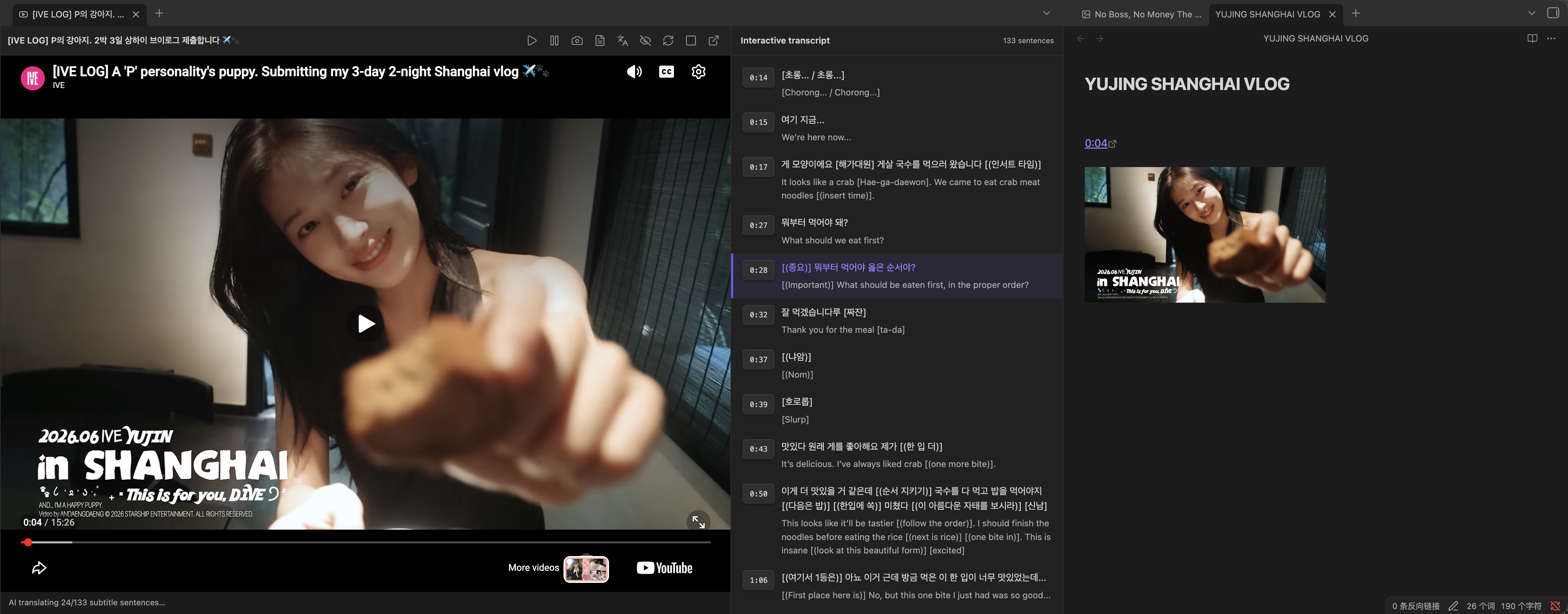
Open and navigate a video
- Run
Open YouTube videofrom the command palette. - Paste a
youtube.comoryoutu.belink. - The video opens in its own named Obsidian tab. A different video receives its own video-title tab.
- The transcript follows playback and highlights the active sentence. Click a sentence or timestamp to seek the existing player.
Opening a video never starts AI translation. Click the Languages button when you want it. Each completed batch is displayed immediately below its matching source sentences. Closing that video tab or clicking Stop cancels the remaining batches and terminates an active local Codex/Claude process. Completed batches remain cached.
Use the eye button to hide or show translated subtitles without deleting them or making another AI request.
Source and target languages
Source language = Auto detect: the player uses the video's original/preferred CC track and records its actual language. For a Korean CC track, Korean text is shown and Korean is passed to AI as the source language.- A specific
Source language: the plugin requests that language track when available and tells AI to treat it as the source language. Learning / target language: this is always the output language for transcript translations and never follows the Obsidian interface language.- No-caption Whisper transcription also detects the spoken language when Source is Auto, or receives the explicitly configured source language.
Changing either language invalidates incompatible cached results. Use Refresh to intentionally fetch the video's caption track again.
Toolbar
- Play / Pause: control the embedded player.
- Camera: extract a clean source-video frame with no YouTube title, controls, progress bar, or caption overlay.
- File text: create a Markdown transcript note containing source text, translations, and clickable timestamps.
- Languages: manually start contextual AI translation.
- Eye: hide or show translated subtitle rows.
- Refresh: fetch captions again instead of using the local transcript cache.
- Stop: cancel the active transcript translation.
- External link: open the current time on YouTube.
Screenshots, captions, and cache
Clean screenshots use yt-dlp and ffmpeg. The PNG is saved to YouTube screenshot folder and inserted into the most recently used note with a clickable timestamp. YouTube screenshot display width controls the Markdown embed width without reducing the saved PNG resolution.
Caption extraction first uses YouTube's available CC track. Protected caption URLs may require yt-dlp. If no manual or automatic CC exists, No-caption transcription can temporarily download and compress audio, split long videos into 25-minute chunks, and send them to Groq Whisper or OpenAI Whisper for timestamped speech-to-text. Configure the corresponding key, or choose Disabled. Temporary audio is deleted afterward.
Transcripts and translations are cached locally by video ID, requested and detected source language, target language, transcript content, and custom prompt. An exact cache hit costs zero new AI tokens. Partial batches are saved so stopped work can resume. The cache retains the 30 most recently used videos.
Some owners disable playback on other websites. The plugin cannot bypass that YouTube restriction; use the toolbar's external-link button for those videos. Captions and transcript notes may still be available.
Token Usage And Cancellation
AI-powered actions show token usage when the selected backend reports it.
input ↑ output ↓ (total, cached)
For long file translation, the progress overlay shows elapsed time, completed batches, completed translation units, completed source paragraphs, current token usage, and a Stop button.
Click Stop to cancel queued work and kill active local CLI processes where possible.
Privacy
This plugin is not offline translation.
Depending on your selected backend, selected text and Markdown content may be sent to local Codex CLI/App, local Claude Code, OpenAI API, or Anthropic API. Settings are stored locally in Obsidian. API keys in plugin settings are sensitive and should not be committed to a public repository.
Full-file and batch translation commands modify Markdown files directly. Back up important vaults before running bulk operations.
License
MIT