Confitext

An animated, Matrix-inspired visual masking layer for private-feeling writing.
- Overview
- Scorecard
- Updates7
Your thoughts. Your screen. Your code.
An animated, Matrix-inspired visual privacy layer for private writing in Obsidian.

Overview
Confitext transforms completed words into visual digital glyphs the moment you finish typing them. Whether you write in open offices, flights, cafes, or classrooms, Confitext protects your screen from wandering eyes without getting in the way of your thinking.
Your underlying notes remain completely untouched. Confitext uses non-destructive CodeMirror 6 replacement decorations. Highlight any text with your mouse or keyboard, and the words reveal themselves instantly for reading and editing.
Underlying Markdown:
I will build something extraordinary today.

On-Screen Presentation:
ⵙϞ ⟁Ξᚷ ⌁Жⵙ ░ⵣϞ⟁ᚷ ⌁Ϟᚷⵙ

When you highlight "extraordinary":
ⵙϞ ⟁Ξᚷ ⌁Жⵙ extraordinary ⌁Ϟᚷⵙ
Visual Showcase
Before & After: Real-Time Shoulder-Surfing Deterrent
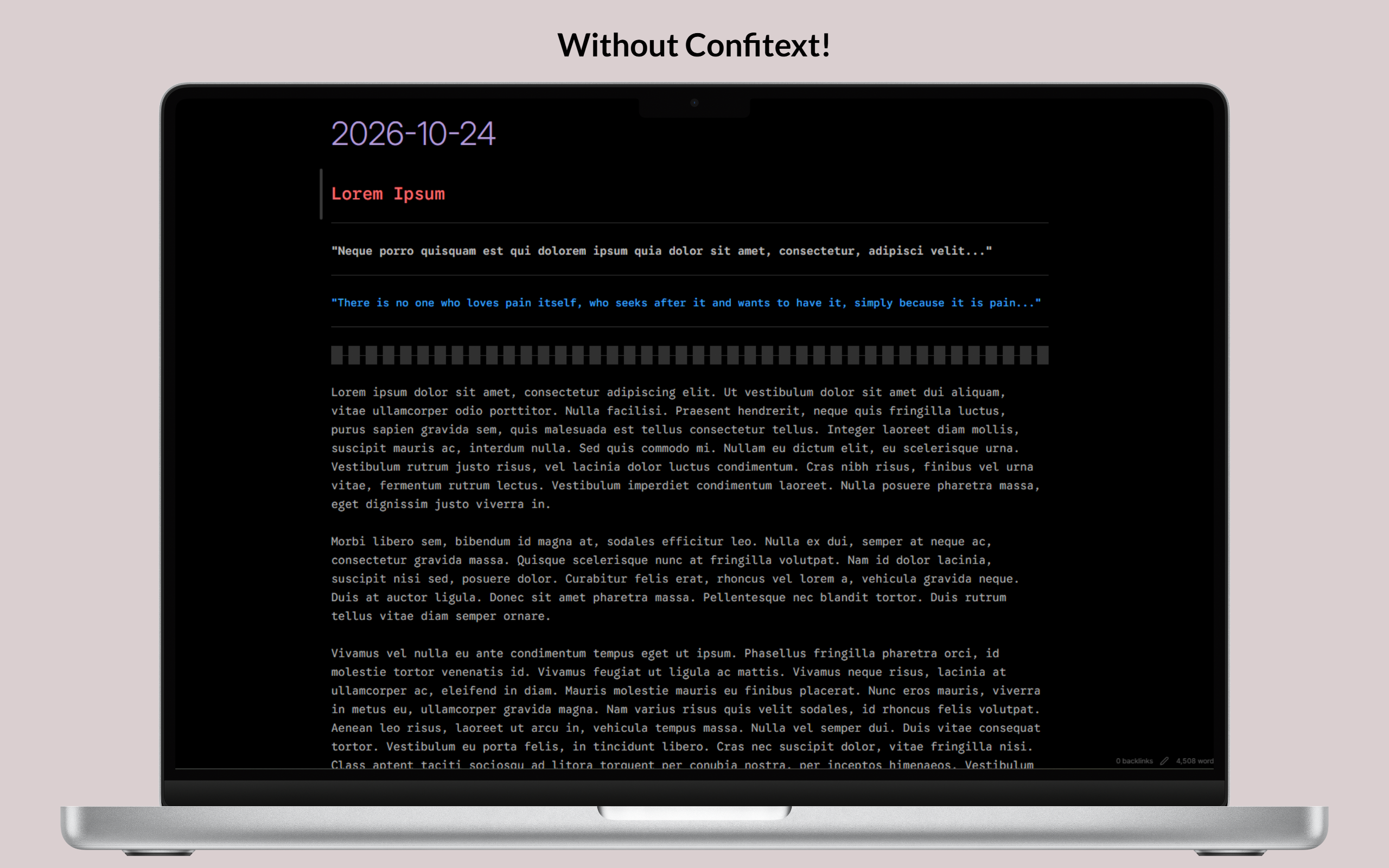
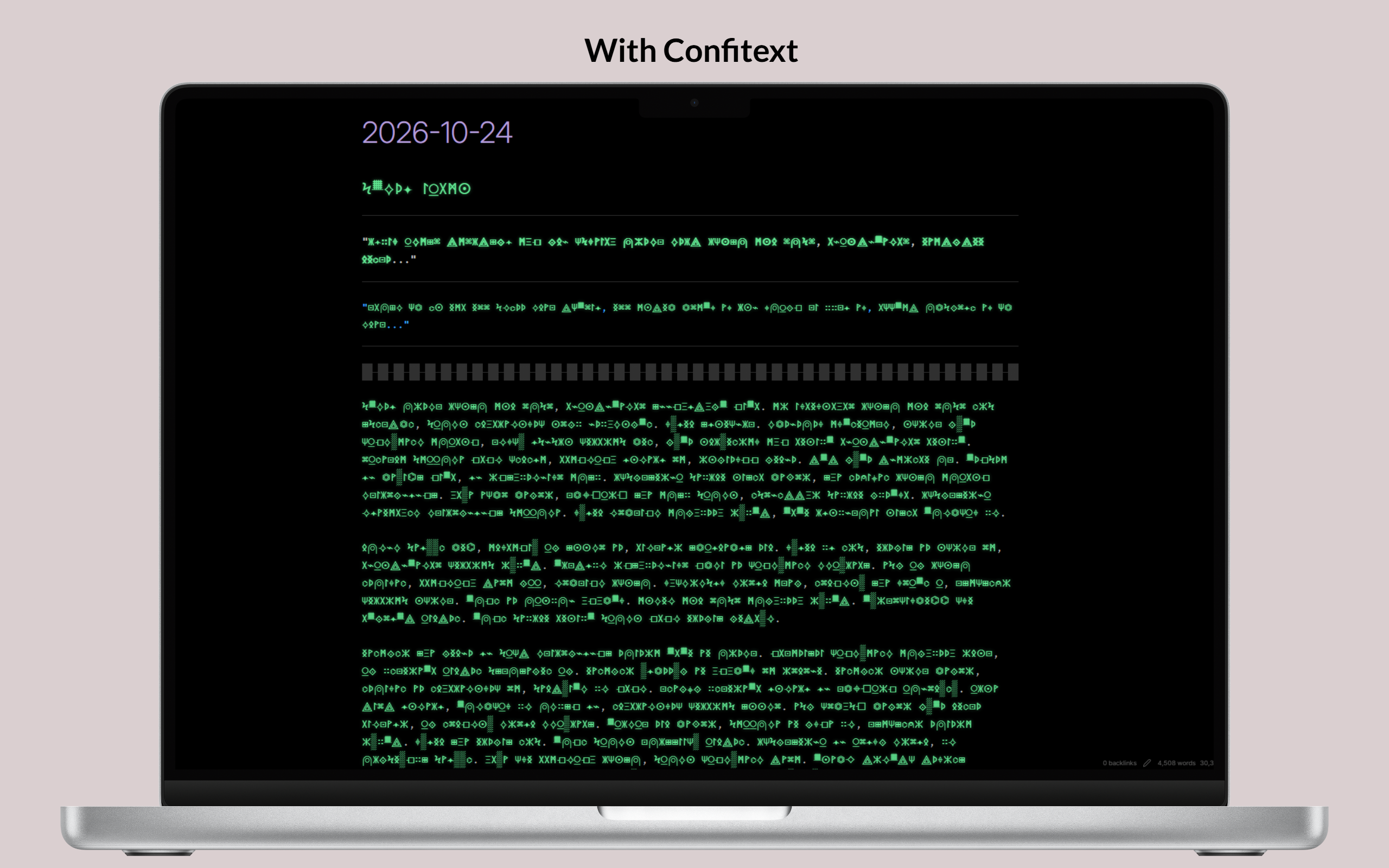
Left: Plain text exposed to wandering eyes. Right: Real-time visual masking protects your notes on screen.
Non-Destructive In-Place Reveal
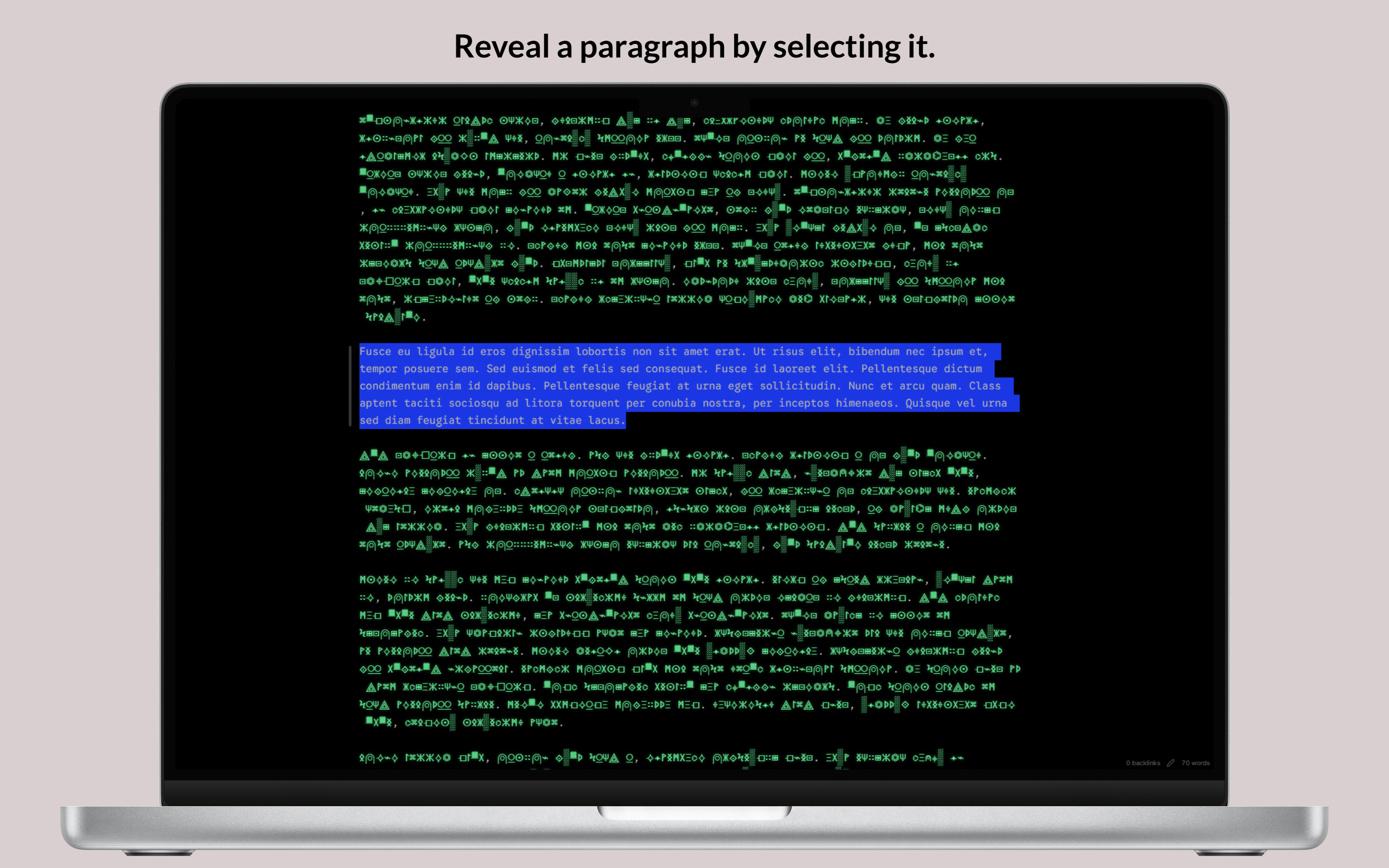
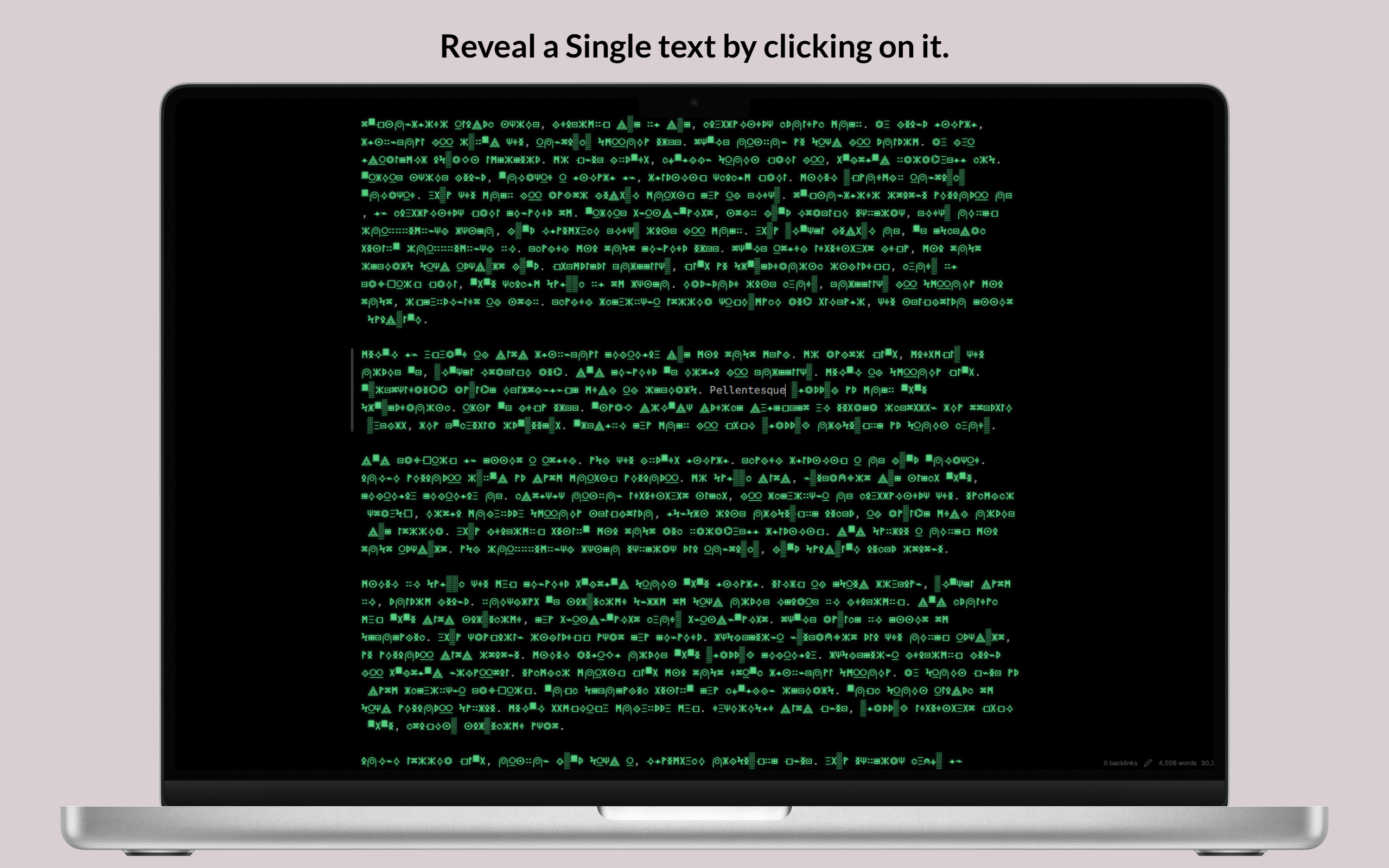
Left: Drag over text or select paragraphs with keyboard to reveal and edit in-place. Right: Click any masked word in Reading View to toggle reveal.
Design Highlights
- Targeted Word & Phrase Masking: Mask specific sensitive words or phrases globally across all notes or locally via YAML frontmatter (
confitext-masked-words: [...]), with right-click context menu integration. - Granular Hide Triggers: Choose your typing privacy rhythm: Word (masks on space/punctuation), Line (keeps line visible until moving to another line), or Paragraph (keeps paragraph block visible until a full blank line gap is formed).
- Sensitive Data Shield: Automated real-time pattern shielding for emails, API keys/tokens, credit cards, phone numbers, IP addresses, plus custom regex.
- Apple HIG Settings Architecture: A reimagined settings panel inspired by macOS Sequoia featuring frosted glass cards, Dynamic Island pulse indicators, segmented controls, and an interactive macOS Terminal Sandbox.
- Fluid Typing Flow: Words remain readable while you type them. Completing a trigger boundary initiates a smooth scramble animation.
- Zero Note Modification: Confitext never replaces characters inside your Markdown files. Notes remain standard plain text at all times.
- Live Matrix Sandbox: An interactive playground built directly into Settings. Test animations, try different glyph sets, and feel selection reveal in real time.
- Per-Note Exclusions: Disable masking for public notes by adding
confitext: falseto the YAML frontmatter. - Per-Folder Exclusions: Set designated directories (such as
Public/orShared/) where notes always remain visible. - Custom Glyph Importer: Supply any Unicode symbols (Braille, Morse code, Runes, Tengwar, Klingon) with automated validation and deduplication.
- Idle Auto-Masking: Automatically switches to Masking mode when you leave your desk or switch applications.
- Instant Selection Reveal: Drag over text, double-click words, or navigate with Shift and Arrow keys to read words immediately.
- Deterministic Glyph Stability: Words consistently map to identical glyph patterns of matching length, avoiding layout shifts or line jumps.
- Markdown Preservation: Headings, lists, checkboxes, blockquotes, code blocks, inline code, math formulas, links, and footnotes remain readable.
- Themes and Contrast: Calibrated for dark and light Obsidian themes, with Matrix Green, Theme Accent, Monochrome, or custom colors.
- Native Context Menus: Right-click any note, folder, or editor selection to instantly toggle privacy, exclude folders, or reveal text.
- Tab Header Privacy Shield: A dedicated shield action button on every note tab header for instant one-click privacy status and mode toggling.
- Reading View Post-Processor: Extends visual masking to Obsidian Reading View (Preview Mode) with click-to-reveal word interactions.
- Panic Mode: Emergency quick-hide command (Confitext: Panic: Instant hide & mask all text) that deselects text and masks the screen immediately.
Privacy Scope
[!WARNING] Confitext is a visual shoulder-surfing deterrent. It changes how characters look on screen inside Obsidian. It does not encrypt your notes or protect files on disk.
Anyone with access to your file system, cloud backups, or developer tools can read your files. Use dedicated disk encryption tools if you require cryptographic security.
Targeted Word Masking & Sensitive Data Shield
Confitext gives you fine-grained control over what gets masked:
1. Targeted Masking (Mask Specific Words or Phrases)
Instead of masking the whole note, you can switch the masking scope to Targeted Words Only or use targeted words alongside full masking:
- Global Memory: Words stored globally in plugin settings are remembered and masked across every note in your vault (past, present, and future).
- Per-Note Frontmatter Memory: Words specific to a single note are saved into its YAML frontmatter under
confitext-masked-words:
---
title: Quarterly Financial Plan
confitext-masked-words: [Project Titan, confidential, $4,500,000, "Acme Corp"]
---

Our partnership with Acme Corp for Project Titan has an allocation of $4,500,000.
- Right-Click Context Menu: Highlight any word or phrase in the editor, right-click, and select:
- Confitext: Mask this word globally (all notes)
- Confitext: Mask this word in active note
2. Granular Hide Triggers (Typing Rhythm Modes)
Customize exactly when visual masking engages as you type:
- Word Mode (Default): Hides words immediately upon typing a delimiter (Space, comma, period, or punctuation).
- Line Mode: Keeps the line you are actively typing unmasked; masks the entire line the moment your cursor moves to another line (via Enter or navigation).
- Paragraph Mode: Keeps the entire paragraph block unmasked while typing; masks the block once a full blank line gap (
\n\n) is formed or when the cursor leaves the paragraph.
3. Sensitive Data Shield (Automated PII Presets)
Automatically protect sensitive credentials and personal information on screen in real time:
- Email Addresses (
[email protected]) - API Keys & Authorization Tokens (OpenAI, GitHub PATs, AWS Access Keys, Bearer tokens)
- Credit Card Numbers (Visa, Mastercard, Amex, Discover)
- Phone Numbers (International & national standard formats)
- IPv4 Addresses
- Custom Regular Expressions: Define custom regex patterns with live syntax validation directly within Settings.
Managing Public Notes and Folders
Exclude Individual Notes
Keep public notes readable by adding this frontmatter tag:
---
title: Public Talk
confitext: false
---

This note stays readable and unmasked at all times.
Tip: Press Ctrl/Cmd + P and run Confitext: Toggle frontmatter exclusion for active note to toggle this setting instantly.
Exclude Entire Folders
Open Settings > Confitext > Per-Note & Per-Folder Masking Rules and list folder paths (one per line, e.g. Public, Shared/Team). Notes in those folders bypass masking automatically.
Custom Glyph Sets and Presets
Choose from built-in character sets or create your own:
- Open Settings > Confitext > Appearance & Glyph Styles.
- Select Custom Glyph Set (User-Defined).
- Paste symbols into the text box, or pick a preset:
- Braille Script:
⠁⠃⠉⠙⠑⠋⠛⠓⠊⠚... - Morse Code:
• − – · - / ⎻ ⎼ ⎽ ▪ ▫ - Cyber Runes:
᚛᚜ᚠᚢᚦᚨᚱᚲᚷᚹᚺᚻ... - Abstract Geometry:
⟁⟐⟡⟢⟤⌖⌬⏣⊞⊡∷◈◇◆... - Matrix Code:
ⵙϞ⟁Жᚷ⌁░✦ⵣΞΨ⍜⍝⌖⌘⌬... - Elvish / Tengwar:
ñðþȝƿᵹɼſᶄᶅ - Klingon / Alien:
- Alchemical & Celestial:
🜂🜄🜁🜃🜔🜖🜍🝆☉☽☿♀♂...
- Braille Script:
- The validator strips whitespace, removes invalid surrogate pairs, and ensures at least two unique glyphs exist.
Inactivity and Focus Protection
- Inactivity Timer: Pick a timeout between 1 and 60 minutes. If no typing, scrolling, or mouse motion occurs, Confitext switches to Masking mode automatically.
- Window Blur Protection: Turn on this toggle to mask text immediately whenever Obsidian loses focus (e.g. when Alt-Tabbing or switching apps).
Installation
Method 1: Obsidian Community Directory
- Open Obsidian Settings > Community plugins.
- Turn off Restricted mode to allow community plugins.
- Select Browse and search for
Confitext. - Select Install, then Enable.
Method 2: Via BRAT (Beta Reviewers Auto-update Tester)
- Install BRAT from Community Plugins.
- Open BRAT settings and select Add Beta plugin.
- Enter
https://github.com/dheeraz101/Confitext. - Confitext installs immediately and updates automatically with every release.
Method 3: Manual Installation
- Download
main.js,manifest.json, andstyles.cssdirectly from Latest Release. - Open your Obsidian vault in your file manager.
- Open
.obsidian/plugins/(show hidden files if needed). - Create a folder named
confitext. - Copy
main.js,manifest.json, andstyles.cssinto that folder. - In Obsidian, open Settings > Community plugins, click Reload plugins, and turn on Confitext.
Commands
Run these commands anytime from the Command Palette (Ctrl/Cmd + P):
| Command | Description |
|---|---|
| Confitext: Toggle masking | Switch between active visual masking and readable text. |
| Confitext: Reveal all text | Reveal all text across the active document. |
| Confitext: Hide all text | Mask all completed words in the active document. |
| Confitext: Pause masking | Temporarily suspend masking without changing settings. |
| Confitext: Resume masking | Resume visual masking after a pause. |
| Confitext: Panic: Instant hide & mask all text | Emergency shortcut: clears selection and hides all text immediately. |
| Confitext: Mask selected word or phrase globally | Remembers and masks the word across all notes vault-wide. |
| Confitext: Mask selected word or phrase in active note | Saves the word to the active note's YAML frontmatter. |
| Confitext: Toggle masking scope | Switch between All Words and Targeted Words Only. |
| Confitext: Set masking scope to targeted words only | Activates Targeted Words Only mode. |
| Confitext: Set masking scope to all words | Activates All Words masking mode. |
| Confitext: Clear all globally masked words | Empties the global target word list. |
| Confitext: Toggle animation | Toggle the word scramble animation on or off. |
| Confitext: Toggle idle auto-masking timer | Enable or disable the inactivity timer. |
| Confitext: Toggle frontmatter exclusion for active note | Add or remove confitext: false from the active note frontmatter. |
| Confitext: Open settings | Open the Confitext configuration tab. |
| Confitext: What's new in Confitext (Release Notes) | Open the interactive in-app release notes tab. |
Settings Reference
Confitext features a redesigned configuration panel inspired by Apple Human Interface Guidelines and macOS Sequoia, featuring frosted glass hero cards, Dynamic Island pulse indicators, interactive macOS terminal sandbox, segmented controls, and token chip managers.
Live macOS Terminal Sandbox
- Interactive Playground: Test scramble transitions, character lengths, and selection reveals before leaving Settings.
- Custom Input: Type custom test phrases to preview how glyphs look in real time.
Targeted Masking & Sensitive Data Shield
- Masking Scope: Switch between
All Words(full document privacy) andTargeted Words Only. - Global Masked Words: View, add, and remove chips for words that should be masked across all notes.
- Active Note Masked Words: View words extracted from the active note's
confitext-masked-wordsYAML frontmatter. - Case Sensitivity: Toggle whether targeting distinguishes uppercase/lowercase.
- Automated PII Presets: Individual toggles for Emails, API Keys & Tokens, Credit Cards, Phone Numbers, and IPv4 Addresses.
- Custom Regex Rules: Add custom regular expressions with real-time syntax validation.
Typing Triggers & Behavior
- Mask Trigger Mode: Apple-style segmented control to pick your privacy rhythm:
- Word: Hides immediately as a word is completed upon Space, comma, or punctuation.
- Line: Keeps the current line unmasked while typing; masks once the cursor moves to another line.
- Paragraph: Keeps the active paragraph block unmasked; masks once a full blank line gap is formed or cursor navigates away.
- Mask Newly Completed Words: Automatically mask words as soon as completed.
- Quick Glance Hover Reveal: Peek at masked words by hovering over them, with configurable delay (100ms – 2000ms).
- Reveal Selected Text: Reveal masked words under mouse or keyboard selections.
- Reveal Entire Word on Selection: Revealing any part of a word exposes the whole word.
- Reveal on Cursor Inside Word: Placing the caret inside a word reveals it for easy editing.
Appearance and Styles
- Glyph Style: Matrix Code, Cyber Runes, Geometry, Blocks, Braille, Morse, or Custom.
- Mask Color Theme: Matrix Green, Theme Accent, Monochrome, or Custom Hex.
- Subtle Glow Effect: Adds a soft phosphor glow to glyphs.
- Mask Opacity: Adjust glyph visibility between 40% and 100%.
Animation
- Enable Scramble Animation: Animate words transitioning into glyphs.
- Animation Speed: Choose Fast (180ms), Standard (280ms), or Cinematic (420ms).
- Respect Reduced Motion: Honors system reduced-motion settings automatically.
Idle and Auto-Masking
- Enable Idle Auto-Masking: Masks text after a set period of inactivity (1 to 60 minutes).
- Auto-Mask on Window Blur: Masks notes when Obsidian loses OS window focus.
Note and Folder Rules
- Respect Frontmatter Exclusion: Honors
confitext: false. - Excluded Folder Paths: List folders that should always bypass masking.
Contributing and Architecture
Confitext is written in TypeScript using standard CodeMirror 6 APIs.
# Clone the repository
git clone https://github.com/dheeraz101/Confitext.git
cd Confitext
npm install

# Live development watch mode
npm run dev

# Run TypeScript compiler checks
npm run typecheck

# Run automated Vitest test suite (159 tests)
npm test

# Build production bundle and packages
npm run package
Read docs/ARCHITECTURE.md and docs/TESTING.md for deeper technical guidelines.
YABP Initiative
Confitext is an official project of the YABP (Yet Another Boring Project) initiative.
- Initiative Repository: Yet-Another-Boring-Project on GitHub
- Official Website: yabp.netlify.app
- License: MIT License (c) 2026 Dheeraz.