Command Group
 masaki39772 downloads
Group commands and select them quickly with custom keyboard shortcuts
- Overview
- Scorecard
- Updates13
Group commands and select them quickly with custom keyboard shortcuts.
✨️Features
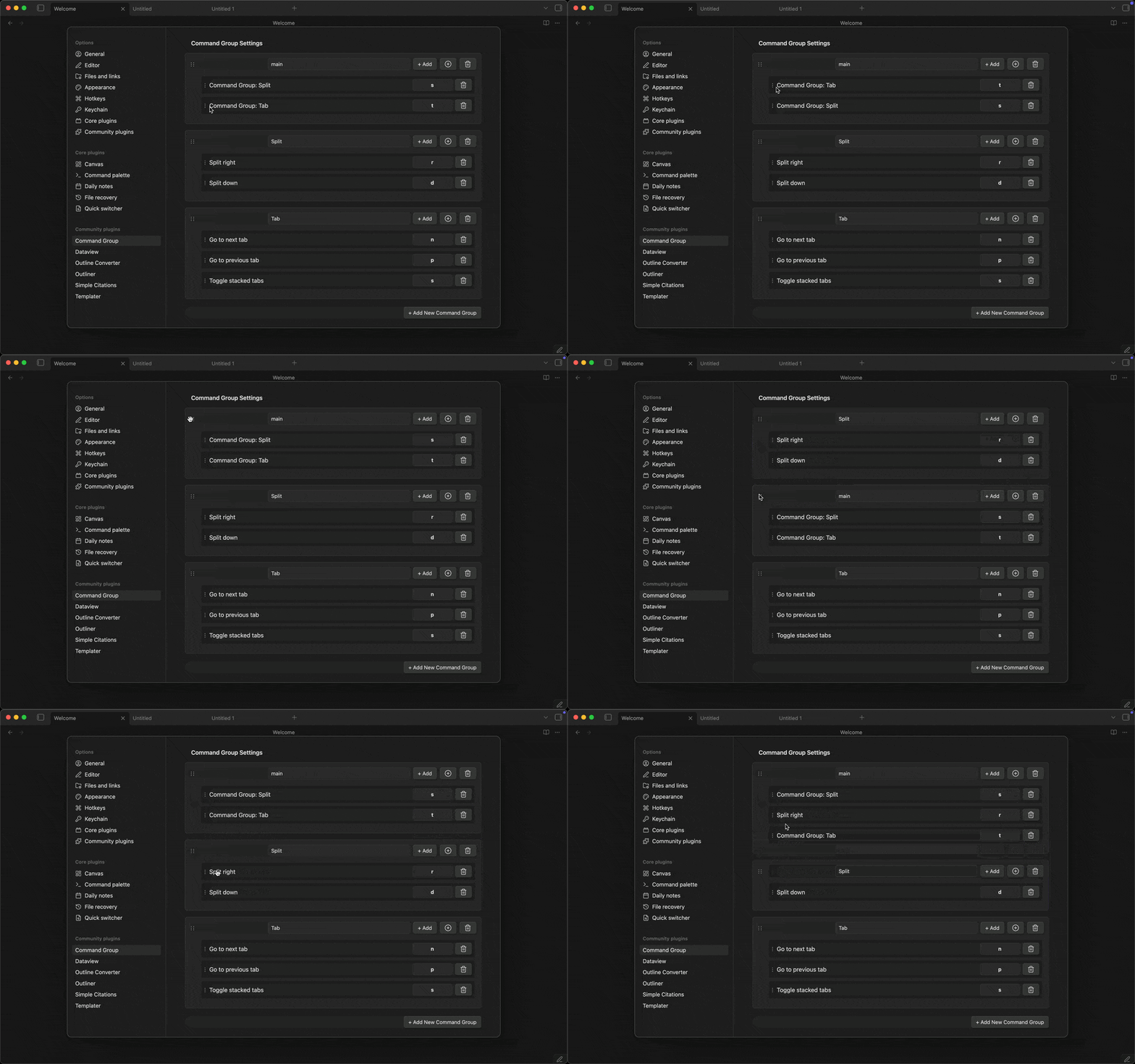
- Create command groups to execute multiple commands.
- Drag and drop commands to reorder them.
- Drag and drop groups to reorder them.
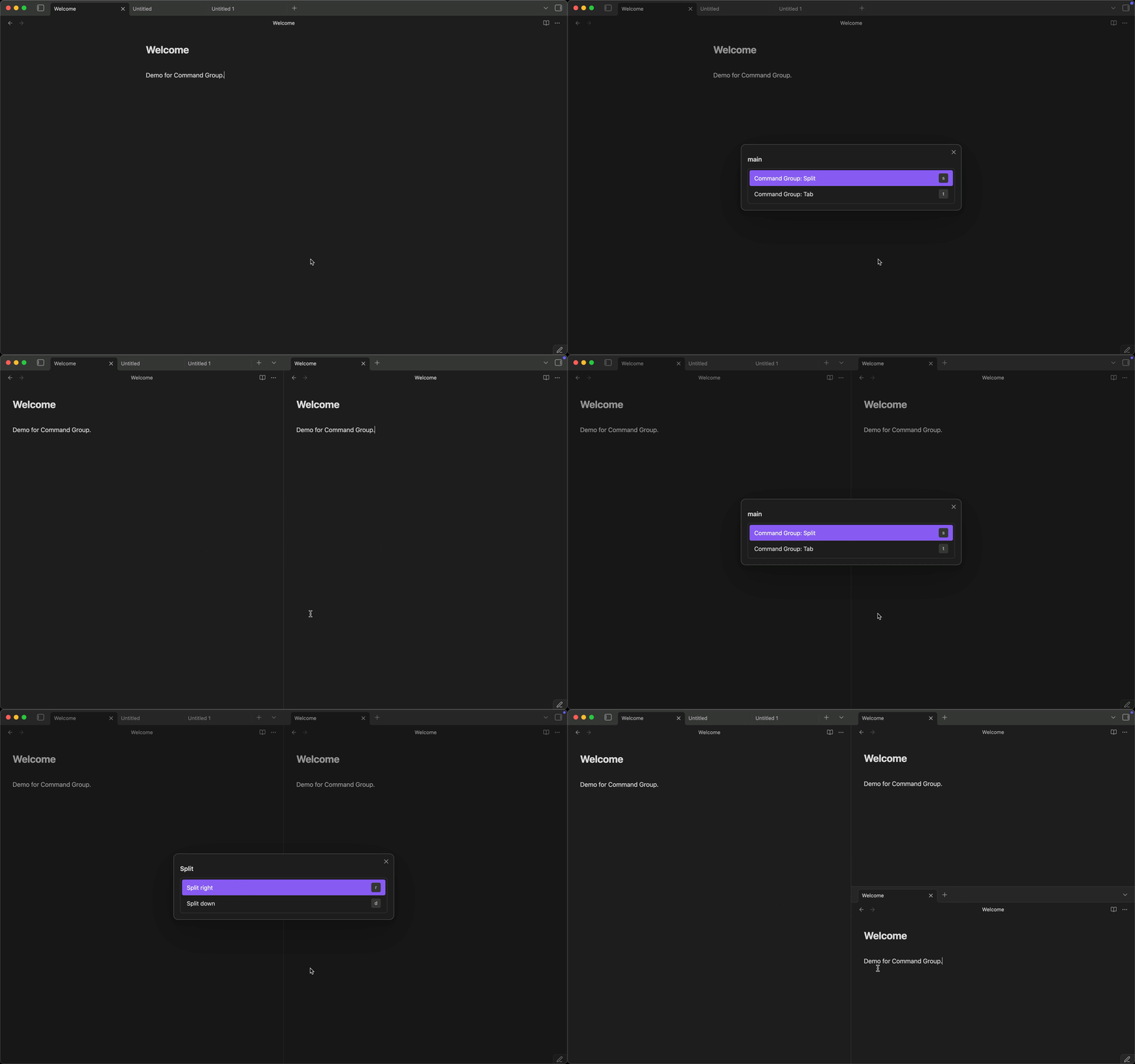
- Vim-style key notation for sequence keys.
- Auto-assigned hotkeys for commands without a sequence key (homerow priority:
a,s,d,f, ...).
🛠️Usage
- Enable community plugins in settings.
- Install via BRAT (Recommended).
- Open Command Group settings tab.
- Create a new group or edit an existing group.
- Add commands to the group.
⌨️Key Notation Guide
📌Basic Notation
Command Group uses Vim-style key notation for sequence keys. You can use:
- Single characters:
a-z,0-9(case-insensitive for lowercase) - Uppercase letters:
Aor<S-a>(both formats work for Shift+a) - Special keys:
<Space>,<Tab>,<F1>, etc. - Modifiers:
C(Ctrl),S(Shift),A(Alt),M(Meta/Cmd/Win)
⚡️Modifier Keys
| Modifier | Meaning | Example |
|---|---|---|
C |
Ctrl | <C-n> = Ctrl+n |
S |
Shift | <S-a> = Shift+a |
A |
Alt | <A-x> = Alt+x |
M |
Meta | <M-s> = Cmd/Win+s |
You can combine multiple modifiers: <C-S-x> = Ctrl+Shift+x
💎Special Keys
| Notation | Key | Notation | Key |
|---|---|---|---|
<Space> |
Space | <Tab> |
Tab |
<BS> or <Backspace> |
Backspace | <Del> or <Delete> |
Delete |
<Home> |
Home | <End> |
End |
<PageUp> |
Page Up | <PageDown> |
Page Down |
<F1> - <F12> |
Function keys |
📝Examples
| Input | Meaning | Use Case |
|---|---|---|
j |
Just press 'j' | Simple single-key trigger |
A |
Shift+a (uppercase A) | Capital letter |
<S-a> |
Shift+a (Vim-style) | Same as above |
<C-n> |
Ctrl+n | Common shortcut style |
<C-S-x> |
Ctrl+Shift+x | Multi-modifier combination |
<Space> |
Spacebar | Spacebar trigger |
<F1> |
F1 key | Function key |
<M-c> |
Meta/Cmd/Win+c | Platform-specific Meta key |
🤖Auto-assigned Keys
Commands without a sequence key automatically get a key assigned when the selection modal opens. Keys are assigned in homerow-first priority order:
a s d f g h j k l → q w e r t y u i o p → z x c v b n m → 1–9 0
Auto-assigned keys appear as dimmed badges in the modal. User-defined keys always take priority and are never overridden.
🚫Reserved Keys
The following keys are reserved for modal navigation and cannot be used as sequence keys:
- Arrow keys (
ArrowUp,ArrowDown,ArrowLeft,ArrowRight) Enter/Escape
These keys are needed to navigate and close the command selection modal.
💡FAQ
Q: What's the difference between A and <S-a>?
A: Both work identically and produce Shift+a. Use whichever feels more natural.
Q: Can I use lowercase in angle brackets like <c-a>?
A: Yes! Modifier letters are case-insensitive, so <c-a> and <C-a> both work.
Q: Why doesn't my incomplete key like <c work?
A: The validation now runs when you leave the field (on blur), so you can type incomplete sequences. Just make sure the final sequence is complete and valid.
Q: Can I use special characters like *, @, or #?
A: Yes! Single characters (including special characters) work as-is. The plugin detects the actual key you press, so it works regardless of your keyboard layout (US, JIS, etc.). For example, typing * as a sequence key will trigger when you press the key that produces * on your keyboard.
Q: How do I set a hotkey for the entire group? A: Click the Configure Hotkey button (🔑) in the group header, which opens Obsidian's hotkey settings pre-filtered to your group.
Q: What happens if I use a duplicate key in the same group? A: The plugin will show an error and prevent saving duplicate keys within the same group. Each sequence key must be unique within its group.