Color Note
 mikagosz2k downloads
Colour note and folder titles in the file explorer from the right-click menu, using states you define yourself.
- Overview
- Scorecard
- Updates9
Colour note and folder titles in the Obsidian file explorer, from the right-click menu. The colours mean whatever you decide they mean — you define the states yourself, in the settings, without touching CSS.
| Light | Dark |
|---|---|
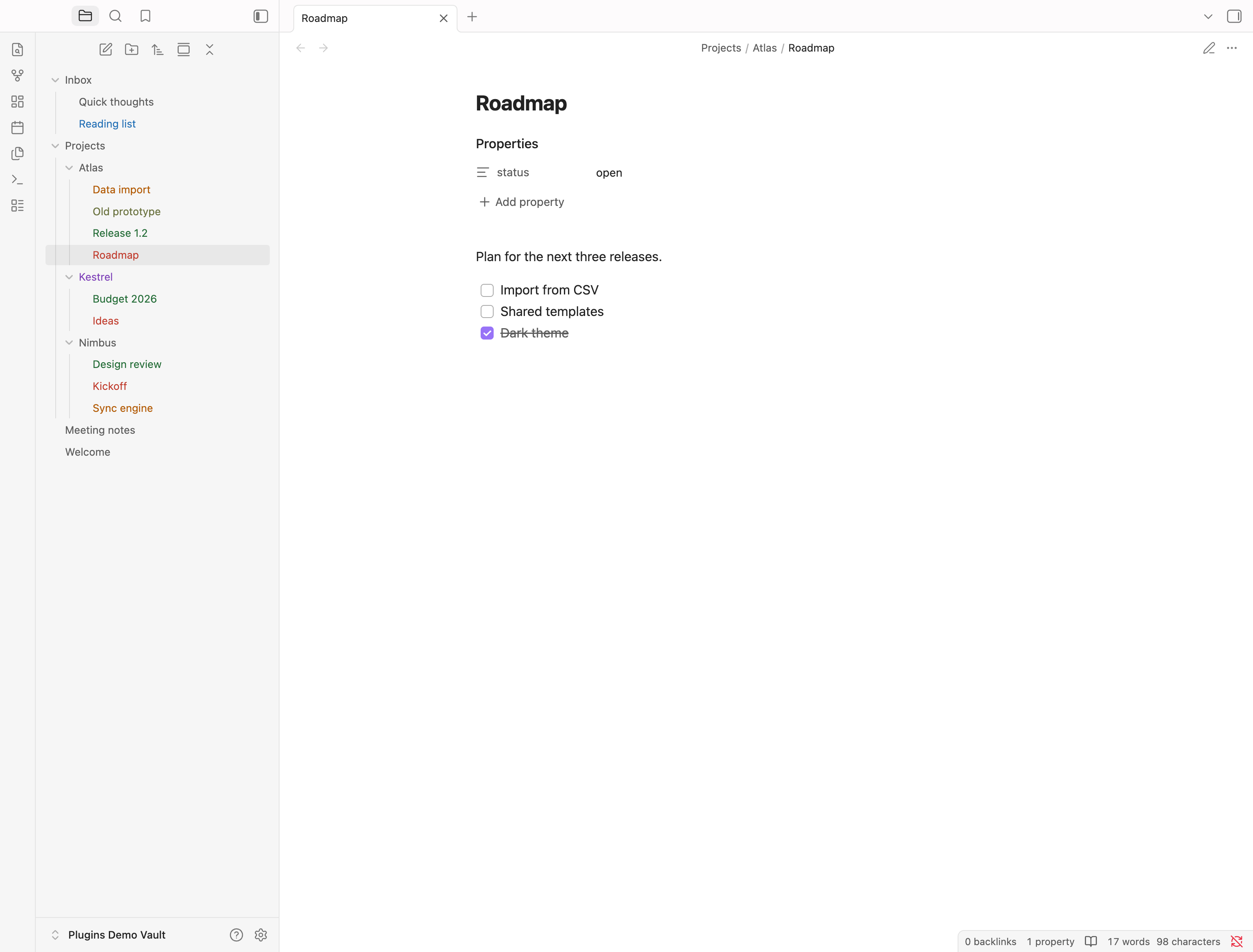 |
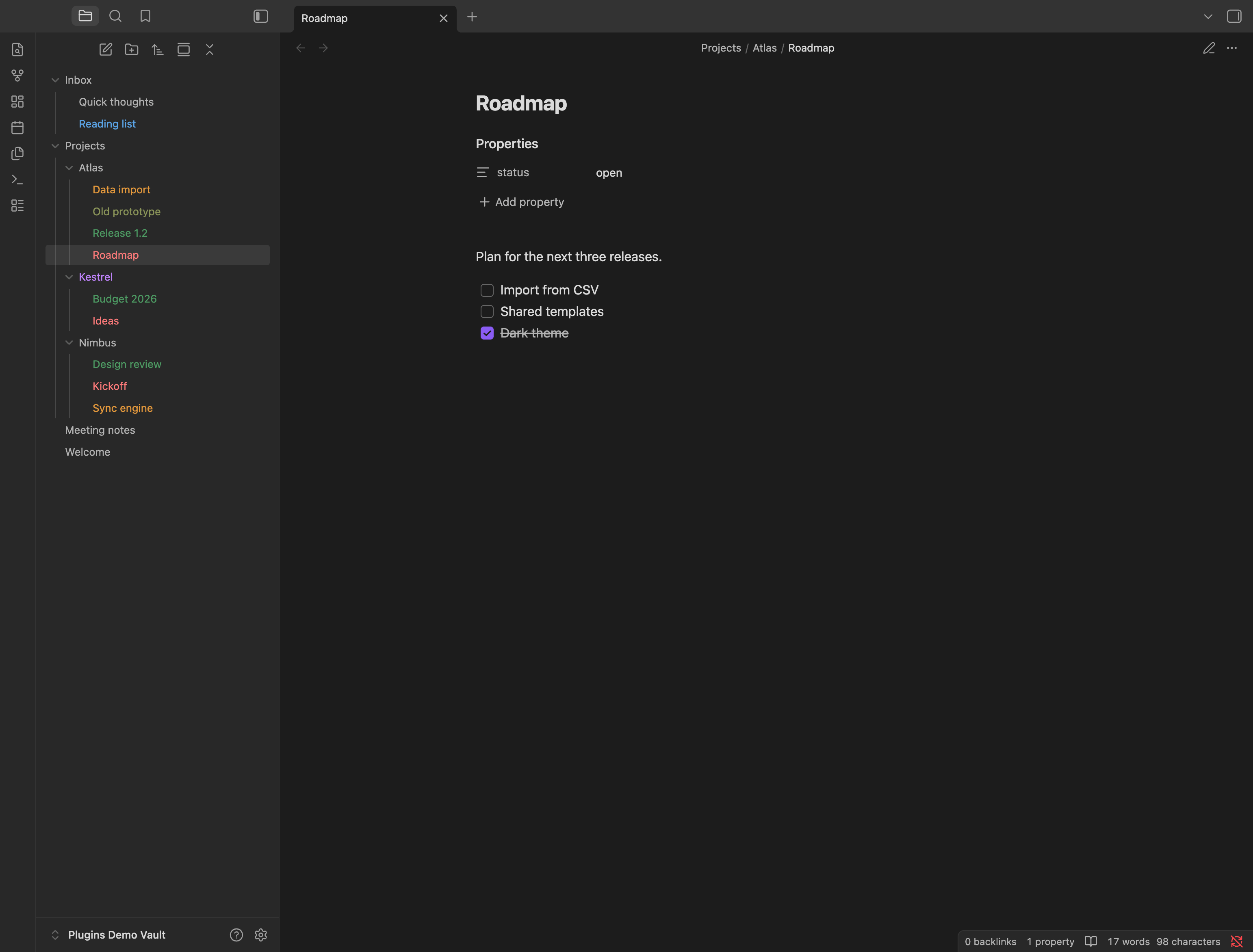 |
Right-click a note or a folder, choose Color note, and pick a state — or any colour from the palette:
| Light | Dark |
|---|---|
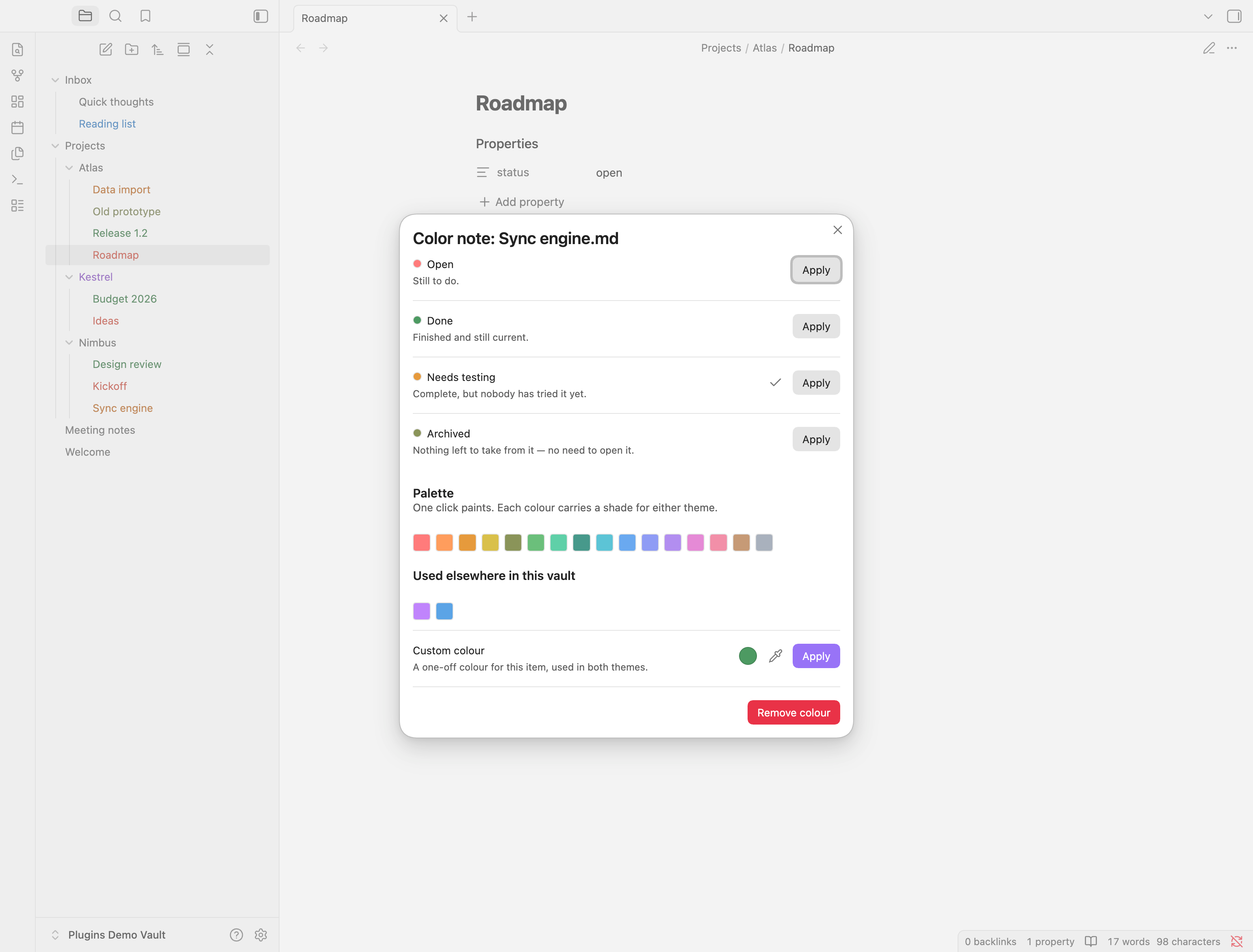 |
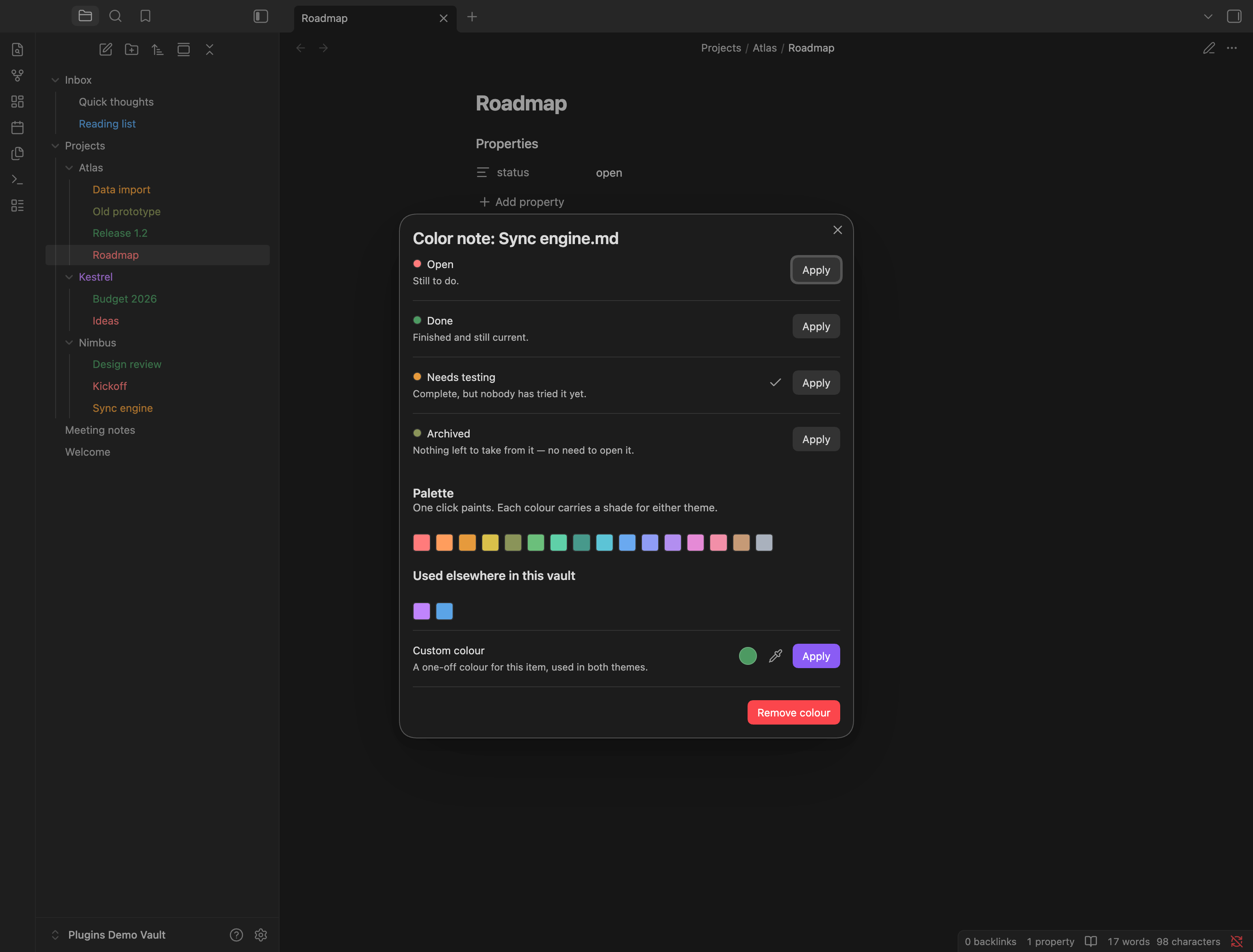 |
A colour that means something
Most colouring plugins give you a palette. This one asks you what the colour is for.
A state is three things: a colour, a value written into the note, and a sentence saying what it stands for. That sentence is the point. Six weeks from now you will open the vault, see an orange title, and know that orange means "finished but nobody has tested it" — because the plugin still holds the sentence you wrote when you invented that state.
A palette alone cannot do that. Colour without meaning decays into decoration: you remember what red meant for about a week, and after that the explorer is just festive.
Because the state is written into the note's front matter, it also outlives the plugin. Other tools can read it, Dataview can query it, and a snippet can style it. Uninstall Color Note and your notes still say what they are.
Why
A file explorer full of grey titles tells you nothing about what is finished and what still needs work. Snippets can colour titles, but every change means editing CSS or front matter by hand, so in practice it stops happening — and a system you have to maintain by hand is a system that quietly stops being true.
What it does
- Right-click a note → Color note. Pick a state and it is written to the
note's front matter as
status: <value>. - Right-click a folder → Color folder. The same states are offered. A folder has no front matter to hold one, so it keeps the state's colour instead — which is what the tree shows either way.
- A palette of squares. Sixteen fixed colours, one click each, every one carrying a shade for the dark theme and one for the light. A slider cannot be hit twice: "that green again" means knowing its hex, and one digit off is a second, almost-identical green in the tree. Under the palette sits every colour the vault is already using, for exactly the same reason.
- Custom colour. For anything the palette does not cover, pick a colour directly — with an eyedropper for taking one off the screen. It applies to that one item and wins over its state.
- Your own states. Settings → Add state: a name, a value, a colour per theme and a sentence explaining what it means. It shows up in the menu immediately.
- Front matter is the source of truth. A state set by hand, by a template or by anything else colours the title just the same.
Four states ship as defaults — open, done, needs-testing and archived — with colours that read on both themes. Rename them, recolour them or delete them; none of them are special to the plugin.
Installing
Settings → Community plugins → Browse, search for Color Note, install and enable it. Updates then arrive on their own.
Installing by hand, for a pre-release build
- Download
main.js,manifest.jsonandstyles.cssfrom the latest release. - Put them in
<your vault>/.obsidian/plugins/color-note/. - Enable Color Note in Settings → Community plugins.
A copy installed this way does not update itself.
How it works
Front matter holds a note's state; the plugin's own data holds custom colours by path. Nothing else is stored, and nothing is written into your notes beyond the one field you chose.
Colouring happens through two custom properties set on the file explorer row, one
per theme, consumed by styles.css. The plugin does not generate a stylesheet —
Obsidian's guidelines forbid plugins from creating style elements, and a rule
per note would not survive the explorer recycling its rows as you scroll.
If a note carries both a state and a custom colour, the custom colour wins: it was picked by hand for that one note, while a state is a rule of thumb.
Renames and deletions inside Obsidian carry custom colours along. A note deleted while Obsidian was closed leaves its colour behind; the command Remove colours of notes and folders that no longer exist clears those. It is not run on its own at start-up on purpose: in a synced vault a note that has not been downloaded yet looks exactly like a deleted one, and its colour would be lost.
Settings
| Setting | What it does |
|---|---|
| Front matter field | Which field a state is written to. status by default. |
| States | Your palette: name, value, meaning, colour per theme. Add, edit, delete. |
| Custom colours | How many items carry a hand-picked colour, and a way to clear them all. |
Development
npm install
npm run dev     # rebuild on change
npm run build   # type-check, test, bundle
npm run lint    # biome
npm run lint:obsidian
Colour resolution is pure and lives in src/resolve.ts, so it is tested without
running Obsidian: npm run check.
Licence
MIT