ClipReader
 chilipeppers3 downloads
Read-it-later reader for Web Clipper articles with reading queue, progress tracking, color highlights, and margin notes.
- Overview
- Scorecard
- Updates2
A Read-it-Later reader and margin-note workspace for Obsidian Web Clipper articles.
Features
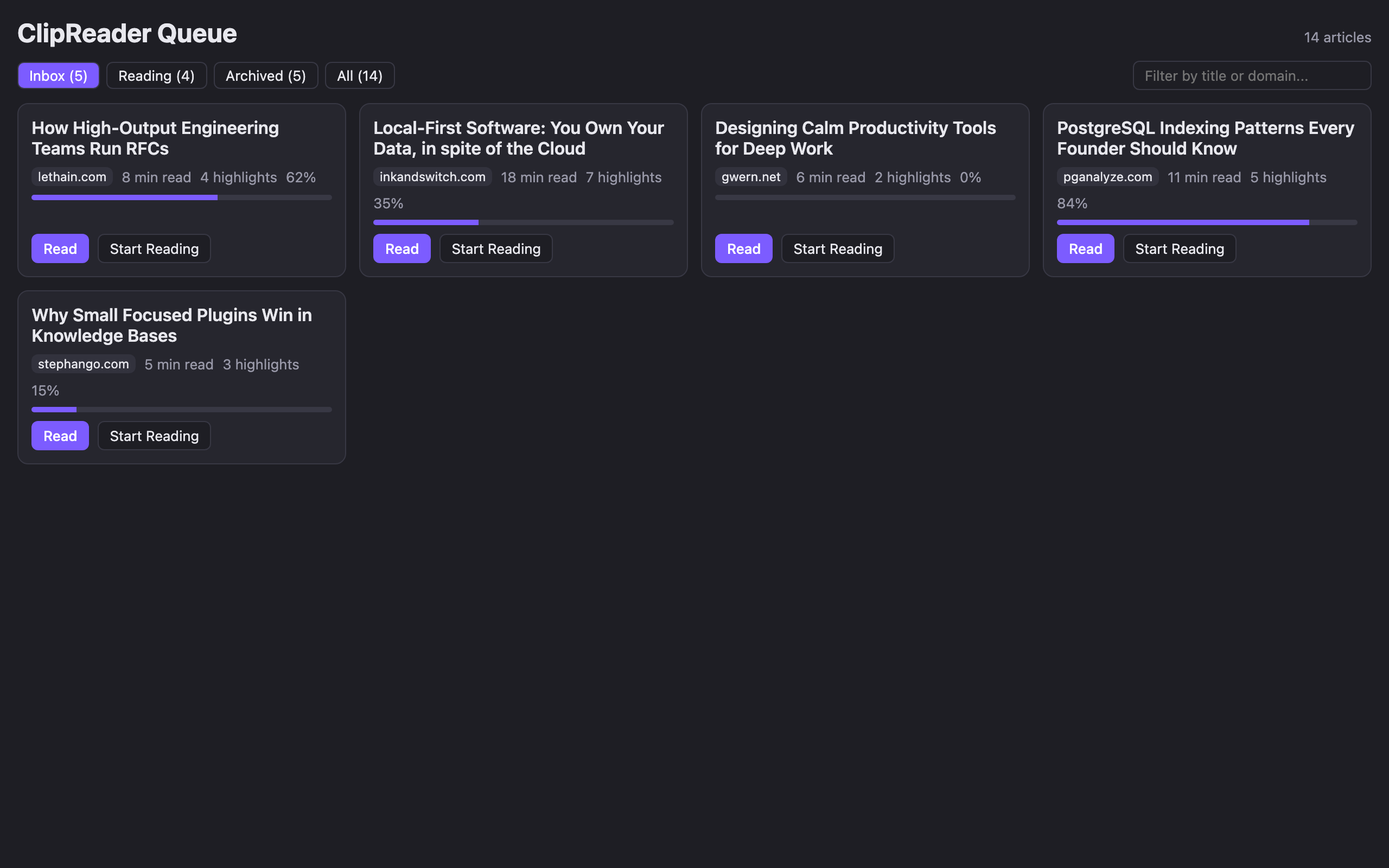
- Reading Queue (
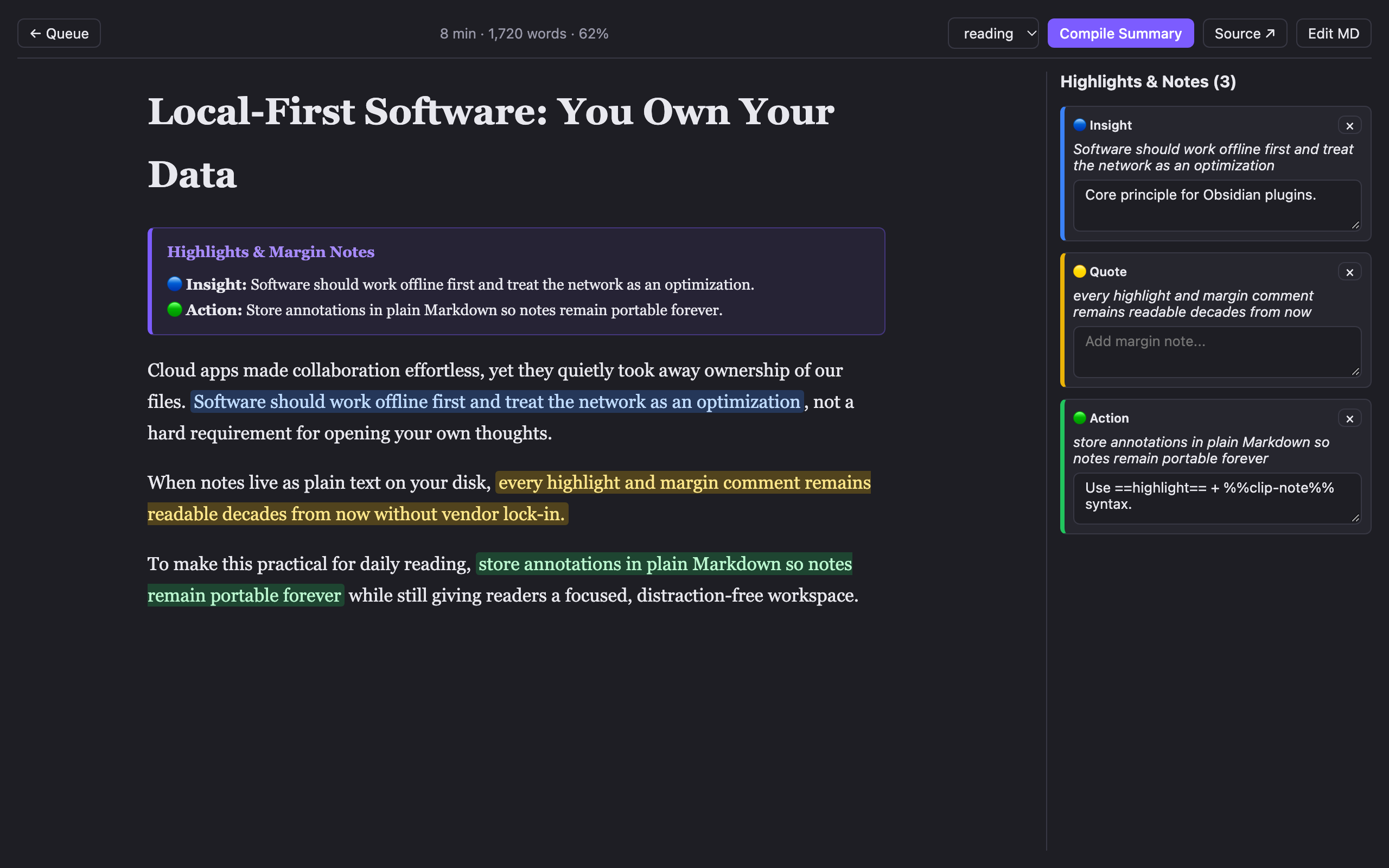
Inbox/Reading/Archived): Automatically collects clipped notes from yourClippings/folder or any note with astatusproperty. - Distraction-Free Reader Mode: Customizable column width, font family (
Serif,Sans,Mono), and font size. - Scroll Progress Tracking: Remembers your reading progress (
reading_progressin frontmatter) and restores your position when you return. - Color Highlights & Margin Notes: Select text in Reader Mode to highlight as Quote, Insight, Action, or Question and attach margin notes stored in clean, portable Markdown (
==text== %%clip-note:[category] note%%). - One-Click Summary Callout: Compiles all highlights and margin notes into a
> [!summary]callout at the top of the note.
Installation
From Obsidian Community Plugins
- Open Settings → Community plugins in Obsidian.
- Disable Restricted Mode if prompted, then click Browse.
- Search for ClipReader, click Install, and then Enable.
Manual Installation
- Download
main.js,manifest.json, andstyles.cssfrom the latest GitHub release. - Copy them into
<your-vault>/.obsidian/plugins/clip-reader/. - Reload community plugins in Obsidian settings and enable ClipReader.
Usage
- Save articles to your
Clippings/folder using Obsidian Web Clipper (or addstatus: inboxto any note's frontmatter). - Click the book icon in the left ribbon (or run Open reading queue from the Command Palette) to view your queue.
- Click Read on any article to open distraction-free Reader Mode. Your scroll position is saved automatically.
- Select any sentence in the article to highlight it as a Quote, Insight, Action, or Question and optionally attach a margin note.
- Click Compile Summary in the reader toolbar to insert or update a
> [!summary]callout with all your highlights and margin notes at the top of the Markdown file.
Commands
Open reading queueOpen current note in readerCompile highlights & margin notes summaryMark current note as inbox / reading / archived
Support
If you find ClipReader useful, you can support development on Patreon.
HealthExcellent
ReviewPassed
About
Manage a Read-It-Later queue that auto-collects Web Clipper articles into Inbox, Reading, and Archived. Read in a distraction-free mode with adjustable column width, font family and size, and resume reading with saved scroll progress. Highlight text with color-coded categories, attach margin notes as portable Markdown, and compile all highlights into a one-click summary callout.Details
Current version
1.0.1
Last updated
4 hours ago
Created
6 hours ago
Updates
2 releases
Downloads
3
Compatible with
Obsidian 1.9.0+
Platforms
Desktop, Mobile
License
MIT
Sponsor