Citekey Import Bridge
 Yuxuan Qi30 downloads
Receive citekeys, run Zotero Integration imports, and open the imported note.
- Overview
- Scorecard
- Updates6
Part of Zotero Obsidian Bridge. 中文说明
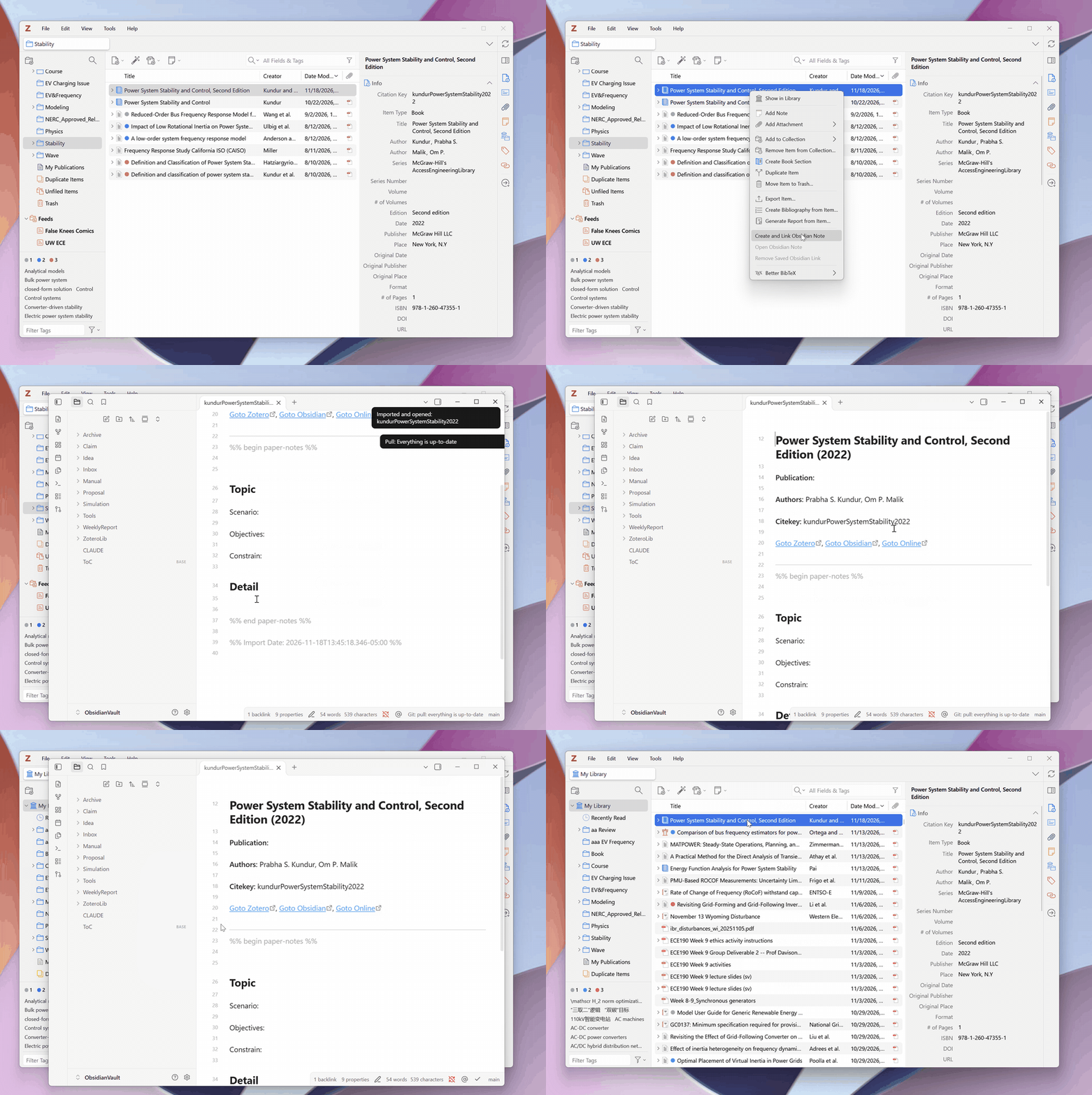
Right-click a paper in Zotero, and Obsidian creates a literature note for it and opens it in a new tab. Later, one more right-click in Zotero takes you back to that note.
What it solves
If you manage papers in Zotero and take notes in Obsidian, the usual routine is: switch to Obsidian, open the command palette, run Zotero Integration, and search again for the paper you were just looking at in Zotero. To get from Zotero back to the note later, you have to go find it in Obsidian.
This project turns all of that into one right-click in Zotero:
| Context menu | What it does |
|---|---|
| Create and Link Obsidian Note | Creates the note in Obsidian, opens it, and saves the note link on the Zotero item |
| Open Obsidian Note | Opens the linked note in a new Obsidian tab |
| Remove Saved Obsidian Link | Removes only the link saved in Zotero, not the note. Use it to re-link |
While reading in the PDF reader you don't need to go back to the library: right-click the reader tab or the PDF page to open or create the note for that paper.
The project has two small plugins that work together: one for Zotero (Zotero Citekey Bridge) and one for Obsidian (Citekey Import Bridge).
What you need
- Zotero 7 or later
- Obsidian desktop (Windows / macOS / Linux; the mobile app is not supported)
- About 20 minutes
You will also install two existing plugins: Better BibTeX for Zotero and Zotero Integration for Obsidian. The steps below cover both.
Quick start
Everything below uses the default names. Don't rename anything on your first setup. Get it working first, then change names as described in Customization.
| Name | Default |
|---|---|
| Obsidian vault name | ObsidianVault |
| Literature note folder | ZoteroLib |
| Import format name | Paper Note |
For screenshots and details of every step, see the Install guide.
Zotero: install Better BibTeX. It gives every item a unique citekey, such as
smithDeepLearning2024. You should see: when you select an item in Zotero, the item pane on the right showsCitation Key.Obsidian: create a vault named
ObsidianVaultwith a folderZoteroLibin it. You should see:ObsidianVaultat the bottom left of Obsidian, andZoteroLibin the file list.Obsidian: install and enable Zotero Integration. Settings → Community plugins → Turn on community plugins → Browse, then search for
Zotero Integration.Obsidian: add the note template and create the import format
Paper Note. Copy this project's template into your vault, then add an Import Format in the Zotero Integration settings:- Name:
Paper Note - Output Path:
ZoteroLib/{{citekey}}.md - Template File: the template you just copied
You should see: press
Ctrl+P(Cmd+Pon macOS), runZotero Integration: Paper Note, pick a paper, and a new note appears inZoteroLib. If this step fails, nothing after it will work.- Name:
Obsidian: install Citekey Import Bridge. Download
citekey-import-bridge-<version>.zipfrom Releases, extract it toObsidianVault/.obsidian/plugins/citekey-import-bridge/, and enable it under Community plugins.Zotero: install Zotero Citekey Bridge. Download
zotero-citekey-bridge-<version>.xpifrom Releases. In Zotero, go to Tools → Plugins → gear icon → Install Plugin From File and pick it. You should see:Citekey Bridgein the left sidebar of Zotero's Settings window.Try it. Keep both Zotero and Obsidian open. In Zotero, right-click a paper → Create and Link Obsidian Note. You should see: Obsidian comes to the front and opens the paper's note in a new tab, and the item's
Extrafield in Zotero gains a lineObsidian Link: ....
Everyday use
- Starting a new paper: right-click → Create and Link Obsidian Note.
- Going back to the note: right-click → Open Obsidian Note. The note template also has a
Goto Zoterolink to jump from the note back to Zotero. - Taking notes while reading the PDF: right-click the reader tab or the PDF page. Linked papers show "Open Obsidian Note"; unlinked papers show "Create and Link Obsidian Note". The tab menu needs Zotero 8 or later; the PDF page menu works from Zotero 7.
- Regenerating a note: right-click → Remove Saved Obsidian Link, then create again. Anything you wrote inside the template's
persistblock is kept; see the Template guide.
In the item list, the menu works only when exactly one regular item is selected. With an attachment, a standalone note, or several items selected, the menu is greyed out. For items not linked yet, "Open" and "Remove" are greyed out too.
In the reader, the note belongs to the PDF's parent item. A standalone PDF with no parent item shows no menu. "Remove Saved Obsidian Link" is only in the item list's context menu.
Troubleshooting
The three most common causes:
- Zotero isn't running. Obsidian reads data from Zotero during the import, so Zotero must be open.
- The names don't match. The vault name, folder, and import format name in the Zotero settings must exactly match Obsidian, including case and spaces.
- Step 4 didn't work. First make sure running
Zotero Integration: Paper Notemanually in Obsidian creates a note.
For everything else, see Troubleshooting.
More docs
- Install guide: every step in detail
- Customization: change the vault name, folder, import format name, or template
- Troubleshooting: find the cause by symptom
- Template guide: what each part of the template does
- Developer docs (Chinese): how it works, the URL interface, packaging and releases
For developers
The two plugins share one version number and are released together. Their sources are in plugins/zotero/ and plugins/obsidian/.
make release VERSION=0.3.0
# without make:
node scripts/release.mjs --version 0.3.0
This syncs the version into every manifest and writes the Zotero .xpi and zotero-updates.json, plus the Obsidian main.js, manifest.json, versions.json, and a zip, to release/<version>/. Pushing a tag such as 0.3.0 (no v prefix) makes GitHub Actions build and publish the release. See the developer docs for the full release steps.
Notes:
- The Obsidian plugin ID is
citekey-import-bridge. Obsidian's community-plugin rules don't allow the wordobsidianin plugin IDs. - Citekey Import Bridge calls Zotero Integration's
runImport(). It works well for this workflow but is not a formally stable public API, so a future Zotero Integration update may need a small compatibility fix. - The Zotero plugin supports Zotero 7 through 10. The reader-tab menu uses
Zotero.MenuManager, which Zotero 8 introduced, and is skipped on Zotero 7.
License
MIT