Canvas Cover Overlay
 llaori11k downloads
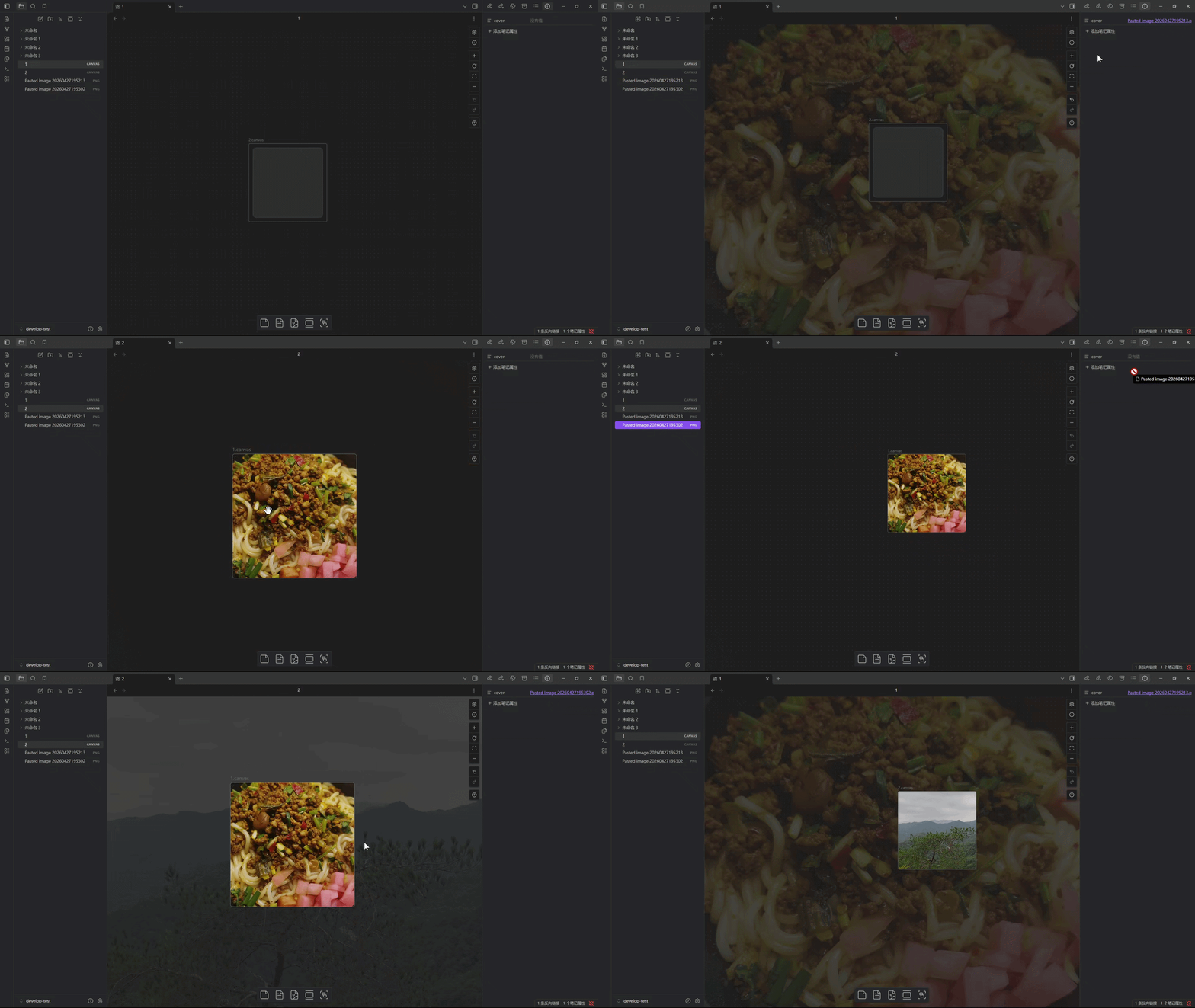
Customize each canvas with its own embedded canvas thumbnail and canvas view background.
- Overview
- Scorecard
- Updates3
Canvas Cover Overlay is an Obsidian plugin that enhances .canvas embeds.
It lets you customize each canvas with its own embedded canvas thumbnail and canvas view background.
中文说明文档: README.zh-CN.md
What it does
- Only affects file nodes that point to
.canvasfiles. - Supports per-canvas cover configuration through frontmatter metadata.
- Reads cover path from
metadata.frontmatterof the target.canvasfile. - Keeps original behavior by adding an overlay layer (
pointer-events: none) instead of replacing native rendering. - Uses internal
embedRegistryhook wrapping for.canvasembed creators.
Requirements
- Obsidian
- Advanced Canvas plugin (required dependency)
- Desktop app (mobile is not supported)
This plugin is an extension built on top of Advanced Canvas. Install and enable Advanced Canvas before using Canvas Cover Overlay.
If embedRegistry is unavailable in your Obsidian build, the plugin stays idle.
Cover metadata format
Use the canvas Properties panel to configure cover fields. The plugin reads those values from the target canvas frontmatter.
You can still inspect the underlying JSON structure (reference only):
{
    "metadata": {
        "version": "1.0-1.0",
        "frontmatter": {
            "cover": "assets/canvas-cover.png"
        }
    },
    "nodes": [],
    "edges": []
}
Settings
Enable overlay: master switch.Embed cover key: frontmatter key for embedded canvas thumbnails, default iscover.Canvas background key: frontmatter key for canvas view backgrounds, default iscover.Overlay opacity: transparency of the cover layer.Debug mode: console logs.
Detailed usage
1) Install and enable
- Install and enable Advanced Canvas.
- Install and enable Canvas Cover Overlay.
- Open plugin settings and confirm
Enable overlayandEnable canvas backgroundare configured as needed.
2) Configure cover fields from canvas Properties (recommended)
- Open the target
.canvasfile. - Open the Properties panel.
- Add or edit fields. The default key is
cover. - Save the canvas. Embedded thumbnails and canvas backgrounds will update from these fields.
Simple setup (same field for thumbnail and background):
- Field name:
cover - Field value:
assets/canvas-cover.png
Underlying JSON looks like this (for reference only):
{
    "metadata": {
        "version": "1.0-1.0",
        "frontmatter": {
            "cover": "assets/canvas-cover.png"
        }
    },
    "nodes": [],
    "edges": []
}
3) Use different keys for thumbnail and background
If you want different images:
- In plugin settings, set:
Embed cover key(for embedded thumbnails), for exampleembedCoverCanvas background key(for canvas view background), for examplebgCover
- In the target canvas Properties panel, add matching fields:
embedCover: assets/embed-thumb.pngbgCover: assets/background.png
Underlying JSON (reference only):
{
    "metadata": {
        "version": "1.0-1.0",
        "frontmatter": {
            "embedCover": "assets/embed-thumb.png",
            "bgCover": "assets/background.png"
        }
    },
    "nodes": [],
    "edges": []
}
4) Path recommendations
- Prefer vault-relative paths or wiki links.
- Only
httpsis supported for network images. - Local absolute paths are not supported (for example
C:\\...orfile:///...).
5) Refresh and debugging
- After changing fields, run
Reload embed cover hooksto refresh immediately. - If it does not update, enable
Debug modeand check Developer Console logs. - Check these items first:
- Key names match plugin settings.
- Image paths exist.
- Files are inside the vault.
Commands
Reload embed cover hooks: re-registers the.canvasembed hook.
Build
npm install
npm run dev
Production build:
npm run build
Limitations
- The plugin uses internal Obsidian API (
embedRegistry). Future Obsidian updates can break the hook path. - If internal API changes, the plugin will disable cover enhancement and keep native embedding behavior.