Footnotes in Callouts and Tables
 theluckystrike2 downloads
Shows footnote references as numbered links inside callouts and table cells in Live Preview, with a hover preview and a jump to the definition.
- Overview
- Scorecard
- Updates1
Footnotes in Callouts and Tables fixes a gap in Live Preview. When you write a footnote reference inside a callout or a table cell, Obsidian shows it as a bare number or word. You cannot click it, and you cannot read the definition without scrolling. This plugin turns each of those references into a numbered link, like the footnote links that Obsidian draws in a normal paragraph. Hover over the link to read the definition. Click it to go to the definition.
Three forum requests ask for this fix, with 72 votes together, and they are still open. The footnote plugins in the directory help you insert or tidy footnotes. None of them draws a reference inside a callout or a table cell.
Features
Numbered links in callouts
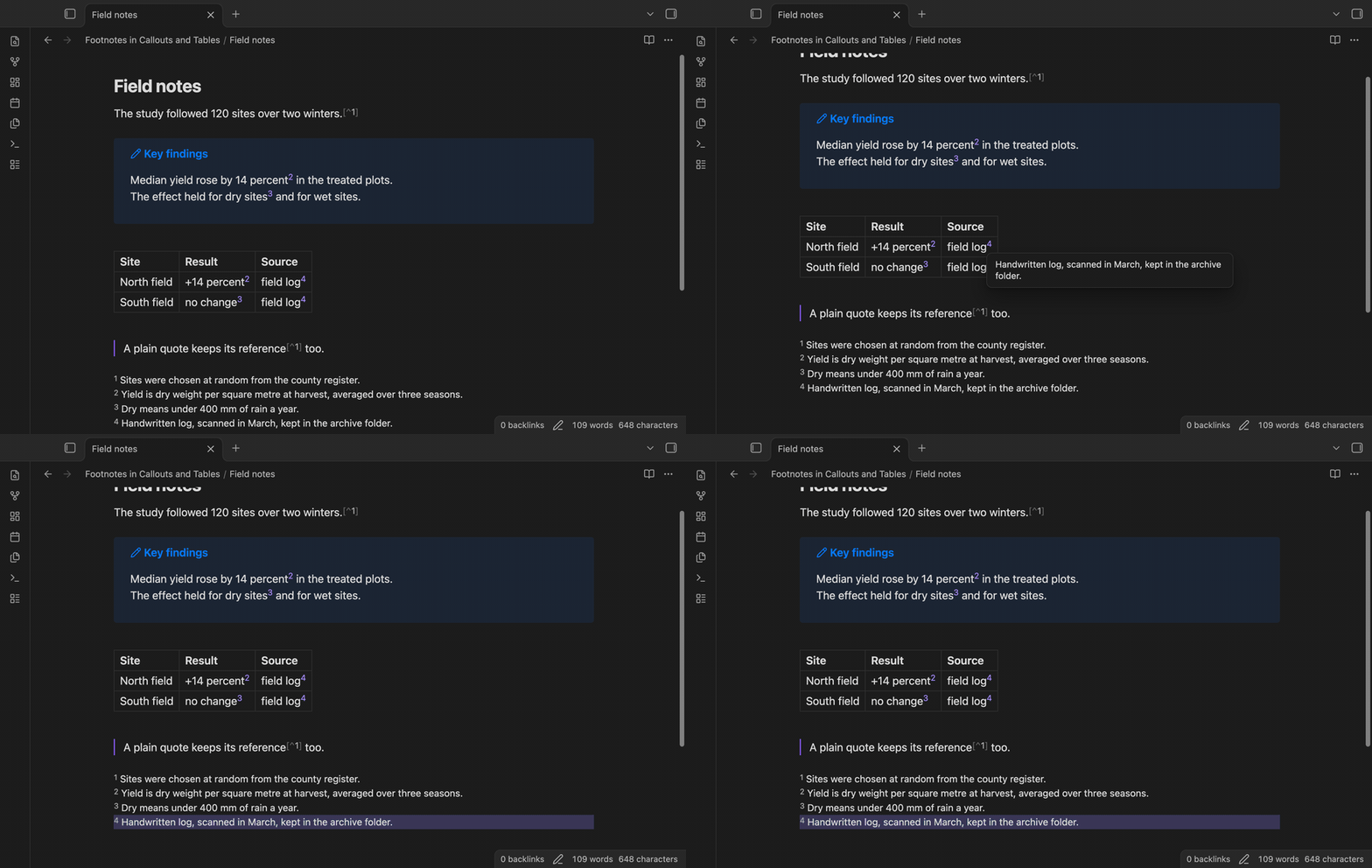
Write a footnote the usual way, with a label such as [^2] in the callout text and the definition anywhere in the note. Without the plugin, Live Preview shows the label as plain text next to the word.
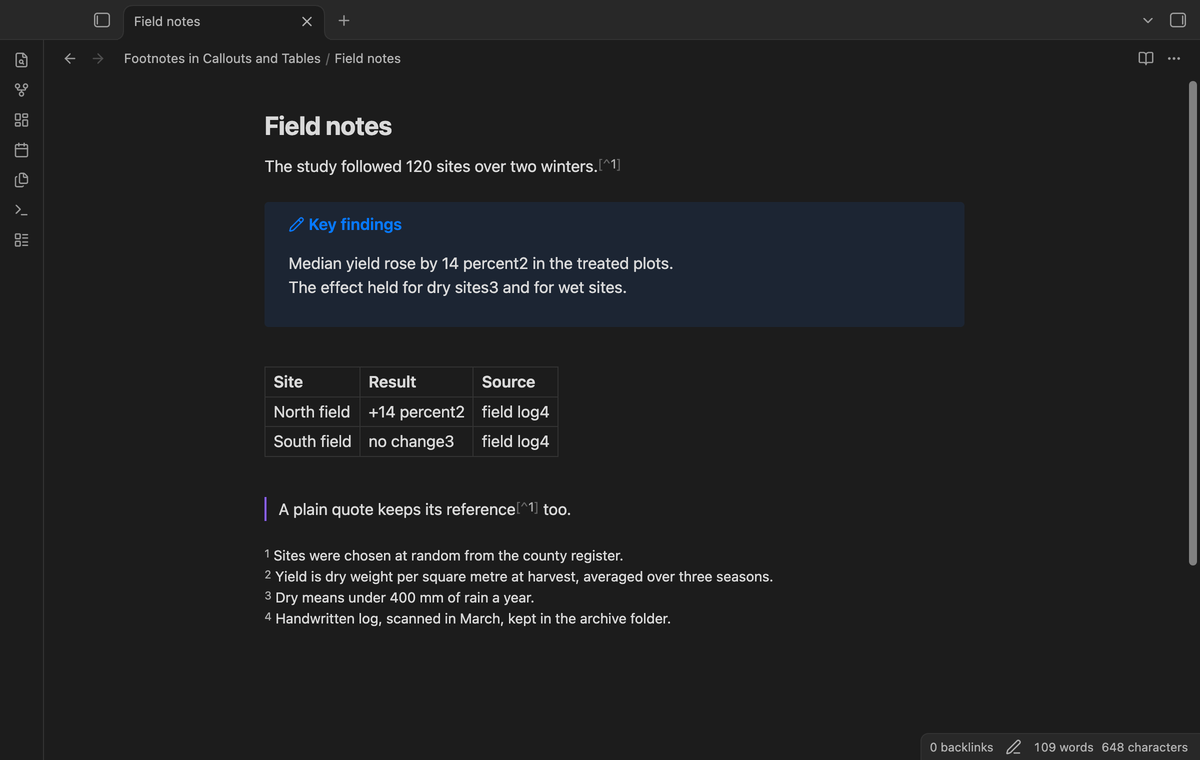
With the plugin, the same text shows a raised number that you can click. The number follows the order of first use in the note, the same order that the reading view uses. A reference that has no definition keeps the id that you typed.
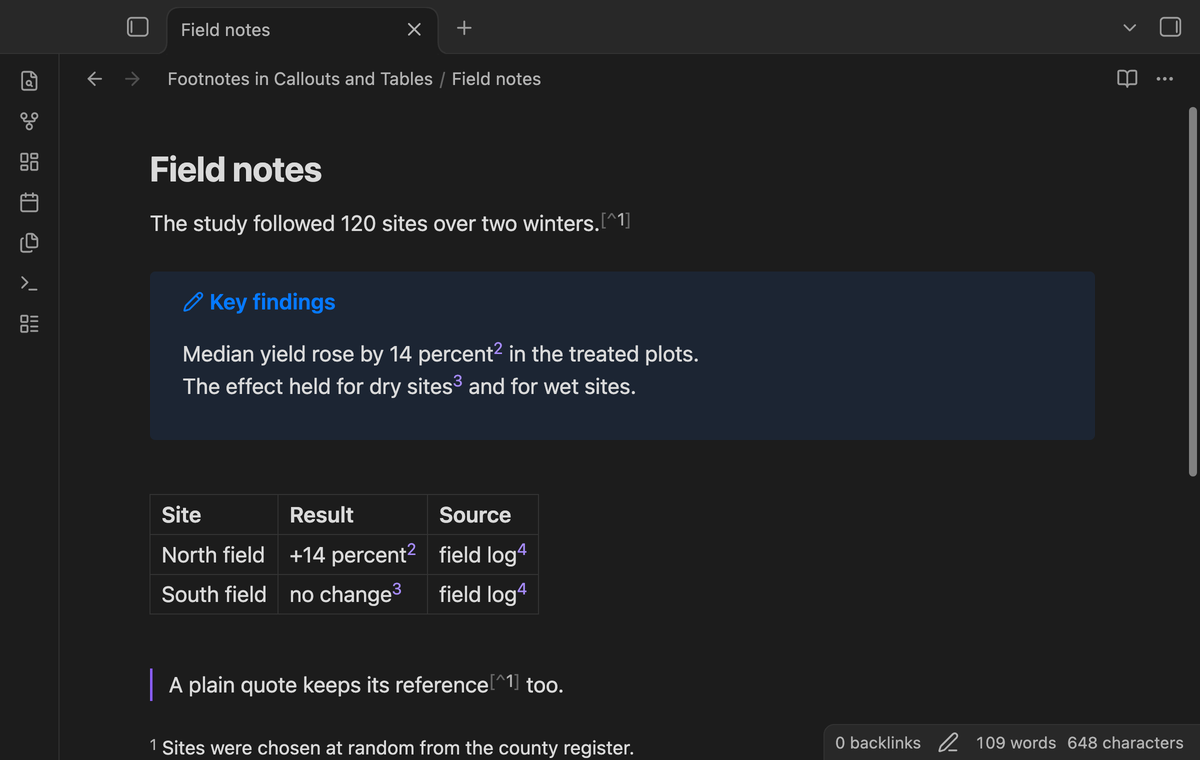
Links in table cells
A reference in a table cell becomes a link too, in the header row and in the body rows. A click on the link does not start editing the cell. A click on the cell text still does, and the links come back when you leave the cell.
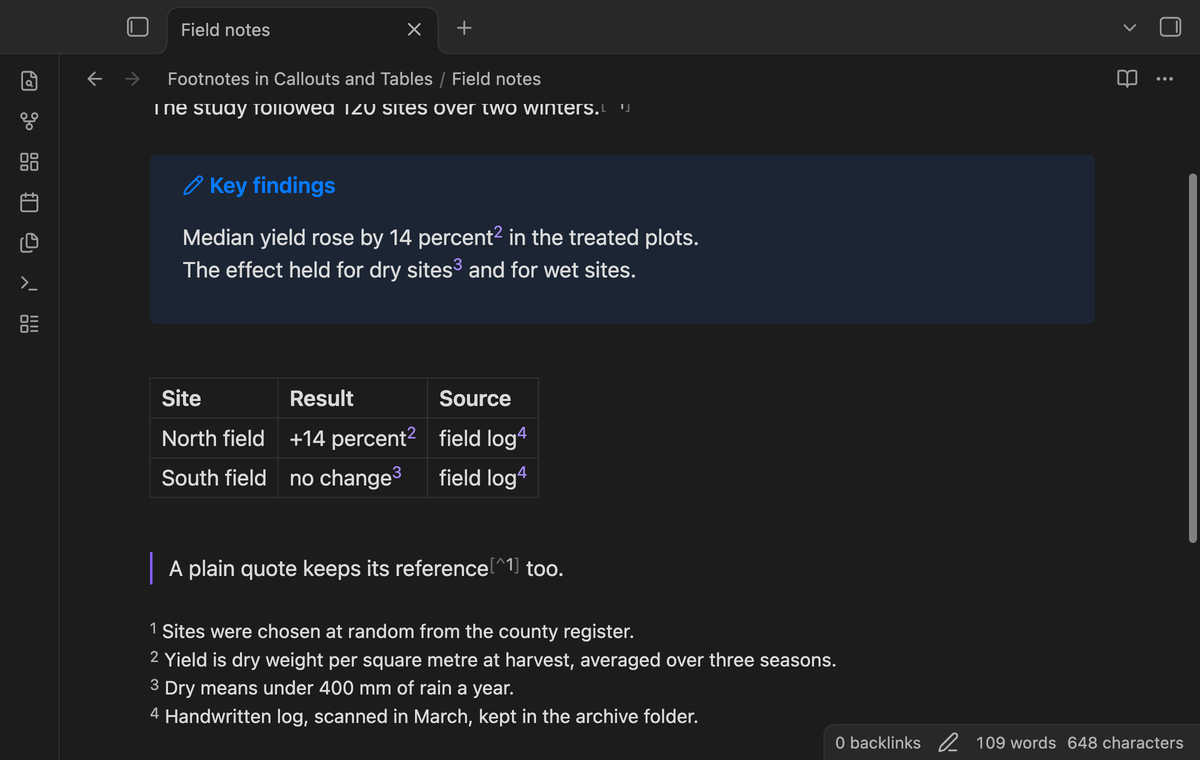
Hover preview
Rest the pointer on a link to see the text of the definition in a small popup. The popup shows Markdown, so links and bold text in the definition look as they do in the note.
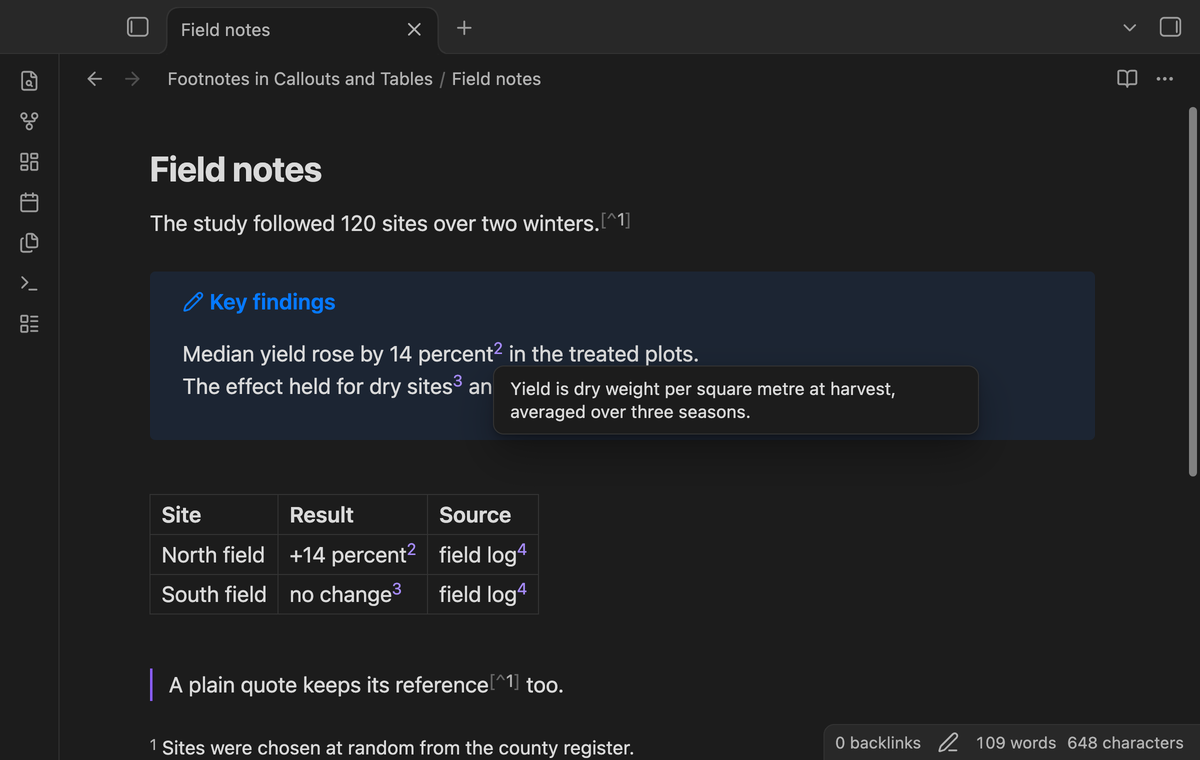
Click to go to the definition
A click on a link moves the cursor to the definition and scrolls to it. The line of the definition shows a colour for a moment, so you can see where you are. The plugin stops the press on the link, so a table does not start to edit the cell. The links also work with the keyboard: Tab to a link, then press Enter.
Footnote panel (Pro)
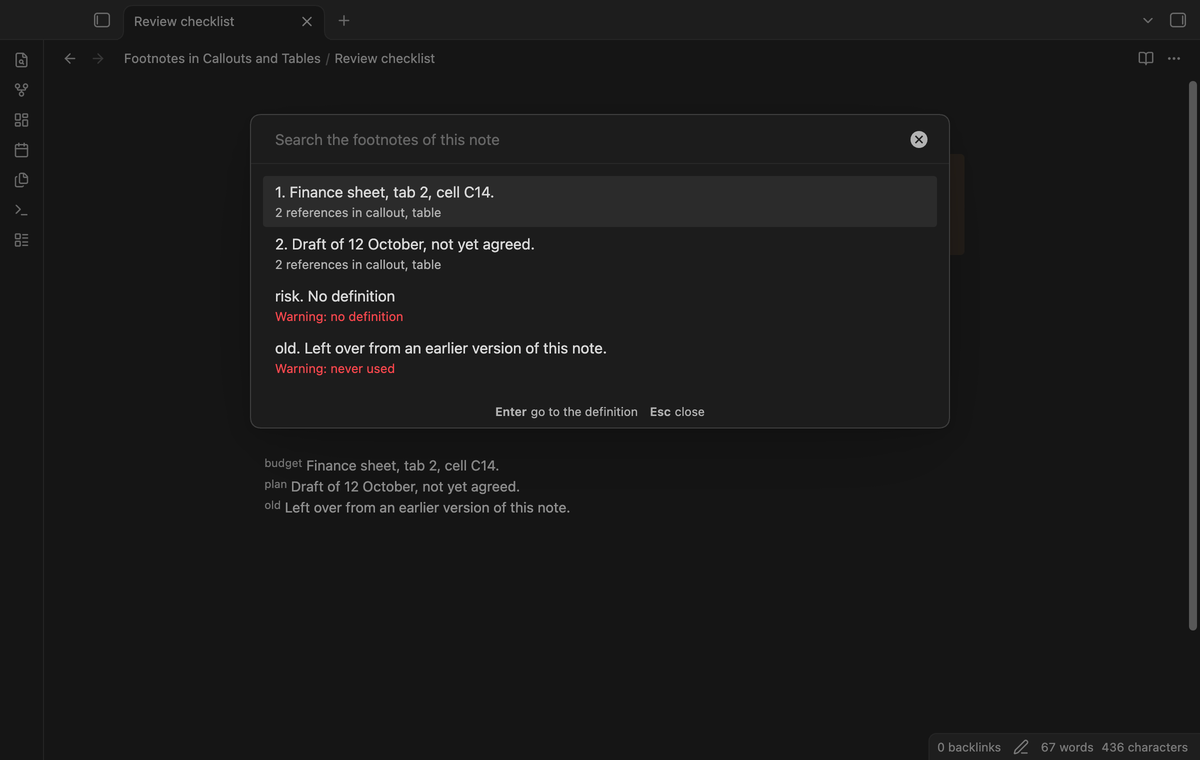
The command "Show the footnotes of this note" opens a searchable list of all the footnotes. Each row shows the number, the definition, how many references the footnote has and where they are: body, callout, quote or table. Press Enter on a row to go to its definition. A footnote that has no definition, or that no reference uses, shows a warning line.
Warnings for unused and missing footnotes (Pro)
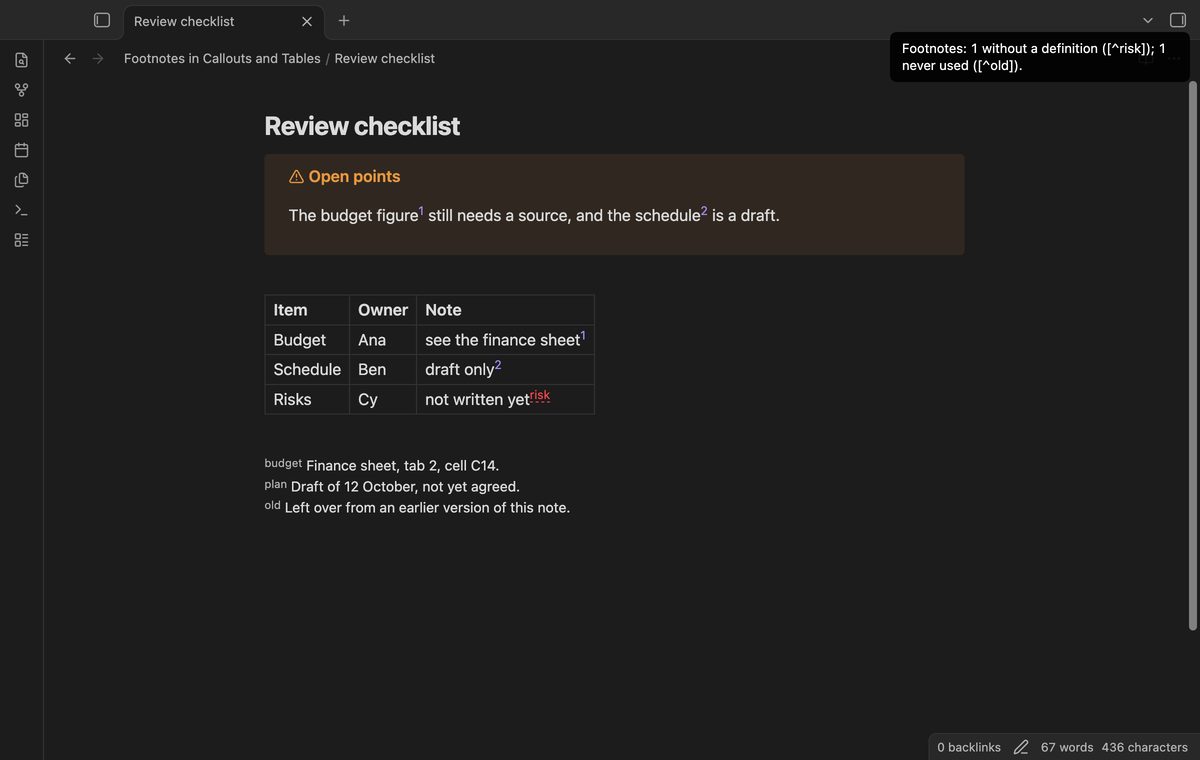
With Pro, a reference that has no definition shows in red with a wavy underline, in callouts and in table cells. The command "Check for unused and missing footnotes" shows one notice that names each one, for example Footnotes: 1 without a definition ([^risk]); 1 never used ([^old]). The command "Go from a footnote definition to its reference" moves the cursor from a definition line to the first reference. If the cursor is not on a definition, it goes back to the place where you last clicked a reference.
Install
- Open "Settings → Community plugins" and turn off restricted mode.
- Select "Browse", search for "Footnotes in Callouts and Tables", then select "Install" and "Enable".
To install by hand, copy main.js, manifest.json and styles.css from the latest release into <vault>/.obsidian/plugins/callout-table-footnotes/. Then enable the plugin. You need Obsidian 1.13.4 or later.
Usage
There is nothing to set up. Open a note in Live Preview with a footnote reference in a callout or a table, and the links show.
- Write the reference as
[^label]and the definition as[^label]: texton its own line, anywhere in the note. - Rest the pointer on a link to read the definition.
- Click a link to go to the definition.
A definition can run over several lines if you indent the next lines by two spaces or more. A reference inside inline code, inside a code block, in the front matter, or after a backslash is not a reference. Reading view already draws footnotes in callouts and tables, so the plugin does nothing there.
How it works
Live Preview draws a callout and a table as a widget, and in the widget Obsidian replaces [^2] with its bare label 2. The plugin uses two public hooks: an editor extension that gives it each editor, and a Markdown post processor that tells it when a callout or a table cell has been drawn. It reads the source text of that callout or cell and finds each label by the letters and digits before it. It then swaps the label for a link. When the text before a label does not match the source, the widget stays as Obsidian drew it. The plugin does not patch Obsidian code.
Settings
| Setting | What it does |
|---|---|
| Show numbers | Shows each reference as its number. Turn it off to show the label that you typed. |
| Hover preview | Shows the definition in a popup. |
| Hover delay | Milliseconds to wait before the popup shows, from 0 to 2000. |
The settings tab also has the Pro section: sign in with GitHub, the status line and Refresh.
Pro
The free version has the numbered links in callouts and tables, the hover preview and the jump to the definition. Pro adds the footnote panel, the way back from a definition to its reference, the red warning for a reference without a definition, and the check for unused and missing footnotes. To get it:
- Sponsor theluckystrike on GitHub Sponsors with $5 a month, or $15 once. When you have paid $15 in total, Pro stays on.
- In Obsidian, open the settings of Footnotes in Callouts and Tables and select "Sign in with GitHub".
- The plugin copies a code and opens github.com/login/device. Paste the code there and approve.
If you sponsor after you sign in, select Refresh. If a monthly sponsorship ends before you have paid $15 in total, Pro turns off at the next check, within 7 days.
FAQ
Does it change my notes?
No. The plugin reads the text of the note to find the references and the definitions. It never writes to a note.
Does it work with named labels like [^source]?
Yes. The label can hold letters, digits, hyphens and _. The link shows the number. Turn off "Show numbers" to show the label.
Why does a reference in a normal paragraph still show as [^1]?
Live Preview draws it that way, and the plugin leaves it. The plugin only changes bare labels.
Which footnotes does it not handle?
Inline footnotes such as ^[text], and footnotes in embedded notes. A label that has no letter and no digit, such as [^-], also stays as drawn.
How is this different from the Footnote Shortcut plugin?
Footnote Shortcut and Tidy Footnotes help you write and tidy footnotes. This plugin changes how references look and work inside callouts and tables.
Payment, account and network
The core features are free and stay free. Pro features need a GitHub Sponsors sponsorship of theluckystrike: $5 a month or more, or $15 once. When you have paid $15 in total, Pro stays on. Your notes stay readable and editable with or without Pro.
GitHub handles the payment. Sponsor at https://github.com/sponsors/theluckystrike. You need no account for the free features. Pro needs the GitHub account that sponsors.
Until you select "Sign in with GitHub" in the settings, Footnotes in Callouts and Tables makes no network requests. Sign in uses the GitHub device flow. Footnotes in Callouts and Tables sends its public client ID and the scope read:user to https://github.com/login/device/code and shows you a code. While you enter the code at https://github.com/login/device, it asks https://github.com/login/oauth/access_token every few seconds whether sign in is done. The scope read:user is read-only access to your profile, which GitHub needs to show the sponsorship tier. It gives no access to repositories and no write access.
After sign in, Footnotes in Callouts and Tables sends one query to https://api.github.com/graphql: does the signed-in account sponsor theluckystrike, at which tier, and how much it has paid theluckystrike in total. It asks again at most once every 7 days, or when you select Refresh. It sends no note content, file names or other vault data, and it has no telemetry.
Pro keeps working for 14 days without a successful check. The GitHub token stays in the secret storage of Obsidian on this device. It is not written to data.json or other vault files, so it does not sync or reach a git repository. The local storage of this device keeps your GitHub login, the tier and the time of the last check. Sign out deletes the token. You can also revoke the access in your GitHub settings, under Applications.
Support
Report bugs and ask for features in the GitHub issues of this repository. Add your Obsidian version and a small sample note.